RSS

Author Archives: Liz Dexter

Unknown's avatar

About Liz Dexter

Book blog is at http://www.librofulltime.wordpress.com Writer, proofreader, editor, transcriber. Also runner, gym-goer, volunteer and BookCrosser! My married name is Liz Dexter but my maiden name and the name on the books I write is Liz Broomfield.

Working with an editor 2: How do I negotiate with an editor or proofreader and book my project in? #amwriting

Working with an editor 2: How do I negotiate with an editor or proofreader and book my project in? #amwriting

This article follows on from Working with an editor 1: How do I request a quote?, where I explained what an editor needs from a prospective client in order to give them a price and turnaround quotation. Now we’re going to look at where you go from there – what will the editor/proofreader send you, is it OK to ask for a sample edit, and how to proceed with negotiating and then – hopefully – booking an editor.

What does a quote from an editor include?

Your editor will usually quote you a price and a turnaround time. I work in a price per 1,000 words (different people do different things: I like my clients to know up front how much they’re going to pay) and will tell the prospect how much time I’ll take to do their work and when I can slot it into my schedule. So I might say something like “I can take on this project for £7.50 per 1,000 words, I’ll need 2 weeks to do the work and I would be able to start it on 1 May”.

Be assured that a good editor will have thought very carefully about the pricing before they send it to you. I try to be as fair as I can to myself and the author, basing my price on the amount of work that the edit will involve. This is why most editors and proofreaders will offer a “from” price on their website if they have a price at all, as that’s a guide to the least it will cost (for something involving a very minimal amount of editing). Some editors offer discounts for students or self-publishers, so make sure you’ve explained if you’re one of those categories.

How to negotiate with an editor

In my opinion, the negotiations should be about dates and turnaround times, and about what you want your editor to do, not about price. I don’t offer a high price so that I can be beaten down to my “real” price, and I don’t know anyone who does.

The price an editor offers you reflects …

  1. Their experience and training
  2. Their knowledge of your subject area or genre
  3. Their knowledge of English grammar, sentence structure
  4. Their ability to help you to express yourself in the best way possible, while retaining your unique voice and writing style
  5. Their knowledge of standard style sheets
  6. Their ability to match the style sheets of publishers, journals, etc.

But within the negotiation, it’s fine to, for example, ask for a sample edit, or ask if the work can be done in a shorter time period (this may involve an urgent fee but your editor will explain that).

Regarding time slots, it comes as a surprise to some people to discover that their editor / proofreader has other clients on the go. We have to keep booking in clients and rebooking regulars in order to have a constant stream of work and, basically, a continuous income. So if your editor really can’t start working with you until the week after next, there will be a good reason for that and they may not be able to move that commitment. However, do give them a chance and ask, just in case.

Is it OK to ask for a sample edit?

Some people are nervous about asking for a sample edit but most editors are happy to provide one. We usually limit it to about 1,000 words, which should show up any major issues that are going to come up in the job as a whole. I use Tracked Changes in word or marked-up PDF as appropriate, and I also send back a skeleton style sheet detailing the decisions I’ve made so far, so you can see how I work.

It’s a good idea to send your sample text from the middle of the work in question. You will typically have gone over and over the start of your manuscript, but not paid so much attention to later sections. A section from the middle will offer a truer representation of the level of editing needed.

Asking for quotations from more than one editor

It’s of course fine to do this, and good practice, as I would do when engaging a plumber. There are some other elements of good practice here, though:

  • It’s polite to let an editor know you have asked other people for quotes and may need time to make your decision
  • It’s not polite to play editors off against each other. Editing is quite a small world, and if you claim to Editor A that Editor B has offered a very low price, well, they might just know each other and check … Be honest and fair as you expect others to be fair to you
  • Let the editors know when you are going to make your choice
  • Let the unsuccessful editors know the result, as well as the successful one

This last point is really important. If I’m negotiating with a client on a job, I’ll be holding open a slot for that job for the time frame we’ve been discussing. It’s only fair to let me know if you don’t want to book my services, so I can accept another job in its place.

Choosing an editor or proofreader is a whole topic in itself. You need to feel comfortable with them and they need to work in your subject area or genre. You might think I’m great, but however lovely I am, I’m just not going to be able to edit your horror novel! It’s fine to look at references (a good editor will have references or testimonials on their website) and to discuss how they would approach your book. It needs to be a good fit from both sides. If I don’t think I’m a good fit for you, I will usually be able to recommend on someone who will be more useful, but an editor’s ability to do this does rely on the networks they’re in.

Booking in your editing or proofreading project

So, you’ve chosen your editor, you’ve told the ones you don’t want to use that you have no need of their services. Now you’ve got a slot and a price that you’ve accepted. These are the next stages:

  1. Signing a contract or accepting terms and conditions in writing – I ask people to do the latter, but will create a formal contract if one or other of us thinks it’s necessary. Make sure you read all the terms and conditions carefully and ask about any you’re not sure of.
  2. Maybe paying a deposit in advance if your editor requires it.
  3. Submitting your work.

Now, most editors and proofreaders understand that the date you think you’re going to have your work completed isn’t always the date you’ll have it completed. Even if you think you’re ready, something might come up. If you’re using the booking to force yourself to finish the job (and there’s nothing wrong with doing that in principle!) then something might come up.

The golden rule for me is: it’s fine if you get delayed, as long as you let me know.

If you’ve booked to send your work to your editor next Monday and it’s Friday and you’ve not finished, then let them know. Preferably let them know before that, so they can book another job into the space. Let them know when you think you’ll be ready, and update them. As I mentioned above, most editors have more than one job going on at the same time, so it should be possible for your editor to shuffle work around to leave your slot open in a week’s time, say. However, if you don’t let them know and don’t keep them informed, then suddenly expect them to edit 100,000 words for you with no notice and a month late, they simply might not have the time in their schedule to do that!

Don’t miss your slot: if you get delayed, let your editor know as soon as you can.

Negotiating and booking in with an editor or proofreader

This article has given you, the author or writer, some hints on negotiating with editors and getting your job booked in with them. Everyone works slightly differently, so I’ve tried to keep this as general as possible, and based it on my own practices.

If you’ve found this article useful, do please comment and share using the buttons below! Thank you!

Other useful articles on this website

Working with an editor 1: How do I request a quote?

Do I need editing or proofreading?

Working with Tracked Changes

What is a style sheet?

On completion of your edit, will my manuscript be ready for publication?


15 Comments

Posted by on December 7, 2016 in Copyediting, Ebooks, proofreading, Writing


Tags: , ,

Working with an editor 1: How do I request a quote from an editor or proofreader? #amwriting

handshakeA large number of people get in touch with me every week to ask for a quote for editing or proofreading. I’ve put together these guidelines for contacting me for a price and turnaround quote, but it would apply to most editors and proofreaders I know, with a few tweaks here and there.

Sending me all this information in one go won’t give you a price decrease or a quicker turnaround if we end up making an agreement, but it will make the process easier and quicker – for both of us.

What does your prospective editor need to know?

This is what I need you to send to me in order to be able to give you a fair price and turnaround quote:

  • Is the material a book or something else (a website, advertising material, etc.)?
  • If it’s a book, is it fiction or non-fiction?
  • What is it, generally, about? (I have a list of things I don’t work on in the Content section of my Terms and Conditions – it is really helpful if you look at that first and check)
  • How long is the book – in words?
  • Is it finished and ready for editing yet?
  • When will you need it back from me?
  • What do you want me to do – editing or proofreading (see the distinction here, or the summary below)
  • A sample of your work – preferably from the middle of the book

Other editors might ask for other information at the first stage (if you’re an editor, do add a comment if you have other questions you ask – I’d love to know!)

Why does your editor need this information?

I need this information so I can work out

  • Whether I am the best fit for editing your book (if I’m not, I usually have someone I can recommend you on to)
  • Whether I can fit your project in to my schedule (I’m pretty busy with regulars and pre-booked work, so it’s unlikely although not impossible that I can fit you in at short notice)
  • What is a fair price, given the time it will take me to do your editing or proofreading
  • What is a fair turnaround time, given the scope of the work (with relation to the work I have in my schedule already)

I think that any editor would give the same answers.

A note on timing

Good editors and proofreaders get booked up quickly. If you have any idea of when your book will be ready for editing, start looking around for editors then, not a week before you want to put it out there.

For one thing, once you’ve had your book edited, that doesn’t mean it’s immediately ready for publication (see this article on that topic).

For another thing, your editor is likely to have other projects going on and will need to slot you into their schedule. The further in advance you ask them, the more likely they are to be able to fit you in.

I will never mind a vague estimate for a few months’ time, followed up by a firming-up process when we agree when the manuscript will arrive with me and when I’ll return it.

A last-minute request might work, but it’s much better and likely to be successful if you plan in advance.

Quick check: what service do I need?

Although this doesn’t quite fit in here, this is the issue that I have to clarify most frequently, so here’s what I send back to prospects explaining what I do – it’s useful to have a think about this before you contact me and decide what you need to be done:

I provide an editing service for fiction and non-fiction books and other texts. This will cover identification and resolution of

  • typos
  • spelling mistakes
  • punctuation
  • grammar
  • sentence structure (repetitive structures, etc.)
  • wording (repetitive word use, etc.)
  • consistent spelling / hyphenation / capitalisation throughout the text
  • comments where wording is unclear and suggestions about changes

This is typically done in Word with Track Changes turned on.

Substantive editing includes all of this plus suggestions on major changes to the format, ordering and content of the book.

My proofreading service looks at the manuscript once it’s ready for publication and checks for:

  • typos
  • inconsistencies
  • layout (including headings separated from text, page numbering, etc.)
  • matching contents page with headings and page numbers

This is typically done in PDF using comment balloons to mark up the text

Sending the correct information to an editor

This article has explained what information I need in order to provide a price and time turnaround quotation for editing your book. Other editors might need other information, and I’d love them to let me know if that’s the case. Hopefully this will make the process smoother for the author and the editor in those early stages of creating our arrangement.

Read the next article in this series: How do I negotiate with an editor and book my project in?

Other useful articles on this website

Do I need editing or proofreading?

Working with Tracked Changes

What is a style sheet?

On completion of your edit, will my manuscript be ready for publication?
How do I negotiate with an editor and book my project in?


20 Comments

Posted by on November 30, 2016 in Copyediting, Ebooks, proofreading, Writing


Tags: , ,

How long does transcription take?

How long does transcription take?

As a busy professional transcriber, I get a large number of queries from potential clients. They often want to know how long it will take for a transcriber to do their tape, how quickly a transcriber works. So, how long does transcription take? I’ll share a few details to make it easier for people to understand the parameters.

How long does it take to transcribe a tape?

I did a quick poll among other transcribers I know, and the answer does vary, but on average, it takes 30 minutes to transcribe 10 minutes of tape. So if you have an hour-long tape, it will take me around 3 hours to transcribe it (if you try it yourself, and you’re not a professional transcriber, it’s likely to take a lot longer. If it doesn’t, consider a career change!).

What factors affect how long it takes for a tape to be transcribed?

There are various factors that will make the tape take a longer (or shorter) time to transcribe.

It takes less time to transcribe an audio file if …

  • The speakers speak really slowly and clearly
  • It’s an interview and I’m asked to only take notes on what the interviewer says

It takes more time to transcribe an audio file if …

  • There are more than two speakers
  • The speakers have strong accents
  • The tape quality is bad (muffled / quiet / picking up the background noise too much)
  • The speakers are speaking really quickly
  • There are a lot of technical terms or other details which I need to look up
  • I’ve been asked to use a complicated template or put in more than the standard number of time stamps

That’s why I and other transcribers tend to charge extra for additional speakers, extra time stamps and ‘difficult’ tapes

How long does it REALLY take a transcriber to type out an audio file?

What people sometimes forget – both transcribers when quoting for work and clients when asking for quotations, is the need for rest. Typing for hours at a time can be quite brutal on the hands / shoulders / back / ears / eyes. Transcribers need to take breaks. There’s also the time for checking at the end – listening right through or at least running a spell check.

So an hour-long tape is not likely to take me exactly 3 hours; I’d say more like 3.5 to 4 hours. I try not to type for more than 7 hours a day, and I prefer not to do it late at night (though I do do it early in the morning instead).

Your transcriber might also have other projects which need to be completed before they can start yours.

All of these factors mean that you shouldn’t be surprised if you ask about an hour-long tape and find out it will take a day or 24 hours to return to you. I’m sure my fellow-transcribers like to be flexible, as I do, but there are limits to human endurance!


Hopefully this article has clarified the amount of time it might take your transcriber to transcribe your tape. Typing speed is one thing, transcription speed is another, and remember that your transcriber is human (that’s why they’re good at what they do) and needs to look after themselves.

If you’ve found this article useful, please do comment below – I always love to hear from my readers! There are sharing buttons there, too, so you can share this on whatever social media platforms you use. Thank you!

Other useful articles on this blog

How do you start a career in transcription? – are you suited for it?

The professional transcriber – the technology you need

10 top tips for transcribers – what every new transcriber needs to know

Why do you need human transcribers, anyway? – I explain why!

Keyboards, ergonomics and RSI – the risks and keeping safe

Transcribing multiple voices – hints to make it easier

Why do transcribers charge by the audio minute? – explains it all

My book, Quick Guide to your Career in Transcription is available in print and online

 
6 Comments

Posted by on November 17, 2016 in Business, Transcription, Word


Tags: , ,

Being kind: coopetition versus competition

Being kind: coopetition versus competition

It’s been a difficult year, with feelings, especially political ones, running high, and society seeming to fracture. There are a lot of unknowns out there, and when faced with the unknown, people tend to huddle together with the familiar, fearing or lashing out against those not of their “tribe”, whatever their tribe might be.

It’s no different with small businesses. I see a lot of people and industries that seem afraid of bonding with their competitors to offer more to customers; who see everyone in their line of business as a threat. I’m not saying that there’s more than enough work to go round; what I’m saying is that behaving kindly towards your competitors might see you doing better with your business.

Here are some tips.

Talk to your competitors; network

How do you know who to trust? I’ve found the fellow editors I trust and recommend on to through friendship groups, friends of (editing) friends on social media and networking. Even I shy away from recommending clients to unknowns, but get to know people, chat to them about your industry, help them out and let them help you. In this way, you can build up a network of people who can support you, and who you can recommend clients to.

Rather than saying no straight out, recommend on

It happens to all of us: feast and famine. If you have a lot of work on, too much to take on that extra client, why not recommend them on to a trusted colleague? They will think better of you if you find them someone to work with rather than just saying no and leaving them to get on with it. Maybe your name will pop into their mind when they have the next job.

Help the client find their best fit

If a prospect comes to you with a particular type of work that isn’t your best offering, recommend them on to someone who will be a great fit. I don’t do a lot of fiction editing now, and certainly don’t edit certain genres. I will always seek to recommend the prospect on to someone else who I know will do a better job, making it clear that this is not where my specialism lies, but making sure they know what I do. Hopefully the warm, fuzzy feeling of being sent on to someone who can help will extend over into remembering me when they have that piece of work that’s better suited to me.

Reciprocity and karma

Even if those prospects you’ve recommended on don’t come back to you, I’m pretty well certain that the person you recommended them on to will do likewise when they’re busy or confronted with something in which you excel. I know this has happened for me.

Cover clients without stealing them

A friend and I cover each other’s regular clients when one of us is on holiday (this of course means that if we meet up with each other, all hell tends to let loose …) We wouldn’t dream of stealing those clients, of poaching clients, saying, “Why don’t you stay with me now”. What a relief to know you can go on holiday – or be ill – and have someone to look after – but not steal – your regulars!

If you’re nasty about a competitor, it’s likely to backfire on you

I’ve seen a few examples of either direct nastiness about a competitor’s services or people scoring points in industry forums. What I’ll say here is that if a potential customer or partner sees that kind of behaviour, I think they’re going to be much less likely to buy from you, and would be less likely to recommend you to others. If we’re in the same industry, I wouldn’t be inclined to pass work on to you.

This goes for being nasty about customers, too

Yes, we all need to let off steam, and have private places to do that. If you’re rude about a customer in public, you may well make people wonder how discreet you’re going to be about any work you do for them (what if they needed to do a return after a genuine problem?) and I’d have concerns about anyone I’d send over to you.

Be kind. Work with people not against them. Help others out.

That’s it, really. It’s just my thoughts, gleaned from 7 years in business working out how it all works: it’s called coopetition when people cooperate and work together rather than in conflict. I’ve felt happier and more comfortable working in this way, and I also know that people will recommend clients over to me and I can take the odd holiday!

 
9 Comments

Posted by on November 10, 2016 in Business, Ethics


Tags:

How do you create a two-line figure caption and a one-line entry in your Table of Figures? Word 2010, 2013, 2016

This one was suggested by a regular reader of this blog in a comment, and I promise to write about it quite a long time ago.

This is a very specific situation where the style guide for your organisation or publisher demands that you have Figure and Table captions set out over two lines, but you want the Table of Figures to have one line including both Figure label and caption, so it looks something like this:

caption with two lines table of figures with one

How not to create a two-line figure caption

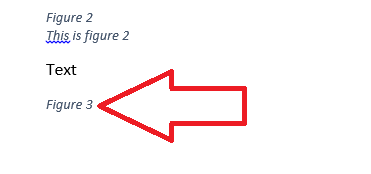
The natural inclination is to use the Return key to split the Figure label and caption, either by entering it all in one line in Insert Caption then splitting it up or using Insert Caption to add the title, hitting Enter then adding the caption. However, when you create your Table of Figures, it either won’t pick up the second line at all or will create two entries in the Table of Figures:

incorrect two line caption and table of figures

How to create a two-line figure caption so the Table of Figures only has one line per figure

This is how you do it correctly. The key is to use the soft line return (Shift+Enter) rather than a hard, paragraph return (Enter).

Place the cursor where you want to insert your caption and go to the References tab, Insert Caption:

Insert caption

Make sure the figure label reads as you want it to (adjust the label to Table, etc.) and then hit OK

Insert caption word

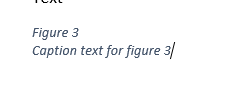
Place the cursor at the end of the figure label and hit Shift+Enter to start a new line:

Adding a new line to your caption word

Type in your caption:

word second line of caption

ALTERNATIVELY

Type the whole caption into the Insert Caption box and press OK:

word insert whole caption before splitting

Place the cursor at the start of the caption and press Shift+Enter to move it down to the next line:

4b-split-whole-caption

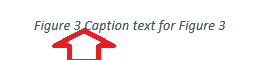
Now create your Table of Figures using References, Insert Table of Figures and you should have one entry per Figure:

caption with two lines table of figures with one

This article has taught you how to create two-line figure captions which show on one line in your Table of Figures.

If you have found this useful, please comment using the comment box below and/or share using the social media sharing buttons. Thank you!

Other useful posts on this blog

How to create a Table of Contents

Table of Figures and Table of Tables

How to update your Table of Contents, Table of Tables or Table of Figures

Editing and the Table of Contents

 
12 Comments

Posted by on October 26, 2016 in Copyediting, Short cuts, Students, Word, Writing


Tags: , , ,

What questions should I ask my beta readers? #amwriting

Using beta readers is vital for any book, fiction or non-fiction. But you have to use them well and in a focused way, so that you can work with their feedback and make sure your book is the best it can be. Here are some questions you can ask your beta readers (these are based on questions I’ve been asked and questions I’ve asked people about my non-fiction books)

What is a beta reader?

A beta reader is someone you get to test-read your book before it goes through the final stages towards publication. You can have several rounds of beta readers, of course, but they generally come somewhere before your final rewrite and edit:

  1. Plan
  2. First draft
  3. Second draft
  4. BETA READERS
  5. Third draft
  6. Edit
  7. Fourth draft and preparation for publishing (layout artist)
  8. Proofread
  9. Publish

Note: You might have a substantive edit before or just after the beta readers; if you have one after that stage, it’s an idea to add another beta read in afterwards, which would give you this:

  1. Plan
  2. First draft
  3. Second draft
  4. BETA READERS
  5. Third draft
  6. Substantive edit
  7. Fourth draft
  8. BETA READERS
  9. Fifth draft
  10. Edit
  11. Sixth draft and preparation for publishing (layout artist)
  12. Proofread
  13. Publish

Questions for fiction books

Questions for fiction readers will revolve around plot, character and setting:

What is your very first thought upon reading the first paragraph?

Do the characters seem realistic / attractive / interesting to you?

Did you spot any plot holes or huge errors? (I would ask the beta reader to mark up any small issues along the way)

Did you enjoy the story?

Did the pace of the story flag or go too fast at any point?

What made you want to keep reading?

What did you think of the ending?

What did you think of the setting? Would you have liked more or less description?

Did the characters speak naturally? If not, what could I do to improve this?

What was your favourite bit of the book?

What was your least favourite bit of the book?

If it’s a book in a genre: did this fit the way this genre works? Was there anything that jarred with the usual way this genre works?

Questions for non-fiction books

These questions will be slightly different and will relate to the audience for the book and the information it provides.

What do you think about the way this book is arranged?

What did you think the aim of the book was?  Do you think it achieves that aim? What could help it to achieve that aim (even) better?

Who did you feel the book was aimed at?

Was the book personally useful to you? Can you think of people it would be useful to?

Were any sections unclear or confusing? What could I do to make them better?

Were any sections particularly good? Why do you think that is?

Questions for all beta readers

Some questions are universal:

Would you recommend this book to a friend or contact?

Who do you think this book was written for?

What kind of person would most enjoy this book?

I hope you’ve found this post interesting and/or helpful. Maybe you’re a beta reader and this has helped you to do that job! Do share any other questions you ask or have been asked in the comments so this can build into the most useful resource possible – and please share using the buttons below, too! Thank you!

 
10 Comments

Posted by on October 19, 2016 in Reading, Writing


Tags:

How do I include quotations in my document? Should I change their language and spelling?

How do I include quotations in my document? Should I change their language and spelling?

Thank you to Vedrana Vojkvić for suggesting this topic to me via Twitter. She asked me for my input on a question she was discussing: what do we do if we are following UK spelling conventions and there’s a direct quotation that follows US spelling conventions? She also introduced the idea of [sic], asking to clarify that that is used only for actual errors in quotations, not just to highlight use of a different variety of English.

How do I include quotations in American English in my British English document?

This, of course, works both ways. If you are following US spelling and grammar conventions in your document and you need to quote something from a British English source, or you’re writing UK English and want to quote from an American source, should you change the spelling in your quotation to match the standard you are using in your main text?

Short answer: no.

Quotations are quotations from the original text. They should be quoted as they are, in the original.

When can I change a quotation?

There are a few occasions when you can and should change a quotation.

Note: every change you make to a quotation should be placed in [square brackets] to make sure it is clear that you have made the change.

  1. To make the grammar match the sentence in which the quotation is included. For example, you might write this: “Smith (2013) instructs the runner to ‘[go] with the flow, not setting off too fast’ (33), which is good advice,” where the original quotation ran, “A good runner goes with the flow, not setting off too fast”.
  2. When you need to explain something: “Smith (2013: 43) further states, ‘Those people [the running club members] can be very supportive’ in her seminal work.”
  3. When you need to cut text from the original quotation: “In this long passage, Smith (2012: 33) tells us to, ‘Watch out for your own over-excitement […] you must rein things in’.”
  4. If the quotations are in very archaic English and you have updated them into modern English OR the person you are quoting had a very individual use of punctuation or spelling and you have regularised it – in this case, you MUST state that you have done this in your introduction or a “Note about the quotations” at the beginning of your document. I would prefer to add modern English versions after the original in the first example and leave the quotations in the original in the second example.
  5. If you have translated the quotations out of their original language yourself – in this case, make sure to make a note of this in your introduction or a “Note about the quotations,” and if you have only translated some of the quotations, put a note [translated by the researcher] after those you have translated.

If you choose to emphasise something in the quotation that was not emphasised in the original, you must say that you have done this: “Smith says, ‘Everyone can run at their own speed and should not be pushed too far’ [emphasis added by the researcher].” (If the emphasis appears in the original, it’s good practice to add [emphasis in the original] after the quotation instead, to make that clear.)

When can I use [sic] in a quotation?

Almost never! I think that’s one for another article … However, to answer the original question, you would not need to use [sic] when quoting in one language (variety) in a text that is in another language (variety).

The golden rule of including quotations in your text

Always, always, always reference them fully so the reader can go and find them in the original!

This article has discussed how to insert quotations into a text, including what to do if they are in a different variety of English, whether you should change the spellings of quotations and when it is acceptable to change a quotation.

If you have enjoyed this article and/or found it useful, please do add a comment and/or share using the buttons below. Thank you!


Tags: , , ,

Why are my tracked changes altering their colour when I save in Word 2010, 2013 and 2016

We’ve already learned what Track Changes is, why we use it and where to find it, and how to customise Track Changes to suit our own preferences and learned how to work with a document that has Tracked Changes.

This article explains what to do when your tracked changes alter their colour when you press the Save button. It’s weird, it can be annoying, and your initials might disappear, too, which can be confusing if more than one person is commenting on the text.

Screen shots are from Word 2013.

Has your track changes markup ever changed colour?

This has only happened to me when working with a document that has originated from someone else.

You have made lots of changes in a document, and they show up in red, as normal (or whatever colour you have set for your corrections), but when you save, yours go into blue and your initials disappear. This might also happen if you’re working on a document which already includes someone else’s tracked changes: yours show in a different colour to theirs until you press Save. Then they’re all blue (or whatever colour the first person’s were).

What is happening here?

The original owner of the document has specified that the personal information of whoever is working on the document will be removed when they Save the document.

How to check whether your personal information is being removed upon Saving the document

To check whether this is the reason for your tracked changes changing colour, follow these steps.

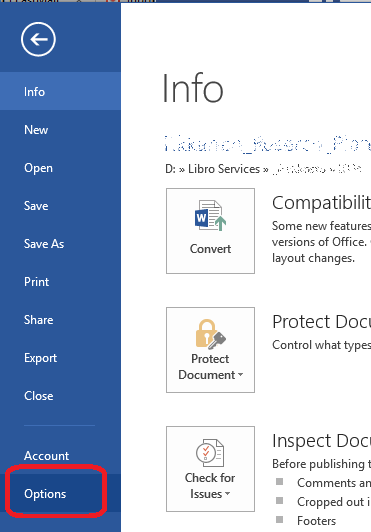
Go to File (the extreme left tab in Word) and Options:

word options for checking trust center

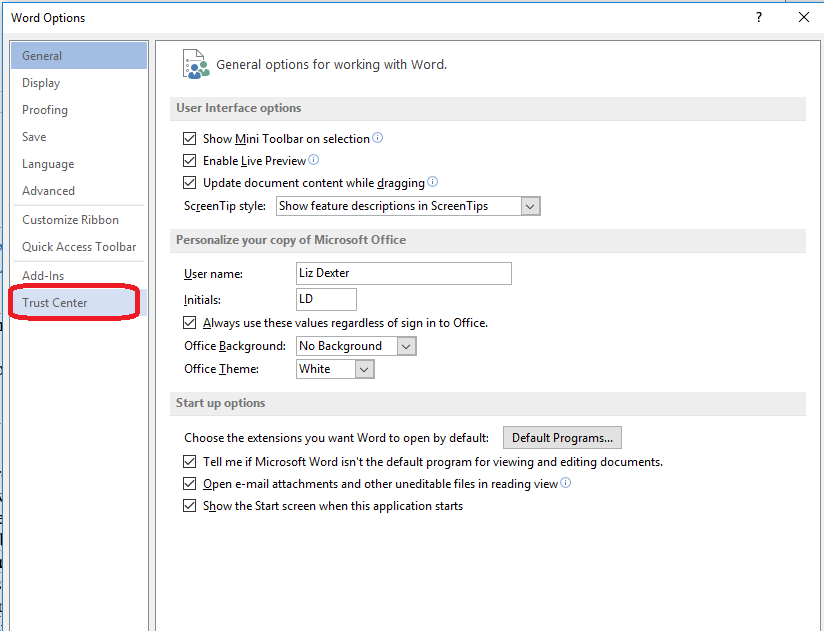
Clicking on Options will give you this Word Options menu; choose Trust Center:

accessing the trust center in word

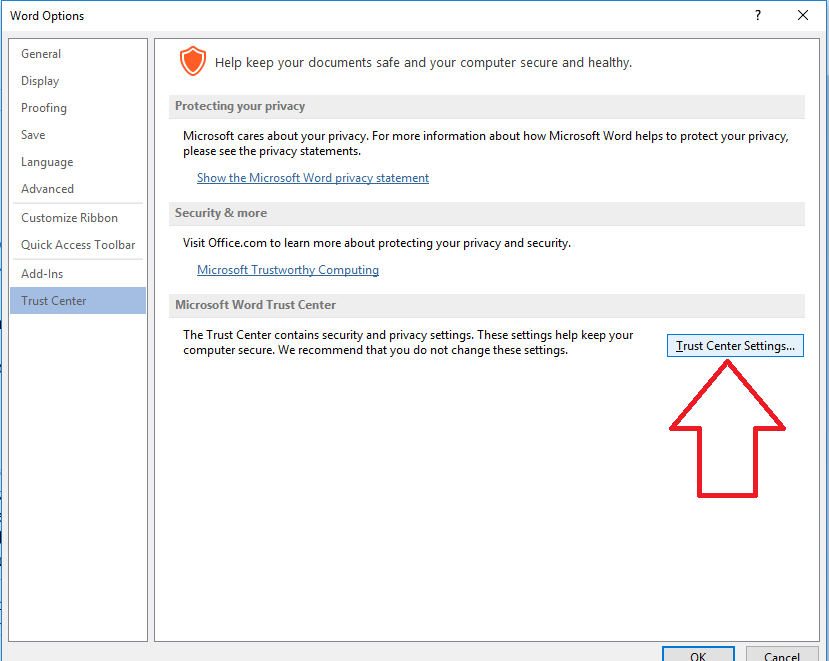
Click on Trust Center and then go into Trust Center Settings by clicking the button at the bottom right:

Trust Center in word

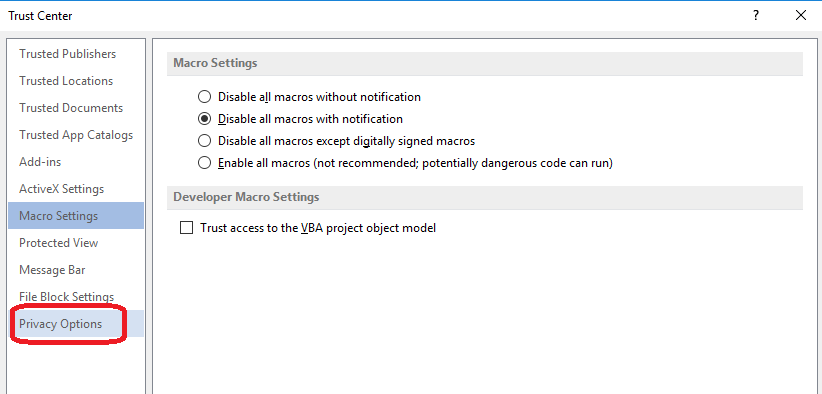
Once in the Trust Center Settings, you need to go into Privacy Options (it will default to Macro Settings):

Privacy settings in trust center in word

…. and once you have accessed Privacy Options, you will see that Remove personal information from file properties on save is ticked, which means that when you save, all references to your name are removed from both track changes and the properties of the file itself:

remove personal identification on save in word

Now, at this point, this can be “unticked” so that your changes stay in your colour (in your own view, only, of course) and with your initials (everywhere). But do stop to think: did the person who created the document do this on purpose? It’s quite a lot of clicks to make by accident, so I do tend to check this, see why it’s happening and then leave it as it is. I might change it so I can see my own changes then make a note to change it back before my final save, but in general, I leave it.

Why might someone choose to remove personal information in a document?

I’m not entirely sure that I have an answer to this. Maybe they have edited the document and don’t want their end client to be confused by lots of different names on the file. Maybe they’re a student who wants to make sure no one else’s name is on the file. I do tend to assume they have a reason, and respect that.

But this is how and why the tracked changes colour sometimes changes when you save your document.


This article has taught you how to work with a document that has been marked up using Track Changes where the colour of the track changes alters. You can read more about what Track Changes is and why we use it, how to work with a document including tracked changes and how to customise Track Changes.

If you have found this article useful, please share or “like” it using the buttons below, or leave me a comment to tell me what you think. Thank you!

This is part of my series on how to avoid time-consuming “short cuts” and use Word in the right way to maximise your time and improve the look of your documents.

Please note, these hints work with versions of Microsoft Word currently in use – Word 2010, 2013 and 2016 all for PC. Mac compatible versions of Word should have similar options. Always save a copy of your document before manipulating it. I bear no responsibility for any pickles you might get yourself into!

Relevant articles on this website

Track changes 1 – why use it, where can you find it, what can you do with it?

Track changes 2 – customising Track Changes

Track changes 3 – working with a document with tracked changes

How do I accept one reviewer’s changes?


9 Comments

Posted by on October 5, 2016 in Copyediting, Errors, New skills, Short cuts, Word, Writing


Tags: , , , ,

How do I highlight the text related to my comment balloon in Word 2013 and 2016?

I have already published a range of posts on issues with comment boxes or comment balloons, including ones on comment boxes suddenly going tiny, or comment box text running in the wrong direction, changing the language in your comment balloons. This article covers how to highlight the text that a comment balloon relates to.

Why can’t I see which bit of text this comment balloon is about?

As a default in Word 2013 and Word 2016, you can see your text and you can see your comments, but you can’t see which bit of text the comment refers to. Why? I have no idea. Microsoft tends to try to make things look simpler, but personally, I don’t find it helpful. It looks like this …

1-default

… and what we want to see is this:

3-result

How do I highlight the text that’s being commented on?

You can change the settings to do this by going to the Review Tab and the Track Changes area. You will see a box marked Simple Markup. Click on the down arrow to the left to access the dropdown menu:

2-comments

Select All Markup.

Now the text that the comment is about will be highlighted when you’re looking at the document:

3-result

Don’t forget …

This only applies to your individual view of the document on your particular computer / screen. If your editor, client or co-writer wants to change this view, they’ll have to change it themselves. Send them here to see how it’s done!

If you have found this article helpful, please add a comment and/or share it using the buttons below. Thank you!

Other related posts on this blog

What to do if your comment boxes go tiny in Word

What to do if your comment boxes start running from right to left

Changing the language in your comment balloons

Customising your comment boxes – everything you need to know

Customising Track Changes

 
1 Comment

Posted by on September 28, 2016 in proofreading, Short cuts, Word, Writing


Tags: , , ,

How do I add comment balloon numbering in Word 2013 and Word 2016?

I have already published a range of posts on issues with comment boxes or comment balloons, including ones on comment boxes suddenly going tiny, or comment box text running in the wrong direction, changing the language in your comment balloons. This article covers what to do to add comment balloon numbering back in Word 2013 and 2016. Incidentally, this also signposts you to how to change the style of your comment balloon in general.

Where have the comment balloon numbers gone in Word?

In Word 2013 and 2016, the default setting is for comment balloons not to have numbers. Why? I honestly don’t know. Microsoft does have a habit of “simplifying” its Office interfaces, and the numbers do change with context (if you remove Comment 2, Comment 3 will be labelled Comment 2, etc.) but I have always found it useful to have numbers in my comment balloons.

Here’s what the default looks like:

comment balloon Word 2013 no number

and this is what I’m aiming for:

Word 2013 2016 comment balloon with number

How do I change the comment balloon style and numbering?

We need to change the style of the comment balloons in order to add a number.

Click inside a comment balloon and press Ctrl+Shift+S (all at the same time, in that order) to display the Apply Styles pane:

Word 2013 2016 balloon style

This should be context-specific, but just check the style name is “Comment Text”.

Click the Modify button  to access the Modify Style pane:

Word 2013 2016 modify style
Look at the bottom of the dialogue box and click the Format button, which will give you a dropdown menu:

Word 2013 2016 numbering comments boxes

Click Numbering, which will allow you to select a numbering scheme:

Word 2013 2016 choose numbering scheme for comments

Click on the numbering scheme you want to use so that it’s highlighted with a line, and then click OK.

If you want to use a numbering scheme that’s not on this screen, click on Define New Number Format instead:

Word 2013 2016 define new numbering format

Once you’ve clicked this, you will see some new options:

7-format-choose-new-numbering

Click on OK here, which will take you back to the previous screen, OR click OK on the number format screen, then choose if you want Word to update this document (Automatically update) and to apply this default to all new documents from now on (New documents based on this template):

Word 2013 2016 apply new style

Click OK and your comment boxes will have numbers!

Word 2013 2016 comment balloon with number

This article has shown you how to add numbers to your comment balloons / boxes / text in MS Word 2013 and 2016 for PC. You can use it to modify this setting in earlier versions of Word, but they will default to having numbers.

If you have found this article helpful, please add a comment and/or share it using the buttons below. Thank you!

Other related posts on this blog

What to do if your comment boxes go tiny in Word

What to do if your comment boxes start running from right to left

Changing the language in your comment balloons

Customising your comment boxes – everything you need to know

Customising Track Changes


33 Comments

Posted by on September 21, 2016 in Copyediting, New skills, Students, Word, Writing


Tags: , , , ,