RSS

Category Archives: Errors

12 things I learned from the Great Computer Crash of April 2016

deskI have automated back-ups that keep a copy of my work every day. I have a system in place for if my computer fails. I thought I had it all covered, and I almost did – but this is what I learned when my hard drive suddenly crashed in somewhat epic fashion one week last month, followed by another, more catastrophic crash of the cobbled-together system I was working on while plucking up the courage to move to my new computer. I thought it might help other people – do share your tips in the comments!

1. Check your back-ups are working

It’s great to have back-ups running, but do check periodically that they are running.

2. If you have two back-up systems, one immediately accessible, one not, it is the accessible one that will fail

Therefore, be prepared to have a short time without your data before whoever it is that can access your back-up can do so.

3. Have a reserve computer of some kind

Don’t assume you will be able to use your computer after a crash. I had my laptop as my reserve; I would now be using my old computer as a reserve, if I hadn’t broken in.

4. If you have a reserve computer, run maintenance on it every few weeks

That way, when you come to use it in a panic (see 5), it won’t be wanting to do 5,000,000 updates and will have a wi-fi connection that works more quickly than wading through mud.

5. Crashes aren’t predictable but you can predict one thing …

They won’t happen when you have three weeks with not much work on. They will come when you have a busy week. If it crashes twice, that will be in two busy weeks and might make you miss a theatre trip.

6. There is no good time to move to a new computer, but do it as soon as you can

If you get a new computer but you’re baulking on swapping over to it, make yourself do it as soon as you can. Doing that “one last thing” before I moved over was when my second and worse crash – the one that lost data – happened.

7. Always be ahead with your work deadlines

This saved me, just. I lost two half-days but was able to salvage my work. I will even more strive to work ahead of myself.

8. Don’t get so hyper-vigilant that you stress yourself out

I had a separate special folder for all the work I’d done since the crash, on an external hard drive, for far too long, out of fear. That’s the same fear that stopped me moving to the new computer.

9. If you have to upgrade to Windows 10, it’s easier to do on a whole new machine

One positive: I ended up on Windows 10 by default, as my new computer has it. Much less stressful than having to do an upgrade on your current computer.

10. Keep a list of what software you use regularly

Not everything you’ve downloaded, but when setting up a new computer or restoring things from a crash, you might well need this in order to get going quickly.

11. Keep all your access codes, software licences etc. in one handy, easy to find place

I’m not suggesting you write down all your passwords – you can use a system like LastPass if that’s feasible for you, but all those codes and licences, etc. might be needed when reconstituting your computer – keep them somewhere sensible, like a special folder in your email.

12. Have a disaster plan; review the plan; keep everything for the plan up to date

It will happen to you: don’t think it won’t. Keep reviewing that plan. For example, I’m reviewing how I back up my files, although I have contracts in place that don’t allow me to store data in The Cloud.

These are the things I learned. Anything particularly helpful there? Anything to add? I’d love it if you popped your words of wisdom into a comment.
 
2 Comments

Posted by on May 4, 2016 in Business, Errors, Organisation


Tags: , ,

Adapt or adopt? Adaptation or adoption?

This is a Troublesome Pair that I find very commonly in academic writing, across a whole range of writers. It would be expected in people whose native language doesn’t use vowels (I had a very interesting conversation about Arabic-speakers having trouble with vowels in English) but I also find it in native English-speakers (it’s actually fairly uncommon to find both groups making the same errors)

To adopt something means to take it on as it is. For example, Laura might adopt my process of editing a text, then doing a spell check, then using software to check consistency. If the UN adopts a resolution, it means it takes it into its procedures as it is, with no changes. If you adopt a dog from a shelter, you take it as it is.

To adapt something means to change it according to specific circumstances. For example, Laura might adapt my process by choosing to edit the text, then run the consistency software, then run a spell check. The UN might adapt a resolution to take into account a new world order or the creation of a new country. You might try to adapt your adopted dog’s behaviour if you don’t want it to sit on the sofa.

Adoption therefore means the act of taking on something as it is, while adaptation involves you changing, or you changing something else, to fit the circumstances.

In academic writing, a researcher might well adopt a questionnaire method, but they might adapt someone else’s questionnaire if it needs more questions on widgets and fewer on bath mats, for example.

You can find more troublesome pairs here, and here’s the index to them all!


Tags: , , ,

Aglet or ferrule?

DictionariesThis is a cheeky one. Of course you all know the difference between these two lovely words. But I like them, and it’s my blog, and you never know who might look things up (even “mandrel or mandrill” is quite popular).

An aglet is the little tube that you find on the end of your shoelaces, usually made of plastic but sometimes of metal. Sweetly, it apparently comes from the French for “little needle”, even though it doesn’t really look like or act like a needle in itself, but is used to help you thread the lace through the holes.

A ferrule is the little plastic or rubber cap that sits on the end of a walking stick or umbrella and prevents it from getting damaged.

You can find more troublesome pairs here and the index to them all so far is here.

 
10 Comments

Posted by on October 6, 2015 in Errors, Language use, Troublesome pairs, Writing


Tags: , , ,

Curb or kerb?

DictionariesHere’s one suggested by my friend and editing colleague, Linda Bates. As a special bonus, it has a US / UK English twist. How exciting!

A kerb is a noun meaning the stone edging of a pavement or path. There are some verbs associated with kerb, notably kerb-crawling, which is driving slowly on the lookout for a prostitute.

Curb is a noun meaning a limit or control (“I’m imposing a curb on the amount of alcohol you can drink at home”) and a verb meaning to keep in control or limit (“I’m curbing the amount of alcohol you can drink at home”). A curb is also a type of bit used in a horse’s bridle.

And, excitingly, American English uses the same word (curb) for both!

You can find more troublesome pairs here and the index to them all so far is here.

 
Leave a comment

Posted by on September 29, 2015 in Errors, Language use, Troublesome pairs, Writing


Tags: , , ,

Altar or alter?

DictionariesHooray, I seem to be doing these posts more regularly again now. They have lots of fans, so hope regular readers are pleased. Of course, if you’ve just found this post having searched for “altar or alter”, you’re going to be a bit confused by that statement, as you’re visiting from way in the future. This “Troublesome Pair” is but one of a whole series of them I’ve been posting for a few years now. Do pop to the links at the bottom of this post to find the whole alphabetical list of them!

Right, anyway … alter or altar?

Altar is a noun and refers to specifically the table in a Christian church, usually at the front, where the bread and wine are consecrated for communion, and more generally, to any flat-topped box or table that is used as the focus for some kind of religious ritual.

Bonus pair: What’s a shrine, then? A shrine is a place that’s regarded as being sacreed or holy because it’s associated with some kind of god / deity, or a reliquary or container containing holy relics. So you do religious things at an altar and a shrine keeps them safe.

Alter is a verb meaning to change (or change something or cause something to change) in appearance or character. In US and Australian English, it also means to castrate or spay an animal (so many bonuses today!)

“After she observed the seriousness of the actions performed at the altar, she altered her behaviour in church and stopped giggling during the services.”

You can find more troublesome pairs here and the index to them all so far is here.

 
Leave a comment

Posted by on September 24, 2015 in Errors, Language use, Troublesome pairs, Writing


Tags: , , ,

Hanger or hangar?

DictionariesHooray, it’s time for another Troublesome Pair (for any new readers, this was a series I used to run that I’ve recently restarted). This is another one suggested by my Australian friend Matt Patten, as he spotted an example just the other day.

A hanger is something that you hang something from – a clothes hanger being the obvious example.

A hangar is the big shed that an aeroplane lives in.

Nothing more I can say, really!

You can find more troublesome pairs here and the index to them all so far is here.

 
3 Comments

Posted by on September 15, 2015 in Errors, Language use, Troublesome pairs, Writing


Tags: , , ,

Expectancy or expectation?

DictionariesFor those who’ve been following this blog for a while, you might remember the Troublesome Pairs series I used to publish regularly. They’ve been very popular, and I certainly haven’t run out of them, but I didn’t seem to get the time to do them. But I have some more coming up, and here’s the first one! This one was suggested by my Australian friend Matt Patten, who’s asked me to write about a few Troublesome Pairs recently (and not so recently) .

I have to admit that this was one of those that I had to look up to check. But there is a difference (hooray) and it’s all about the level of certainty …

Expectancy is the anticipation or hope that something will happen – and that something is usually a pleasant something. It also refers to a future prospect, as in “life expectancy”. Expectant, the adjective, as we might imagine, means anticipating or hoping that something (pleasant) will happen – so you have expectant mothers, etc.

Expectation is the strong belief that something will happen – not necessarily positive. You can expect a storm or an inheritance (and in fact, someone’s “expectations” is an old-fashioned term for their prospects of inheritance.

“It was my expectation that the expectant mother would soon be seen travelling around with a pushchair.”

Note: nobody associated with this post is expectant!

You can find more troublesome pairs here and the index to them all so far is here.


Tags: , , ,

How do I combine several Word documents into one document?

This article explains how to combine several Word documents into one document. It’s particularly useful if you’ve written a dissertation, thesis or book and need to combine all of the chapters into one file.

These instructions work for Word 2007, Word 2010 and Word 2013; I’ve used Word 2010 for the screenshots

Why would I want to combine chapters into one document?

Lots of people do their writing a chapter at a time, and have it edited a chapter at a time, too. But the time will come when you want to put it all into one book, with page numbers running throughout, rather than messing around starting the page numbers for chapter 2 at the next number on from chapter 1, etc.

What’s the incorrect way to combine my chapters?

You might be tempted to pick up the text of each chapter and copy and paste it into one document. That can lead to issues and inconsistencies. This is the correct way to do it and actually takes less time and avoids you leaving out any bits of your individual chapters.

How do I prepare to combine my documents?

It’s pretty easy to combine several documents into one, however the most important point is …

The file names must be in the order that the chapters are going to be in.

Word will combine your chapter files in alphanumerical order.

If you have called your chapter files

Chapter 1 introduction

Chapter 2 review of the literature

Chapter 3 methodology

Chapter 4 conclusion

then that’s fine, they will combine in that order.

If you have called your chapter files

Introduction

Review of the literature

Methodology

Conclusion

then Word will carefully sort them alphabetically into

Conclusion

Introduction

Methodology

Review of the literature

when it combines your documents.

The best thing to do is add a number 1, 2, 3, etc at the start of your file names BEFORE YOU START COMBINING, so you know they will come out in the correct order.

How do I combine my documents?

OK, so we’ve got, say, four documents or chapters to combine into one.

First, open a new, blank document (using the Home button, New, and choosing a blank document)

Then, click on the Insert tab and find Object in the Text area:

1 insert tab

Click on the arrow to the right of Object to get the drop-down menu, and click on Text from File:

2 insert text from file

Now navigate to your files and select the ones you want to combine.

3 find your files

Hold down the Control Key and click on all the ones you want to combine (or click on the top one, hold down Shift and click on the bottom one if you want all of them). Once you have them all highlighted, click Insert.

4 select files

Note: it doesn’t matter what order you are displaying them in or what order you click them in, it will choose them and insert them in alphabetical or numerical order, as I mentioned above.

Now you will have one big document including all of your chapters!

5 combined

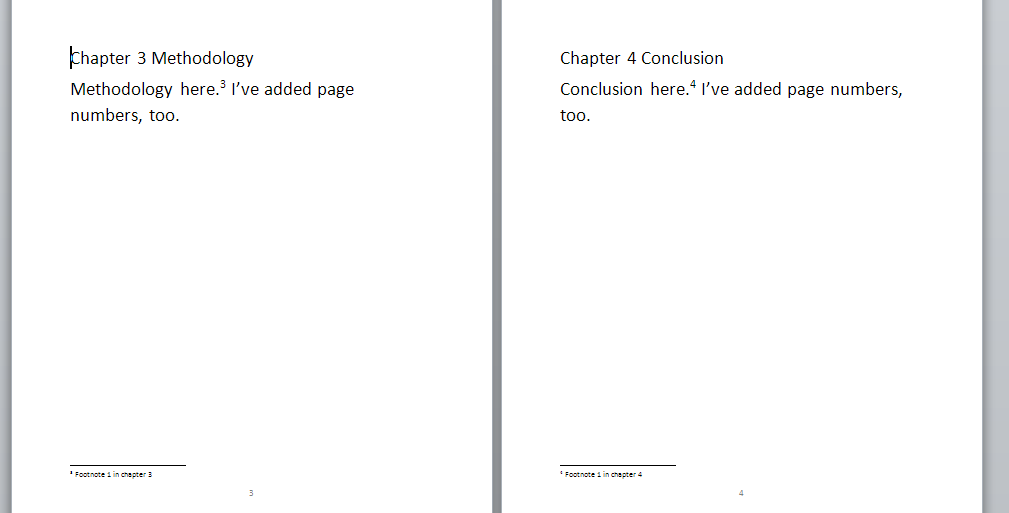
And … if you had footnotes in the documents, and had set page numbers to show, they will automatically update in the combined document to be numbered consecutively (if you want start your footnote numbering at 1 for each chapter, you’ll need to look at my posts on footnotes and endnotes).

Don’t forget to save your document!

PS: If you find you lose your formatting when combining Word documents, read this article for the solution.

—–

This is part of my series on how to avoid time-consuming “short cuts” and use Word in the right way to maximise your time and improve the look of your documents.

If you have enjoyed this post and found it useful, please click on the “share” buttons below or tell your friends and colleagues about it! Thank you!

Please note, these hints work with versions of Microsoft Word currently in use – Word 2007, Word 2010 and Word 2013, all for PC. Mac compatible versions of Word should have similar options. Always save a copy of your document before manipulating it. I bear no responsibility for any pickles you might get yourself into!

Find all the short cuts here

Other useful articles on this website

How to combine Word documents without losing the formatting

 
53 Comments

Posted by on September 3, 2015 in Errors, New skills, Word, Writing


Tags: , , , ,

Editing and the Table of Contents – for editors and writers

This article is all about what happens when a document that includes a Table of Contents (and a Table of Figures and/or a Table of Tables) is edited. There are a couple of pitfalls which I have encountered as an editor, and I wanted to share them with fellow editors AND writers, to help other people avoid them.

Scroll down to the bottom for a summary of advice to editors and writers if you’re not worried about the detail.

Please note that there are more detailed instruction on updating a Table of Contents in this article.

What’s the problem with Tables of Contents and the editing process?

If a document with an automated Table of Contents is being edited, the editor has two choices (and the writer will find that their editor has done one of two things):

  1. Mark any changes to headings in both the Table of Contents and the actual heading in the main text
  2. Mark any changes to headings in just the actual heading in the main text, then someone updates the Table of Contents

Let’s look at the risks with these in turn.

1. Mark any changes to headings in both the Table of Contents and the actual heading in the main text

Issue 1 – Awkwardness for the editor. To do this, you will have to have a split screen with the contents page in the top half and the text in the bottom, or you’ll have to whizz up and down the document and make sure you make the same correction in both places.

Issue 2 – Keeping things consistent. a) The editor will have to make the same change in both places, and b) the writer will have to make the same choice to reject or accept the change in both  places.

As an editor, if I do this, I place a comment linked to the words “Table of Contents” reminding the author to make the same choices here and in the main text.

If the Table of Contents is not automated, I a) suggest that the author creates one (or has me create it, if appropriate) and b) I place the comment above by the words “Table of Contents” to remind the author to keep it consistent.

2. Mark any changes to headings in just the actual heading in the main text, then someone updates the Table of Contents

If the Table of Contents is automated, this is what I tend to do.

There are two options here:

Option 1 – The writer wants a “clean copy” not one with tracked changes marked: the editor can update the Table of Contents once they’ve done their edit and accepted all changes. Everything will now match.

Option 2 -The writer wants (or needs, in the case of students) to see the tracked changes and make their own decisions on what to accept and reject. In this case, the writer will need to update the Table of Contents once they’ve gone through the changes.

Option 2 is the most common in my experience.

If the writer needs to update the Table of Contents themeselves, I always add a comment to the words “Table of Contents”:

“Please remember to update this Table of Contents after you have accepted or rejected all of my changes, to make sure that the table reflects the document accurately. Please choose Update entire table rather than Update page numbers only”.

An important choice – what to update in the Table of Contents

This information is for editors and writers.

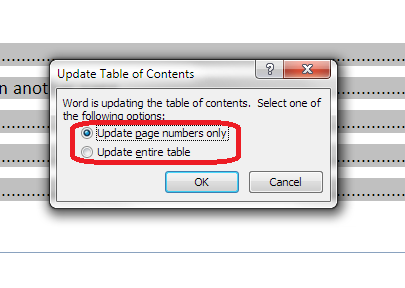
Whether the editor or writer is updating the Table of Contents, once you’ve clicked on Update Field, you are given the choice of Update page numbers only or Update entire table:

update page numbers or all fields

It is vitally IMPORTANT that you choose “Update entire table”. This will update any changes to the headings and any changes to the page numbers. If you click on “Update page numbers only”, and any headings have been changed in the text, this will NOT be reflected in the Table of Contents.

For authors: updating your Table of Contents when your work has been edited

  • Always update your Table of Contents when your work comes back from your editor, unless they have told you that they’ve already done it
  • Always choose “Update entire table” to make sure that everything in the Table of Contents matches your actual document

For editors: updating or instructing on editing the Table of Contents

  • Always leave a note for the writer explaining what you’ve done or what you need them to do
  • If you are updating the Table of Contents yourself, always choose “Update entire table” to make sure that everything in the Table of Contents matches the actual document (I would still leave a reminder for the writer to do the same after they’ve made any final changes)
  • If you need the writer to update the Table of Contents once they have dealt with your suggestions, leave a note explaining that, and make it clear that they must “Update entire table” when doing so

—–

This article has discussed issues around updating a Table of Contents when a document is edited. if you have enjoyed this article or found it useful, please share it using the sharing buttons below.

Other relevant posts on this blog:

How to create a contents page in Word

Tables of figures and tables of tables

How to update a Table of Contents, Figures or Tables

 
3 Comments

Posted by on July 22, 2015 in Errors, New skills, Word, Writing


Tags: , , , ,

How do I change the numbering style of footnotes and endnotes in Word?

As part of my series on footnotes and endnotes, here’s how to change your footnote and endnote numbering styles on the go (e.g. while editing someone’s work, or when you change your mind, or when you’re working to a particular journal’s style and need to amend something you’ve already written)  in Word 2007, Word 2010 and Word 2013.

Why would I want to change my footnote or endnote numbering style?

The main reason to change your footnote or endnote numbering style is because of the style guide of whatever you’re writing the document for. For example, academic journals will usually have some form of Guidelines for Authors which will lay out (sometimes) the font, heading styles, reference styles and footnote styles that you are expected to use. If you’re re-using an article which has been rejected by another journal, or repurposing a chapter of your PhD, you might find that the style for one journal is different from what you’ve done previously.

Alternatively, you may just decide you would prefer to use roman numerals, arabic numerals, symbols or whatever for your footnotes or endnotes, and want to change them.

How to change the number format for footnotes/endnotes

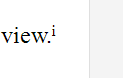
In this example, we’re starting off with some footnotes or endnotes that use roman numerals (i, ii, iii …):

footnote with roman numeral

Now, we want to change them to, for example, arabic numerals (1, 2, 3 …)

First of all, go to the Footnotes menu. This is in the References tab, and there’s a whole area called Footnotes:

Footnote menu

Click the little arrow at the bottom right of the Footnotes area to access the Footnote and Endnote menu. Once you’ve clicked on the little arrow, you should see this menu:

footnote menu dialogue box word

We can see lots of things we can do here, including changing the number footnotes start at, whether they restart every chapter, etc. (these more obscure details will be the subject of another article). But for our purposes, the important features are choosing whether you’re telling Word about Endnotes or Footnotes and telling Word what the number format should be.

In this case, we’re using Endnotes (although these instructions cover both), so I’ve clicked the radio button (circle) next to Endnotes. This tells Word that we’re using Endnotes and talking about the Endnote numbering.

Going down one section, you can see that at the moment, the Number format is set to i, ii, iii … To change this, click on the down arrow to the right of the box saying i, ii, iii … (if the Endnotes are set to 1, 2, 3 or a, b, c, this will display in this box):

footnote menu change style

Once you’ve clicked that arrow, you will be able to see all of the choices you have for your footnote or endnote numbering. Now click on the format that you want to use:

footnotes change numbering style word

The Number format will now change to the one that you have chosen. Once you have got the correct format in this box, click the Apply button to apply the changes:

footnotes apply change word

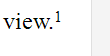
When we return to our document, the endnote numbering has changed from a roman numeral (i) to an arabic numeral (1). You can change this as many times as you want.

footnote with correct style word

This article has explained how to change the number format in your footnotes or endnotes.

Related posts from this blog:

How to insert and format footnotes

How to insert and format endnotes

How to swap between using footnotes and endnotes

Please note, these hints work with versions of Microsoft Word currently in use – Word 2007, Word 2010 and Word 2013, all for PC. Mac compatible versions of Word should have similar options. Always save a copy of your document before manipulating it. I bear no responsibility for any pickles you might get yourself into!

Find all the short cuts here

 
30 Comments

Posted by on June 3, 2015 in Errors, New skills, Short cuts, Word, Writing


Tags: , , , , , , , , ,