RSS

Category Archives: New skills

How to use spell check in Word 2007 and Word 2010

In this article we’re going to talk about using the spell checker function in Word, including how to find it, how to use it, and when not to believe it. This article works with Word 2007 and Word 2010 – screen shots are taken from Word 2010. I have written about Word 2013 separately as it’s a bit different.

What is Spell Check?

Spell check is a function in Word that will check both the spelling and appropriate word use in your document. It’s not perfect, but it will pick up all sorts of errors and typos that you might not realise you’ve made.

Spell Check will go through your document and highlight any words that it thinks are spelled incorrectly. If it can, it will offer alternative spellings for you to choose from. You can then choose to change the word to one of its suggestions, change all instances of that word to the suggestion, or ignore the “error” once or always.

We usually run a spell check after writing a document, although you can ask Word to check spellings as you go along (I personally find this distracting). It’s worth running it even if you think your writing is perfect and you’ve read through the document finding no mistakes – there’s always something, and that’s why, even though I’m an editor, I use spell check on my own posts and as a final check on documents I’ve edited, and why I have an editor for my books!

How do I start Spell Check?

We run Spell Check from the Review tab in Word:

How to start spell check

The eagle-eyed among you will have spotted the same icon in the Quick Access Toolbar at the very top of the document. I’ve added the Spell Check button there because I use it a lot. If you want to learn how to add buttons to the QAT, read this article.

With your cursor at the beginning of the document, click on the Spelling and Grammar button. Word will highlight each word that it thinks is incorrect, starting with the first one:

spell check in action

Here, I started at the beginning of the text, but you’ll notice that it’s missed out “peace of txt” even though that is clearly wrong. We’ll look at that in a minute, but let’s concentrate on what happens when it gets it right.

What options does Spell Check give you?

Spell Check has highlighted “misteaks” and you can see in the Suggestions box below that it’s suggested the closest word first, then a few other options. “Mistakes” is highlighted, but if I did mean “mistake” or “mistreats”, I can click on one of those.

To the right, we have some buttons – Ignore Once / Ignore All / Add to Dictionary are to be used when we know what we typed is correct and we want to keep it; Change / Change All / AutoCorrect will allow us to make that change:

  • Ignore Once will ignore just that instance of the word in question
  • Ignore All will ignore that exact word throughout the rest of the piece
  • Add to Dictionary will add that exact word to the Spell Check dictionary so it will never ask you ever again if you’ve miss-spelled it. I have used this for my name in the past, which is why this Spell Check process won’t pick up “Broomfield” or “Dexter”, and I also add in commonly used technical terms and jargon that comes up a lot in the texts I work with.
  • Change will change just that instance of “misteaks” to “mistakes”. Any other examples will stay as they are
  • Change All will change every instance of “misteaks” to “mistakes”.
  • AutoCorrect brings up the AutoCorrect screen (see this article for more on AutoCorrect) which allows you to set up an automatic correction for the future, so whenever you type “misteaks” it will change to “mistakes”. This is really useful if you notice that you’re mistyping a word regularly.

I’m going to click on Change All, and this will automatically change all examples of “misteaks” to “mistakes” in the text. Note, however, that it will not change “misteak” – it only looks for the exact same word. This includes capital letters, so it will now flag up “Misteaks” as a new error and make some new suggestions, the second of which is the correct one. I do tend to click on Change All, so that I save time and mouse clicks correcting the same form of the same word over and over again.

Now, let’s see what else Spell Check will look at.

It will notice if you’ve missed out an apostrophe, even if the word “wont” is a word in itself:
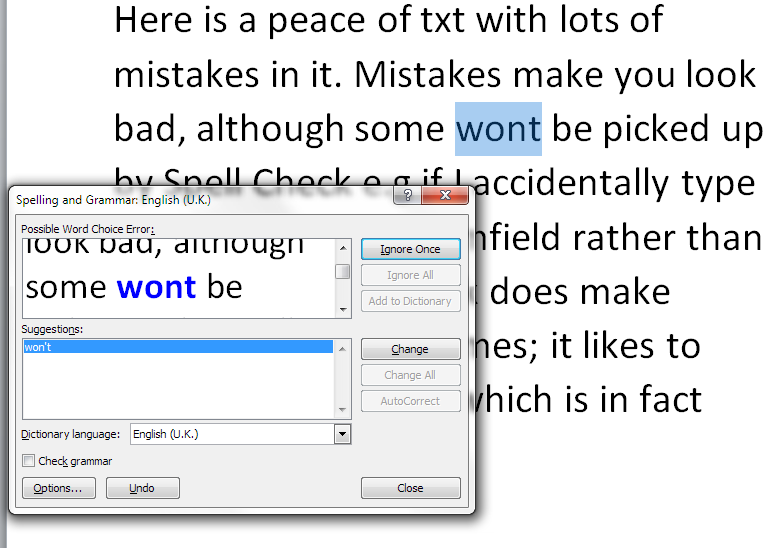
spell check apostrophe

And it will check incorrect punctuation, too:

spell check punctuation

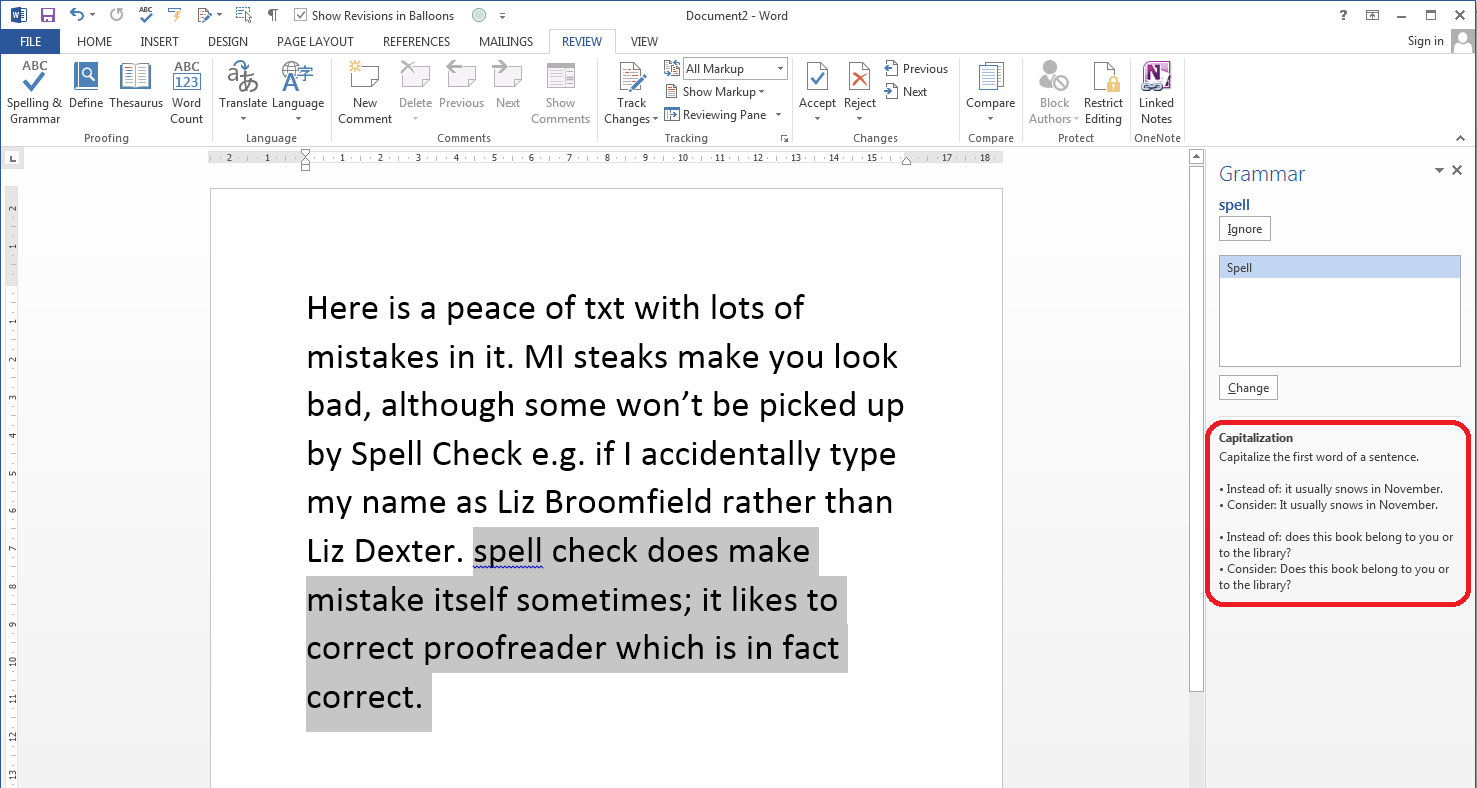
Finally. you can ask Spell Check to check your grammar, too. Here, it’s picked up that I started a sentence with a lower-case letter:
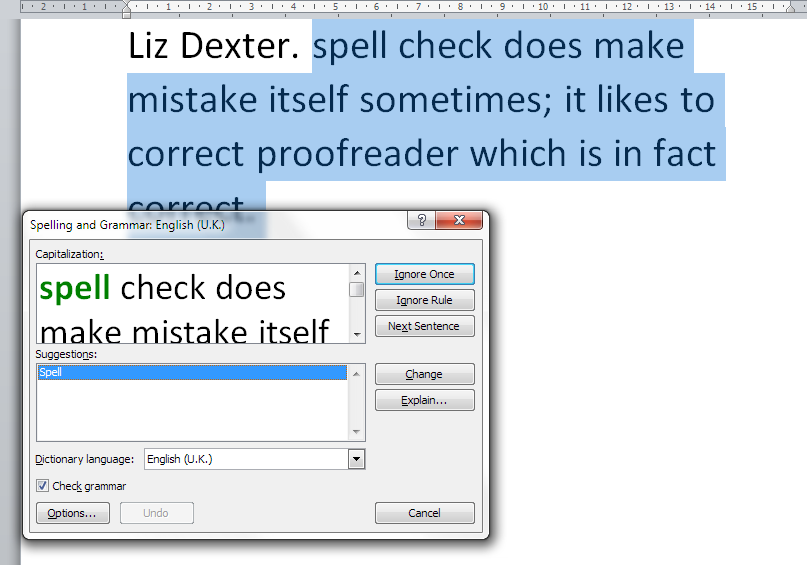
spell check grammar check

There’s a caveat here, though: I find the grammar checker to be quite rigid and a bit odd. The eagle-eyed among you may have spotted that I have Check grammar ticked in the above image but not in the others – this is because I tend to turn off the grammar checker when I’m working on my own texts and other people’s. It’s up to you whether you do that, and instructions for tweaking the Spell Checker will appear in a later article.

What if I change my mind or make a mistake?

If you make a misteak, oops, sorry, mistake when you’re changing words in Spell Check, there’s a handy button that will take you back.

Here, I’ve clicked on the first suggestion for “Misteaks” which was “MI steaks”. Oops. I only see it when I’ve already hit Change All. But I can click the Undo button to take me back to that set of choices, and you can click the Undo button more than once.
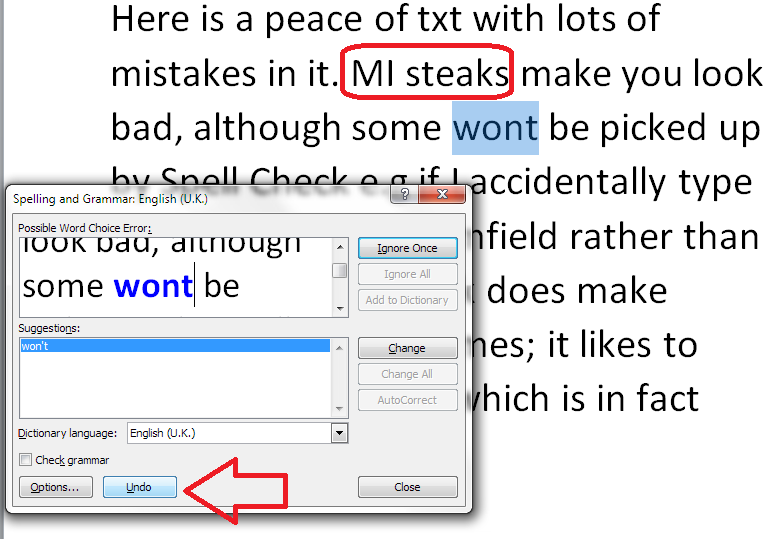
undo spell check

Having pressed Undo, we’re back to looking at “Misteaks” instead:
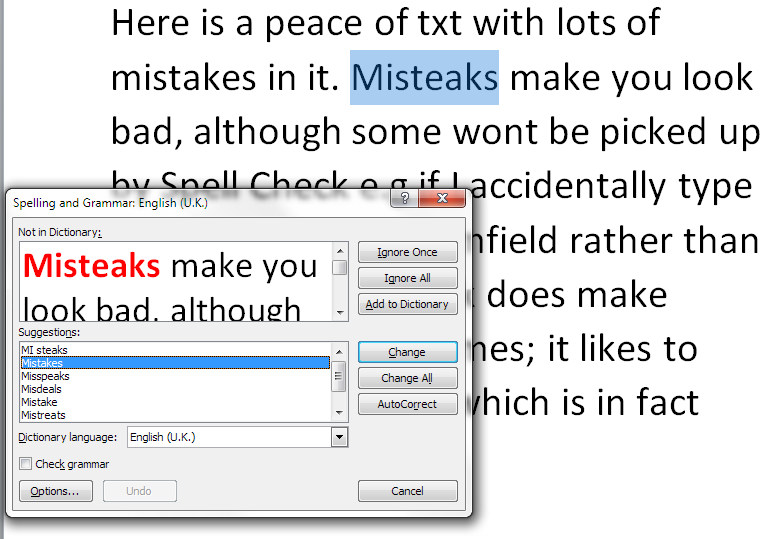
spell check undone

Does Spell Check ever get it wrong?

In our example, Spell Check has missed the obviously incorrect phrase “peace of txt”:

spell check in action

It does sometimes notice when you use an incorrect but valid word (i.e. it is actually a word in itself), but not always. I’m guessing that it’s ignored “txt” because that’s a file extension (like .doc) which is used when saving documents. So Spell Check hasn’t picked that up, and you or your editor will have to notice it yourselves!

It also uses rules which don’t match standard common usage. Right up until Word 2013, it thinks that proofreader is two words, hyphenated:

Spell check getting it wrong

This makes it quite embarrassing when I’m checking a client’s acknowledgements, they thank me for proofreading, and then have spell-checked their work, so I have to change it back to proofreading.

Word is also not keen on swear words, and can give amusing alternatives if you try that …

Help – my Spell Check’s making everything go into American English!

Your Spell Checker will work with whatever variety of English (or any other language) that your text is set to. So if you have your text set to be in American English, that’s the language your Spell Check will use. Learn how to change the language of your document and your editing language  – and watch out, as your comment boxes might appear in another language, too, which will upset your Spell Checker – use this article to make sure your comment language matches the rest of the document.

Can I use spell check in other applications as well as Word?

Many applications have spell check functions. For example, the WordPress editor that I’m using to write this has a spell check button. so does my MailChimp newsletter editor, my email editor and Excel and PowerPoint. Wherever you see a button like this, you should find a spell check option:

spell check icon

In this article we’ve looked at what Spell Check is, how to access it, how to ignore and change words, and some things to watch out for. In future articles I’ll be sharing how to tweak your Spell Check settings, how to tell Spell Check NOT to look at particular text, and when to use Spell Check when you’re working with an editor. Oh, and there will be a parallel post on Spell Check in Word 2013, too!

———————

This is part of my series on how to avoid time-consuming “short cuts” and use Word in the right way to maximise your time and improve the look of your documents. If you’ve enjoyed the post or found it useful, please use the sharing buttons below to share it via your social media networks – thank you!

Please note, these hints work with versions of Microsoft Word currently in use – Word 2007 and Word 2010 for PC. Mac compatible versions of Word should have similar options. Always save a copy of your document before manipulating it. I bear no responsibility for any pickles you might get yourself into!

Other useful posts on this blog

Using Spell Check in Word 2013

How to change the language of your Word document

How to change your editing language

How to change the language of your comment boxes

How to use AutoCorrect

How to add buttons to the Quick Access Toolbar

Find all the short cuts here … and see the full resource guide here.

 
6 Comments

Posted by on October 15, 2014 in Errors, New skills, Short cuts, Word, Writing


Tags: , , , , , , , ,

How to use spell check in Word 2013

Because Spell Check looks different in Word 2013, here is a special article just on that version of Word. It should be read alongside the more detailed post on Spell Check for Word 2007 and Word 2010 which you can find here.

What is Spell Check?

Spell Check in Word checks  the spelling and grammar in your document, highlighting any words that it thinks are spelled incorrectly and offering alternatives.

It’s always worth using Spell Check, even if you’re an accomplished writer or feel you can edit your own work – we all make mistakes, and this will catch many of them.

How do I start Spell Check?

We run Spell Check from the Review tab in Word:

Word 2013 spell check

Note: I’ve added the Spell Check button there because I use it a lot. If you want to learn how to add buttons to the QAT, read this article.

With your cursor at the beginning of the document, click on the Spelling and Grammar button. Word will highlight each word that it thinks is incorrect, starting with the first one:

Word 2013 spell check

Here, I started at the beginning of the text, but you’ll notice that it’s missed out “peace of txt” – see more detail in the main article on this.

What options does Spell Check give you?

  • Ignore Once ignores that instance of the word in question
  • Ignore All ignores that exact word throughout the rest of the piece
  • If you own a copy of Word 2013 outright or have a subscription and are logged in, Add to Dictionary will add that exact word to the Spell Check dictionary so it will never ask you ever again if you’ve miss-spelled it. I have used this for my name in the past, which is why this Spell Check process won’t pick up “Broomfield” or “Dexter”, and I also add in commonly used technical terms and jargon that comes up a lot in the texts I work with.
  • Change changes that instance of “misteaks” to “mistakes”. Any other examples will stay as they are
  • Change All changes every instance of “misteaks” to “mistakes”.
  • If you own a copy of Word 2013 outright or have a subscription and are logged into your Microsoft Office account, AutoCorrect is available and brings up the AutoCorrect screen (see this article for more on AutoCorrect) which allows you to set up an automatic correction for the future, so whenever you type “misteaks” it will change to “mistakes”. This is really useful if you notice that you’re mistyping a word regularly.

Grammar check in Word 2013

Grammar check not only highlights where you’ve gone wrong, but gives you a little lesson in the Spell Check panel, too:

Word 2013 spell check grammar check

I find the grammar checker to be quite rigid and a bit odd. It’s up to you whether you allow grammar checking, and instructions for tweaking the Spell Checker will appear in a later article.

What if I change my mind or make a mistake?

In Word 2007 and 2010 there was a handy button in the Spell Check dialogue box that allowed you to undo previous changes. This has gone in Word 2013, so if you realise you’ve made a mistake, you will need to use the Undo button (or press Control-Z) to go back to correct your mistake.

Does Spell Check ever get it wrong?

In short – yes. See the main article for more explanation and examples.

Help – my Spell Check’s making everything go into American English!

Your Spell Checker will work with whatever variety of English (or any other language) that your text is set to. So if you have your text set to be in American English, that’s the language your Spell Check will use. Learn how to change the language of your document and your editing language  – and watch out, as your comment boxes might appear in another language, too, which will upset your Spell Checker – use this article to make sure your comment language matches the rest of the document.

Can I use spell check in other applications ?

Wherever you see a button like this, you should find a spell check option:

spell check icon

In this article we’ve looked at Spell Check in Word 2013 and how it differs from previous versions. In future articles I’ll be sharing how to tweak your Spell Check settings, how to tell Spell Check NOT to look at particular text, and when to use Spell Check when you’re working with an editor. Oh, and there will be a parallel post on Spell Check in Word 2013, too!

———————

This is part of my series on how to avoid time-consuming “short cuts” and use Word in the right way to maximise your time and improve the look of your documents. If you’ve enjoyed the post or found it useful, please use the sharing buttons below to share it via your social media networks – thank you!

Please note, these hints work with versions of Microsoft Word currently in use – Word 2007 and Word 2010 for PC. Mac compatible versions of Word should have similar options. Always save a copy of your document before manipulating it. I bear no responsibility for any pickles you might get yourself into!

Other useful posts on this blog

Spell Check in Word 2007 and Word 2010

How to change the language of your Word document

How to change your editing language

How to change the language of your comment boxes

How to use AutoCorrect

How to add buttons to the Quick Access Toolbar

Find all the short cuts here … and see the full resource guide here.

 
3 Comments

Posted by on October 15, 2014 in Errors, New skills, Short cuts, Word, Writing


Tags: , , , , , , ,

How do I view two sheets of an Excel workbook at the same time?

You’re looking at an Excel spreadsheet workbook which has more than one individual sheet, accessible via clicking on tabs at the bottom of the workbook. This article shows you how to view two different sheets in the same workbook side by side on the page. This article is valid for Excel 2007, Excel 2010 and Excel 2013. It follows on from my article on different ways to view multiple spreadsheets at the same time, and you may wish to refer to that article for further details on the options.

How do I view multiple Excel workbook sheets side by side?

First of all, open up your workbook. You can view different sheets of the workbook by clicking on the tabs at the bottom:

Excel tab to view sheets

However, when you do this, the new sheet is displayed in the window, and you can’t see Sheet1 any more. To be able to view both (or more) at the same time, you will need to create a new window containing the second sheet, and then display them next to each other.

How do I create a new duplicate window in Excel?

First, create a new window. Go into the View tab then click on the New Window button:

Excel new window

This will generate a new window, on top of the first one and identical to it (you can check that you have two open by clicking on the Excel button at the bottom of the screen:

Excel check two files are open

Now, in the window you have just created, click on the tab for the second sheet that you wish to view (in this case, Sheet2):

Excel tab to view sheets

This will display Sheet2 in the new window:

Excel view sheet2

If you want to view more than two sheets, follow this process for each additional sheet that you wish to view.

What are my options for viewing multiple sheets of one workbook in Excel?

Once you’ve got two windows, one displaying the first sheet and one displaying the second, you can view them side by side, or in tiles, or however you choose. In the View tab, click on either View Side by Side or Arrange All to select your options (see this previous article for details on all of the options):

Excel choose options for displaying multiple sheets

Note that if you choose Arrange All, you must make sure that you tick Windows of active workbook:

Excel view multiple sheets active workbook

In this case, I’ve chosen Arrange All – Vertical, and here are my two sheets of my workbook, displayed next to each other:

17 view multiple sheets in a workbook

For details of all of these options and what they do, please see my post on viewing multiple spreadsheets at the same time.

How do I get back to viewing only one sheet at a time?

If you want to return to a full-screen view of a particular spreadsheet, simply double-click on the title bar of your spreadsheet (by its name) and it will expand and be the only one visible:

return to single sheet view

In this article, we’ve learned how to view two or more sheets belonging to one Excel workbook on the screen at the same time, and how to return to a single sheet view.

If you’ve enjoyed this article and found it useful, please take a moment to share it using the buttons below!

Please note, these hints work with versions of Microsoft Excel currently in use – Excel 2007, Excel 2010 and Excel 2013, all for PC. Mac compatible versions of Excel should have similar options. Always save a copy of your document before manipulating it. I bear no responsibility for any pickles you might get yourself into!

Find all the short cuts here … and view the blog resource guide here.

Other useful posts on this blog:

How do I view two Excel spreadsheets at a time?

 
50 Comments

Posted by on September 24, 2014 in Excel, New skills, Short cuts


Tags: , , , , , ,

How do I view two Excel spreadsheets at a time?

You’re looking at a spreadsheet and you want to compare it to another one. In Word, it’s easy to line up two separate documents side by side to look at them both. In Excel – not so easy. This article explains how you can view two Excel spreadsheets next to each other on your screen and compare the two spreadsheets easily (or more, if you want!). Next week, we’re looking at how to view two sheets from the same workbook side by side, too! This article is valid for Excel 2007, Excel 2010 and Excel 2013 to some extent. The problem doesn’t exist in Excel 2013 as you can move spreadsheets around just like you can in Word, however the options still exist for arranging your multiple views (thanks to Alison Lees for pointing out the resolution of the problem).

Why can’t I view two Excel files on the same screen?

If you’re used to working with Word, you’ll know that if you have two Word documents open in any version of Word, you can pick them both up by the top bar (I usually do it near to the name of the document), slide them across to the left and right until they ping back and fill half of the screen …

Two Word documents on one screen

… and end up with two documents next to each other (you can, of course, move the boundary between them to make one bigger and one smaller):

Two Word documents showing side by side

But, if you’ve ever tried to do this with two Excel spreadsheets, you’ll have found that you move one over …

Moving an excel spreadsheet

… and the other one moves to sit underneath it, inaccessible and impossible to view at the same time as, say, Spreadsheet 1:

Second spreadsheet hidden

Move Spreadsheet 2 across to the right and Spreadsheet 1 will follow it. Grrr!

I’m going to show you how you can view both (or even lots of) spreadsheets on the same screen, in various arrangements, and then return to viewing only one. And next week I’ll show you how you can view two sheets from one workbook side by side.

The quick way to view two spreadsheets side by side

We’re going to look at the View tab here. In the View tab, you’ll find a button labelled View Side by Side.

view side by side excel

If you have two spreadsheets open in, say, Excel 2010 (from which these screenshots are taken, but the process is the same for Excel 2007, 2010 and 2013), pressing this button will show you both spreadsheets, one above the other (this always reminds me of playing competitive driving games on the games console):

View side by side - result excel

You can see that the Synchronous Scrolling button is highlighted in the image above. This is a really useful function – if you have both spreadsheets lined up to start with (i.e. you can see Column A and Line 1 at the top left of both), if this button is showing in yellow, scrolling in one spreadsheet (the active one has the scroll bar) will move the other spreadsheet up and down or left and right at the same time:

view side by side synchronous scrolling

However, if you don’t want to use this feature, you can click on the Synchronous Scrolling button to turn it white, and then your two spreadsheets can be scrolled independently (the scroll bar still displays on the active spreadsheet, i.e. the one you’ve clicked on):

view side by side remove synchronous scrolling

Note that synchronous scrolling only works in this View Side by Side option, so if that’s important to you, choose this option.

But what if you want to view the sheets side by side, or more than two in a tiled layout (I’ve got a widescreen monitor so I always want to view side by side)? Read on for that option  …

How do I view two spreadsheets next to each other or in a tiled layout?

To view your multiple spreadsheets arranged next to each other, to swap to the horizontal view we just looked at, or to use the cascade option, stay in the View tab and the same area but click on the Arrange All button:

excel arrange all button

This will give you a range of options for displaying the spreadsheets that you currently have open:

excel arrange all button options

Let’s look at these in turn …

Arrange all – Tiled

If you have two spreadsheets open, the Tiled option in Arrange All will simply show them arranged vertically, i.e. next to each other. All of my other examples feature two spreadsheets, but to demonstrate the Tiled option, here are four spreadsheets:

excel arrange all Tiled option

Note that the spreadsheets arrange themselves in the order in which you have them open, so if Spreadsheet 4 is the last one you looked at, that will appear top left. You can expand and move the individual spreadsheets, then return to Arrange All – Tiled to click them back into position again.

Arrange all – Horizontal

If you choose the Horizontal option in Arrange All, your spreadsheets will appear on top of each other, with the split between them horizontal:

12 arrange all horizontal

Note here that I had Spreadsheet 2 active (visible) when I chose this option, so it appears at the top. To choose which one appears at the top, have that particular spreadsheet visible and active when you click on the Arrange All button.

Arrange All – Vertical

Choosing the Vertical option in Arrange All gives you the two (or more) spreadsheets arranged next to each other, with the split between them vertical:

excel arrange all vertical option

This is how I prefer to view them.

Arrange All – Cascade

I find this one a bit odd. When you choose the Cascade option in Arrange All, the windows containing the individual spreadsheets all appear on top of each other, with a little bit of one poking out from underneath the active one. Here, Spreadsheet 1 is just showing at the top, but if I click on Spreadsheet 1, Spreadsheet 2 will be sticking out at the bottom. It’s odd, but there must be a reason for it, or Excel wouldn’t offer it:

excel arrange all cascade option

How do I get back to viewing only one spreadsheet at a time?

If you want to return to a full-screen view of a particular spreadsheet, simply double-click on the title bar of your spreadsheet (by its name) and it will expand and be the only one visible:

excel return to single sheet view

In this article, we’ve learned how to view two or more Excel spreadsheets on the screen at the same time, and how to return to a single spreadsheet view.

If you’ve enjoyed this article and found it useful, please take a moment to share it using the buttons below!

Please note, these hints work with versions of Microsoft Excel currently in use – Excel 2007, Excel 2010 and Excel 2013, all for PC. Mac compatible versions of Excel should have similar options. Always save a copy of your document before manipulating it. I bear no responsibility for any pickles you might get yourself into!

Find all the short cuts here … and view the blog resource guide here.

 
35 Comments

Posted by on September 17, 2014 in Excel, New skills, Short cuts


Tags: , , , , , ,

How do I display the top and side rulers in Word?

The top and side rulers in Word are used to set your margins, and also any Indents you might require for your paragraphs. They should display by default. If they don’t, here are instructions on how to make them display.

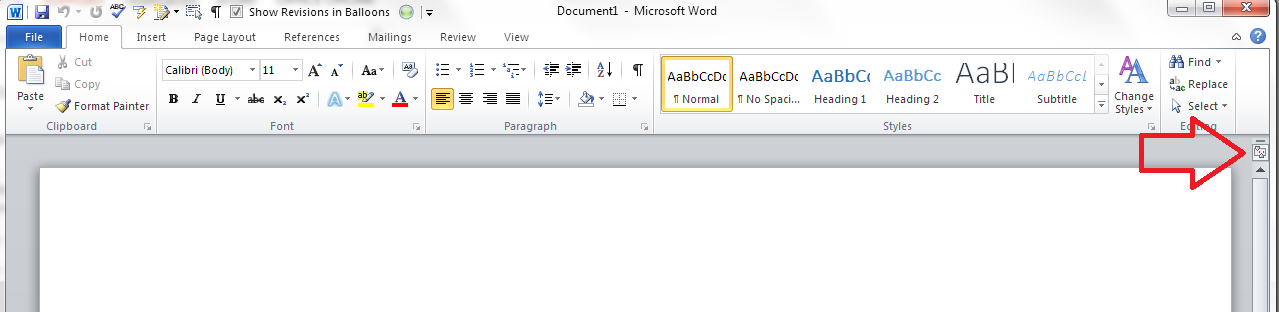
If you can’t see the rulers, click on the View Ruler button at the top of your right-hand scroll bar:

view ruler in word

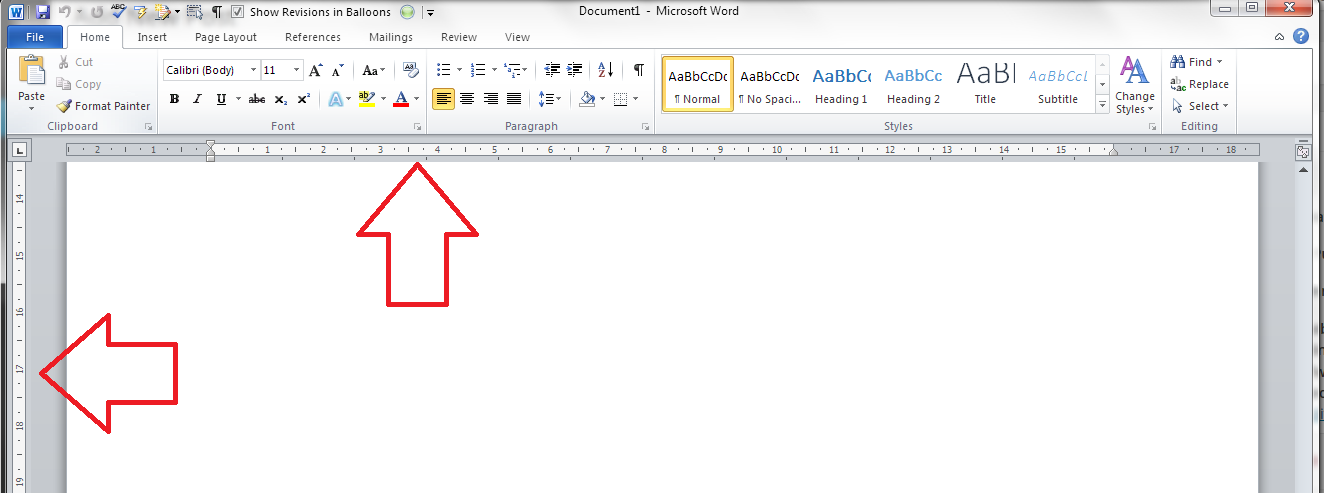
This will display both of your rulers, and you can use the sliders to adjust your margins:

Rulers display in word

To turn off the rulers, simply press that button again, and they will disappear!

Other relevant articles on this blog:

Indents and Margins.

I hope you’ve found these hints helpful! Do share or pop a comment on this post if I’ve helped you learn something new or solved a tricky problem for you, and do explore the rest of my blog if this is your first visit!

Please note, these hints work with versions of Microsoft Word currently in use – Word 2007, Word 2010 and Word 2013 all for PC. Mac compatible versions of Word should have similar options. Always save a copy of your document before manipulating it. I bear no responsibility for any pickles you might get yourself into!

This is part of my series on how to avoid time-consuming “short cuts” and use Word in the right way to maximise your time and improve the look of your documents. Find all the short cuts here


Tags: , , , ,

How do I change from having a gap between paragraphs to indenting them?

I’ve written this post because one of my clients just asked me how to do exactly this. She had a document where the paragraphs had an automatic line space between them, and no indent (because I’d produced the document and that’s how I like to lay out paragraphs), and she wanted to change it to have no line space between paragraphs, and the first line of the paragraph indented.

This article draws on two that I’ve already published, so for more detail, you might want to look at my posts on The Line Space Button and Indents and Margins. But what you’ll find here is a quick guide to changing your paragraph format from spaces between paragraphs to indented paragraphs (and vice versa). Note that although they all look a little different, this works for Word 2007, Word 2010 and Word 2013 for PC.

How to remove automatic spacing between paragraphs

There are many reasons to remove automatic spacing between paragraphs. To mention a rather obscure reason, I produce transcriptions to accompany a client’s YouTube videos. The formatting for these requires that a manual line space is added between paragraphs, but my version of Word adds these automatic spaces as a default, so I have to take them out.

Here’s what a document with automatic line spacing between paragraphs looks like:

Paragraphs with automatic spacing

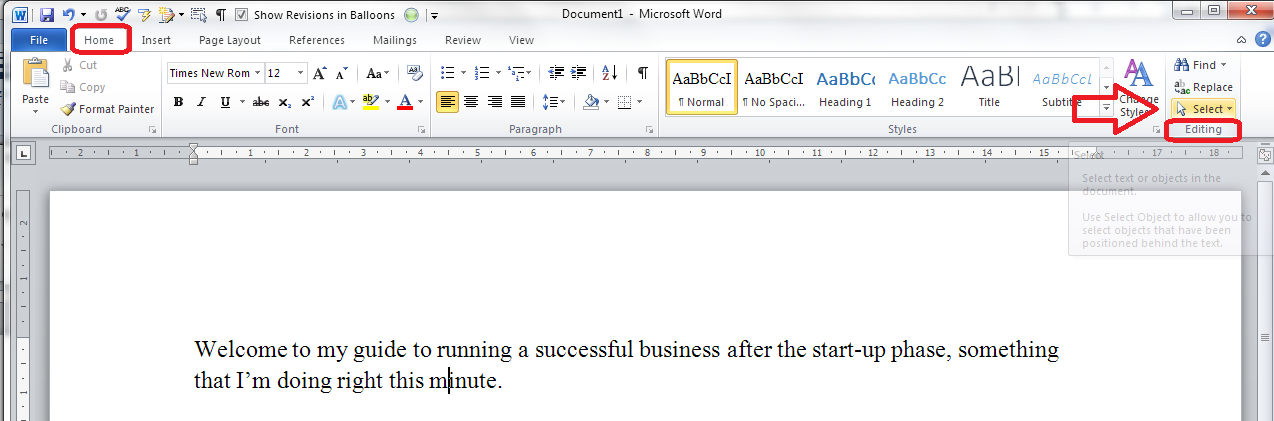
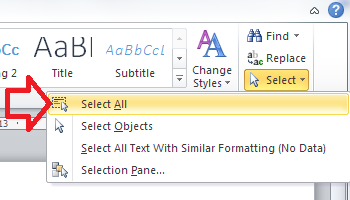
To remove the spaces, first of all you need to highlight all of the text where you’re going to change the format. This is best done by going to the Home tab, then going to the Edit area on the right and clicking on Select:

select all text in word

Once you’ve clicked on Select, you will get a choice of options which includes Select All. Click on this and your whole text will be highlighted:

option for select allOnce the text is all highlighted, making sure you don’t click on the text (which will deselect it), staying in the Home tab, go to the Paragraph section in the middle of the ribbon and click on the Line Spacing button, which looks like this:

line space button

remove space after paragraph

If you have automatic spaces between paragraphs, one of the two bottom options will read Remove Space Before/After Paragraph. In this case it’s after. Click on that option (and it will change to Add Space After Paragraph).

This will have the effect of removing the line spaces between your paragraphs:

paragraphs with no line space in between

How do I indent my paragraphs?

Keeping the text highlighted (or re-selecting All if you’ve accidentally clicked and lost the selection), move below the Ribbon to look at the rulers in your top margin.

(If you can’t see the rulers, click on the View Ruler button at the top of your right-hand scroll bar:)

view ruler in word

Once you can see your rulers, move only the top half of the left-hand margin marker rightwards across the page until you reach the indent position that you want:

setting indent in word

This will give you indented paragraphs with no line spaces between them!

indented paragraphs

Done! To get from indented paragraphs to paragraphs with gaps between them, you just need to reverse this process …

Other relevant articles on this blog:

The Line Space Button

Indents and Margins.

I hope you’ve found these hints helpful! Do share or pop a comment on this post if I’ve helped you learn something new or solved a tricky problem for you, and do explore the rest of my blog if this is your first visit!

Please note, these hints work with versions of Microsoft Word currently in use – Word 2007, Word 2010 and Word 2013 all for PC. Mac compatible versions of Word should have similar options. Always save a copy of your document before manipulating it. I bear no responsibility for any pickles you might get yourself into!

This is part of my series on how to avoid time-consuming “short cuts” and use Word in the right way to maximise your time and improve the look of your documents. Find all the short cuts here


Tags: , , , ,

How to change the language of your Word 2007, 2010 or 2013 document

This article tells you how to change the language of your document in Word 2007, 2010 or 2013.

Why would I want to change the language of my Word document?

The language that is set for your Word document sets the language in which the spelling and grammar checks work. If you are working, say, at a university that uses UK English, and you use a version of Word that’s set for US English, when you run a spell check (or if you ask Word to highlight errors as you go along), the spelling will default to American English. You will submit your document in the incorrect version of the language. This can really matter if you’re instructed to use one particular version, and will matter more as you move into submitting articles for journals (which may specify either version of English) or working for a company that uses British or American spelling as standard.

If you’re working in the field of localisation, or even just, as I used to, writing documents for the US and UK markets simultaneously, making sure that the language set for your document matches the language you’re working in means that you can run final checks and make sure that you’re using the appropriate spelling.

If your document has come from another country which uses a language other than English, for example if you’re working on a document prepared by a translator working out of their own language, you really need to change the language to English before you start editing it, or when you run a final spell check, every word will be highlighted and confusion will ensue.

So it’s important to make sure that the language of your document matches the language in which you wish to work. I receive many documents to proofread which are set for US English but are for a student at a UK university – a quick set of actions is all that it takes, but I fear that students will be penalised if they use the inappropriate spellings for the context.

How do I view and change the language in my document?

In Word, the language that is set for your document should appear in the lower status bar of your document:

1 language on status bar

From here, you can easily change the language of selected text or the whole document (see below). But first we’ll look at how to add this useful display if it’s not showing.

How do I make the language display on my status bar?

If the language isn’t showing on your status bar and you want to see it there, right-click anywhere on the lower status bar. A menu should appear with lots of options to tick. Any item that is ticked will appear on the status bar – this is also useful if you want to view your word count there.

2 add language on status bar

Click on Language or tick the tick-box next to it, and your language will appear for ever more in the bottom status bar.

This works exactly the same for Word 2007, 2010 and 2013.

How do I change the language using the status bar display?

First you need to highlight the text whose language you want to change.

You might want to highlight parts of the document (for example if it’s a dual translation in two languages and you just want to set one to UK English, or it’s a localisation and you just want to change one column of a two-column original and target language table), keeping the control key pressed down if you want to select several individual blocks of text.

If you want to change the language of the whole document, go to the Home tab and choose Select to the very right of the tab, then Select All:

3 select text

(or you might press the Select All button on your Quick Access Toolbar if you’ve added it there (marked with an arrow on the screenshot above) – see my article on Adding Buttons to the QAT if you need to know how to do that).

Once you’ve highlighted the text for which you want to set the language, click on the language display in the bottom status bar and choose your language:

4 select language

Note: Do not check spelling or grammar has a blue square next to it. Click in this square twice so that first a tick, then nothing, appears in the square.

Now click on OK. Your language will have changed to the language you selected.

This works exactly the same for Word 2007, 2010 and 2013.

How do I change the language using the menus in the ribbon?

If you don’t choose to display the language in the lower status bar, you can access it via the menus in the ribbon at the top of the screen instead. This works slightly differently in Word 2007, 2010 and 2013, so I’ll show you screenshots of all three.

In Word 2007, choose the Review tab and then Set Language in the Proofing section:

5 menus 2007

In Word 2010, choose the Review tab, then the Language button in the Language section, and click Set Proofing Language:

5 menus 2010

In Word 2013, again, choose the Review tab, Language section, Language button and Set Proofing Language:

5 menus 2013

For Word 2007, 2010 and 2013, once you’ve clicked on the relevant button, you will see the dialogue box for changing the language: select your language, remembering to click the blue square next to Do not check spelling and grammar once, twice, so there’s a tick then nothing:

7 select language

How do I make the language appear in the lower status bar of my document?

You may find yourself unable to display the language in the lower status bar, however much you right click and tell Word to display it. Please pop over to this article if you’re having this problem, where you will find screen prints that will walk you through the process.

How do I change the language in my comments balloons?

You may find that the language in your comments balloons remains the original language of the document. If you need to change the language in your comments, see this article.

———–

In this article, I’ve shown you how to change the language of your Word document. If you have found this useful, please leave a comment and click on the sharing buttons below. Thank you!

This is part of my series on how to avoid time-consuming “short cuts” and use Word in the right way to maximise your time and improve the look of your documents.

Related posts on this blog:

How to change the language of comments

Please note, these hints work with versions of Microsoft Word currently in use – Word 2007, Word 2010 and Word 2013, all for PC. Mac compatible versions of Word should have similar options. Always save a copy of your document before manipulating it. I bear no responsibility for any pickles you might get yourself into!

Find all the short cuts here

 
19 Comments

Posted by on March 26, 2014 in Errors, New skills, Short cuts, Word, Writing


Tags: , , , , , , , ,

How to set up a WordPress blog 2: adding pages to make it into a website

Following on from my posts about how important it is to have a website for your business and on setting up your WordPress blog (which you need to read before reading this if you’re a novice), in this article, I’m going to show you how to add pages to your WordPress blog to make it into a website.

This is what I did when I created this website that you’re reading this blog post on right now. I’m going to use my special test WordPress blog to show you what to do, and also the inside workings of this blog for the more complex aspects. Read on to find out how to set up web pages on your blog, and first of all, why you would do that.

What’s a WordPress page and why do I need them?

A page is a static, unchanging screenful of information, for example what you see when you go to my About page on this blog, or my page about my Business e-book on my writing blog. Where a blog post is written, published, moves down the blog page and is superseded by new blog posts, like a diary, a web page is fixed, stays the same and is visible whenever you visit its home. Where a blog is like a diary, a web page is like a passport photo or a lawn sign.

Why do you need one? Well, when someone reads your blog, they’re going to be bound to want to know something about you – that’s why pretty well all blogs have an About or Home page. And if you run a company, it’s advisable to put together a page, or a set of pages organised into some kind of structure, that tell readers about what you do, how you do it, what it costs, etc.

Website readers have a low attention span. They want to read a bit of stuff then move on. Many of them don’t even like scrolling down to see what’s lower down on the page. So a) they’re not going to want to search or scroll through your blog to look for information, and b) they don’t want everything on one web page. My website is quite wordy; imagine what it would be like if all that information you can access along the top menu bar was all on one page.

So, you’re convinced that you need at least an About page. You understand the difference between pages and posts (pages = static; posts = constantly updated diary type affair). Let’s find out how to set up a page on WordPress.

How do I set up a Page on WordPress?

You access Pages from the Dashboard (click on your blog name or the little house icon next to your blog name on your Stats page to reach it). Once in the Dashboard, go down to Pages, click, and choose All Pages. This allows you to see what pages are already there – and once you have some, you can edit them from here.

1 pages

Why have I gone here first rather than hitting the New Page option? Because every new WordPress blog has an About page set up already, to get you started.

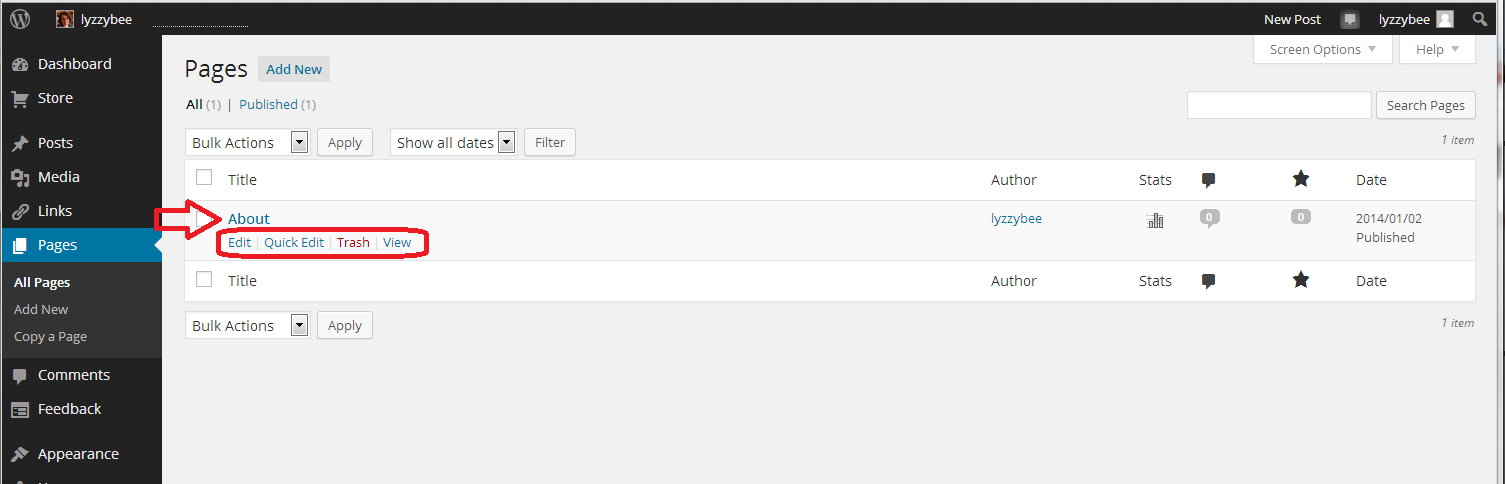
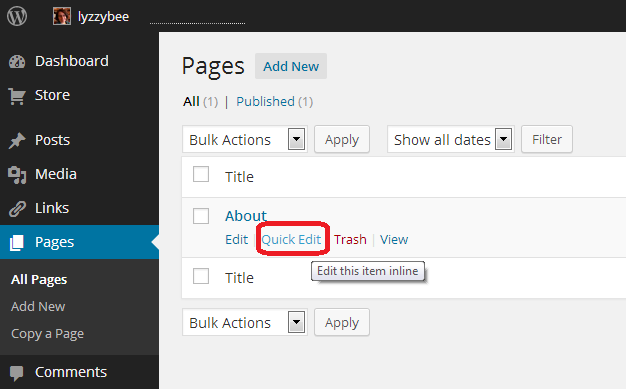
In the All Pages view, you can see all of the pages that you have set up, and hovering over the page title with your cursor allows you to Edit, Quick Edit, Trash or View them. Here, we’re going to Edit

2 about

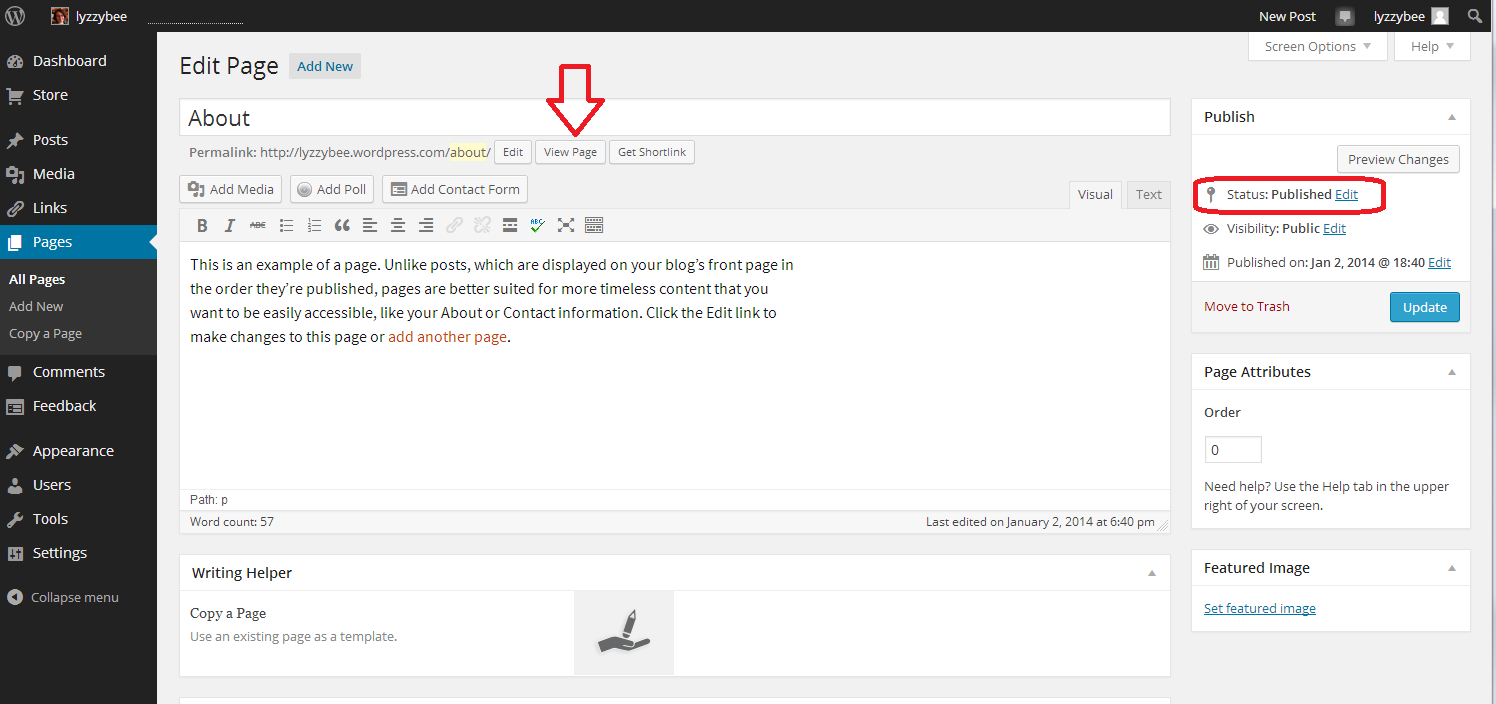
When you click Edit, you’ll arrive at a screen which looks very like the one that you use to create a new blog post. However, it has Edit Page at the top, and some Page Attributes to the side.

You can see that you have a title area (which includes the word “About” and a text area, which also contains some text at the moment.This can all be edited and customised just how you want it.

You can also see here that the Status is showing as Published. That  means it’s live on the Internet for all to see …

3 about

Want to see what this page looks like? Click on the View Page button just under the title …

4 about

This is likely to open in a new window – if it doesn’t, hit the back button on your browser to get back, or the Edit button at the bottom (or top, depending on your theme).

If you want to edit the text, which I do in this case, just delete the text that’s there and add some new. When you’ve edited it as you wish, hit the Update button to save. Then use the View Page button to have a look at the changes. Note: I’ve added hyperlinks here – here’s an article explaining how to do that

5 about

When you look at the page on the blog, there is all your new text, including the hyperlinks:

6 about

How do I set a web page to be my landing page / front page?

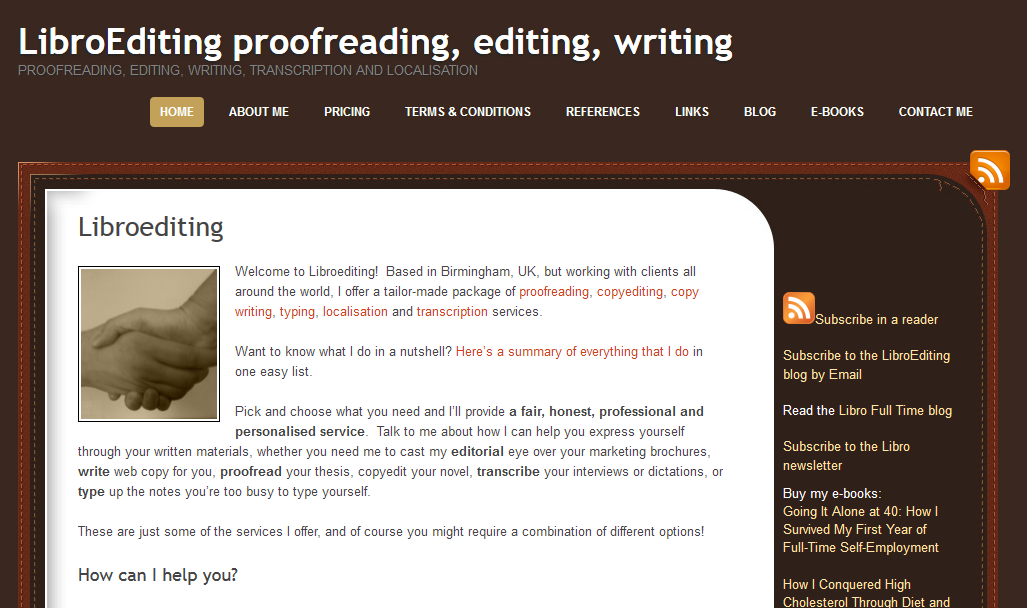
In some circumstances, you might want a static page to be the home page / landing page / front page that a visitor to your URL will always see. I do that with this website – whenever you go to www.libroediting.com, you will see my Home page. However, visit www.librofulltime.wordpress.com and you’ll see the latest blog post I’ve published, and you’ll need to click on the top menu to see a static page about you. It’s all about what you choose to do.

I’d recommend that if you are primarily blogging, with just one or two pages about you and your background, leave the landing page as the blog. If you’re promoting a company, product or service, and your blog is supporting that and driving visitors who you want to buy from you, choose to display a static web page when a visitor arrives.

Here’s how you tell WordPress to show visitors a page, not your latest blog post.

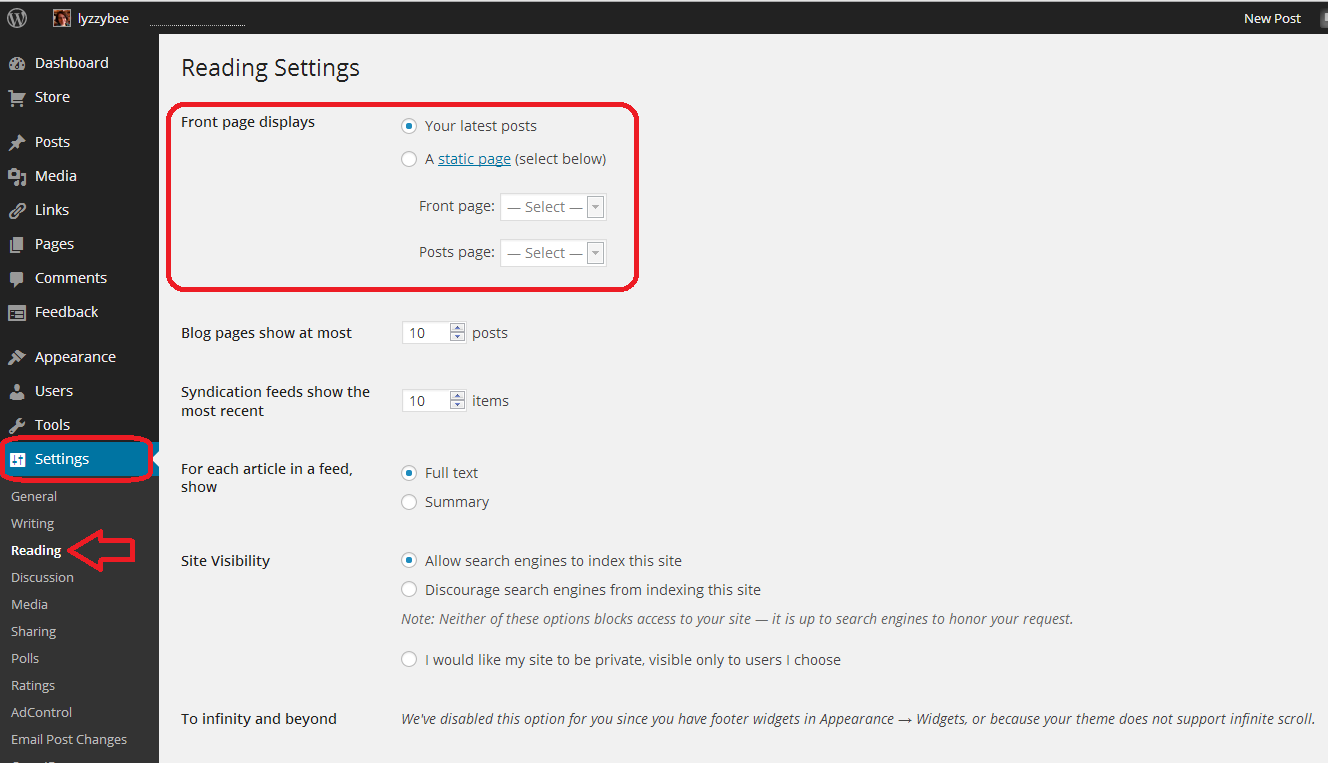
Go to the Dashboard, choose Settings, and then Reading. Right at the top of the page, you have a section entitled Front page displays. You have the choice of Your latest posts (i.e. your blog) or A static page. If you click on that radio button, you will be asked to choose a page to display.

7 set page as front page

I have chosen not to do that for this test website/blog, mainly so that I can change it if I’m training people face-to-face, but here’s how this Libroediting site is set up. I have chosen Libroediting as the front page, and Blog as the posts page. That means that any visitor will, as you’ve seen if you clicked the link above, see my Home page on their initial landing on the site.

8 set page as front page

How do I add a new Page to my WordPress website/blog?

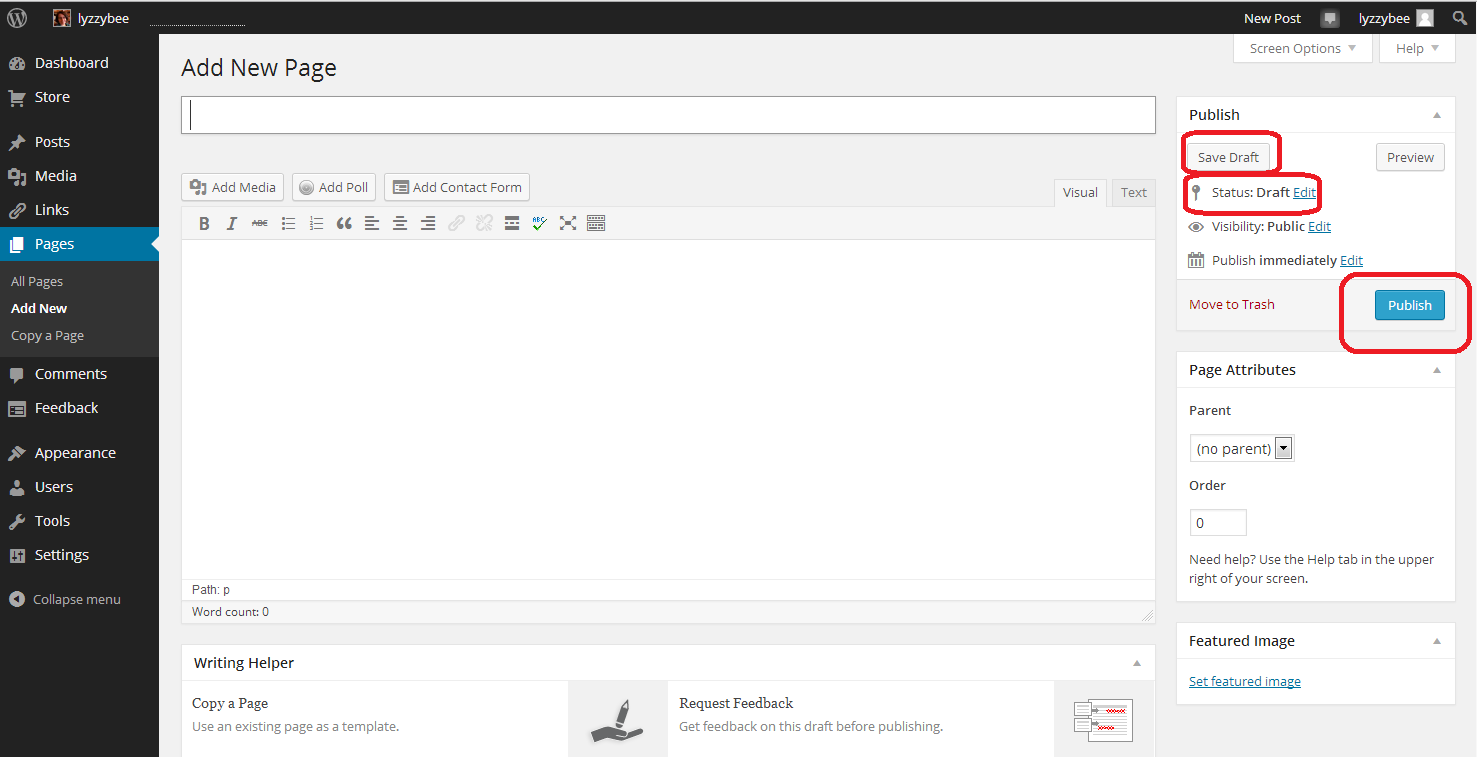
If you want to add a brand new page, revisit the Dashboard and choose Pages – Add New. Note, you can Copy a Page, too. This will give you an exact copy of a page you already have – more useful for posts, but if you have special formatting that you’ve set up, or you’re splitting the text on a page over several new pages, it’s worth doing that. Click on Add New

9 add new

… and you will find yourself in a completely blank editing page. Note that now the Status reads Draft, and you also have an option to Save Draft. Please press this very, very regularly, so you don’t lose your draft posts. When you’ve finished adding the text for your new page, hit the Publish button to make it live (or you can leave it in Draft form if you want to work on it further; just do remember to Save Draft).

10 add new

How do I view and edit my pages?

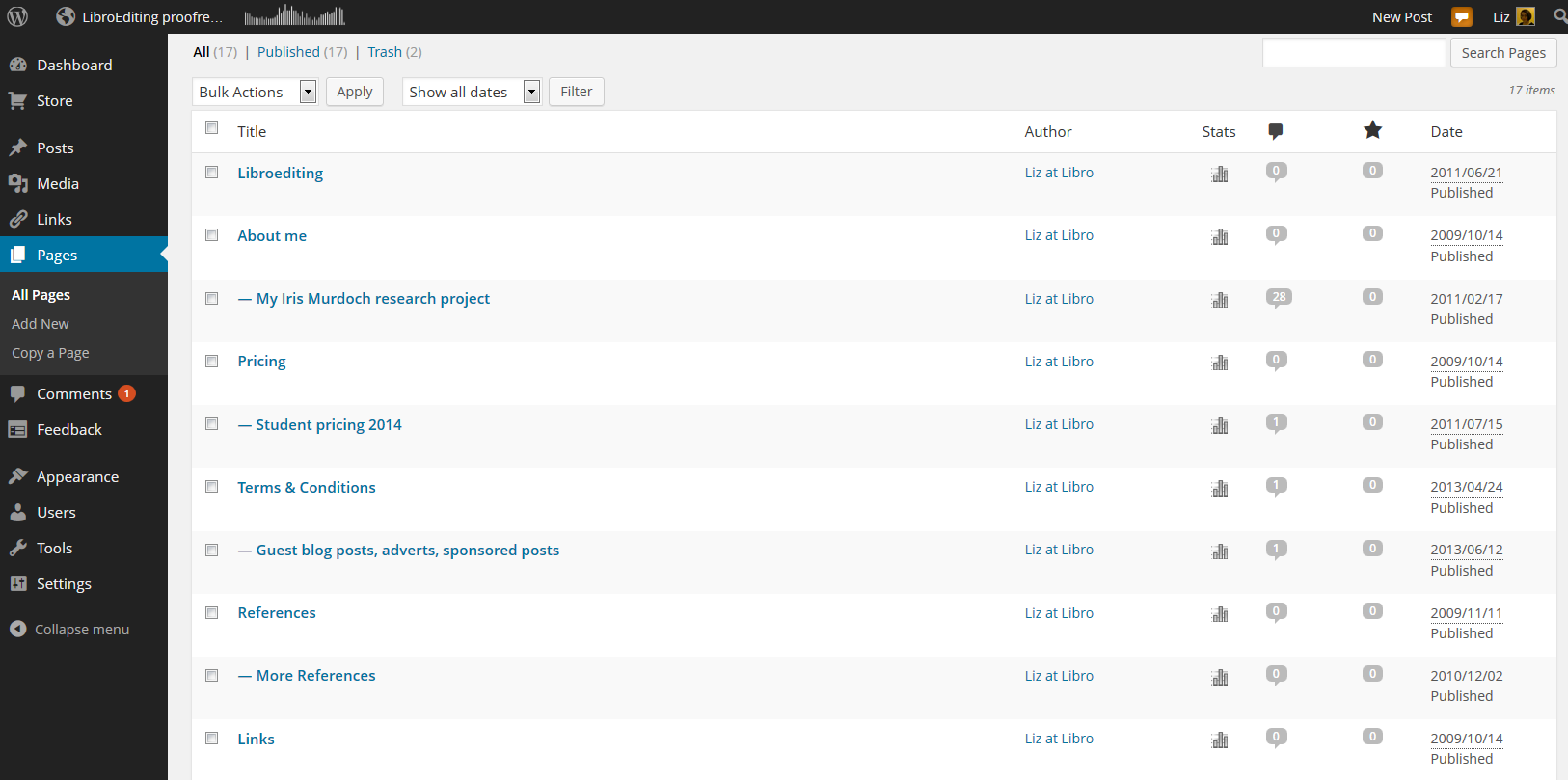
You can view all of your pages by going to the Dashboard and choosing Pages – All Pages. Here is part of my page list for this website. If you hover over any page title with the cursor, you’ll get the Edit / Quick Edit / Trash / View options to allow you to make any changes you want to. If you have any pages in Draft form, not yet published, you’ll see Draft next to All / Published / Trash and you can click to see all of your draft as opposed to published pages.

11 pages

Useful pages that I would recommend including on your business website are:

  • About me (with a photo)
  • Services
  • Prices
  • Testimonials / references
  • Contact me (with a contact form)
  • Blog
  • Links (links to colleagues and recommended websites – always kind to do)

How do I change the order in which my pages appear? How do I create sub-pages?

It’s good to be able to control what order that top menu and any side menus appear in. As you get more pages published, you might find there are too many for the menu to display, and it starts to look a bit messy. You might want to arrange pages in sub-categories, under other main pages.

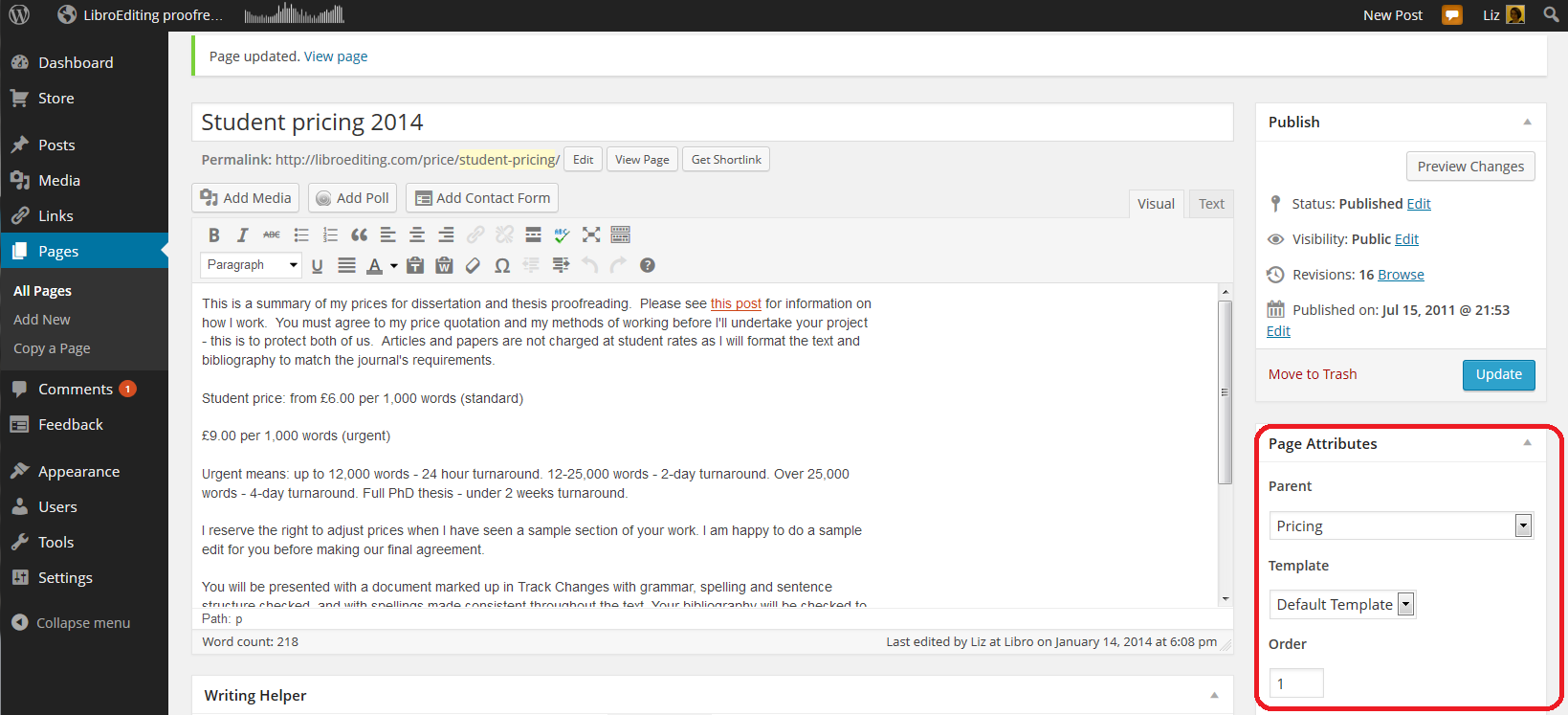
The place to do this is in the Edit screen for your page (click on Edit when viewing the page or select Dashboard – Pages – All Pages and click on Edit for the particular page). You will notice a section called Page Attributes. Here, we’re looking at my Student pricing 2014 page, which is a sub-page of my Pricing page. Note that I’ve chosen a Parent page from the drop-down menu of all of my pages. When you’ve completed all changes, press Update to save them. You can also choose the order … see below …

12 sub pages

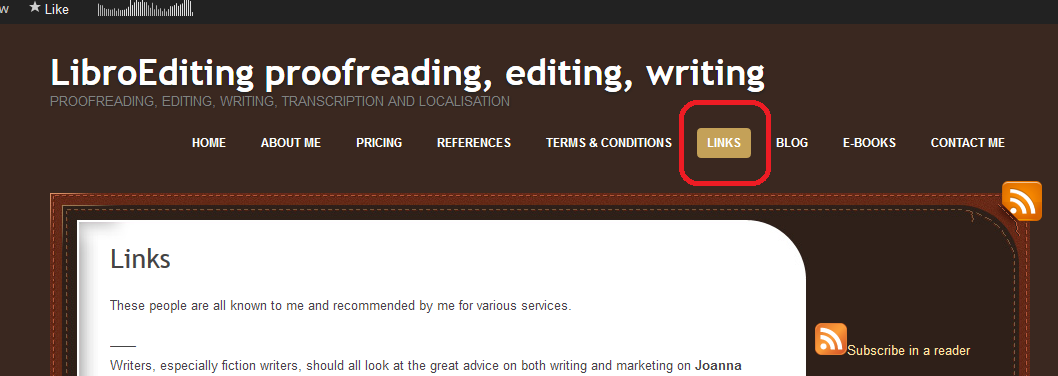
It’s nice to have your landing page on the left and your About me quite prominent, with other pages such as Links down the order a little. That same Page Attributes area allows you to choose a number to define the order the pages appear in on your menus. Here, I’m giving my Links page number 6. I press Update and view the page …

13 page order

Looking at the page itself, you can see that the page name is number six in the list of pages along the top!

14 page order

Note: not all designs of WordPress blog have the menus automatically along the top. But they should appear at the top or down the side. Play with the choice of design if it’s not where you want it to be, or add a menu to the side bar, which we will learn about another day.

How do I do a quick edit?

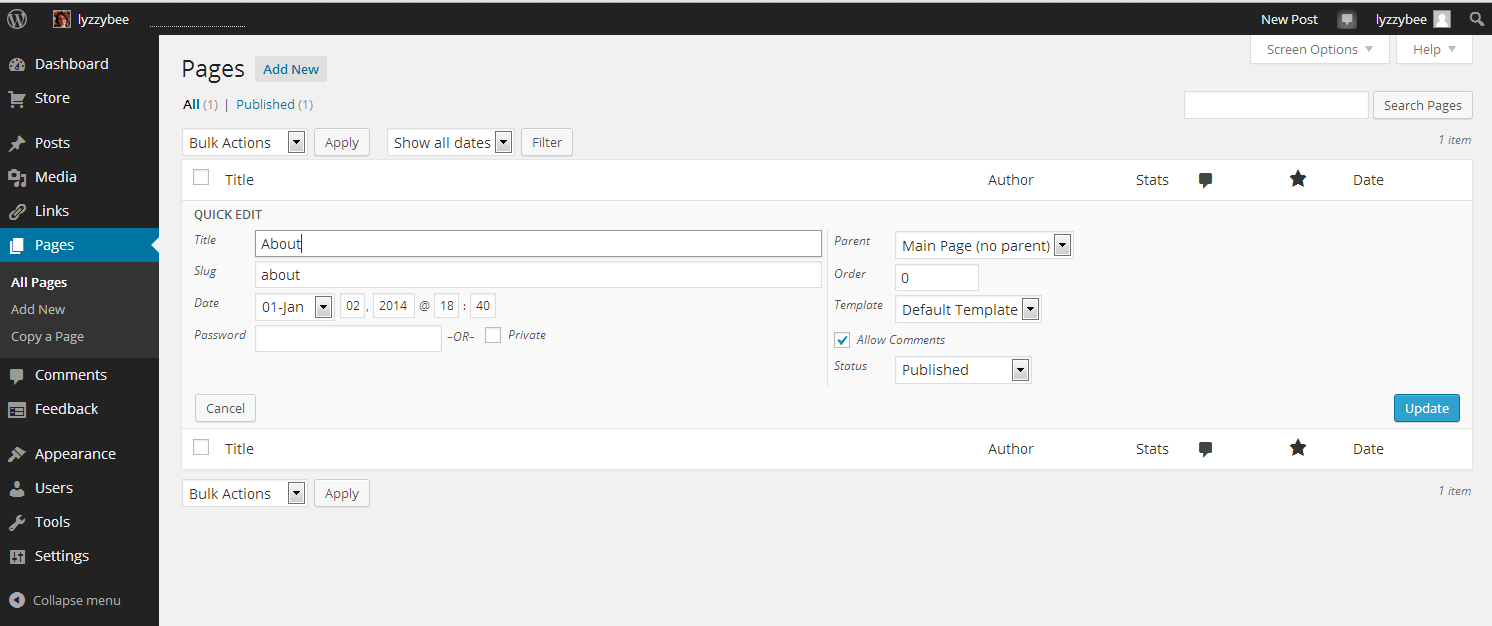
If you just want to change the title, page order or other attributes for a particular page, view All Pages, hover over the page title and choose Quick Edit.

15 quick edit

You will get a limited number of options, but this can be a quick way to do an update. Click Update to save.

16 quick edit

In this article, we’ve learned how to add web pages to a WordPress blog to make it into a website, using WordPress.com hosted by WordPress itself. These basic ideas should be the same on self-hosted WordPress sites.

I hope you have found this article useful. Please share using the share buttons below, or post a comment, and do please let me know if you use this article to help you to set up your own blog, and post a link below!

Related posts on this blog:

WordPress 1 – the basics – joining and setting up a blog

WordPress 3 – adding images to your post or page

WordPress 4 – adding slideshows and galleries of images

WordPress 5 – linking your blog to your social media

WordPress 6 – sharing buttons

WordPress 7 – adding an avatar picture

Is it worth having a website for my business? – the big question (and the answer’s Yes!)

Adding links to blog posts – how to do it on the major blogging platforms (and email)


Tags: , , ,

Is it worth having a website for my business?

websiteIn my networking adventures and other travels in the world of small business, I come across quite a few people who don’t have a website. To be honest, I’m a bit shocked when this happens. Unless you’ve got a constant set of clients, with new ones on the horizon to fill in any gaps if you lose one, then you’ll want to be findable.

When you think about getting the roof done, or finding a cleaner, or sourcing flowers for an event, or buying a product, where do you look?

Online.

Even if you look for a tradesperson on a Yellow Pages style website, I bet you like to have a URL to click through to, to look at their details. Right?

If you don’t have a website, even a single page with your name / company name and information about yourself, then what will people find when they search for you?

How do people search for companies, products or services?

People come to my website in one of four ways:

  • They search for my name
  • They search for my company name
  • They search for something that I do
  • They search for the answer to a question (“is it en route or on route?” “How do I repeat the header row of a Word document on every page?”)

This is what would happen if I didn’t have a website:

  • If they search for my name, they’ll find my Twitter or Facebook feed, or photos of me socially, or mention of me on forums. All fine, but they’d probably rather find either my Facebook or my company information in one place
  • If they search for my company name, they will find my Facebook or Twitter feed, however, those mention and feed back to my website, as they’re not enough in themselves to maintain interest and get me business
  • If they search for something that I do, they’ll find someone else’s website and if they’re looking for someone to do that work, they’ll hire that someone else
  • If they search for an answer to a question, someone else will answer it, and if they’re looking for someone to work for them, they’ll hire that someone else

This is what happens because I have a website:

  • If they search for my name, they’ll find my website and my other feeds, which all link together. They’ll find out what I do and if they want to talk about work, they can contact me
  • If they search for my company name, they’ll find my website, find out what I do, and possibly hire me, getting in touch via my contact form
  • If they search for something that I do, they’ll find my website, find out that I do that, find references from people who I’ve done that for before, and possibly hire me – getting in touch via my contact form
  • If they search for an answer to a question, if I can answer it, they’ll find out that I know what I’m talking about, and note me for later or sign up to receive emails when I post, and might hire me in time, or ask me a question or engage with my blog

The bare minimum

As a bare minimum, you should have a page somewhere that includes …

  • Your name
  • Your company name (if it’s different)
  • A list of your services or products – make sure that you mention all of the forms of the things you do on that page (so I would include transcriber, transcription services, editor, editing, etc.)
  • References from satisfied customers
  • A way to get in touch with you – a contact form, a phone number (most people like to see this), an email address
  • Professionally produced text – by which I really mean have someone check it for typos and spelling mistakes. Those will seriously undermine your reputation and send people running from your services – whatever they are

It’s a good idea to have your company name in the url for your website, but personally I don’t hold it against small companies if they have the word blogspot or wordpress in their URL – you don’t need to pay extra to have that if you don’t want to.

You can use a Facebook page as your company web page, however I would hesitate to ONLY use something that changes so often and is as unpredictable as Facebook. A company Facebook page is better than nothing, however!

Optional extras

You can add these extras if you want and if they add value. If you find that you’re getting a steady stream of enquiries via your simple website, and they turn into paying customers, then only add these items if you can see a clear value in doing so, rather than doing it out of vanity or because someone’s persuaded you to buy their service.

  • A URL that’s just your company name – you will have to pay for this, probably renewing annually
  • A professionally designed website – there are so many “themes” on offer that look as good as professional websites.
  • A blog – this is GREAT for driving people to your website and setting you up as an expert in your field. If you only do one of these things, write a simple blog
  • Someone to write web text and blog posts for you
  • Search Engine Optimisation – a professional can ensure that you’re showing up in the search engines etc. But shop around – this can be expensive and there are lots of things you can do to SEO your site on your own (just have a little search engine search and see what you can find)
  • A shopping cart and catalogue – very useful if you’re producing craft items or any tangibles – but you can sign up to services like Etsy and eBay which will do this for you

The big caveat

It’s really important to have a web presence so that people can find you.

It’s really important to be super-vigilant, because unscrupulous companies prey on small businesses’ lack of expertise in this area.

  • Always ask around fellow small business owners or someone whose website you admire and see who they use
  • If someone offers to make you top of the search engine results, ask what other sites they’ve worked on (always ask for references anyway) and do a search for yourself
  • If someone offers to revolutionise your website and make you a millionaire overnight, they’re probably over-selling. Ask for references
  • If someone offers to build your website make sure – no, MAKE SURE – that you will be able to edit and update the text and pictures on that website whenever you want to. Never hand over the full ownership of your site to another person such that you can’t update it yourself.

If you haven’t got a website, and you haven’t got a steady stream of new and regular customers giving you a good income stream, I really do suggest that you get a website!

Read more here about growing your business, have a look at my advice on blogging and social media, read about how to set up a WordPress blog and website (starting with this post) and read about my own business journey in my book, Going It Alone At 40.

Related posts

WordPress 2 – adding pages to create a website

 
11 Comments

Posted by on January 13, 2014 in Blogging, Business, New skills, Social media


Tags: , , , , , ,

Searching for jobs on Twitter

I had planned a post on exactly how I would go about searching for freelance (or otherwise) jobs on Twitter, then ended up discussing the topic with another editor, who’s keep on working on cookery books. So, here comes a worked example of how to search for jobs on Twitter.

Why search for jobs on Twitter?

People talk a LOT on Twitter, and they also use it for information seeking purposes. How many times have you seen a friend or just someone you follow ask a question, or look for a recommendation? Especially if you’re a freelancer, people will throw a question out: “Does anyone know a good transcriber?” and other people will answer them. It’s brilliant if one of your own clients does this and gives your name (this happens quite regularly to me, so I promise that happens), but if not, as long as you’re not over pushy about it, there is no harm in tweeting to that person to tell them about your services.

Does searching for jobs on Twitter really work?

Yes. Yes it does. I can say that with certainty, because I know it does from experience. Here are just a couple of examples:

1. I ran my regular search (see below for how to do this) on “looking for proofreader”. I found a Tweet by a woman working in PR. I contacted her, she became a client, she took me with her when she joined a big agency, and when she left that agency, I ended up with them and her as clients.

2. A journalist I followed on Twitter posted the tweet “Can anyone help me with some transcription?” At the time, I didn’t offer transcription as a service, but I was a trained audio-typist. I got in touch, again, it went to email for the negotiations, and I ended up with that journalist as a long-term client. Plus, she recommended me (via Twitter and email) to other people, who also recommended me, and I ended up with a regular client base of music journalists.

So yes, it does work. Here’s how to do it.

First, make sure your profile represents you accurately

When you tweet to someone, the first thing they’re going to do is look at your profile. So make sure it includes:

  • Your photo
  • Your full name
  • Your company name
  • Your url
  • What you do

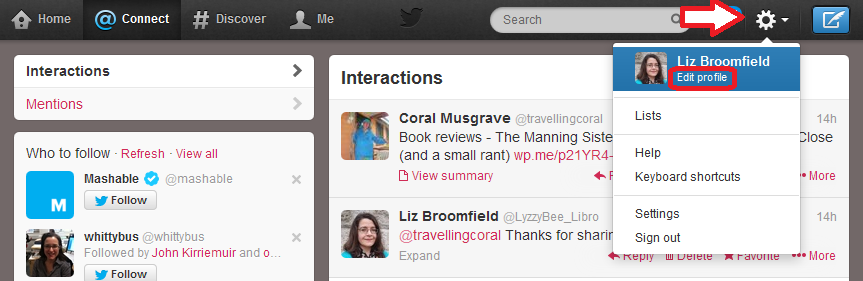
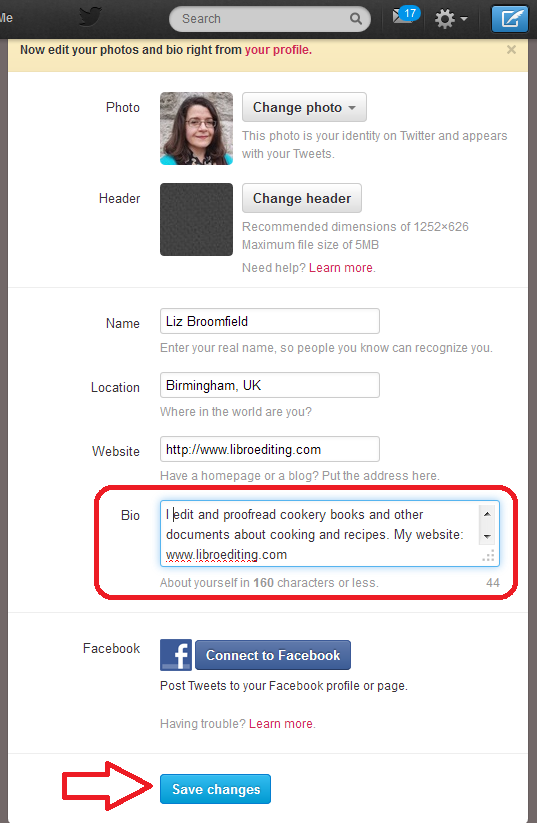
How do you change your Twitter profile? On the standard Twitter website, click on the Tools icon (the little cog) in the top right and drop it down to get Edit profile:

edit profile 1

Now you have the option to change all of your details and your Bio(graphy). Make sure that you get all of your keywords in, press Save Changes at the bottom, and you’re reading to go and encourage people to look at it!

edit profile 2

How do I search in Twitter?

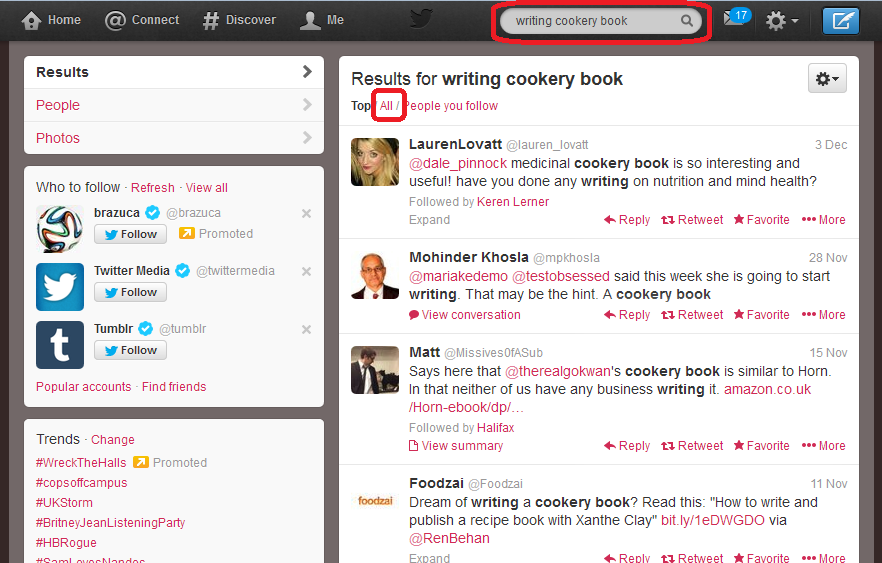
At the top of the screen, you will find a grey box with a magnifying glass icon in the right-hand end. You can type any words you want to search for in here and hit Return to run your search.

You do need to think about your search terms and what you think people who might be searching for a cookery book proofreader might need. Here, I’ve gone for “writing cookery book”, on the grounds that if someone is writing one, they are going to need editing help at some stage. So I input that, hit Return, and when the results come up, I choose All rather than Top or People you follow – to make the results list as wide as possible.

1 search

How do I interpret the Twitter search results?

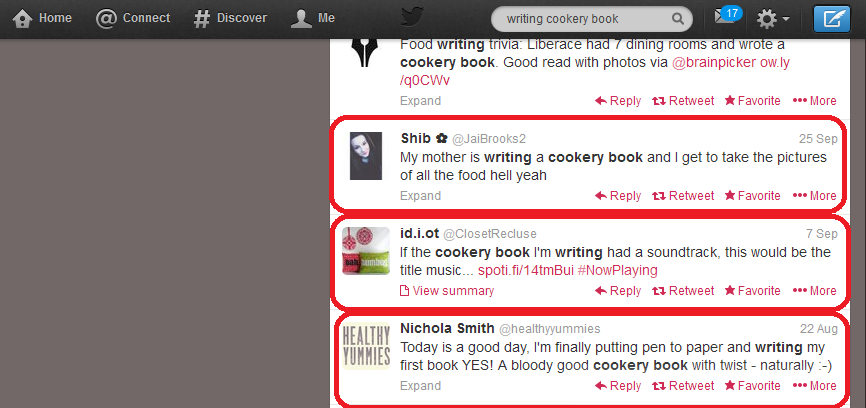
Bear in mind what you’re looking for: people who are writing cookery books and might need your help. Scan down the results list, and you’ll soon see some hopeful ones. I would send a quick note to all of the people I’ve circled, but not the one above, which just mentions a cookery book, not really associated with someone writing one right now:

2 results search

Advanced search in Twitter

Twitter searching doesn’t use wild cards, which means you can’t input cook* book and get it to search for cookery book, cook book, cooking book, etc. Once upon a time, you’d have to run searches for all the different words you wanted. But now you can run Advanced Search and search for lots of different things at the same time.

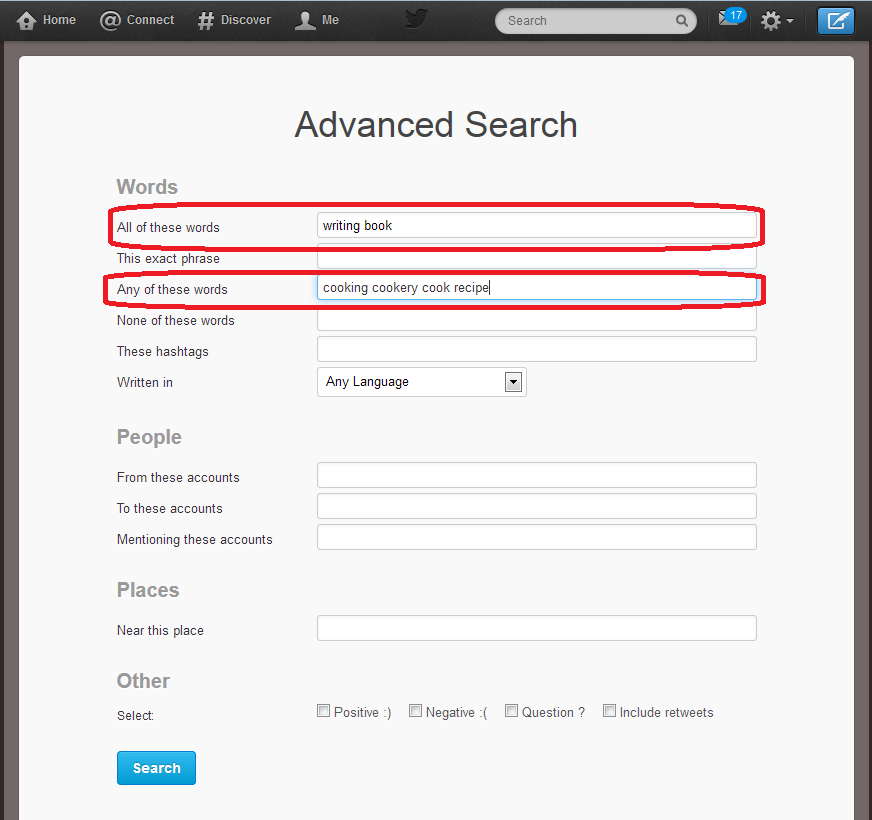
Click on the cog to the top right of your search results and drop it down. You’ll have an option to Save search (we’ll look at that later) and Advanced search will appear in the sidebar. Pick Advanced search and you’ll be taken to the Advanced Search input screen. Here you can handily choose words that must be included in the results, and words that could be included. So, here, I’m saying that all tweets that Twitter finds must include the words “writing book”, but they can also include any of “cooking”, “cookery”, “cook” and “recipe”. This means that it will look for “writing book” plus any one or more of the other words.

4 advanced search

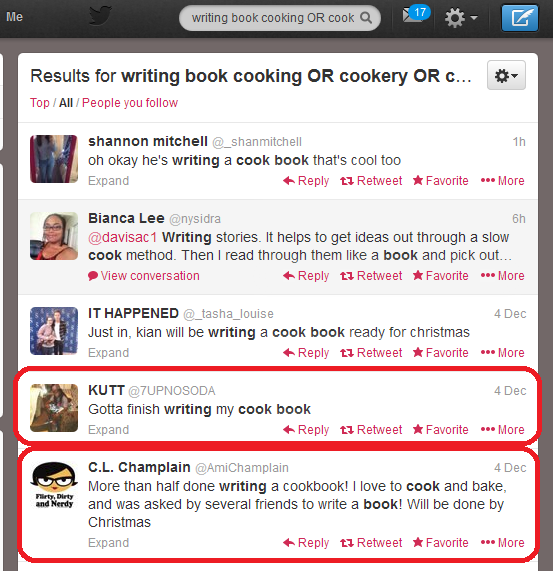
What effect does this have on the results? Well, we can see a few that aren’t really any use, but two from people writing cook books (circled). Result, and we’ll have more results doing this than for each of lots of different individual searches, all in one place.

5 advanced search results

(You can see that at the top of the search screen it’s written out your search as “Results for writing book cooking OR cookery OR cook…” and this means that it’s using the Boolean operators AND, OR (and NOT, if you want), so if you’re familiar with online searching, that’s what it’s doing.)

How do I save a Twitter search?

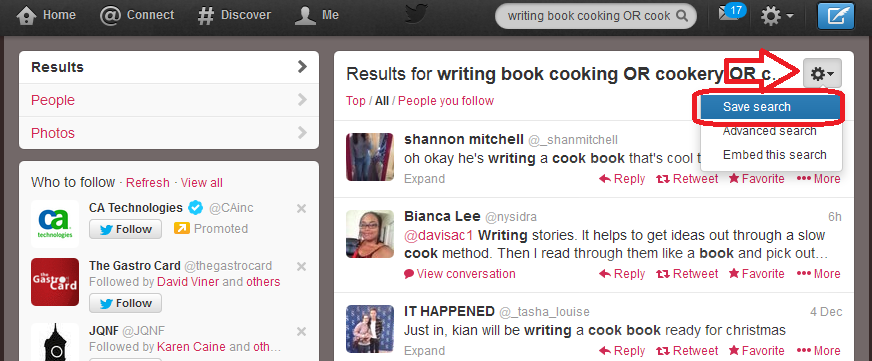
When you’ve found a good search that has a lot of useful results (no search will have ALL useful results, but this seems a good one), you can save the search. Click on the cog, drop it down and choose Save search:

6 save search results

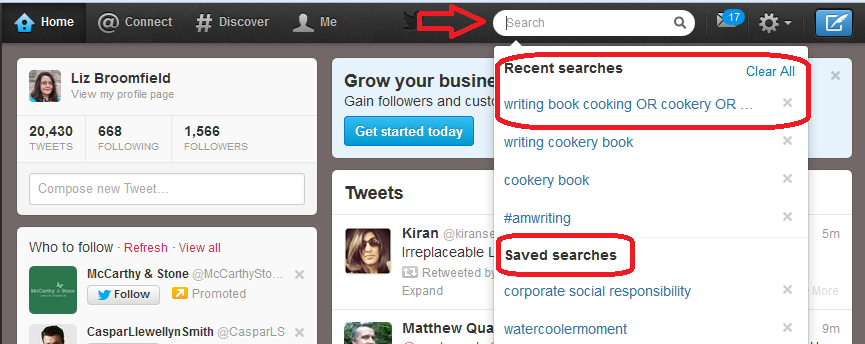
When you next click in the search field, you will get a list of Recent searches and Saved searches. Our search is in Recent searches at the moment, but will stay in Saved searches, now you’ve saved it.

7 saved search

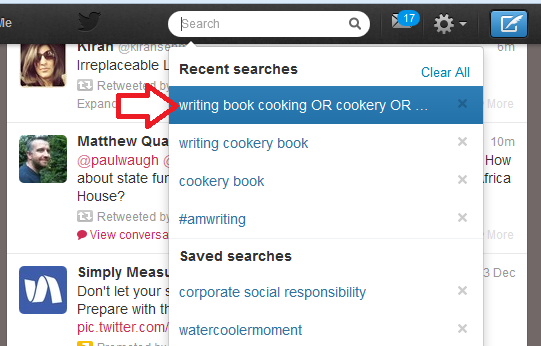
This means that you can just click on that search query rather than typing it all in again.

8 run saved search

How often should I re-run my Twitter job searches?

I recommend running each of your searches every 24 hours. This gives you only a few extra results each time, it’s easy to note where the ones that you’ve already seen start, and if you want to reply to a tweet, it’s not too long since the person tweeted it.

It might be worth running them more frequently at first, but keep an eye on how many new results come up during 24 hours and you’ll get an idea of the schedule to use. I wouldn’t leave it longer than 24 hours, for fear of missing out, as Twitter is a very immediate medium.

How do I pitch for a job on Twitter?

You might feel a bit uneasy about this. But I can promise you that no one minds one short, friendly and non-pushy contact in reply to a tweet they’ve sent out. I’ve sent loads, I’ve had a certain amount of success; some people have ignored me, but no one has ever complained.

Here’s a worked example of how I’d approach this situation as a proofreader looking for work on cookery books:

9 reply

So, a very non-pushy, friendly and polite tweet inviting them to respond. If they did respond positively, I’d very quickly move to giving them my website URL (even though it’s on my profile, I’d put it in a tweet) and initiate email contact so we could discuss the project in more detail.

———

So there we go: that’s how I searched for jobs on Twitter – and won them. My use of this network was a while ago now, but you know what? I still have both of those original clients who I talked about above!

If you enjoyed this post or found it useful, please do use the sharing buttons below and leave me a comment!

Related posts:

How do I get freelance work?

Reciprocity and social media

Karen Strunks on using Twitter in your business

 
16 Comments

Posted by on December 23, 2013 in Business, Jobs, New skills, proofreading, Social media


Tags: ,