RSS

Author Archives: Liz Dexter

Unknown's avatar

About Liz Dexter

Book blog is at http://www.librofulltime.wordpress.com Writer, proofreader, editor, transcriber. Also runner, gym-goer, volunteer and BookCrosser! My married name is Liz Dexter but my maiden name and the name on the books I write is Liz Broomfield.

How do I hide a Facebook post?

Today I’m going to share with you how to hide a single Facebook post, and control what you see and when.

Why would I want to hide a Facebook post?

I usually want to hide a Facebook post if the post itself upsets me in some way, or presents a spoiler on something, but I don’t want to unfriend or unfollow the person who posted it. A personal example is when people post pictures of cruelty to animals or people, something I really don’t want to see scrolling through. Or a picture of a spider.

Note: if you just want to stop getting notifications on a post in your email, but not hide it from your timeline, follow these instructions.

How do I hide Facebook posts in my timeline?

If you want to hide a post …

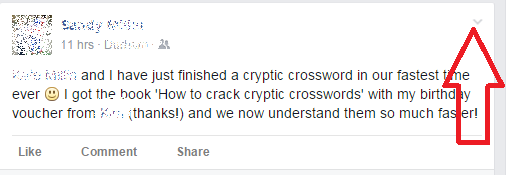
First, find and press the little down-arrow in the top right-hand corner of the post:

Facebook post hide arrow

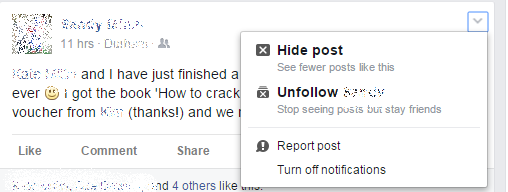
This will give you a menu of things you can do:

Facebook turn off notifications

You can see here that you can Hide the post. Facebook will confirm when you’ve done this.

How do I hide my own Facebook post?

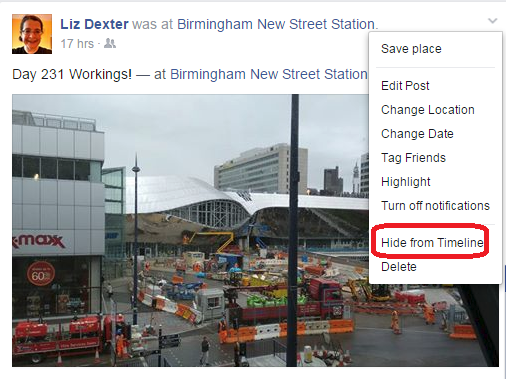
I’m not sure why you would want to do this, but if you want to hide one of your own posts, you get more options when you click that down-arrow:

Facebook hide your own post

How do I hide Facebook posts in a Group?

If you are a member of a Facebook Group but choose not to have it come up in your timeline (for example, if you’re in a photo-a-day group and would end up with 80 posts a day in your Facebook timeline), you CANNOT HIDE A POST.

How annoying is that! But you can at least turn off the notifications – see this post for instructions.

This post has shown you how to hide posts from your Facebook timeline, on your own posts but not in Groups. You can find more on social media in the Resource Guide or by using the Search box in the right-hand column.

If you’ve found this post useful, please share it using the buttons underneath!

 
2 Comments

Posted by on August 26, 2015 in Facebook


Tags:

How do I stop seeing notifications for a Facebook post?

Today I’m going to share with you how to turn off notifications for a single Facebook post, and control what you see and when.

Use these instructions if Facebook usually notifies you with an email when there’s a new comment on a post by somebody.

Why would I want to turn off notifications on a Facebook post?

Sometimes you want to post a comment on a Facebook post but you don’t want to see all of the replies and comments that come after it. Why might this be? Here are some examples …

  • Your friend has had a good (or bad) event in their life and posted about it, and you want to post a message of congratulations or support but you know about a million other people are going to post a similar comment and you don’t want lots of emails flooding your mailbox.
  • You’ve entered a competition by commenting on a business’s post but you don’t want to see all the other entries.
  • You’ve commented on a news item someone’s shared but it’s quite upsetting and you don’t want to be reminded of it every time someone else comments.

These instructions work for posts in either your main timeline or a Facebook group, but they look slightly different so I’ve broken it down into two sections.

So, how do I prevent Facebook from emailing me every time there’s a comment, if I don’t want to change my whole Facebook alerts settings?

How do I turn off Facebook notifications in a post on my timeline?

If you want to keep a post available in your timeline (i.e. you don’t want to hide it) but you don’t want to get notifications of further comments on the post once you’ve commented, here is how to Stop notifications.

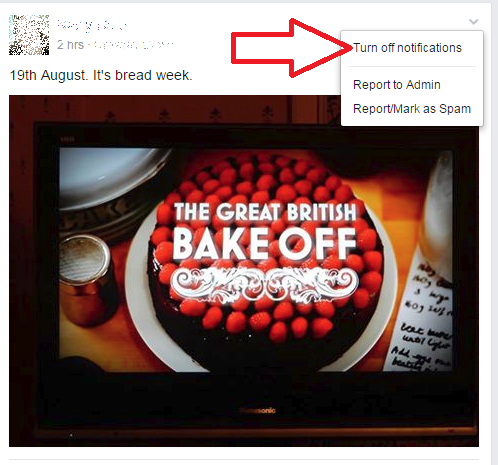
First, find and press the little down-arrow in the top right-hand corner of the post:

Facebook post hide arrow

This will give you a menu of things you can do:

Facebook turn off notifications

You can see here that you can also Hide the post or unfollow the person who posted it. But we want to click on Turn off notifications at the bottom of the list.

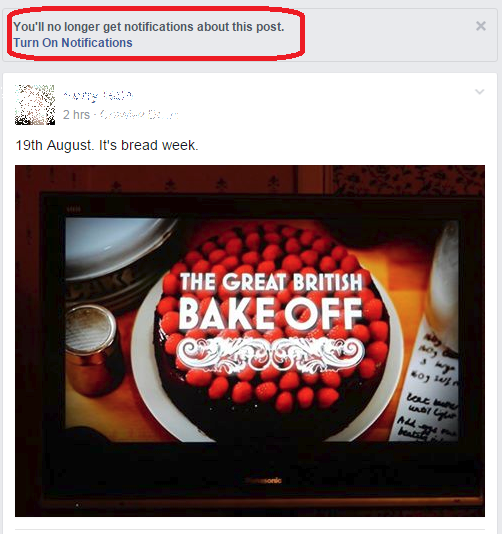
Now Facebook will confirm what you’ve done:

Facebook notifications turned off

This is useful, as you can click Turn On Notifications if you did this by mistake.

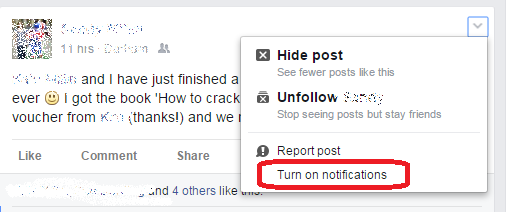
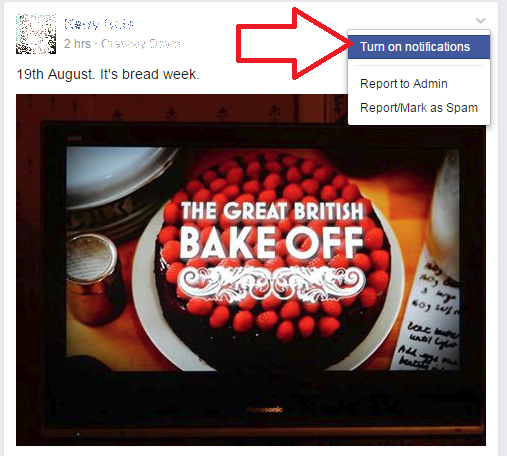
If you want to turn your notifications back on at any time (so that you receive an email every time someone else comments), go and find the post, click on the down-arrow and choose Turn on notifications:

Facebook turn on notifications

Now you will receive an email every time someone comments on the post.

How do I turn off Facebook notifications on my own post?

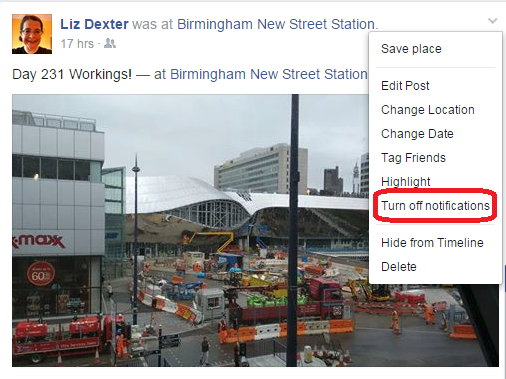
Of course this is slightly different – if you want to turn off notifications on one of your own posts, you get more options when you click that down-arrow:

Facebook stop notifications own post

How do I turn off Facebook notifications in a Group?

If you are a member of a Facebook Group but choose not to have it come up in your timeline (for example, if you’re in a photo-a-day group and would end up with 80 posts a day in your Facebook timeline), there’s a slightly different way to turn off notifications.

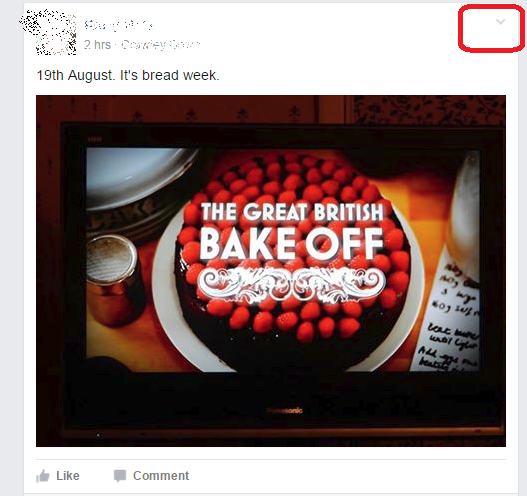
In this example, a friend has posted about the Great British Bake-Off and another friend has mentioned, and tagged me in their comment, that I haven’t seen it yet and will be watching it tomorrow. I don’t want to see any more comments in case someone lets slip who’s left the competition.

Click on the little down-arrow in the top right corner of the post …

Facebook post notifications

This will bring up a menu. Here you can also report a post as spam if you need to – but we’re going to concentrate on turning off the notifications. You do that by clicking on Turn off notifications:

Facebook turn off notifications

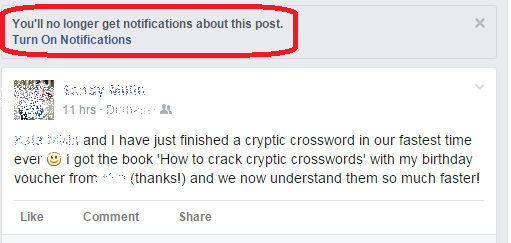
Once you’ve done that, you’ll see a message above the post telling you that you will no longer get notifications about this post. This means that whenever anyone comments on the post, you won’t get an email telling you that this has happened.

Note that you will also see a clickable link allowing you to Turn On Notifications – which is very useful if you’ve done this by accident. You can click Turn On Notifications to make sure you still get comments emailed to you:

3 turned off

If you want to turn notifications back on for a post, go and find the post (you haven’t hidden it, so it will still be in your timeline or the group it was posted in). Click on the down-arrow again and choose Turn on notifications:

Facebook turn off notifications

Now you will receive an email every time someone comments on the post.

This post has shown you how to turn off notifications in your Facebook timeline, on your own posts and in Groups. You can find more on social media in the Resource Guide or by using the Search box in the right-hand column.

If you’ve found this post useful, please share it using the buttons underneath!

 
22 Comments

Posted by on August 20, 2015 in Facebook


Tags:

MailChimp 5 – linking to your sign-up form on Facebook and your website

After publishing my article on how to create a sign-up form, I had a query about how to publicise it. This article tells you how to find the URL for your sign-up form in order to promote and link to the sign-up form in various places on the Web, including your own website, Facebook, etc.

Why would I want to publicise my MailChimp sign-up form?

You can have the best form in the world, but if you don’t share it, no one will sign up. Places to promote and share your sign-up form include …

  • Your website and / or blog
  • Your email signature
  • Your company Facebook page
  • Posts on your company Facebook page
  • Twitter
  • Your LinkedIn profile or updates

How do I find the URL of my MailChimp sign-up form?

The key to all of this is to find the URL or web address of your sign-up form. Every one has it, but it’s hard to find. Here’s how you do it.

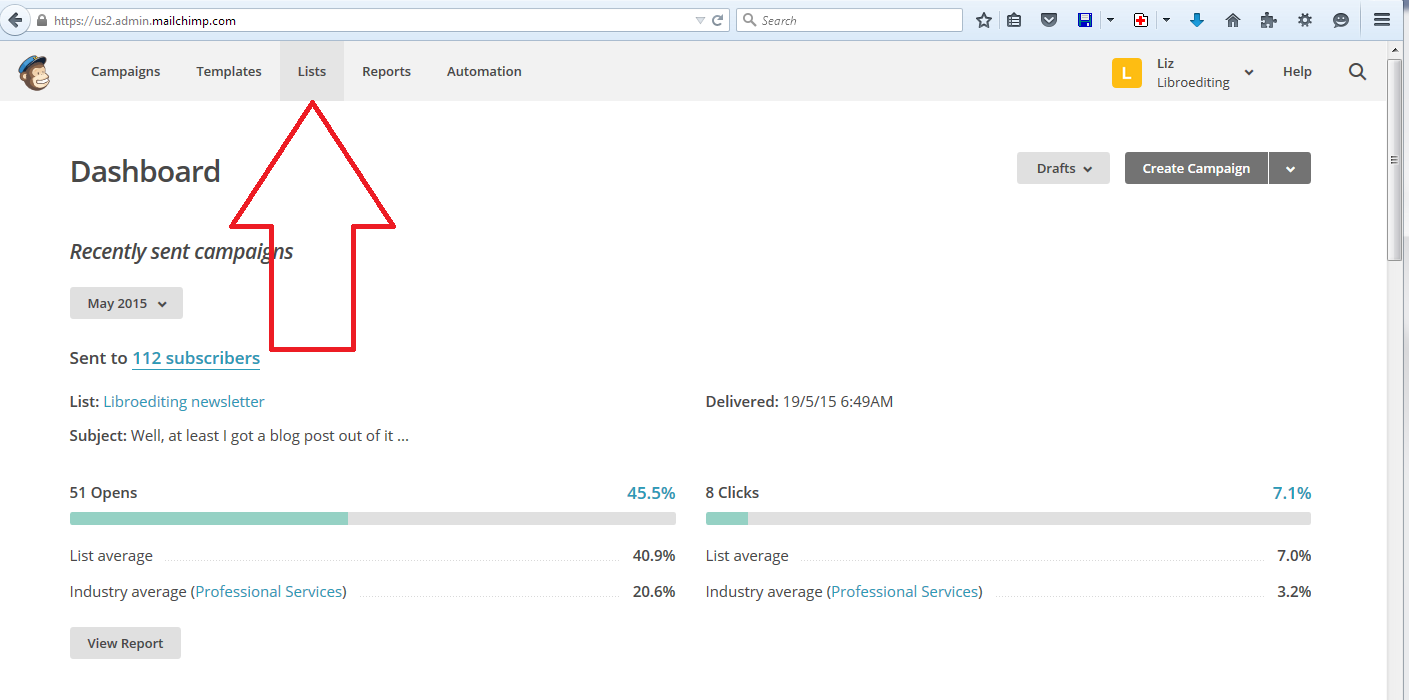
From the first page of MailChimp, when you’ve signed in, click Lists:

Go into MailChimp list

Then, choose the list whose sign-up form you want to promote (like me, you probably only have one) by clicking on the link:

Mailchimp choose list

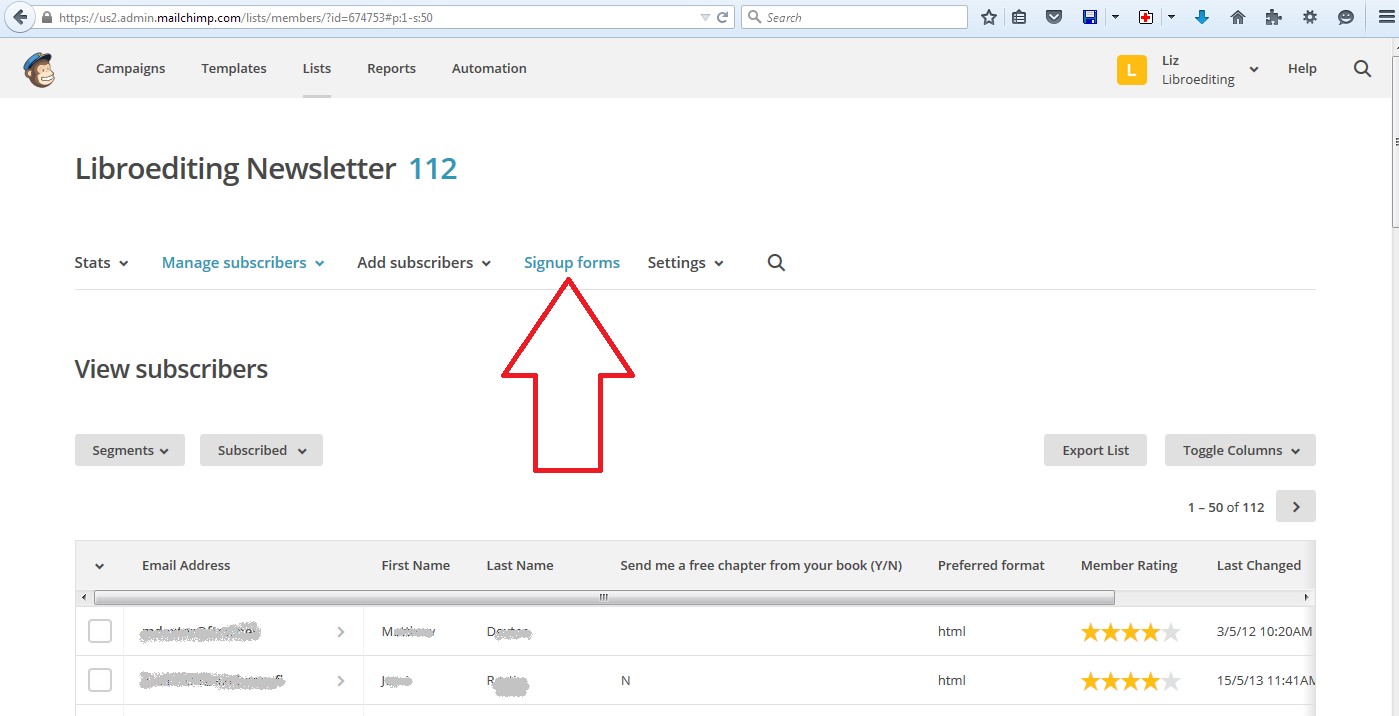
Now click on Signup forms:

Mailchimp signup forms

Now you will find a list of ways to create a form which does not look like the right place. It IS the right place.

Incidentally, if you scroll down to the bottom of this page, you will find ways to create a sign-up form embedded in a Facebook page or on a tablet, where people can enter their details directly. Both of these options walk you through the process.

Mailchimp special forms

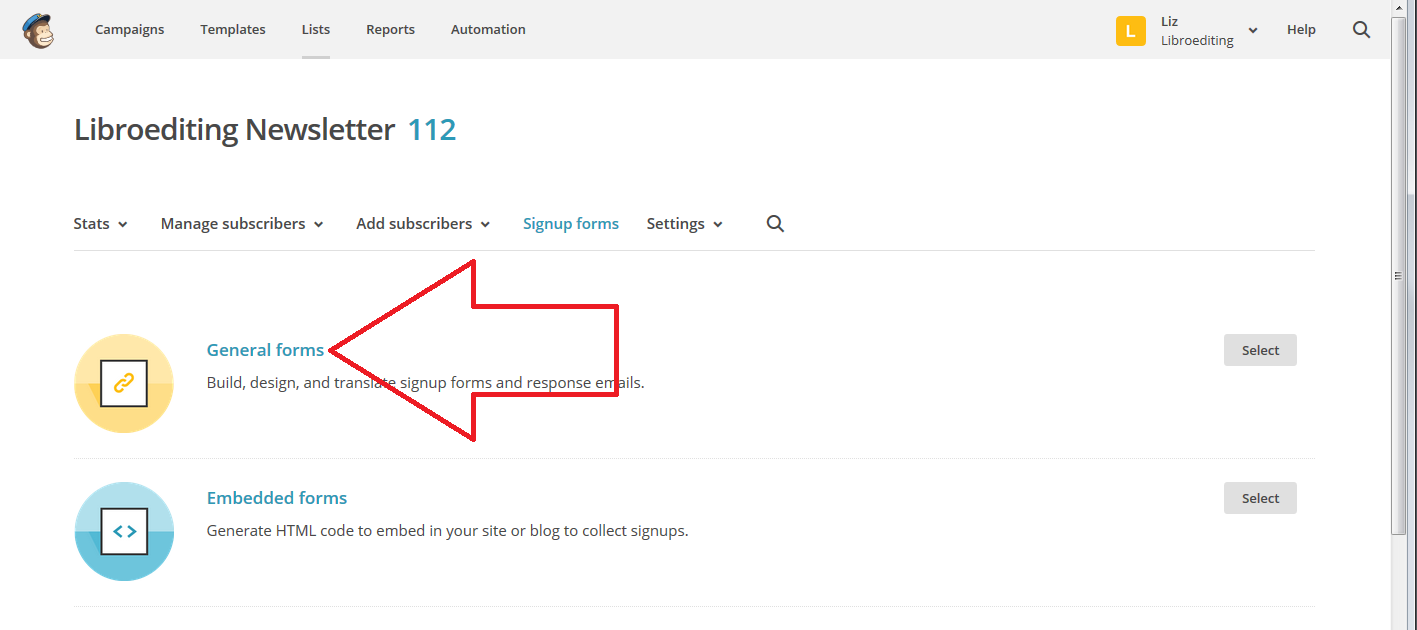
For the moment, we’re looking for that URL, so scroll back up and click on General Forms (which is where you created your sign-up form in the first place):

Mailchimp general forms

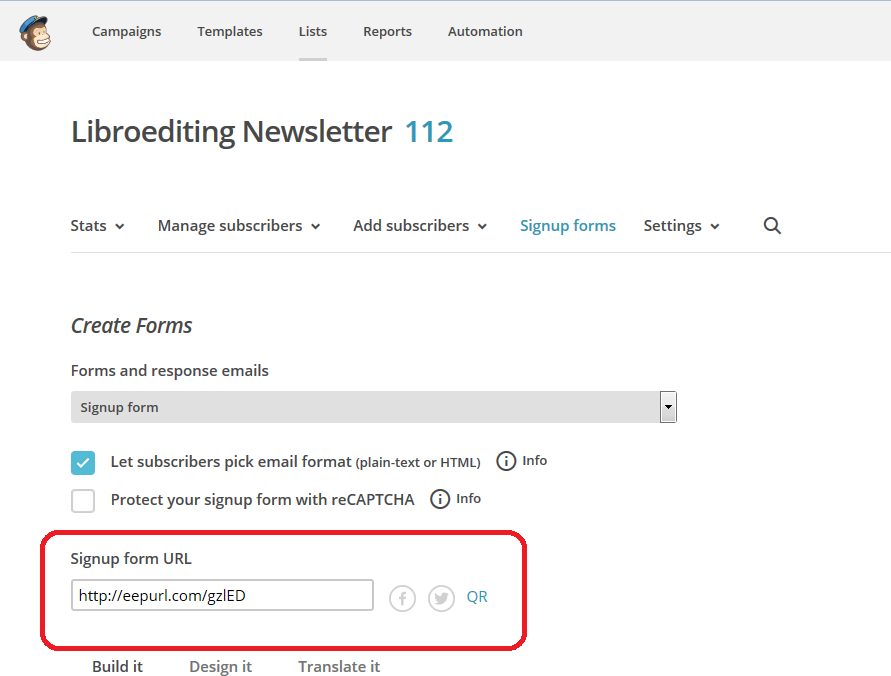
Although it really doesn’t look like this is the place to go, I know, here you will find your URL!

Mailchimp signup URL

You can copy and paste this URL and put it anywhere on the Web.

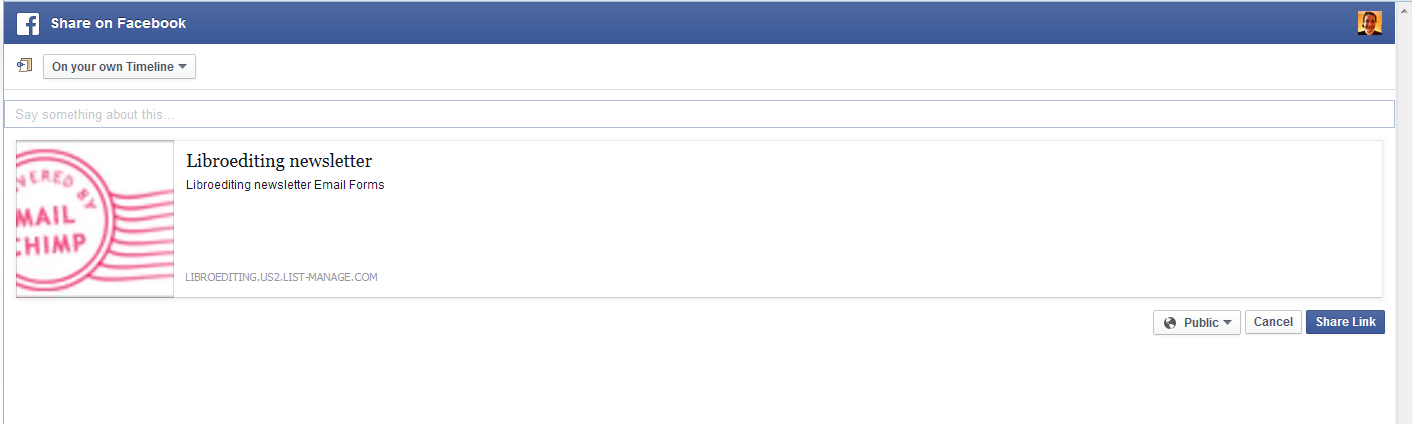
In addition, this page also has little icons for Facebook, Twitter and QR. These will just generate a link for you (if you’ve linked your MailChimp account to Facebook and Twitter for sharing purposes). Clicking on the Facebook icon will give you this post ready to pop on your Facebook page:

Mailchimp auto facebook post

How do I share my MailChimp newsletter sign-up form on social media and my website?

Now you have the URL which links to your sign-up form, you can add that link anywhere you want.

  • On your website, you might do as I have (look right!) and add a link to the sign-up form to your menu. In WordPress.com, you can choose Appearance – Widgets and create a Text widget. Then use HTML coding to add a link, for example <a href=”YOURURL”>Sign up for my email newsletter! </a>
  • In your email signature, use your email service to add a line to every email you send, again, you will probably need the coding above.
  • On Facebook, use the embedded form mentioned above, or do a post including the URL and “pin” it to the top of your Facebook page
  • Everywhere else – share the URL and get people flocking (maybe) to your sign-up form.

In this article, we’ve learned how to find the URL or web address of your MailChimp newsletter sign-up form in order to share it on the Internet, and talked about how and where you can share it. You can find a growing set of articles on blogging, social media MailChimp etc. in my resource guide.

Do click on the share buttons below or comment if you found this article interesting or useful!

Other relevant posts on this blog:

MailChimp 1 – Signing up

MailChimp 2 – Setting up your list and importing contacts

MailChimp 3 – Creating a sign-up form

MailChimp 4 – Designing your newsletter template

How to avoid two common mistakes when using MailChimp

 
5 Comments

Posted by on August 12, 2015 in Business, Marketing, New skills, Newsletters


Tags: , , ,

2 top tips on dealing with the endless pitches for guest posts or reviews

handshakeLast week, I wrote down the 10 top tips for pitching guest posts and asking bloggers to review your product (you can read the article here). I wrote that from the point of view of somebody who receives requests to host guest posts and review stuff All The Time.

It can be time-consuming replying to these emails and messages, but if you’re anything like me, you welcome genuine and relevant content (and interesting book review requests) and don’t like to be rude, unless something’s obviously spammy (in which case, I’m only rude enough to ignore the message!). So, in this article I’m sharing the two methods I use to allow me to respond to pitches quickly, easily and politely, which also have the effect of weeding out the time-wasters.

1. Have a policy for guest posts and reviews

I’ve got a guest post and review policy on both this website (visit it here) and my book review blog (visit it here).

It’s standard practice to have a policy – it sets things out and allows you to filter out approaches you don’t want. Of course, I don’t know how many people this filters out before they contact me, but it must get rid of a few.

This is also hugely useful for when you respond to pitches. When I send my automated email (see point 2 below), I include a link to my policy in my email. This means …

a) The pitcher has to go and look at a web page before they respond (filtering out people who were blanket-bombing blogs and probably won’t be relevant to you)

b) I can change my policy once, on this page, without having to remember to update my standard pitch response email.

c) If a pitcher replies to my email and clearly hasn’t looked at the guidelines, that’s a clear indication that it’s time to terminate the conversation.

2. Create a standard automated pitch response email

Most email providers allow you to create standard replies which you can select and send out without having to type out a new email every time. In Gmail, you can set up something called Canned Responses (and you can find my instructions on how to set them up here).

This saves you loads of time responding individually to pitches for guest posts or product reviews. I tend to get more of the first category for this blog, and this is what my email says:

Thank you for your enquiry about posting your content on my blog.

Before we go any further, please read my Terms and Conditions on Guest Blog Posts and Sponsored Posts, make sure that you can answer the questions posed there, and then get back to me with your suggestions. Best wishes,

Liz

This really does cover most eventualities (and for the few that it doesn’t cover, I can easily add a bit to the email). It takes about three clicks of the mouse button to reply and send, and, to be honest, it usually puts people off! But then, that’s the idea …

—-

Using both of these methods has speeded up my response time to pitches and allowed me to sift out the wheat from the chaff, the genuine opportunities for cooperation from the spammers trying to insert their link onto every website and blog going.

I hope you’ve found this article enjoyable and useful. If you have, please take a moment to share it using the sharing buttons below, and I always appreciate relevant comments!

Relevant posts on this blog

Guest blogging 1: how to be the host with the most

Guest blogging 2: how to be the perfect guest

10 top tips for pitching your guest post or asking a blogger to review your product

 
Leave a comment

Posted by on August 5, 2015 in Blogging, Business, Marketing, Writing


Tags: , , , , ,

10 Top Tips for Pitching a Guest Post or Getting a Blogger to Review your Product

handshakeI get lots and lots of requests every day, via my contact form or email, to accept a guest blog post from somebody. I also get requests to accept books for review on my personal book review blog. Although I’ve written in more depth about being a good guest blogger, I think it’s worth putting down a few points here to help people get the most out of their pitch to get a genuine and useful guest post or review on a blogger’s website.

Because … I reject about 98% of requests for a guest post after the first email.

So, here are my Top 10 tips for pitching a guest post or getting a blogger to review your product

1. Before you even start, think about the relevance of the website you’re contacting.

I get so many queries that have nothing to do with my website in the slightest. Things like, “I love your [editing] website, would you accept an article on real estate in Texas?”

Now, on rejecting one of these a while ago, I had a back-and-forth with the pitcher. She was determined that I would benefit from having her totally non-relevant content, full of dodgy links, on my website. I ended up saying to her “No reputable website would take this as a guest post”. Her reply, “You’d be surprised, LOL”.

The thing is, Google is adjusting its search algorithms all the time. It already specifically works against backlinks (a link to your content on someone reputable’s website which ups your credibility in the “eyes” of the search engines) which are in lists of random links and content which is full of keywords but no useful content. In time, your link to your bead firm on a blog about wind farms will impress the search engines less and less.

You’ll get far more hits as a genuine person seeking to place guest posts on a website if you target appropriate and relevant hosts.

2. Give detail.

If I get a generic, one-line email asking for a guest post or review that doesn’t give me any other info, that’s going straight in the reject pile. You might get my standard email response if you’re lucky.

If’s fine to keep it short, but make sure there is some information in there.

3. Show you’re familiar with the target blog / review site

I am looking for you to  have actually read my blog and know a little bit about what I do. Just a mention of the URL isn’t enough: you can cut and paste that. I want to  know that you know what I do, who my readers are, what topics I cover.

4. Watch out for mail merges / cut and paste carefully.

I’m putting this here because without fail, emails requesting guest posts start with “I have been reading URL INSERTED for some time and love your content”. This doesn’t work so well as a hook if you re-use an email and include the incorrect blog title or URL!

5. State what you want to do.

The target will want to know what you want to do – send in a blog post, pitch some ideas, post them a sample. Put this clearly early on.

6. State what you want out of it.

If you want a book review, say so. If you want your website address included in a guest post you’ve written, say so. If you want to include links that you’ve promised your customer to get onto several reputable websites, also say so – because your target is likely to notice this further down the line and get a bit cross with you.

7. State what the target will get out of it.

State clearly the benefit for the target. Yes, they might be desperate for content – if you see they haven’t posted for a while, this is OK to mention. Will you be helping their readers, bringing a new but related audience to their blog? Tell them. One useful offer is to do a reciprocal guest post – i.e. you will host a post from your target on your website on a similar or related matter.

8. Show you know who your target’s audience is.

I want to know that you’ve thought about who this will reach. An example when pitching to me might be, “I would guess given your writing on dissertations that your audience includes students. This product helps students to bind their dissertations so might be useful to that part of your readership”.

9. Give links and reviews.

If you’ve got examples of your work or product on other websites or you can showcase your own writing on your own website, include links. If your product, book, etc. has been reviewed on other websites, include links.

10. Keep it simple, keep it correct.

If you’re pitching a guest post, make sure to write clearly and grammatically – a reputable blogger will not want to either edit your text for hours or hosts something of lower quality than the content they usually post up. If you’re pitching a product, make sure you are clear and knowledgeable and point to a well-designed and informative website. Will your target want to embarrass themselves pointing their readers to a terrible website?

A good example

This post was triggered  by two things – one, another request but with another company’s URL in the message – d’oh! The other was an excellent pitch from an author asking me to review her book. I’m going to go into specifics another day, but she included …

  • A greeting using my name and a farewell using hers
  • A note confirming that she had read my blog, mentioning something I’d talked about on it recently
  • Details of her book title and the fact she was asking me to review it
  • A few sentences about the book
  • A link to its sales page and a review by a reputable reviewer
  • A polite request to consider taking a review copy

And do you know what? I’ve got a review copy of that book sitting in my To Be Read pile right now.

In summary

If you’re serious about pitching your content or product to reputable websites where their presence can do you some good, make sure that you give your target blogger information about both what your pitching and your own credibility. I’m not saying that you will succeed every time, but your target blogger is more likely to read your email and consider your pitch if you do.

I hope you’ve found this article enjoyable and useful. If you have, please take a moment to share it using the sharing buttons below, and I always appreciate relevant comments!

Relevant posts on this blog

Guest blogging 1: how to be the host with the most

Guest blogging 2: how to be the perfect guest

 
4 Comments

Posted by on July 29, 2015 in Blogging, Business, Marketing, Writing


Tags: , , , , ,

Editing and the Table of Contents – for editors and writers

This article is all about what happens when a document that includes a Table of Contents (and a Table of Figures and/or a Table of Tables) is edited. There are a couple of pitfalls which I have encountered as an editor, and I wanted to share them with fellow editors AND writers, to help other people avoid them.

Scroll down to the bottom for a summary of advice to editors and writers if you’re not worried about the detail.

Please note that there are more detailed instruction on updating a Table of Contents in this article.

What’s the problem with Tables of Contents and the editing process?

If a document with an automated Table of Contents is being edited, the editor has two choices (and the writer will find that their editor has done one of two things):

  1. Mark any changes to headings in both the Table of Contents and the actual heading in the main text
  2. Mark any changes to headings in just the actual heading in the main text, then someone updates the Table of Contents

Let’s look at the risks with these in turn.

1. Mark any changes to headings in both the Table of Contents and the actual heading in the main text

Issue 1 – Awkwardness for the editor. To do this, you will have to have a split screen with the contents page in the top half and the text in the bottom, or you’ll have to whizz up and down the document and make sure you make the same correction in both places.

Issue 2 – Keeping things consistent. a) The editor will have to make the same change in both places, and b) the writer will have to make the same choice to reject or accept the change in both  places.

As an editor, if I do this, I place a comment linked to the words “Table of Contents” reminding the author to make the same choices here and in the main text.

If the Table of Contents is not automated, I a) suggest that the author creates one (or has me create it, if appropriate) and b) I place the comment above by the words “Table of Contents” to remind the author to keep it consistent.

2. Mark any changes to headings in just the actual heading in the main text, then someone updates the Table of Contents

If the Table of Contents is automated, this is what I tend to do.

There are two options here:

Option 1 – The writer wants a “clean copy” not one with tracked changes marked: the editor can update the Table of Contents once they’ve done their edit and accepted all changes. Everything will now match.

Option 2 -The writer wants (or needs, in the case of students) to see the tracked changes and make their own decisions on what to accept and reject. In this case, the writer will need to update the Table of Contents once they’ve gone through the changes.

Option 2 is the most common in my experience.

If the writer needs to update the Table of Contents themeselves, I always add a comment to the words “Table of Contents”:

“Please remember to update this Table of Contents after you have accepted or rejected all of my changes, to make sure that the table reflects the document accurately. Please choose Update entire table rather than Update page numbers only”.

An important choice – what to update in the Table of Contents

This information is for editors and writers.

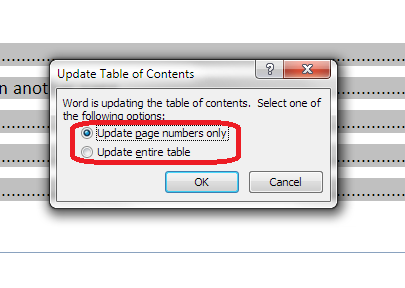
Whether the editor or writer is updating the Table of Contents, once you’ve clicked on Update Field, you are given the choice of Update page numbers only or Update entire table:

update page numbers or all fields

It is vitally IMPORTANT that you choose “Update entire table”. This will update any changes to the headings and any changes to the page numbers. If you click on “Update page numbers only”, and any headings have been changed in the text, this will NOT be reflected in the Table of Contents.

For authors: updating your Table of Contents when your work has been edited

  • Always update your Table of Contents when your work comes back from your editor, unless they have told you that they’ve already done it
  • Always choose “Update entire table” to make sure that everything in the Table of Contents matches your actual document

For editors: updating or instructing on editing the Table of Contents

  • Always leave a note for the writer explaining what you’ve done or what you need them to do
  • If you are updating the Table of Contents yourself, always choose “Update entire table” to make sure that everything in the Table of Contents matches the actual document (I would still leave a reminder for the writer to do the same after they’ve made any final changes)
  • If you need the writer to update the Table of Contents once they have dealt with your suggestions, leave a note explaining that, and make it clear that they must “Update entire table” when doing so

—–

This article has discussed issues around updating a Table of Contents when a document is edited. if you have enjoyed this article or found it useful, please share it using the sharing buttons below.

Other relevant posts on this blog:

How to create a contents page in Word

Tables of figures and tables of tables

How to update a Table of Contents, Figures or Tables

 
3 Comments

Posted by on July 22, 2015 in Errors, New skills, Word, Writing


Tags: , , , ,

How to update your Table of Contents, Table of Figures or Table of Tables

This article explains how to update the Table of Contents (Contents Page) or Table of Figures or Table of Tables in your Word 2007, 2010 or 2013 document, which could be a report, dissertation, thesis, book or anything else. To find out how to create a Table of Contents in Word, please refer to this article. To find out how to create Tables of Figures and Tables of Tables, please refer to this article. We’ll refer to it as “Table of Contents” in this article, but this works for all kinds of contents listings.

Why would I want to update my Table of Contents?

If you create a Table of Contents for a document but then change the actual document, it’s likely that you will also change …

  • One or more headings (maybe swapping between Title Case and Sentence case or just changing the wording)
  • What page a heading falls on (and all the other headings after it) (maybe by adding text or just moving a heading to join its text on the next page)

Although a Table of Contents will update to match the actual contents “automatically”, you have to tell it to do so. This is how to update your Table of Contents so that it matches what your reader will find in the actual document.

How do I update my Table of Contents?

First of all, hover your cursor over the Table of Contents. It should be highlighted in light grey. Right click on any part of the grey area:

update contents page word

This will give you a menu – you need to select Update Field:

update contents page - update field

Once you’ve clicked on Update Field, you are given the choice of Update page numbers only or Update entire table:

update page numbers or all fields

Choose wisely – see below! Once you’ve chosen, click OK and your Table of Contents will update!

When to update page numbers only in your Table of Contents

You might want to Update page numbers only if …

  • You are absolutely sure that you have only changed what text / heading is on what page (but you could still Update entire table anyway, just to be certain)
  • You have manually amended your Table of Contents (e.g. one heading was too long to fit on a line and you shortened it) AND you know you haven’t changed any heading text in the actual document.

In the second case, when you’ve manually amended the contents page, if you choose Update entire table, it will over-ride your manual change and replace it with the exact text that is in your heading in the main document, and you’ll have to manually update it again.

Apart from the case where you have manually edited the Table of Contents, I STRONGLY SUGGEST that you always choose Update entire table.

When to update entire table in your Table of Contents

I highly recommend that you always use this option. In this way, your Table of Contents will match the text of your document.

This is especially important to remember if someone else has amended and edited your document.

—–

In this article, we have learned how to update a Table of Contents, Table of Figures or Table of Tables. If you have enjoyed this article or found it useful, please share it using the sharing buttons below.

Please note, these hints work with versions of Microsoft Word currently in use –  Word 2007, Word 2010 and Word 2013, all for PC. Mac compatible versions of Word should have similar options. Always save a copy of your document before manipulating it. I bear no responsibility for any pickles you might get yourself into!

Find all the short cuts here

Other relevant posts on this blog:

How to create a contents page in Word

Tables of figures and tables of tables

 
7 Comments

Posted by on July 15, 2015 in New skills, Short cuts, Word, Writing


Tags: , , , ,

How do I delete a Facebook group?

In this post we’re going to learn how to delete a Facebook Group. It’s the only way, and seems a bit weird to me – I spent ages looking for buttons to press and options to choose before finding out! So hopefully you will have found this article easily and I can help you do it more quickly!

For more basic information about using Facebook, see my article on Facebook for business.

Why might I want to delete a Facebook group?

The reason I wanted to do this is that I had a group based around a general election that there was no point keeping up with now. There are lots of reasons why you might want to delete a group, though – it might have got out of hand, you might not have time to run it, it might be time-dependent and out of date, like my one was.

If it’s a matter of not having enough time, consider making someone else the Admin for the group – you can see how to do that later on in this post, as well.

Note, you do have to be the owner or administrator of the group to delete it.

How do I delete a Facebook group?

To delete a Facebook group, you need to remove all of the members, then yourself. This makes the group go away.

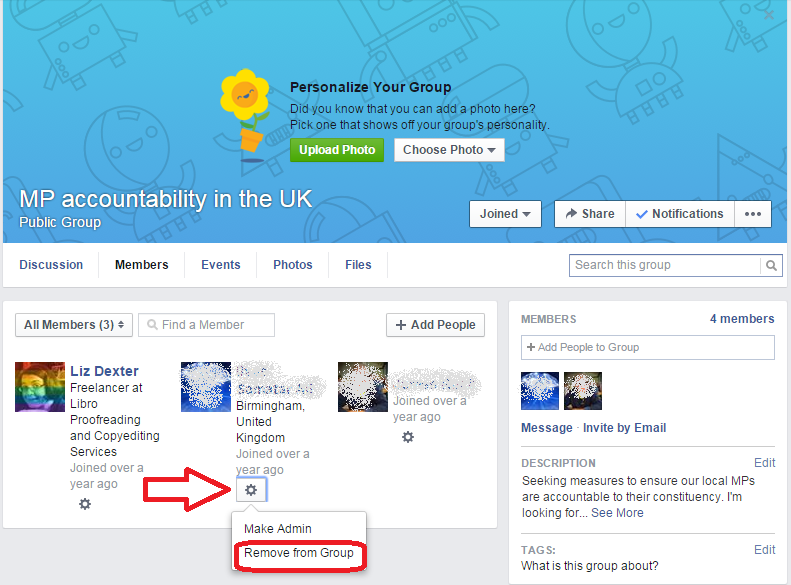
In your group, locate its Members area:

Facebook group members area

Click on the Members link and here you are with your list of members:

remove member of facebook group

For each member, click on the cog under the member’s name and click Remove from Group. Note that this is where you can make them an Admin instead.

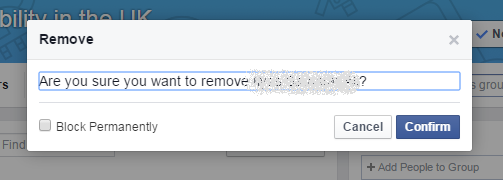
Facebook will ask you to confirm.

remove member from facebook group check

Do this for each member of the group.

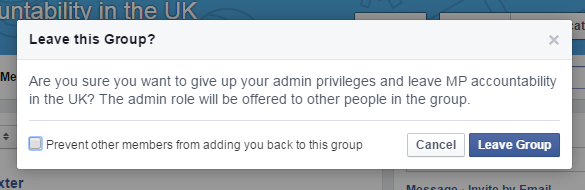
Lastly, remove yourself from the group in the same way. You will get this confirmation message:

Facebook delete group

This is the same error message whether you’re just leaving the group or you’re the last to leave – just choose Leave Group.

The group should now disappear. If it doesn’t, your best bet is to contact Facebook. Click on the arrow marked here:

4 report a problem

… and select Report a Problem from the dropdown.

If you’ve enjoyed this post and found it useful, please share it using the buttons below! Thank you!

You can find more resources on social media in my blog resource guide (link takes you to the social media section) and read about using social media for your business in my book on growing your business.

Related posts on this blog:

Facebook for business

How to delete posts and block users from your Facebook page

How to add an administrator to your Facebook page

 
6 Comments

Posted by on July 8, 2015 in Business, Facebook, Social media


Tags: , ,

How do I remove a member from a Facebook group?

In this post we’re going to learn how to remove a member from a Facebook Group. For more basic information about using Facebook, see my article on Facebook for business.

Why might I want to remove someone from my Facebook group?

The most common reason is that they have been spamming your group or behaving in another way that’s not acceptable.

Sometimes, a group member might not be sure how to leave a group and might ask you to remove them.

How do I remove someone from my Facebook group?

Go into your group and look for the Members area:

Facebook group members area

Click on the Members link to get into the Members area:

remove member of facebook group

Click on the cog under the member’s name and choose Remove from Group.

Facebook will ask you to confirm. At this point, as you can see, you can also block them from joining or posting to the group again:

remove member from facebook group check

And they’ve gone!

If you’ve enjoyed this post and found it useful, please share it using the buttons below! Thank you!

You can find more resources on social media in my blog resource guide (link takes you to the social media section) and read about using social media for your business in my book on growing your business.

Related posts on this blog:

Facebook for business

How to delete posts and block users from your Facebook page

How to add an administrator to your Facebook page

 
2 Comments

Posted by on July 2, 2015 in Business, Facebook, Social media


Tags: , ,

What to do in 6 common freelance crisis situations

To do listsOh, the freelance life is one that’s full of peaks and troughs, feasts and famines. I’ve already written about how to avoid running out of work and how to avoid overwhelm, and in this article I’m going to run through some common crises and my top tips on how best to cope with them.

I’ve been through all of these in my time … I’d love to know if you have more coping ideas, so please pop a comment at the end if you’ve got something to add!

Notehere are a few links in this article – all of them are to other content that I’ve posted on this blog, so you can click through safely and happily for more information.

What do I do when I’ve got no work to do?

If you’ve got no work to do – don’t panic! It will probably be temporary

What can I do now?

  • Take a deep breath and embrace the fact that you’ve got some down time
  • Make a list of admin tasks you’ve always meant to do
  • Do some brainstorming on some job searching you can do, whether that’s networking, looking for some jobs on Twitter or joining some free sites (see more on how to find freelance jobs in this article)
  • Spend a third of your time doing admin, a third marketing yourself and a third taking a little time to do some things for yourself

What can I do to stop this happening?

  • Consider new avenues of work – diversify
  • Let people know you’re available – including customers you’ve worked with before
  • Keep a note of the ups and downs in your business – if they follow a nice predictable yearly cycle, you can plan holidays and downtime for the low points and hard work for the high points

Tips to avoid running out of work can be found in this article.

What do I do when I’ve got too much work?

Having too much work can be a bit scary. Again, don’t panic. Make lists, be super-organised – you CAN do it!

What can I do now?

  • Don’t panic – take a deep breath and plan instead of panicking
  • Write a list of the tasks you have, their due dates and how long you think they’ll take (better, draw them out on a Gantt chart or calendar)
  • Make a priority list – what must be done first?
  • If you really CANNOT do it all …
    • See if you can rearrange any deadlines
    • See if you can get a colleague to take on any of the tasks
  • Work through your jobs in priority order

Tips on what to do when you’ve got too much work can be found in this article.

What can I do to stop this happening?

  • Find a colleague to work with and make an arrangement to cover each other’s work
  • Look through your client list and see if there are any clients who make your schedule difficult – then see if you can work things out or pass them on to someone else
  • Learn to say no!

What do I do when I’ve made a mistake?

We all make mistakes. All of us. Just the other day, I didn’t pick up on a duplicated word in a text. Most clients should understand that little mistakes come with the territory. Big mistakes need a big apology.

What can I do now?

  • Own up and accept responsibility – don’t fudge or blame other people or things
  • If there IS a reason (e.g. your sewing machine broke or you ran out of thread; your computer crashed and you lost a chunk of the spreadsheet) explain it briefly
  • Offer to make it right – whether that’s doing the work again or reimbursing / not charging your client (see the section below, though)
  • Explain concisely how you will prevent that mistake happening again
  • Forgive yourself and try to move on – better to admit a mistake, redress it and move on and give that customer a chance to forgive you than to hide it all, dwell on it and get in a state

What can I do to stop this happening?

  • If you know what caused the mistake, make a wholehearted attempt to remove that cause from your work life
  • If it was human error down to tiredness / lack of a cuppa / bringing a bad mood from your home life to your work, make a wholehearted attempt to recognise that and work to avoid it in future
  • Accept that everyone does make mistakes sometimes, and move on

What can I do when the customer doesn’t like what I’ve done?

This usually happens with the more creative industries like writing or making craft items for people. It’s a tricky one, but these points might help.

What can I do now?

  • Ask the client for as many details as you can – it might be a minor point that they don’t like
  • Offer to redress the issues – if it’s something I’ve written, I will do a rewrite (although see below, this is included in my Terms and Conditions)
  • If the client has already paid, offer a refund unless this is discussed in your terms and conditions
  • Personally, I’d say the client is always right and apologise / refund / replace graciously as this gives a much better impression than messing them around

What can I do to stop this happening?

  • Make sure that your Terms and Conditions cover this eventuality
  • Firm up the way you do the initial discussion with the client – can you use a tick-sheet or prepare a sketch that they agree on before you start working?
  • You could include x number of rewrites / alterations in your Ts and Cs if you offer graphic design or writing, for example
  • If you make craft items, you could send a photograph of the completed item before sending it off and taking payment
  • Build up a library of items that you’ve made or created so your customer has more to work from when telling you what they want

What do I do when I’m going to miss a deadline?

Everyone misses a deadline every now and again. It’s horrible and sick-feeling inducing, but sometimes things are beyond our control. If there is a genuine emergency, your clients will understand. If it’s down to too much work, also have a look at the section above on that topic.

What can I do now?

  • Be honest and contact your client as soon as possible – this is easier if it’s a sudden emergency than if you’ve got behind
  • Offer an alternative deadline or colleague who can do the work (don’t just send the work to a colleague – do it openly and keep the client informed)
  • Apologise and explain how it won’t happen again very briefly – allow your client time to reschedule the work

What can I do to stop this happening?

  • If it’s down to overwork, review the section on how to cope with too much work above – if you’re missing deadlines and nothing’s actually wrong with you, that’s too much work
  • Cultivate good and honest relationships with regular clients – that way, they’ll stand by you if you have a sudden illness or emergency
  • Enlist a colleague to cover your work if you’re taken ill or otherwise occupied (this is good practice anyway)

You can read more about what happens when you have to cancel a job in this article, which I wrote just after I experienced a sudden and temporarily debilitating bout of flu.

What can I do when it’s All Too Much?

You know what? Sometimes it is just All Too Much running your own business, being freelance. Sometimes you’re in a bad mood, there’s a fly in the room, all your customers seem to loathe you or have impossible demands and you’re finding it all boring. You’ve probably got a cold, too. Is that you?

What can I do now?

  • Stop – if you can possibly stop – stop
  • Even if it’s for half an hour or ten minutes, do one of these things:
    • Go outside and walk around
    • Do some brisk walking or vigorous exercise
    • Read your book
    • Have a bath
    • Phone a friend
    • Rant and rave IN PRIVATE for example with a friend on Facebook messenger or in a private group you might have set up for that purpose
    • Another thing that you like to do that centres and calms you
  • If you only have 10 minutes to deal with hating your life right now, step away from your desk / workbench / stall and do some calm, deep breathing, imagine your happy place, centre yourself and relax
  • Give yourself a little treat
  • Try not to discuss this in public or anywhere where your customers might be – you never know who might be looking, and who might have been just about to book your services

What can I do to stop this happening?

  • Learn to say no so you don’t get overwhelmed
  • Take regular breaks during the day AND regular days off
  • Don’t work late into every evening and over every weekend
  • Have a serious think about how you can redress your work-life balance, because that’s what this is all about – then do it
  • Cultivate a group of like-minded business people or people in your area of work or geographical area and talk to them – you’d be surprised to find that everyone feels like this sometimes

I hope these ideas will help you when you have one of these common crises. Why not bookmark this article or select your most common crisis, print it out and pop it on your noticeboard!

If you’ve enjoyed this post, please use the sharing buttons below to share it on your social media platforms. Thank you!

Related posts on this blog

How do I cope with the ups and downs of the freelance life 1: when the work dries up

How do I cope with the ups and downs of the freelance life 2: when there’s too much work

Top ten tips for freelancers

How do I get freelance work?

How to decide who to work with

How to turn a new customer into a regular customer

What’s the best mix of customers to have?

How to make more money in your freelance business

When should I say no?

 
8 Comments

Posted by on June 25, 2015 in Business, Organisation, Skillset


Tags: ,