RSS

Author Archives: Liz Dexter

Unknown's avatar

About Liz Dexter

Book blog is at http://www.librofulltime.wordpress.com Writer, proofreader, editor, transcriber. Also runner, gym-goer, volunteer and BookCrosser! My married name is Liz Dexter but my maiden name and the name on the books I write is Liz Broomfield.

Why are my blog statistics so low? Who’s reading this thing anyway?

Why are my blog statistics so low? Who’s reading this thing anyway?

We all know by now that it takes time to build a blog audience and that you need to keep plugging away, writing interesting stuff and engaging with your readers.

But sometimes it just feels like no one is listening, like no one is looking at your carefully crafted posts. Why is this?

Why are my blog statistics lower than I would expect?

I use WordPress for my blogs, so I’m familiar with the statistics it offers (read more here), however, I know it doesn’t record all of the views of my posts, which can be very frustrating. This is how that happens.

People read your blog via email

Hopefully you’ve set things up so people can subscribe to your blog via email. Every blogging platform will have a plugin or menu item that will set this up for you so there’s a “Subscribe by email” button on your blog.

People who have subscribed to receive your articles via email will receive the text of the post in an email with a link to view the post on your website. They can open the email and read all of your article, but WordPress won’t know they have done that unless they click through to your website, at which point it will record the click. If they just read the article in the email and don’t click through to like, comment, etc., you won’t know that they’ve read your material.

People read your blog via a blog aggregator

People can also subscribe to the blog using a blog reader, either through WordPress itself, for example, or another service such as Feedly (which I use).

A blog reader uses what’s called an RSS feed to gather articles someone has said they want to read and display them all in one place (the RSS feed works in a similar way to the emails going out to people who’ve subscribed via email; instead of sending a person an email, it sends a blog reader the text to display in the reader). The text of the post will display in the person’s blog reader software with a link to view the post actually on your website.

Again, someone can read your post in their blog reader, but unless they click through to view it on your site, your blogging platform can’t know they’ve read it and won’t record that they have done so.

So what are my statistics showing, then?

Your blog statistics will record visits from …

  • People who subscribe to your blog via email and have clicked the link in their email to visit your blog
  • People who subscribe to your blog via a blog aggregator and have clicked the article in their aggregator to visit your blog
  • People who have seen your article shared on social media and have clicked through to read it on your blog
  • People who have done a search, found a link to your article in their search engine (Google, etc.) and clicked through to read it on your blog

In other words, there are fewer people recorded as having read your blog post than have actually read your blog post.

Note: If you want to experiment with only offering blog aggregator (Feedly, WordPress Reader, etc.) and email subscribers the first few lines of your blog post with a link to click through, hopefully encouraging them to visit your website to read the whole article, this article (third-party content recommended by a fellow blogger) explains how to do that.


I hope this has reassured you that those dismal stats are not as dismal as you thought they were! Please share and/or comment if this article has been useful for you.

Other related articles on this blog

Keep an eye on your stats

Scheduling blog posts and keeping going – scheduling the posts and the writing of them

Five ways to drive and increase engagement with your blog

How to keep people engaged with your blog

Six things you can do to increase your SEO


20 Comments

Posted by on March 14, 2018 in Blogging, WordPress


Tags: , ,

Complicated or complex?

DictionariesThis one was suggested by Neil Langley posting on my main Troublesome Pairs post.

So what is the difference between complex and complicated? Is there one?

The answer is that their meanings overlap. The main dictionaries in the US and UK (Oxford, Merriam-Webster, etc.) define complex using the word complicated, so the adjective complex means made up of many different parts, or complicated. Complicated means consisting of many interconnecting parts, or intricate. So very similar.

The noun complication moves on to describe something that makes something complicated, a complex state (there we go again) and in medical terminology, a disease or condition that is secondary to the main one but makes it worse.

Complex as a noun can mean a few more things – an interlinked system (the military-industrial complex), and then Oxford links but Merriam-Webster lists separately, a group of interlinked buildings. It also has a meaning in psychology of a group of emotionally significant but repressed ideas which cause an abnormal kind of behaviour or an abnormal state (a persecution complex), and by extension, a more pop-psych preoccupation or exaggerated reaction (I have a complex about spiders). There’s a chemical meaning to do with connections, too.

So the nouns vary, but if you’re describing something made up of lots of different things that might be a bit confusing or intricate, it can be complicated OR complex.

Having done some rooting about, I did discover this Washington Post resource claiming to delineate a difference.

You can find more troublesome pairs here and the index to them all so far is here.


Tags: , , ,

How do I know when Track Changes is turned on? Word 2007, 2010, 2013 and 2016

This article quickly explains how you know when track changes is turned on.

Do also read these articles to find out more about track changes: what Track Changes is, why we use it and where to find it, and how to customise Track Changes to suit our own preferences and learned how to work with a document that has Tracked Changes.

We turn on track changes to make sure that whoever else is using the document can see what changes (additions, deletions, moving text) we have made in the text. If you are working with an editor, they will typically turn track changes on so you can see what they have suggested. When my clients send me back amendments to a text they’re working on, I ask them to turn track changes on so I can see easily what they have done to the document.

How do I know when track changes is turned on in Word 2007 and Word 2010?

Word 2007 and Word 2010 look a bit different from later versions.

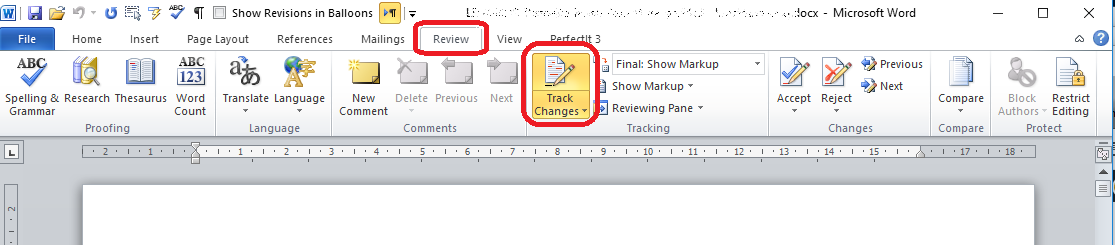
When track changes is turned on, you will see the button highlighted in orange:

This means that every change you make will be displayed in Word and other people will be able to see them if they have the correct view in their version of Word.

If the button is white, like the rest of the area, track changes it not turned on.

How do I know when track changes is turned on in Word 2013 and Word 2016?

Word 2013 and Word 2017 look different and the highlighting is more difficult to see, in my opinion.

When track changes is turned on, you will see the button highlighted in blue-grey:

This means that every change you make to the document will be displayed in Word and other people will be able to see them if they have the correct view in their version of Word.

When track changes is off, the button will be white, like the rest of the area.

If you want highlighting to be in a different colour, you will need to change the theme, and that’s for another article!


This article has taught you how to check whether you have track changes turned on in your Word document. See the links below for more track changes articles.

If you have found this article useful, please share or “like” it using the buttons below, or leave me a comment to tell me what you think. Thank you!

This is part of my series on how to avoid time-consuming “short cuts” and use Word in the right way to maximise your time and improve the look of your documents.

Please note, these hints work with versions of Microsoft Word currently in use – Word 2007, 2010, 2013 and 2016 all for PC. Mac compatible versions of Word should have similar options. Always save a copy of your document before manipulating it. I bear no responsibility for any pickles you might get yourself into!

Relevant articles on this website

Track changes 1 – why use it, where can you find it, what can you do with it?

Track changes 2 – customising Track Changes

Track changes 3 – working with a document with tracked changes

How do I accept one reviewer’s changes?

Why are my tracked changes changing colour?


Tags: , , , , , , ,

Hassock or cassock?

Hassock or cassock?

Inspired by a good friend sharing a photo of her husband and their son in matching church choir garb, in this article I’m covering a bit of an ecclesiastical theme. Now I’m wondering if everywhere around the world even has both of these things – maybe some non-UK people will let me know in the comments …

A cassock (a word which probably comes from Turkish, through Italian and French: thank you, Oxford Dictionaries) is a long article of clothing which is worn by some members of the Christian clergy and members of church choirs (not all wear them, but you’ll recognise it when you see it).

A hassock is a little cushion that you kneel on in church: you find them in the pews and choir stalls, often decorated in tapestry by church members. Interestingly, in America it also refers to a footstool – so does this indeed mean other countries don’t have the classic hassocks in their churches? The second meaning is a clump of grass or other plants found in marshy ground – I always thought that was a tussock and now I feel another Troublesome Pair coming on …

So, don’t get your hassocks and cassocks mixed up, or you might be insufficiently clad and kneeling on something far less comfortable than it should be.

You can find more troublesome pairs here, and here’s the index to them all!

 
Leave a comment

Posted by on February 8, 2018 in Errors, Language use, Troublesome pairs


Tags:

How do I move text using my Navigation pane in Word? How do I reorder the headings?

If you have set up Headings styles in your Word document, you can use the Navigation pane to move sections around the document without having to use cut-and-paste and endless scrolling. This article tells you how.


Note that this only works if you have applied headings styles to your document, i.e. marked your headings as Heading 1, Heading 2, etc. (see information on how to do this here).

How do I access the Navigation pane?

Please see this article with screen shots if you need help viewing the Navigation pane:

Press Control-F

or

View tab, tick the box next to Navigation Pane Show

How do I use the Navigation pane to move text?

You can use the Navigation pane to move all of the text under one heading. If you choose a heading with sub-headings, all of the text in the sub-headed sections will also move.

First, click on the heading for the text you want to move:

You can see that you will navigate to that heading in the document itself.

Then keep left mouse button clicked down and drag the heading up or down the list of headings (it will scroll automatically if you reach the top or bottom). A black line will appear at the insertion point:

When you’ve got the heading where you want it, let go of the mouse button to drop it into position. The whole of the text under that heading (including the text under any sub-headings) will have now moved:


This article has taught you how to move text under headings using the Navigation pane in Word. I hope you’ve found this article useful. Do please add a comment or use the sharing buttons below if you have found it useful or interesting. Thank you!

Other useful articles on this blog

Applying Heading Styles

How to Access the Navigation Pane

 
Leave a comment

Posted by on January 31, 2018 in Word, Writing


Tags: , , , ,

How do I view my Navigation pane in Word? How do I see the headings in a list?

If you have set Headings Styles in your Word document, you can view the headings in your document using the Navigation pane. This article tells you how.

Why do I need to look at the Navigation pane?

If you have a long document with lots of headings, it’s really useful to get a view, a bit like a Contents page, showing all your headings and sub-headings.

The Navigation pane also gives you a handy way to move sections of your document around without too much copy-pasting and scrolling. Watch out for instructions on that, coming soon!

Note that this only works if you have applied headings styles to your document, i.e. marked your headings as Heading 1, Heading 2, etc. (see information on how to do this here). If you haven’t applied headings styles, Word can’t know what’s a heading and what’s normal text, so won’t be able to display your headings in the Navigation pane.

How do I access the Navigation pane?

Initially, your document will look like this: just the text on a page:

There are two ways to access the Navigation pane:

1. Press the Control and F keys at the same time.

2. Go to the View tab and tick the box next to Navigation Pane Show

In both cases, if you have headings set up in your document, you will now see the Navigation pane on the left-hand side of your screen:

You can see here that you have the top-level headings and sub-headings showing in your Navigation pane.

Make sure you are in headings view by checking the tabs at the top. You should be on the left-hand one:

How do I use the Navigation pane?

You can click on any heading in the Navigation pane to move directly to that heading in the document. For example, clicking on the “All about Twitter” heading in my Navigation pane will take me to that heading:

You can also use the Navigation pane to move chunks of text around, but I’ll talk about that in another article.

How do I close the Navigation pane?

You can close the Navigation pane using the x in the top right corner of the pane, or by unticking Navigation pane show.


This article has explained what the Navigation pane is, why you might find it useful and how to use it to view your document headings.

I hope you’ve found this article useful. Do please add a comment or use the sharing buttons below if you have found it useful or interesting. Thank you!

Other useful articles on this blog

Applying Heading Styles

 
5 Comments

Posted by on January 17, 2018 in Word, Writing


Tags: , , , ,

What should I write in my first blog post?

What should I write in my first blog post?

Over the years on this blog I’ve shared all sorts of advice about how to set up your blog, the advantages of blogging, top tips for newbies at blogging, etc. But a client asked me a very good question recently: “What should I write my first blog post about?”

Now, it’s very tempting to write your first blog post about yourself, introducing yourself and your expertise. You want your readers to trust you, right?

Well, I think more than that, you want your blog posts to help you to be FOUND.

My first blog post on this blog was this one: Introduction (on 14 October 2009). How many hits has that had? Not many. In fact, I didn’t have many hits at all those first few years – because I was just talking about myself and what I did, yes, sharing loads of keywords, but not really talking about what I could do to help people.

On 6 November 2011, I had a terrible problem with a Word document. It was sent to me by someone else and all the comment balloons were teeny-tiny and unreadable. I found out what to do to sort it out and thought, “Hm, I’d better make a note of what I did”. So I created a new blog post, called it What to do if your comment boxes go tiny in Word, and at that point, I just wrote a list of the steps I’d taken. None of the fancy screen shots that festoon this and other posts nowadays.

But what happened? People had always been searching that question, and now they started to find my blog. People STILL find that article and find it helpful today! Just today, at the time of typing this, 41 of the views of my blog  have been of that post. Over 23,000 views in the last 365 days. It’s consistently in the top 10 of viewed posts. Still.

So if you want to start blogging for your business, your recipes, your book reviews, I recommend that you start your blog with an informative, useful post that will help people (buy a greenhouse / cook a nice meal / find a new book to read).

Where should all the stuff saying how trustworthy, knowledgeable and generally amazing you are go? In your About Me page. If someone finds something useful on your blog, they might well click on that, have a look and even get in touch to order services or products from you.


In this article I’ve shared my ideas and experience around what to write in your first blog post. If you’ve found this useful, please share using the buttons below, or leave me a comment!

Other useful articles on this blog

Top tips for newbie bloggers

10 reasons to start a blog

10 reasons NOT to write a blog

Top 10 blogging sins

Scheduling blog posts and keeping going

Five ways to drive and increase engagement with your blog

How to keep people engaged with your blog


13 Comments

Posted by on January 10, 2018 in Blogging, Business


Tags: , ,

Decor or decoration?

Well, it’s almost time to take our Christmas decorations down, for those who have them (and no, I’m not going to get into the argument about whether Twelfth Night is the 5th or 6th of January …) so I thought I’d do a seasonal post, talking about decor or decoration. And I hope you all had a good break, whatever and whenever you celebrate, and wish all my readers a Happy New Year as this blog goes into its seventh year …

A decoration is an ornament or less frequently an award or medal. Decoration is the act of decorating something (making it look nicer by adding or changing items such as wallpaper, paint, etc),

Decor is all of the decoration and furniture in a room, the whole thing. So decor is the larger category, into which decoration falls. Your Christmas tree, if you had one, as well as its decorations and any decorations hanging from the chandeliers and door frames, will all form part of the general decor of your house and rooms.

You can find more troublesome pairs here, and here’s the index to them all!

 
1 Comment

Posted by on January 4, 2018 in Errors, Language use


Tags:

How do I combine Word documents without losing the formatting?

I’ve written about how to combine Word documents in this article. But what if combining documents loses the formatting?

I had a question in a comment from someone who had used my method to combine several chapters of a textbook. But the formatting all got lost. What should she do?

How to combine Word documents and not lose the format

Before you combine the documents into one big document, add a Section Break at the end of each document you want to combine.

I’ve covered this in more detail in this article, but here’s a summary with a screenshot from Word 2013.

  • Go to the Page Layout tab
  • Find the Breaks section and drop it down using the little arrow
  • Select Section Break – Next page

Once you’ve done this to all your documents, combine them. You might find you have some extra blank pages at the end of sections: turn Paragraph Marks on (see this article for how to do that) so that you can see your Section Breaks. Carefully delete the blank pages but leave the section breaks there.

This should retain your individual formatting in each individual document that you’ve combined.


If you’ve found this article on how to combine Word documents without losing the formatting, useful, please comment or share using the buttons below. Happy document-combining!

Other useful articles on this website

How do I combine several Word documents?

How do I insert section breaks in Word?

Viewing paragraph marks and other mark-up

 
10 Comments

Posted by on December 21, 2017 in Copyediting, Short cuts, Word, Writing


Tags: , , , ,

Fornication or formication? Bonus: vermiculation

Fornication or formication? Bonus: vermiculation

OK, hands up who’s actually got these two mixed up? I’m sharing this Troublesome Pair mainly because a) someone suggested it (who? I suspect it might have been Mr. Libro, who is a great source of inspiration for these) and b) isn’t the word formication excellent? There’s a bonus word in the works, too. I’d love to know which word you were looking up when you found this article – do share in the comments!

Fornication is officially the act of having sexual intercourse with someone to whom you are not married. The OED marks this as being “formal or humorous” which seems an amusing and odd pairing to me, but also quite true.

Formication is the sensation of having insects (it comes from the word for ant, also found supplying formic acid, which is emitted by some ants) crawling on your skin. It forms part of some medical conditions (or comes from having insects crawling on your skin).

And I’m always reminded of the word vermiculation by formication – it’s another word from the world of fauna, meaning marking with wavy or wiggly lines or, indeed, worm-eaten (the latter being “archaic” according to the OED. I’ve always come across the first meaning in relation to a particular type of decoration on stone, although if you have a look at this Wikipedia article, you’ll find it’s used in enamel work, too.

Don’t say you never learn anything here!

You can find more troublesome pairs here, and here’s the index to them all!

 
3 Comments

Posted by on December 13, 2017 in Errors, Language use


Tags: