RSS

Category Archives: Writing

How to update your Table of Contents, Table of Figures or Table of Tables

This article explains how to update the Table of Contents (Contents Page) or Table of Figures or Table of Tables in your Word 2007, 2010 or 2013 document, which could be a report, dissertation, thesis, book or anything else. To find out how to create a Table of Contents in Word, please refer to this article. To find out how to create Tables of Figures and Tables of Tables, please refer to this article. We’ll refer to it as “Table of Contents” in this article, but this works for all kinds of contents listings.

Why would I want to update my Table of Contents?

If you create a Table of Contents for a document but then change the actual document, it’s likely that you will also change …

  • One or more headings (maybe swapping between Title Case and Sentence case or just changing the wording)
  • What page a heading falls on (and all the other headings after it) (maybe by adding text or just moving a heading to join its text on the next page)

Although a Table of Contents will update to match the actual contents “automatically”, you have to tell it to do so. This is how to update your Table of Contents so that it matches what your reader will find in the actual document.

How do I update my Table of Contents?

First of all, hover your cursor over the Table of Contents. It should be highlighted in light grey. Right click on any part of the grey area:

update contents page word

This will give you a menu – you need to select Update Field:

update contents page - update field

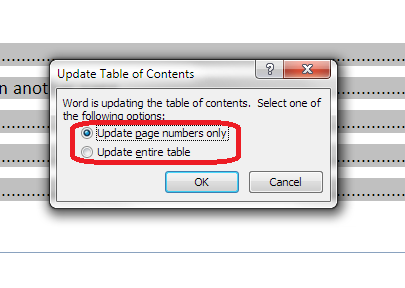
Once you’ve clicked on Update Field, you are given the choice of Update page numbers only or Update entire table:

update page numbers or all fields

Choose wisely – see below! Once you’ve chosen, click OK and your Table of Contents will update!

When to update page numbers only in your Table of Contents

You might want to Update page numbers only if …

  • You are absolutely sure that you have only changed what text / heading is on what page (but you could still Update entire table anyway, just to be certain)
  • You have manually amended your Table of Contents (e.g. one heading was too long to fit on a line and you shortened it) AND you know you haven’t changed any heading text in the actual document.

In the second case, when you’ve manually amended the contents page, if you choose Update entire table, it will over-ride your manual change and replace it with the exact text that is in your heading in the main document, and you’ll have to manually update it again.

Apart from the case where you have manually edited the Table of Contents, I STRONGLY SUGGEST that you always choose Update entire table.

When to update entire table in your Table of Contents

I highly recommend that you always use this option. In this way, your Table of Contents will match the text of your document.

This is especially important to remember if someone else has amended and edited your document.

—–

In this article, we have learned how to update a Table of Contents, Table of Figures or Table of Tables. If you have enjoyed this article or found it useful, please share it using the sharing buttons below.

Please note, these hints work with versions of Microsoft Word currently in use –  Word 2007, Word 2010 and Word 2013, all for PC. Mac compatible versions of Word should have similar options. Always save a copy of your document before manipulating it. I bear no responsibility for any pickles you might get yourself into!

Find all the short cuts here

Other relevant posts on this blog:

How to create a contents page in Word

Tables of figures and tables of tables

 
7 Comments

Posted by on July 15, 2015 in New skills, Short cuts, Word, Writing


Tags: , , , ,

How do I change the numbering style of footnotes and endnotes in Word?

As part of my series on footnotes and endnotes, here’s how to change your footnote and endnote numbering styles on the go (e.g. while editing someone’s work, or when you change your mind, or when you’re working to a particular journal’s style and need to amend something you’ve already written)  in Word 2007, Word 2010 and Word 2013.

Why would I want to change my footnote or endnote numbering style?

The main reason to change your footnote or endnote numbering style is because of the style guide of whatever you’re writing the document for. For example, academic journals will usually have some form of Guidelines for Authors which will lay out (sometimes) the font, heading styles, reference styles and footnote styles that you are expected to use. If you’re re-using an article which has been rejected by another journal, or repurposing a chapter of your PhD, you might find that the style for one journal is different from what you’ve done previously.

Alternatively, you may just decide you would prefer to use roman numerals, arabic numerals, symbols or whatever for your footnotes or endnotes, and want to change them.

How to change the number format for footnotes/endnotes

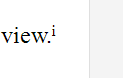
In this example, we’re starting off with some footnotes or endnotes that use roman numerals (i, ii, iii …):

footnote with roman numeral

Now, we want to change them to, for example, arabic numerals (1, 2, 3 …)

First of all, go to the Footnotes menu. This is in the References tab, and there’s a whole area called Footnotes:

Footnote menu

Click the little arrow at the bottom right of the Footnotes area to access the Footnote and Endnote menu. Once you’ve clicked on the little arrow, you should see this menu:

footnote menu dialogue box word

We can see lots of things we can do here, including changing the number footnotes start at, whether they restart every chapter, etc. (these more obscure details will be the subject of another article). But for our purposes, the important features are choosing whether you’re telling Word about Endnotes or Footnotes and telling Word what the number format should be.

In this case, we’re using Endnotes (although these instructions cover both), so I’ve clicked the radio button (circle) next to Endnotes. This tells Word that we’re using Endnotes and talking about the Endnote numbering.

Going down one section, you can see that at the moment, the Number format is set to i, ii, iii … To change this, click on the down arrow to the right of the box saying i, ii, iii … (if the Endnotes are set to 1, 2, 3 or a, b, c, this will display in this box):

footnote menu change style

Once you’ve clicked that arrow, you will be able to see all of the choices you have for your footnote or endnote numbering. Now click on the format that you want to use:

footnotes change numbering style word

The Number format will now change to the one that you have chosen. Once you have got the correct format in this box, click the Apply button to apply the changes:

footnotes apply change word

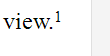
When we return to our document, the endnote numbering has changed from a roman numeral (i) to an arabic numeral (1). You can change this as many times as you want.

footnote with correct style word

This article has explained how to change the number format in your footnotes or endnotes.

Related posts from this blog:

How to insert and format footnotes

How to insert and format endnotes

How to swap between using footnotes and endnotes

Please note, these hints work with versions of Microsoft Word currently in use – Word 2007, Word 2010 and Word 2013, all for PC. Mac compatible versions of Word should have similar options. Always save a copy of your document before manipulating it. I bear no responsibility for any pickles you might get yourself into!

Find all the short cuts here

 
30 Comments

Posted by on June 3, 2015 in Errors, New skills, Short cuts, Word, Writing


Tags: , , , , , , , , ,

How do I accept one reviewer’s changes in Track Changes in Word 2010 and Word 2013?

This article tells you how to view just one reviewer’s changes in Track Changes in Word (the screenshots are for Word 2010 and Word 2013 separately but this works for all version of Word, including Word 2003 and Word 2007). Once you can see the changes made by one editor or reviewer, you can delete the changes made by that one reviewer, leaving only the changes made by the other reviewers.

Why would I want to accept only one reviewer’s changes in Track Changes?

Recently, I worked on a document where I made all of my usual changes or comments, then the author responded and sent it back to me for re-checking. They hadn’t accepted my initial changes, but had told me in the email that they were OK. Because the document looked really messy and confusing, I wanted to accept all of my changes and just work with the author’s additions and amendments. Here’s how I did it.

Note, it looks slightly different in Word 2007/2010 and Word 2013, with subtly different terminology, so we’ll look at 2007-2010 first and then 2013

How do I see and accept one reviewer’s changes in Word 2007 and Word 2010?

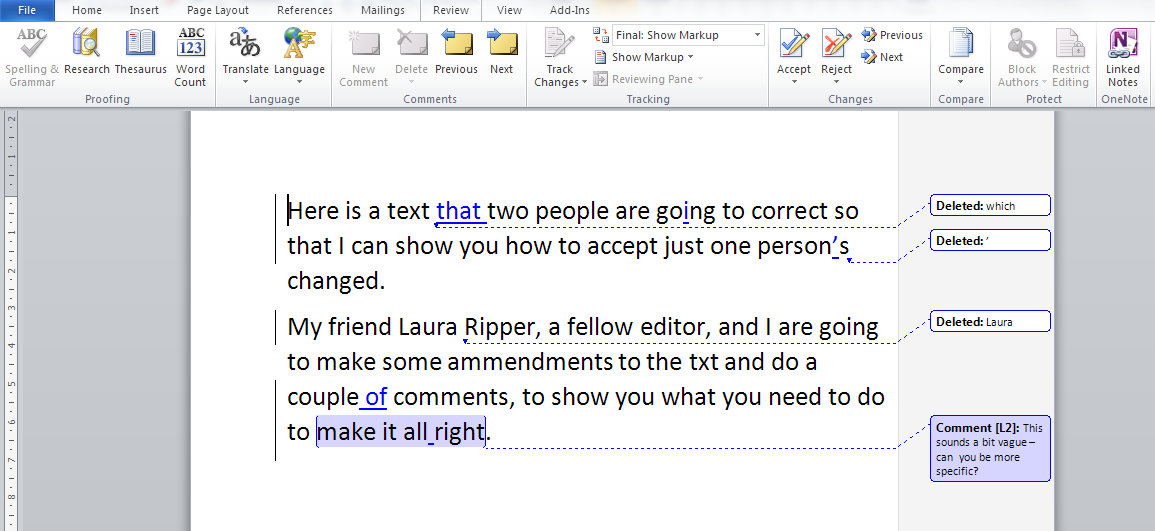
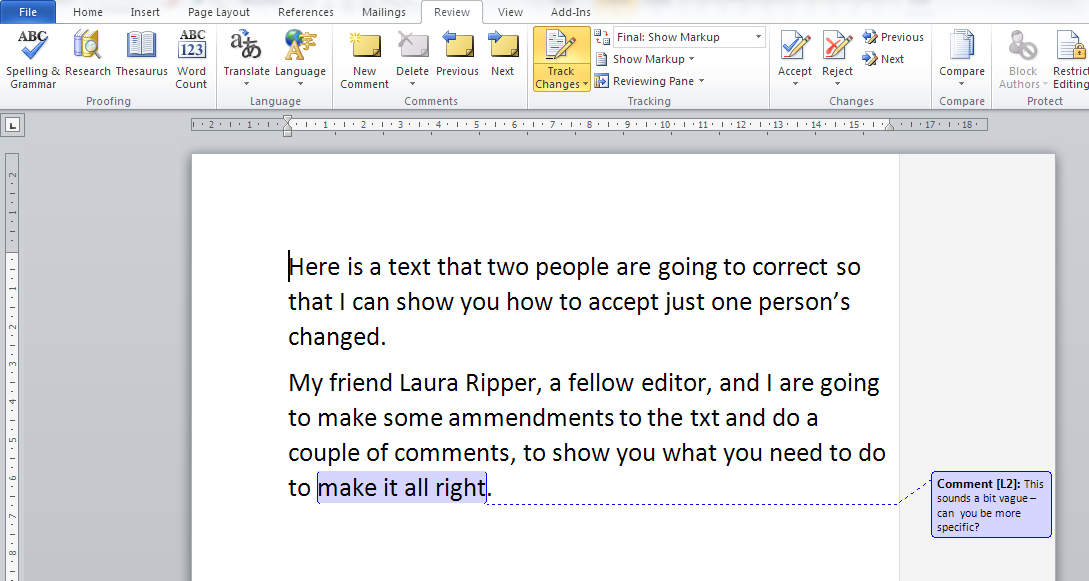
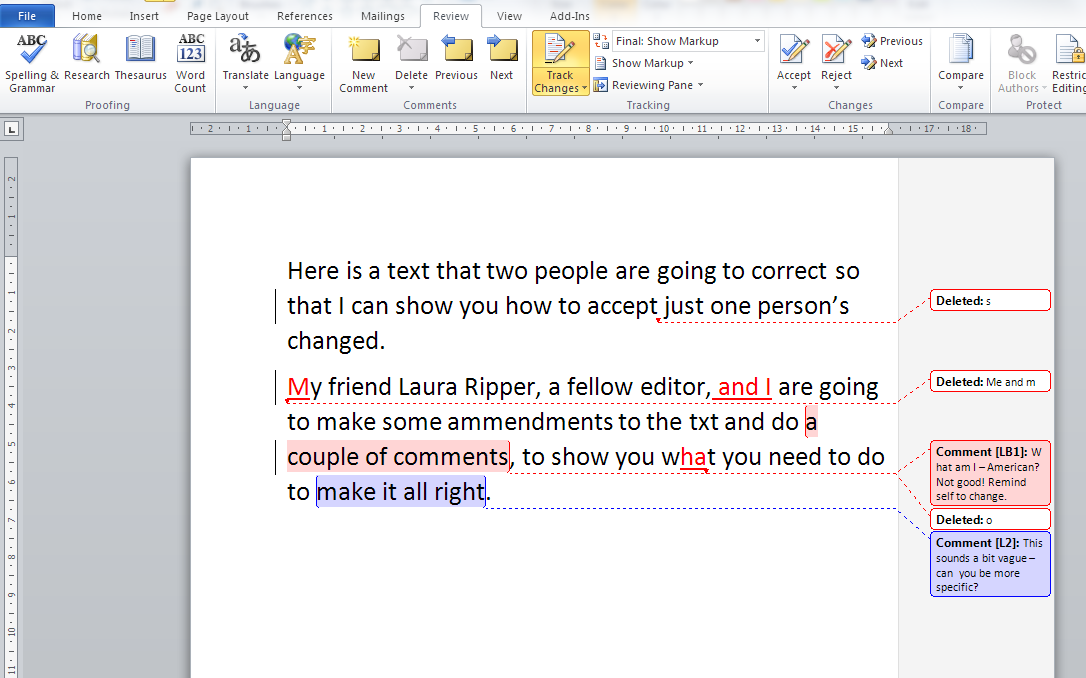
Here’s our text, with comments and corrections by two reviewers, shown in two colours. What I want to do is accept the changes made in blue and just end up with the ones in red to review.

Word 2010 two reviewers

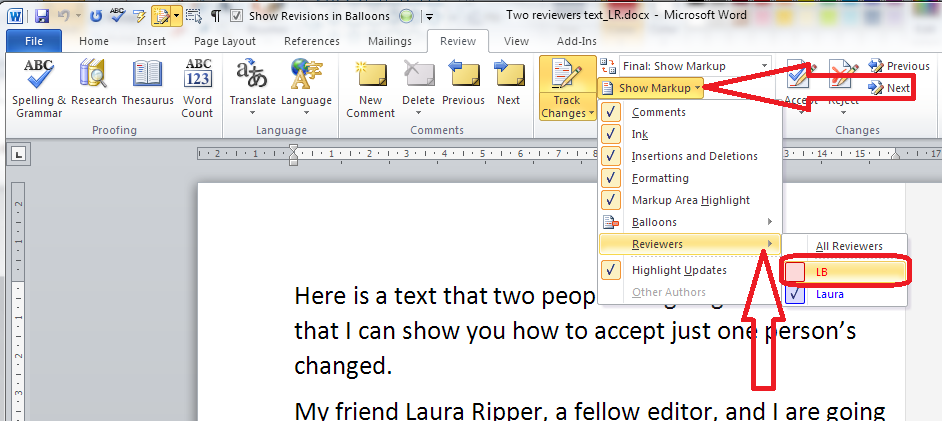
First of all, we need to show only one reviewer’s corrections. We do this in the Review tab, Track Changes area. Click on the arrow next to Show Markup and then Reviewers on the drop-down menu. This allows you to tick or un-tick by different names. IN this case, I want to interact with just the changes made in blue – the ones I want to accept. So I click on the tick box by the LB initials, to un-tick that box and only see Laura’s corrections:

Word 2010 show reviewers

Once I’ve done that, I can only see the blue corrections. Note that the red comment box has also disappeared. We only see comments and corrections by Laura, but the ones made by LB will still be there behind the scenes.

Word 2010 show one reviewer

Now I want to accept these blue changes. In the Review tab, Track Changes, I click on the arrow at the bottom of the Accept button and click Accept All Changes Shown (it’s important to pick this one – if I chose Accept All Changes in Document, all of the changes, hidden and visible, would be accepted).

Word 2010 accept changes showing

Now all of the blue changes have been accepted and only the comment by L[aura] is visible.

Word 2010 changes shown accepted

Just to prove that my corrections are still there, and in case I want to review those, we can view all reviewers by going back to Review – Track Changes – Show Markup – Reviewers and clicking in the box to tick LB:

Word 2010 show all reviewers

Now I can see the corrections in red and all of the comment boxes, and review them happily.

Word 2010 result

How do I see and accept one reviewer’s changes in Word 2013?

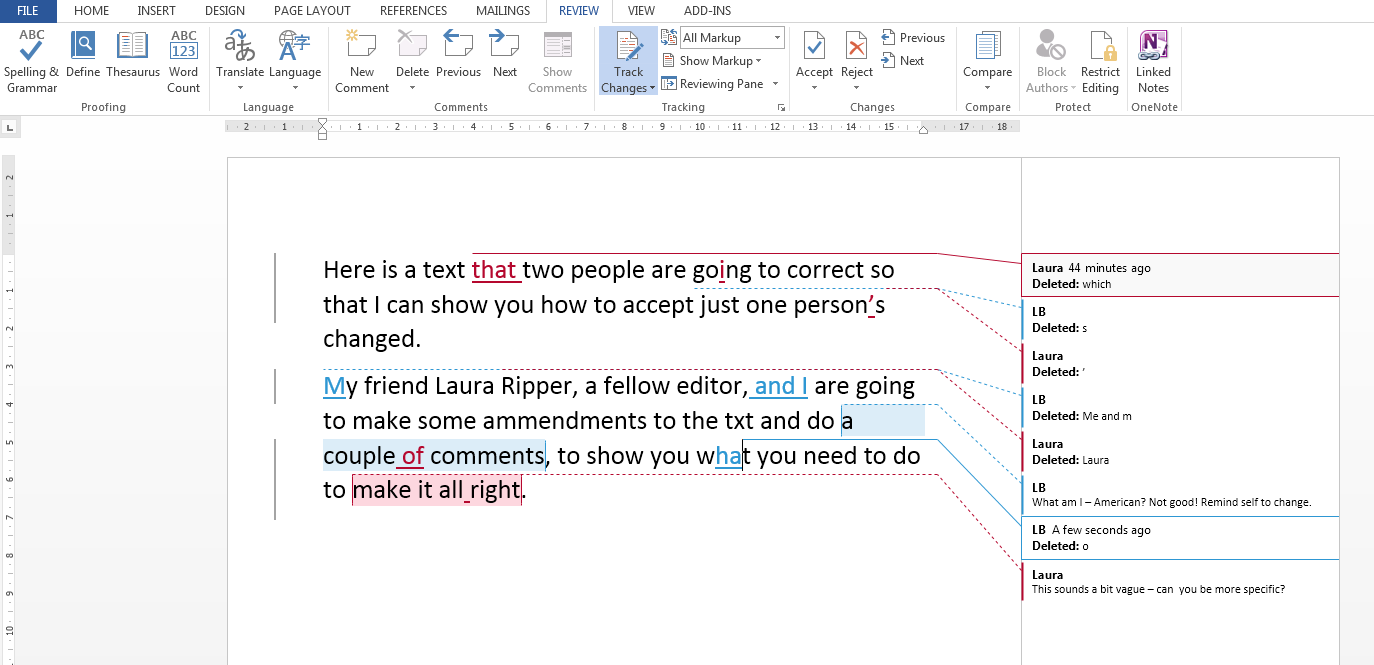
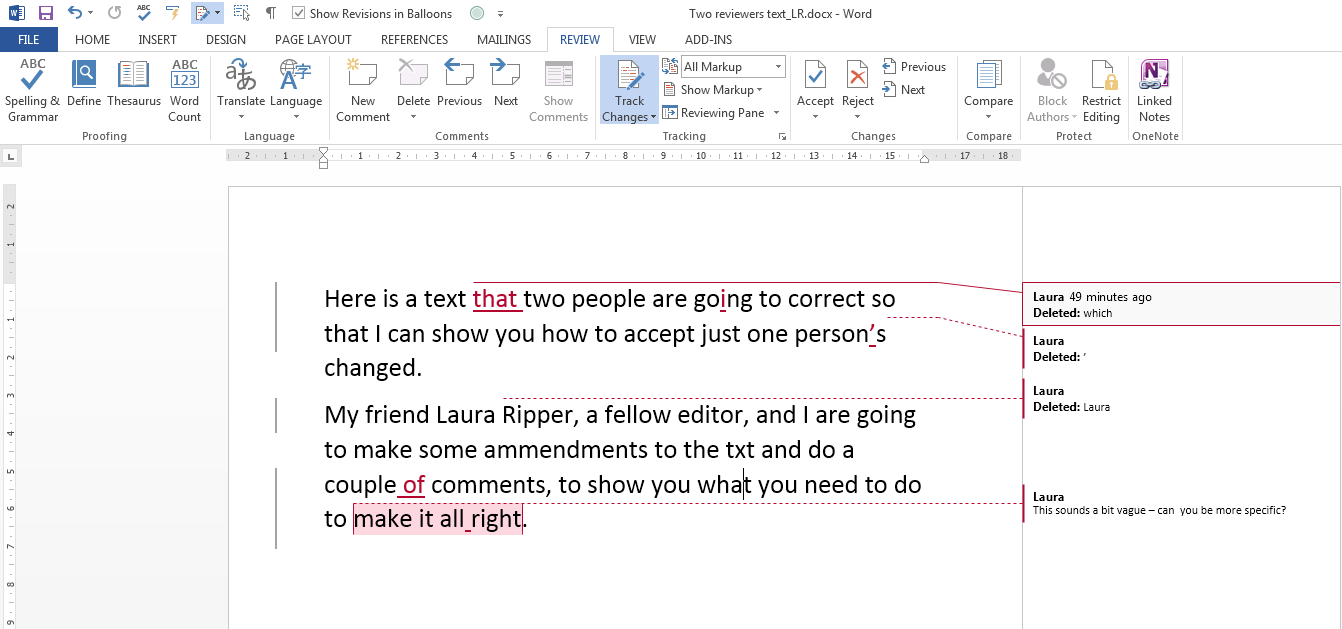
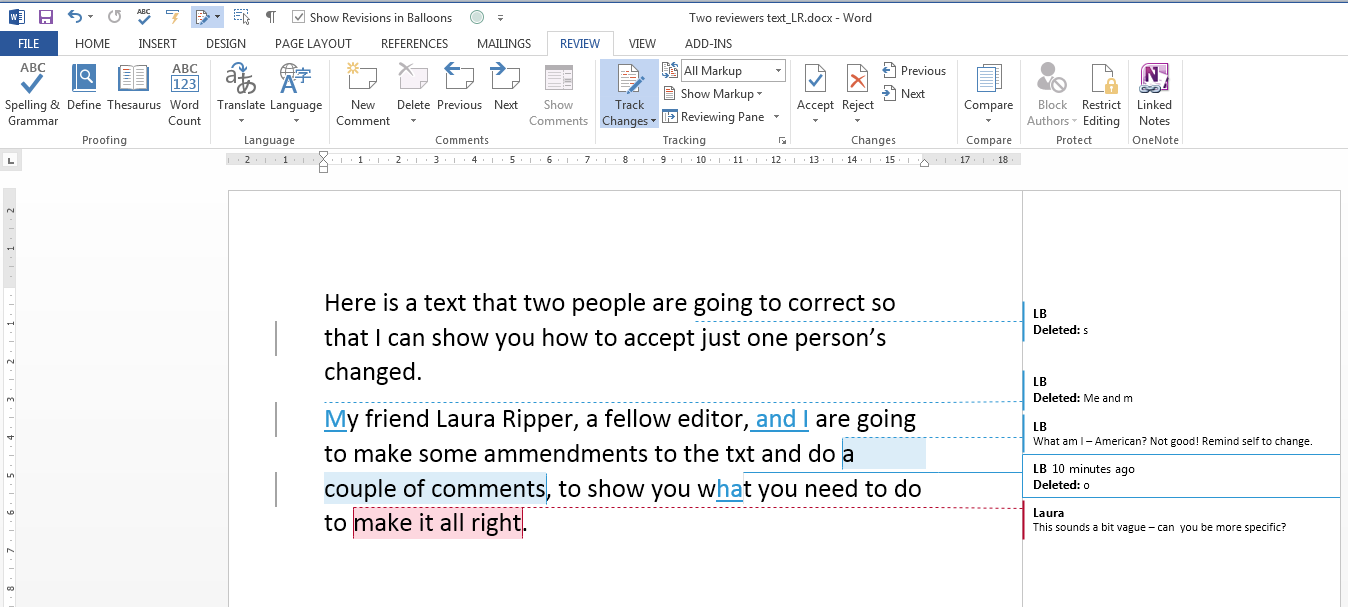
Here is our text commented on and corrected by two people. I want to view and accept the red changes made by Laura, then view my own ones in blue to review them (Yes, if you’re reading this all the way through, Word 2010 and Word 2013 chose the opposite colours for the two reviewers).

Word 2013 two reviewers


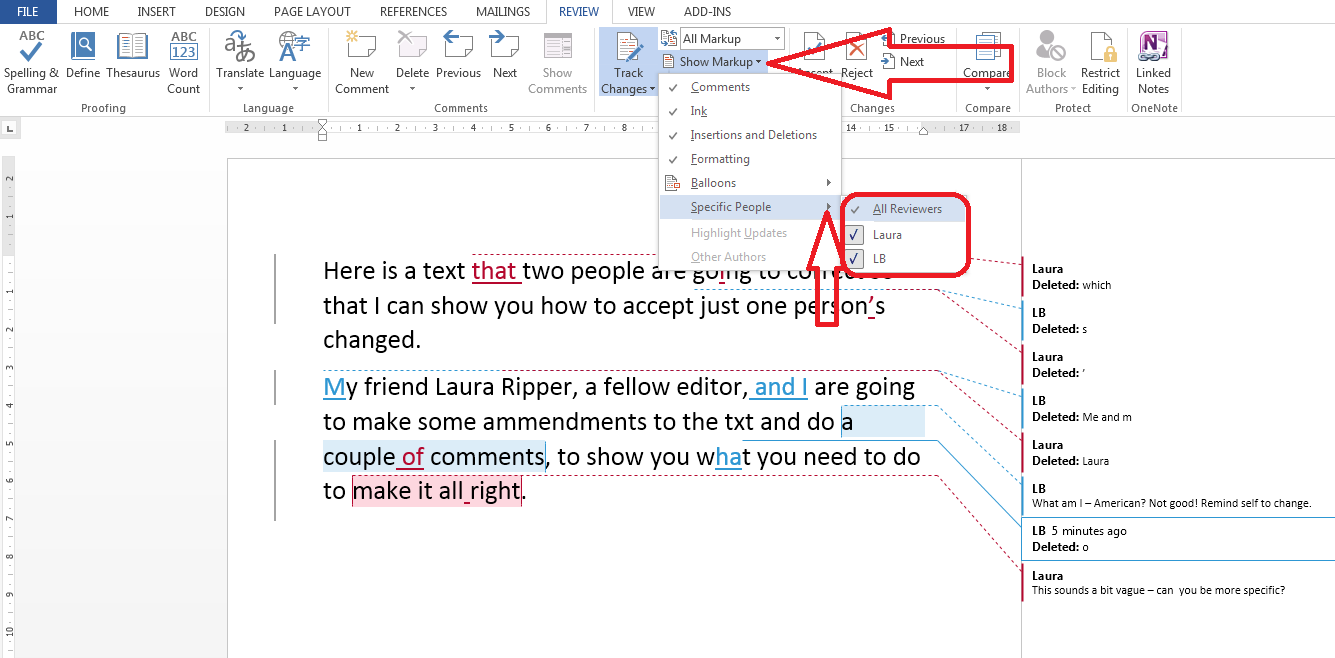
First we need to view only the blue corrections in order to accept only those ones. In the Review tab, Track Changes area, click on Show Markup then Reviewers. This gives us the option to tick or untick by each individual reviewer. Here, I’m going to untick LB.

Word 2013 show reviewers

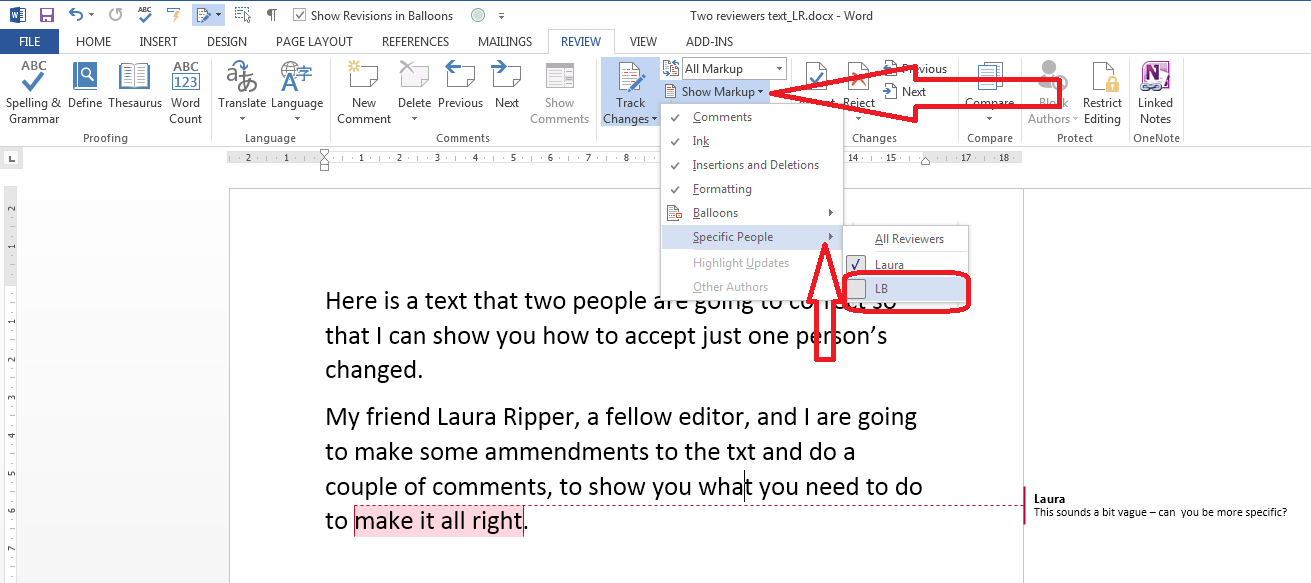
Now we can just see Laura’s changes in red.

3 2013 show one reviewer

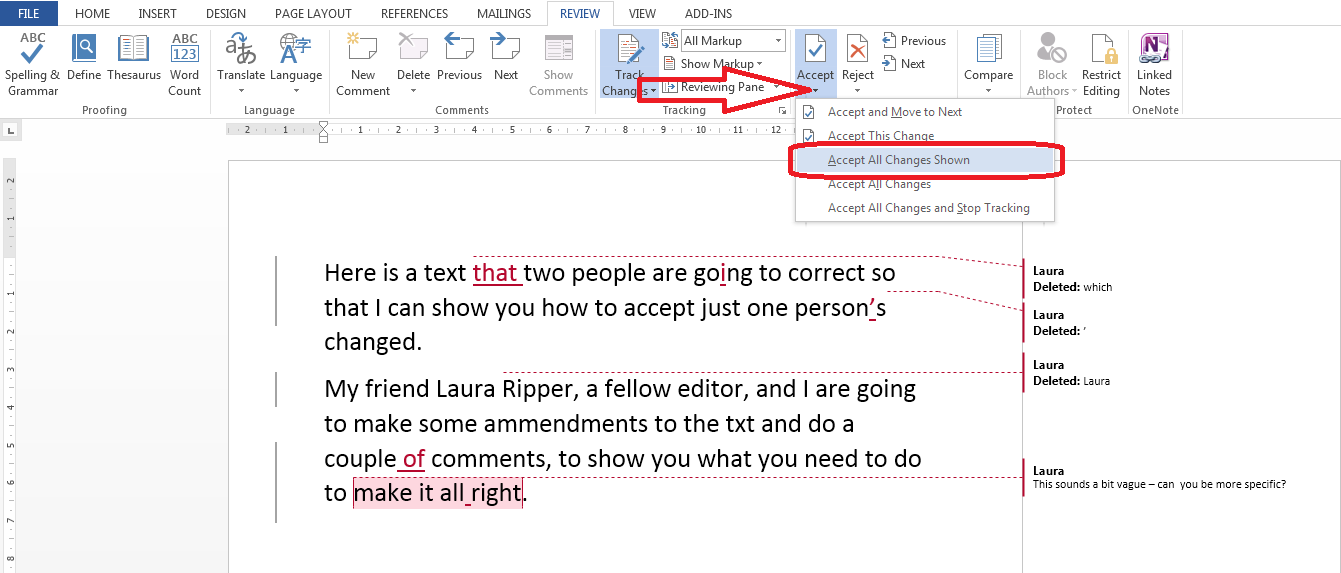
We can accept these changes by choosing Review tab – Track Changes area and clicking on the arrow at the bottom of the Accept button. Then, we choose Accept All Changes Shown (note, Accept All Changes will accept all of the changes, red or blue, visible or hidden: we don’t want that):

Word 2013 accept changes shown

Now all of the insertions and deletions have been accepted and we’re left with just the comment balloon:

Word 2013 changes shown accepted

To see and review the suggestions made in blue by me, we go back to Review tab – Track Changes area – Show Markup – Reviewers and re-tick by the LB:

Word 2013 show all reviewers

Now we can see all of the changes suggested by LB as well as the comments by both people.

Word 2013 one reviewer's corrections accepted

This is another one written when I had a specific need and had to go hunting around, so I hope you’ve found it useful. If so, please share using the buttons below or pop a comment on!

Please note, these hints work with versions of Microsoft Word currently in use – Word 2007, Word 2010 and Word 2013 all for PC. Mac compatible versions of Word should have similar options. Always save a copy of your document before manipulating it. I bear no responsibility for any pickles you might get yourself into!

This is part of my series on how to avoid time-consuming “short cuts” and use Word in the right way to maximise your time and improve the look of your documents. Find all the short cuts here

Related posts on this blog:

Track changes 1 – why use it, where can you find it, what can you do with it?

Track changes 2 – customising Track Changes

Track changes 3 – working with a document with tracked changes

Formatting comments balloons – everything you have ever wanted to know!

What to do if your comment boxes go tiny in Word – A common problem, hard to find the answer!

What to do if your comment box text runs right to left – Useful if you edit texts from Arabic authors

Changing the language in your comment balloons – From US to UK English and beyond …

 
14 Comments

Posted by on April 8, 2015 in Copyediting, Word, Writing


Tags: , , , , , ,

On completion of your edit, will my manuscript be ready for publication?

On completion of your edit, will my manuscript be ready for publication?
I was asked this question by a prospective client recently, and it seemed like a good opportunity to share the answer with the wider world.
So, if you send your novel or non-fiction book.article or chapter to your editor for copyediting (fiction writers might know this as line editing), is it going to be ready for publication once they have gone through it?
Well, to be honest, probably not. What you will receive from your editor is a document marked up with suggested changes and comments. You will need to go through all of these and undoubtedly action some comments or questions that they’ve given.

Going through your editor’s comments

Once your editor has gone through your document, it will come back with a range of different comments and suggestions.
To break these down, they might include all of some of the following:
  • Vital textual changes – you will need to go through these but will probably accept most of them – they will be based on grammatical, punctuation etc. rules, or will be picking up typos.
  • Suggested textual changes – Your editor should be striving to retain your ‘voice’ and to help you get across your points, ideas or story, and they might well suggest rearrangements of sentences, changes in word choices, etc. Some of these you might not accept, for example I have a client who doesn’t like semi colons, so I know they will reject any I add (of course I just don’t add them now!). Some might be a matter of style but will make the piece consistent (e.g. use of capitalisation and hyphens which is often inconsistent in texts I work on).
  • Style sheet questions – your editor should send you the style sheet they’ve built up while editing your work, which will list all of the choices that they’ve made (where there’s a choice to be made) in a separate document, alongside any terminology that they’ve made consistent, etc. This might, however, include questions – for example, if you have used “the chapter” and “the article” interchangeably and an equal number of times in your short piece, your editor might not know what its eventual destination is, and might leave a question in the style sheet for you to answer (that’s how I do it) – then you will need to make that terminology consistent
  • Comments and questions – there will be points at which your editor may suggest, for example, moving a section to a different chapter, saying something in a different way to make it more clear, or even marking a section that they find unclear and then suggesting that you rewrite it. You will then need to action those points yourself, moving or rewriting sections as necessary.

What happens next?

Once that’s all done, if you haven’t done so before, I suggest that you get some people to beta-read the book to give you their reactions and suggestions to the content, now that consistencies and the most obvious issues have been ironed out. You may need to do a bit of rewriting on the basis of their comments.
If the rewriting is substantial, it’s a good idea to have your editor look over either the whole document or just the sections that have been changed (I usually ask my clients to highlight the bits they want me to check in the whole document, so I can see where they sit in the work as a whole). And then you will need to go through the above process again.
Once that’s done, before you publish the manuscript, you will need to have it proofread to check that no additional errors have crept in and to ensure that it’s going to look good in publication (if you’re doing a print book, the proofreader will need to see a pdf of the final version, if an e-book, a Word document is often OK). This person shouldn’t be the original editor, because they would be too close to the contents, and you should send them your editor’s style sheet so that they know how certain things should be and don’t waste time changing them to their preference.

Once the proofreader’s comments come back, it would be very unusual if you didn’t have something to change. So, you will need to make those changes – and this might affect your book design, so you might have to have your book designer look over the whole thing again.

Then you might just be able to consider it ready for publication!

Related articles on this blog

Do I need editing or proofreading?

Dealing with Track Changes in a document

My work is being proofread – why do I need to use Spell Check?

 
16 Comments

Posted by on February 26, 2015 in Copyediting, proofreading, Word, Writing


Tags: , ,

Why writing a blog post is (a bit) like writing a sermon

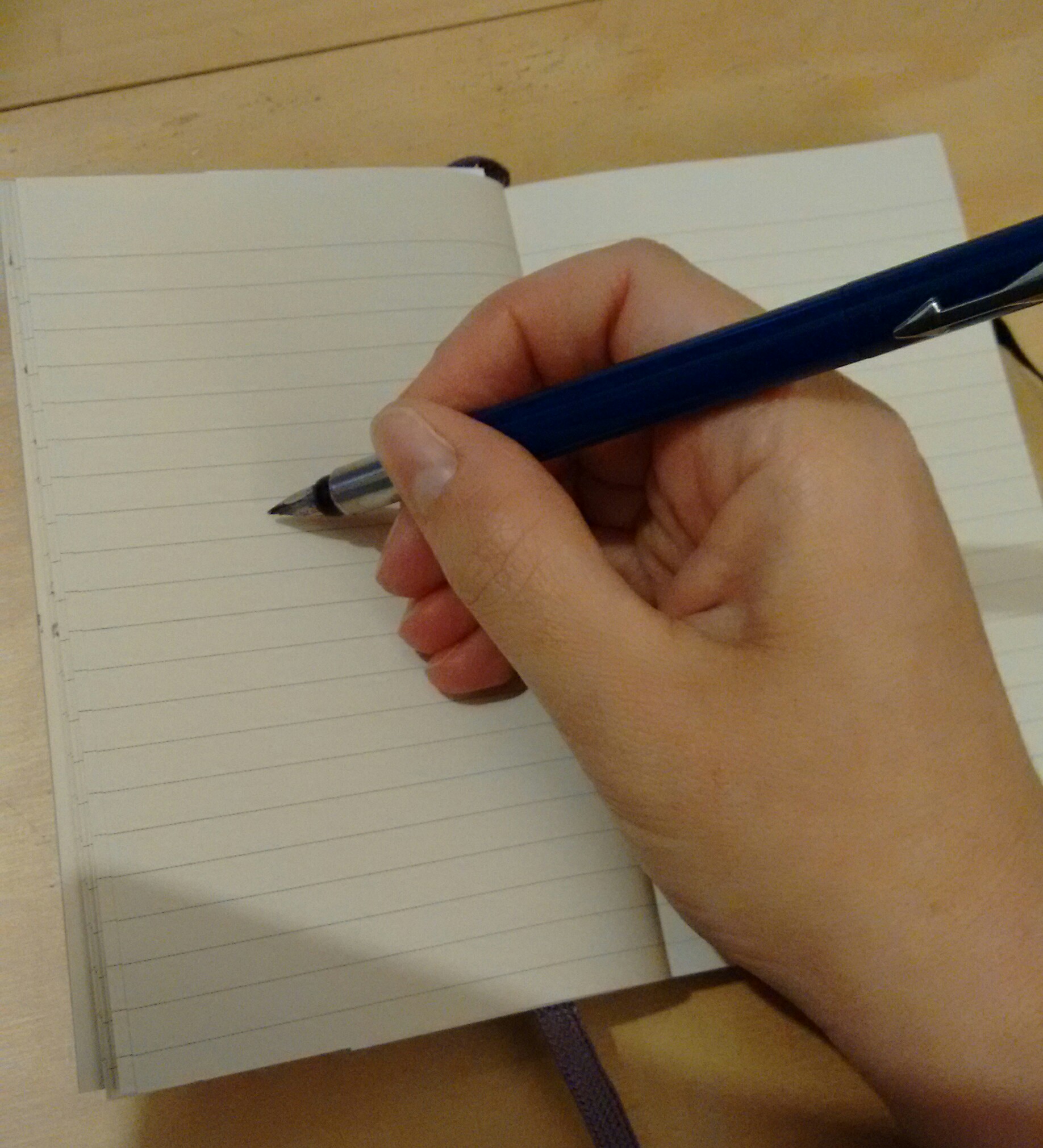
A hand, writing with a fountain penI was reading (yet) another mid-20th-century novel featuring a vicar hard at work over his Sunday sermon (sorry, I haven’t read a book featuring a female vicar, as far as I know. Are there any yet?) and an analogy struck me: writing a blog post is quite a lot like writing a sermon. As both involve constantly seeking fresh ways of looking at things, I thought I’d run with that idea and see where it took me, so here goes…. but please do read the comment at the bottom of the post if you’re at all concerned about this content …

10 reasons why writing a blog post is (a bit) like writing a sermon

If you commit to writing a blog, it’s a good idea to publish at least one post a week. When I was thinking about writing a batch of posts one day, it reminded me of vicars, from Jane Austen onwards, heading to their desk to write their weekly sermon. Here’s why, in particular.

1. You have to produce something new every week. If you said the same thing over and over again, people would soon get bored and drift away.

2. It’s good to base your text on a real-world problem. The best blog posts, in my opinion, are based on something real that’s happened, whether you’ve encountered a tricky problem using Word (that’s how my whole series of Word posts started), are reacting to something in the news or are sharing a story you’ve created.

3. You base your work on truth and you refer to the relevant authorities. A sermon will of course be based around a Bible reference. When I write about a topic, I will often include the real-life experience of others, or links to their work, or screen shots of what’s going on in a program. If I claim to state a fact, I try to provide a reference. If I’m responding to someone else, I include a link.

4. You need to add value and a learning point (or lesson, if we’re being straightforward). It’s all very well to talk about a real-world issue, but you need to draw something from it, a useful lesson, something to make it worthwhile reading the post.

5. You need to leave your audience thinking. They might have enjoyed your latest novel extract, know there’s now a place to get information on comment boxes or have learned more about DIY funerals (as I did myself earlier this week), but if they go away thinking, they’ll remember you next time.

6. You are often talking about things that have been talked about before. There’s not much new in the world, and it’s unlikely that any of us will produce anything totally new, but there are ways to find new ways to talk about things, as I might have done here!

7. You’re trying to help people! You might be entertaining, explaining, sharing a book, giving information on a technical matter, sharing your own experience of something, but I think most successful bloggers are in it to help people as well as pour out their souls or publicise their business.

8. You want people to come back. No one wants to drive readers (or worshippers) away, so you’re intending to encourage them to visit again, by providing well-crafted content that they want or need.

9. You are often trying to inspire people to take action in some way. Whether you’re encouraging people to try a new craft, read a new book or venture into running their own business, or trying to change their mind on a contentious topic, many blog posts aim to inspire.

10. Your best work is probably produced after pondering for a while rather than dashing it off in a blind panic at the last minute (as my old friend Paulette says, “more like a birth than a rupture!”). This is certainly true of many of mine, although the actual writing up may come a little close to the wire sometimes.

Do you agree? Can you add any other analogies? Do vicars have a day of writing sermons to get ahead of themselves? (seriously, I’d love to know!)

Thanks and disclaimer:

I checked this idea with a group of people who are more religious than me / regularly attend worship / are vicars / are related to or married to vicars and other people of the cloth (thank you to all of them, and particularly Paulette Stubbings for a valuable suggestion). They all thought it was a fun  /interesting / good idea. It’s not my intention to offend anyone, and if I do, please let me know, and why, and I’ll take that into consideration. I’m certainly not undermining the work of religious leaders or claiming that bloggers are the new priests or anything silly like that. Edited to add: I also understand that I am not empowered by any higher spirit or authority of any kind when writing, but I do have a serious intent in sharing information and helping people: not all blogs do that, but I’m primarily talking about myself and similar informational bloggers here.

To read more about blogging, visit the resource page

 
8 Comments

Posted by on December 17, 2014 in Blogging, Writing


Tags: , ,

How do I insert clip art in Word 2007, 2010 and 2013 and other Microsoft Office applications?

I have to admit to being a little surprised when I was asked to post about clip art. I hadn’t used it for years, and I was taken back to the old days, when you used to buy a computer magazine with a free floppy disk full of clip art pictures …

However, the very useful point about clip art is that it’s copyright free and so simple to use: you can pop a MS Office clip art image into your presentation or document and know that you’ve not stolen someone’s work of art (although there are copyright rules about using them in commercial publications).

They’re also not as ‘cartoony’ as they used to be, including photographs as well as drawings, and there are some really good images: I found this great one when I searched for “editor”, for example!

clip art of editor holding book

From MS Word Clip Art

This article applies to Microsoft Office applications such as Word, Excel and PowerPoint. Examples are taken from Word, but the process works in the same way in all applications.

Of course, choosing and inserting your clip art varies between Word (Excel and PowerPoint) 2007/2010 and Word (Excel and PowerPoint) 2013, so if you want the latter, please scroll down a bit to the relevant heading!

How do I use clip art in Word 2007 and Word 2010 and other Microsoft Office software?

Clip art is found in the Insert tab, in the Illustrations area (this is an image from Word 2010; the button in Word 2007 has a slightly different, but recognisable, icon and is in the same place):

Word 2010 insert clip art

Making sure that your cursor is at the point where you want the clip art image to appear, click the Clip Art button:

word choosing clip art

A clip art search area will appear in the right-hand margin. It’s pretty simple: you can enter a search term, and you can also choose which kind of media you are searching for (useful for PowerPoint presentations, for example, or if you only want photographs to illustrate your document):

Word clip art choose format

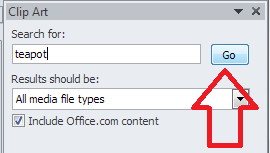
Leaving this on all media, let’s search for “teapot” – pop the word in the search box and click the Go button:

Word clip art search

You should then see a grid of clip art images:

clip art search results

Stop press – you might only find you have the option to search online now – as Microsoft have withdrawn the copyright-free clip art they had offered for so many years. I believe that if you have a standalone version of Word that doesn’t receive updates, the clip art will stay, otherwise you’ll just now have an option to search Bing. Very annoying!

clip art find more

Anyway, back to our 57 teapots (which is surely enough for anyone!). When you’ve found an image you want to insert, double-click on it and it will move into your document:

clip art insert image

You will also notice here that the image is selected and can be enlarged and reduced using the little blocks around the image outline. It can also be moved, if you hover inside the box until an arrow appears.

For more on placing images in text, please see this article.

How do I use clip art in Word 2013 and other Microsoft Office software?

For Office 2013, Microsoft went all online-based, and as a result, the way in which you access clip art changed. Note that these instructions work for both the standalone version of Word 2013 (and other software) if you bought it once, and the subscription version through Office 365 which downloads updates periodically.

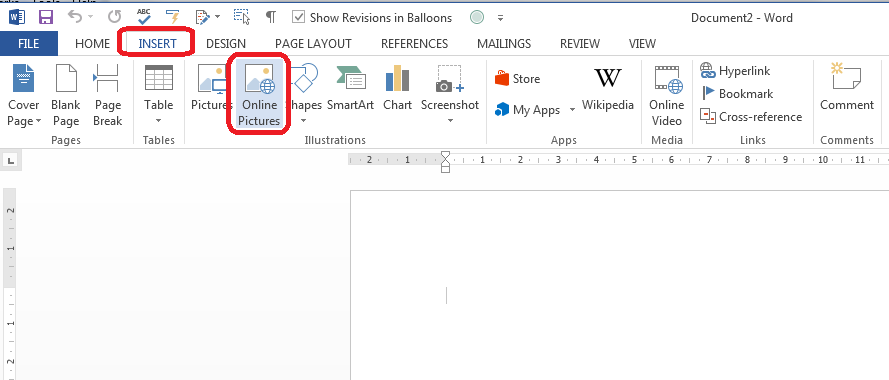
You access clip art from the same menu, on the Insert tab, in the Illustrations area, but it’s now called Online Pictures:

clip art office 2013

Making sure your cursor is in the place where you want your picture to be, click on Online Pictures:

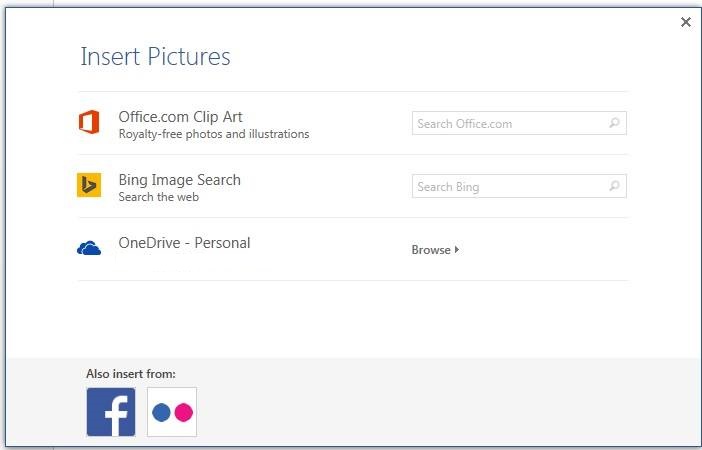
Word 2013 clip art search

You now have the option to search royalty-free illustrations on the office.com clip art website or do a Bing Image search for general images.

Note Unless you have a completely standalone and isolated version of Word 2013, you will not now have the option to use clip art based within Word itself – you will probably just see Bing search. If you don’t get updates on your version of Word, it’s likely you will still have them, because Word can’t update itself to make them go away. Grrr, frankly.

Because I’m not logged in at the moment, I have the option to sign in with my Microsoft office account. If you are logged in, or do subsequently log in, you will get these additional options – OneDrive, Facebook and Flickr:

Word 2013 image search options if logged in(thanks to Laura Ripper for this screen shot)

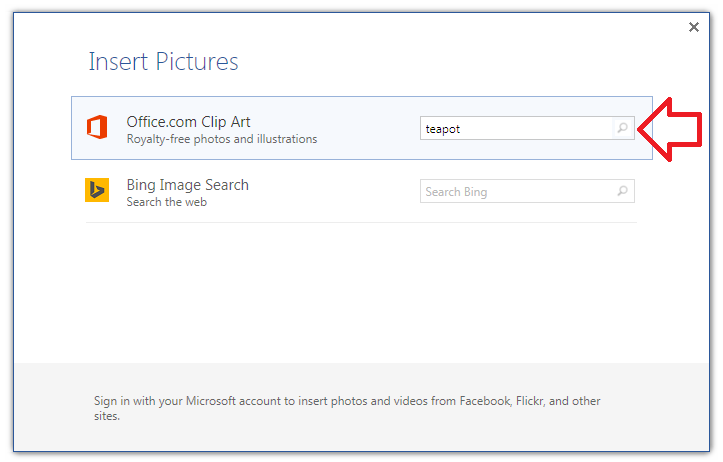
To search in clip art, enter the search term “teapot” into the first text box and click on the magnifying glass icon:

Word 2013 clip art search

This will bring up the same results as for Word 2007 and 2010 (interestingly, you can’t differentiate at this stage between different kinds of file to insert, as you can with earlier versions):

Word 2013 clip art resultsDouble-click on the image you want to insert, or single click and click on the Insert button

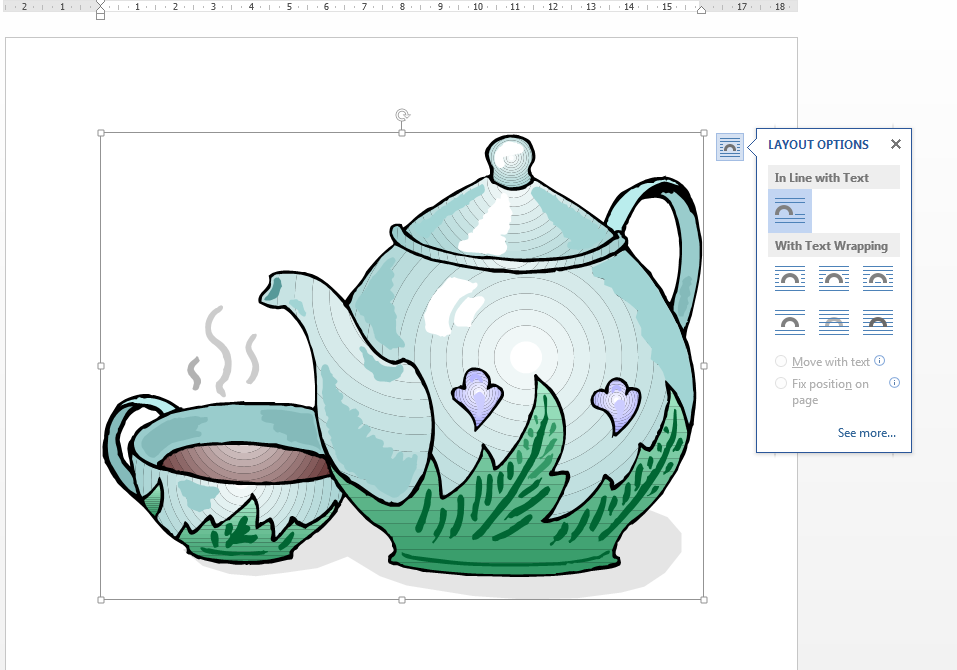
Word 2013 clip art inserted

Note that in Word 2013, not only do you get the frame which allows you to change the image size, but the Layout Options dialogue box also pops out, allowing you to choose where the image sits in any text you might have.

For more on placing images in text, please see this article.

Related posts on this blog

How do I make pictures go where I want them to in Word?

How do I stop the pictures jumping around when I edit a Word document?

———————

This is part of my series on how to avoid time-consuming “short cuts” and use Word in the right way to maximise your time and improve the look of your documents. If you’ve enjoyed the post or found it useful, please use the sharing buttons below to share it via your social media networks – thank you!

Please note, these hints work with versions of Microsoft Word currently in use – Word 2007, Word 2010 and Word 2013 and other Office software for PC. Mac compatible versions of Word should have similar options. Always save a copy of your document before manipulating it. I bear no responsibility for any pickles you might get yourself into!

Find all the short cuts here … and see the full resource guide here.

 
31 Comments

Posted by on November 12, 2014 in Errors, New skills, Short cuts, Word, Writing


Tags: , , , , , , , ,

How do I hide the toolbars and taskbars in Word 2007, 2010 and 2013 and other MS Office applications?

In this article we’re going to learn how to (temporarily) hide the toolbars, taskbars, rulers and whatnot in Word.  Note that these processes will also work for other Microsoft Office applications such as Excel, PowerPoint, etc.

Why would I want to hide the taskbars in Word?

There are various reasons why you might want to have just a blank white screen in front of you when using Word. If you’re trying to write, write, write, you might want to remove all distractions. If you’re displaying Word on a large screen using a projector, there are many reasons why a plain screen with no additional information might be useful.

In fact, the second reason, wishing to display just some text and images via an overhead projector, is why I was asked to write this article in the first place.

How to hide taskbars and toolbars in Word

This works for Word 2007, 2010 and 2013: I’ve used Word 2010 in the example because it’s what I use most of the time, but the principles remain the same.

How to minimise the ribbon in Word

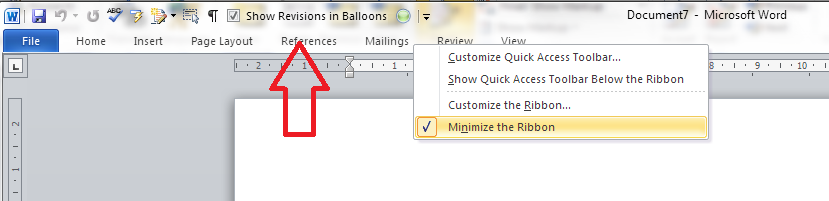
You might just want to minimise the ribbon. If this is the case, first right-click anywhere on the actual ribbon, then select Minimize the Ribbon from the menu that displays:

Word minimise ribbon

How do I reverse minimize ribbon?

To reverse the minimize ribbon action, you can either …

1. Right-click anywhere on the small ribbon headings that will appear and click again on Minimize the Ribbon: the tick will disappear and the ribbon will reappear:

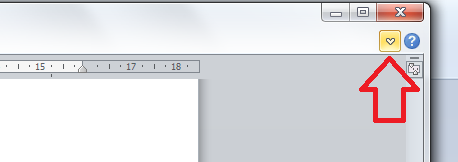
un-minimize ribbon2. Click on the small down arrow that appears at the top right of the screen when the ribbon is minimised:

reverse ribbon minimise

How do I remove wording and symbols from the lower task bar

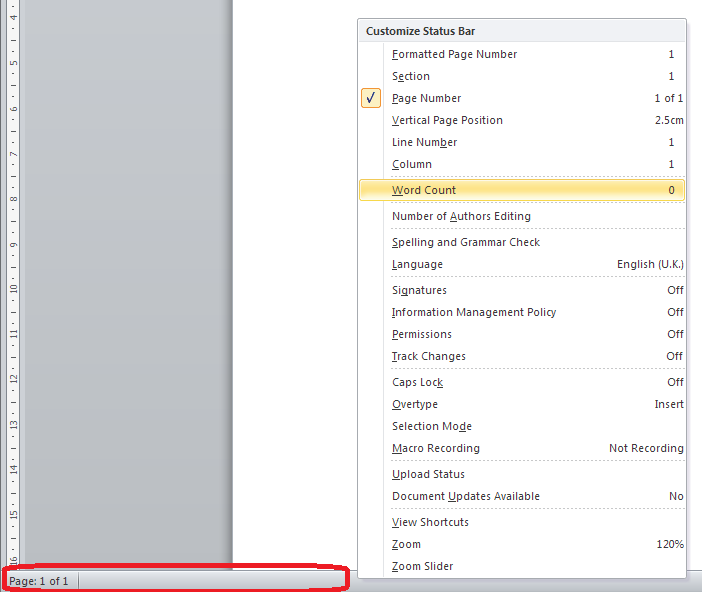
If you’re fed up of seeing your word count or document language in the lower task bar, you can right-click on the taskbar, at which point a list of all items you can display pops up, and you can untick the ones you don’t want:

remove items from lower task bar

You will see the displayed items at the bottom start to disappear until you’re left with just one:

remove from lower task bar

How do I reverse clearing the lower task bar?

To add items back on to the task bar, right-click on the taskbar and click on the features you want to see – the tick will reappear next to the items you select, and the information will display in the lower task bar.

How do I hide the rulers?

For instructions on hiding the rulers in Word, please see this article.

How do I hide all of the toolbars in Word and other Office applications?

If you want to go further and just have a blank screen, you can use the shortcut Alt+V, U

Note that you must follow this process to do this:

  • Press down the Alt key and keep it pressed down
  • Press the V key and release it (keeping Alt pressed down)
  • Press the U key and release it (you can then release the Alt key)

Pressing both letters together does not have the same effect. Once you’ve pressed this key combination, you will have just the document, no toolbars, taskbars, menus, etc. However, you are still likely to have the Windows taskbar showing.

Just a document, no toolbars

So you’re not quite there, but first …

How do I reverse Alt+VU?

The first time I did this, I got a bit panicky because I assumed that you needed to press AltVU again to get back to the menus, but that’s not what you do.

To reverse Alt+VU and get back to seeing your taskbars, hit the Escape key on your keyboard. Phew!

How do I hide the Windows taskbar?

You’ve got your lovely clean document showing but you want to get rid of that Windows taskbar at the bottom of the screen. Here’s what you do:

First, unlock the taskbar (if it is locked) by right-clicking on the lower task bar and seeing if Lock the taskbar is ticked. If it is, click on it to untick it.

unlock task bar windows

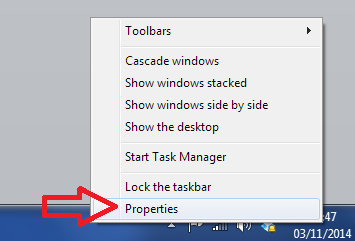
This dialogue box will disappear, so right-click on the taskbar again and this time choose Properties:

Windows taskbar properties

This will give you a new dialogue box:

Windows taskbar properties

Making sure that you’re in the Taskbar tab, click on the tickbox to Auto-hide thie taskbar.

The taskbar will now disappear, leaving you with a lovely clear screen containing only your document.

How do I reverse hiding the Windows taskbar?

To show the Windows taskbar, move the mouse to the bottom of the screen (assuming your Windows task bar is usually there), at which point it should appear. Then right-click at the bottom of the screen and select Properties, then untick Auto-hide the taskbar.

———————

This is part of my series on how to avoid time-consuming “short cuts” and use Word in the right way to maximise your time and improve the look of your documents. If you’ve enjoyed the post or found it useful, please use the sharing buttons below to share it via your social media networks – thank you!

Please note, these hints work with versions of Microsoft Word currently in use – Word 2007, Word 2010 and Word 2013 for PC. Mac compatible versions of Word should have similar options. Always save a copy of your document before manipulating it. I bear no responsibility for any pickles you might get yourself into!

Other useful posts on this blog

How to display and hide rulers in Word

How to add buttons to the Quick Access Toolbar

Find all the short cuts here … and see the full resource guide here.

 
8 Comments

Posted by on November 5, 2014 in Errors, New skills, Short cuts, Word, Writing


Tags: , , , , , , , ,

New book on networking, social media and social capital

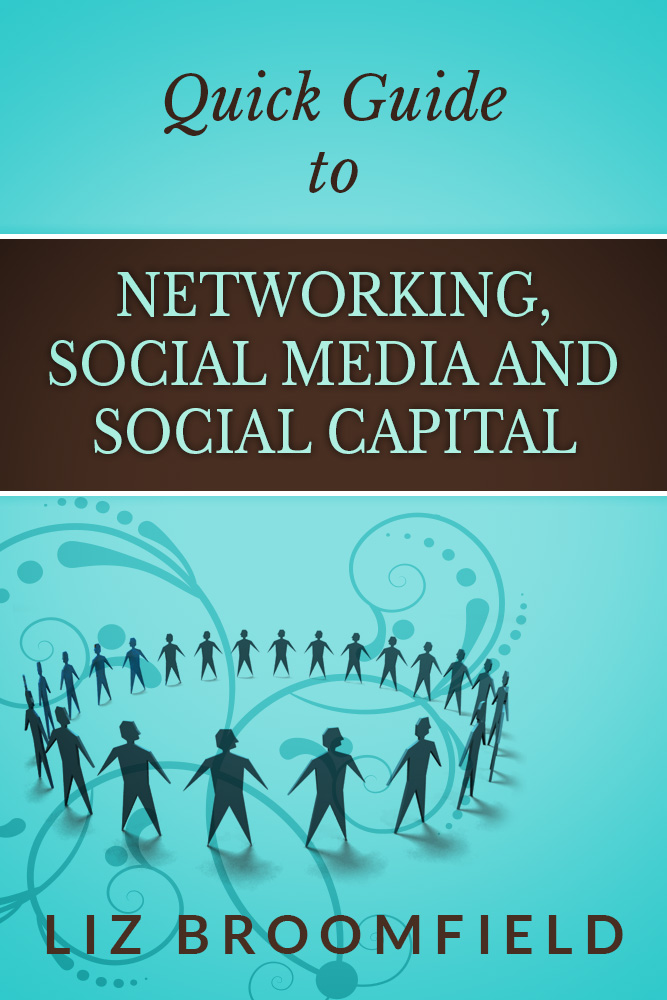
Quick guide to networking, social media and social capitalI’m delighted to be able to announce that my new book, “Quick Guide to Networking, social Media and Social Capital” is out now and available to buy on Amazon and Smashwords as an e-book in all formats (for Kindle, Kobo, as a pdf …). Like my popular “Quick Guide to your Career in Transcription“, this contains the specific information – no filler, where there’s jargon, it’s explained – that you need to venture into networking, whether that’s face to face or through online services such as Twitter and Facebook. It pulls together material I’ve written and thought about on social media etiquette and building social capital … to help others as well as ourselves, and where I go into detail on particular topics, I provide links back to this blog for all of those screen shots and details that regular readers will be used to.

You can visit the book’s web page which lists all of the places you can buy it, and I have shared the first great reviews today, too.

I hope you enjoy reading about my new book and if you find it helpful or think one of your colleagues or friends would benefit from reading it, please let them know by sharing this post or the web page for “Quick Guide to Networking, Social Media and Social Capital“.

 
Leave a comment

Posted by on November 4, 2014 in Business, Ebooks, Social media, Writing


Tags: , ,

My work is being proofread – why do I need to use Spell Check?

Spell check buttonI recently posted a how-to article about using Spell Check (well, one for Word 2007/2010 and one for Word 2013, actually). Today I want to talk about why you should use Spell Check, even if you’re using an editor or proofreader of the human variety to check your work.

Using Spell Check before you send your work to your editor

So, you’re using an editor to check your work: why on earth should you need to run a spell check first?

I’m not talking about going through your document with a big pile of style guides and dictionaries by your side. I’m talking about taking maybe half an hour to press the spell check button and go through your manuscript removing the obvious errors. You know, the ones where you spell it obvis errrors.

As an editor, it can get a bit frustrating when you’re picking away at typos (form for from, fried for friend) which are composed of ‘real’ words (which obviously a spell checker program won’t notice) and then you find a load of fromms or frends which a spell check would have eliminated. And here’s the thing: we’re human. If we’re concentrating on picking up your incorrect spellings and non-existent words, we’re less likely to be able to concentrate in detail on what we’re supposed to be doing: making your language express your thoughts and meaning as clearly as possible.

Yes, we can run a spell check for you, and if I spot more than the odd error that this would eliminate, I will do that myself. But it’s time-consuming. And that’s another thing: time-consuming. Some editors charge by the time spent, some by the word. I’m a charge-by-the-word woman myself, but if you’re paying for someone’s time, why pay them to do something you can do yourself?

So, there are two points to bear in mind here:

  1. If your work isn’t spell checked, your editor will be concentrating on those issues and less able to go deeper into their work
  2. If you’re paying by the hour, you’ll be paying extra needlessly

I have to add here that it can seem a little impolite, too, to not run a spell check before you send the manuscript in to your editor. A little bit as if you’re the creative person with the big ideas and you’re sending it off to the paid help who will sort out things you’re too important to do. I’m pretty sure that this is NOT the case for the majority of authors, but it’s always best to avoid that impression if at all possible. See the caveats below …

What if I don’t know whether spell check is correct?

That’s fine. We’re the experts, you’re the creative one. If you’re not sure of your spelling and which word is correct, you can always either leave a note in the margin or let us know you ran a spell check but you’re not sure of a few things. In fact, spell check itself isn’t always correct (see below). All I’m saying here is that the fewer avoidable mistakes there are in your manuscript, the better the job that I’m able to do for you.

Times when pre-spell-checking isn’t appropriate

I’m not a monster and I’m not inflexible – nor are the other editors I know. We’re a kind and helpful bunch. If you have issues with your spelling, dyslexia or any other special situations, of course we’re not going to reprimand you over issues in the spelling in your document. Also, if you’re using voice recognition software, I’m not actually sure how the spell-checker works in that situation (if someone who uses such software wants to comment, that will be very so useful and I’ll include your notes in an update).

However, it is important to let your editor know if you have any special issues like these. It will help us to do a better job for you, and perhaps even to explain our choices and changes in a way that’s easiest for you. Also, we can look out for particular artefacts that might arise in your manuscript because of the way in which you’ve written it (voice recognition software is notorious for inserting homophones into the texts it produces). As I said, we’re an understanding and helpful bunch, and we want to help you in the best way possible.

Using Spell Check when you’ve received your work back from your editor

No – I don’t mean right away! Well, if you find a load of legitimate errors  you might want to speak to your editor (although nobody’s perfect and no editor I know can do 100% perfect work: we’re human). But, most of the time, your manuscript is going to come back to you either in Word with Track Changes turned on or in an annotated PDF which you then need to update. In both of those cases, you doing the corrections can allow errors to creep in. It’s nobody’s fault, it’s just what happens.

I learned this the hard way when I received my last manuscript back from my editor. I accepted changed as I went along and did one final Accept all changes once I’d reviewed the document, but some oddities had crept in, especially in the spacing around punctuation. Luckily, I noticed in time, ran a quick spell check and got it all sorted out – but if someone who’s an editor herself can manage to introduce errors when dealing with her editor’s edits (sorry!), I’m going to assume that anyone can manage to do that!

Beware: Spell Check is not always right (gasp!)

There is a caveat here.

Much of English grammar is not totally prescriptive. There are often two ways of going about doing something, especially when you look at hyphenation and capitalisation. This means that when you’re spell-checking after the edit, you should bear in mind the style sheet that your editor’s sent you. If they’ve chosen a particular word form to make things consistent in your manuscript, I’d consider keeping it even if the automated spell check says it’s wrong (in its opinion). Microsoft software appears to use something called the “Microsoft Manual of Style“, but obviously if you’re working to a particular style guide such as Oxford or Chicago Manual of Style, they will over-ride Microsoft if there’s a clash. A classic example of this is “proofreader” – that’s the accepted way of writing the word in most of the major style guides, but Word Spell Check does like to change it to proof-reader. I’d kind of assume your editor knows how to (not) hyphenate that one, but do bear this in mind when you’re doing that final check.

Also, if you’re writing creatively, your editor might have left something in which is correct, but creative, while spell check (even without grammar check) might take issue with it. A classic example I find is spell check trying to change they’re to their, irrespective of the actual correct use of the word. So beware on grammar or word form choice issues like that – you can always check back with your editor or consult a style guide if you’re not sure.

This article has talked about why writers should use spell check even if they have an editor. If you’ve got an opinion on this, or a good reason NOT to use spell check, do please post a comment below! And if you’ve enjoyed this post or found it useful, please do share it using the share buttons!

Related posts on this blog:

Using Spell Check in Word 2007 and 2010

Using Spell Check in Word 2013


Tags: , , , , , , ,

How to use spell check in Word 2007 and Word 2010

In this article we’re going to talk about using the spell checker function in Word, including how to find it, how to use it, and when not to believe it. This article works with Word 2007 and Word 2010 – screen shots are taken from Word 2010. I have written about Word 2013 separately as it’s a bit different.

What is Spell Check?

Spell check is a function in Word that will check both the spelling and appropriate word use in your document. It’s not perfect, but it will pick up all sorts of errors and typos that you might not realise you’ve made.

Spell Check will go through your document and highlight any words that it thinks are spelled incorrectly. If it can, it will offer alternative spellings for you to choose from. You can then choose to change the word to one of its suggestions, change all instances of that word to the suggestion, or ignore the “error” once or always.

We usually run a spell check after writing a document, although you can ask Word to check spellings as you go along (I personally find this distracting). It’s worth running it even if you think your writing is perfect and you’ve read through the document finding no mistakes – there’s always something, and that’s why, even though I’m an editor, I use spell check on my own posts and as a final check on documents I’ve edited, and why I have an editor for my books!

How do I start Spell Check?

We run Spell Check from the Review tab in Word:
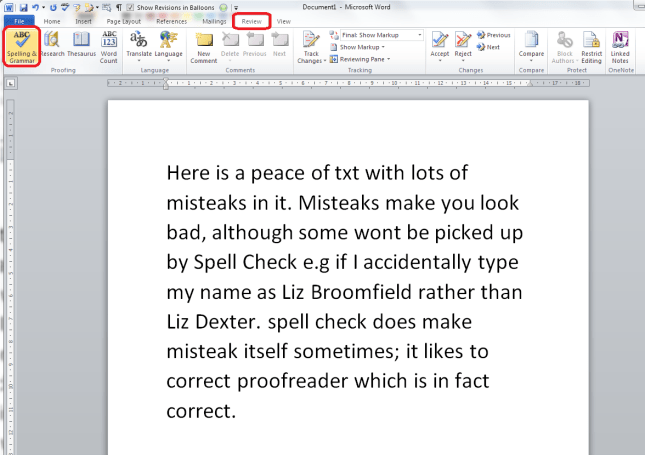
How to start spell check

The eagle-eyed among you will have spotted the same icon in the Quick Access Toolbar at the very top of the document. I’ve added the Spell Check button there because I use it a lot. If you want to learn how to add buttons to the QAT, read this article.

With your cursor at the beginning of the document, click on the Spelling and Grammar button. Word will highlight each word that it thinks is incorrect, starting with the first one:
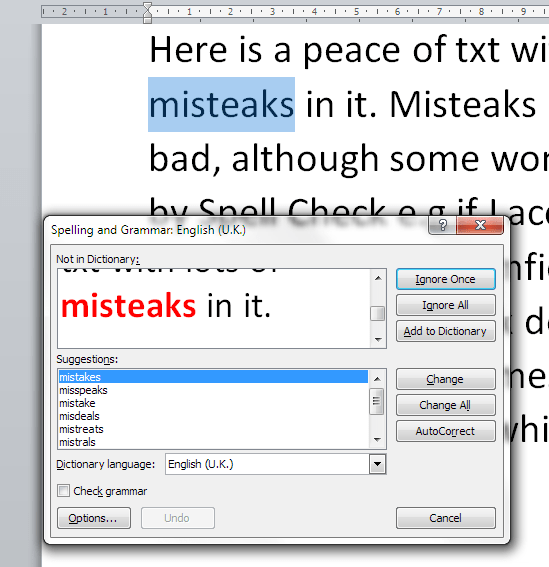
spell check in action

Here, I started at the beginning of the text, but you’ll notice that it’s missed out “peace of txt” even though that is clearly wrong. We’ll look at that in a minute, but let’s concentrate on what happens when it gets it right.

What options does Spell Check give you?

Spell Check has highlighted “misteaks” and you can see in the Suggestions box below that it’s suggested the closest word first, then a few other options. “Mistakes” is highlighted, but if I did mean “mistake” or “mistreats”, I can click on one of those.

To the right, we have some buttons – Ignore Once / Ignore All / Add to Dictionary are to be used when we know what we typed is correct and we want to keep it; Change / Change All / AutoCorrect will allow us to make that change:

  • Ignore Once will ignore just that instance of the word in question
  • Ignore All will ignore that exact word throughout the rest of the piece
  • Add to Dictionary will add that exact word to the Spell Check dictionary so it will never ask you ever again if you’ve miss-spelled it. I have used this for my name in the past, which is why this Spell Check process won’t pick up “Broomfield” or “Dexter”, and I also add in commonly used technical terms and jargon that comes up a lot in the texts I work with.
  • Change will change just that instance of “misteaks” to “mistakes”. Any other examples will stay as they are
  • Change All will change every instance of “misteaks” to “mistakes”.
  • AutoCorrect brings up the AutoCorrect screen (see this article for more on AutoCorrect) which allows you to set up an automatic correction for the future, so whenever you type “misteaks” it will change to “mistakes”. This is really useful if you notice that you’re mistyping a word regularly.

I’m going to click on Change All, and this will automatically change all examples of “misteaks” to “mistakes” in the text. Note, however, that it will not change “misteak” – it only looks for the exact same word. This includes capital letters, so it will now flag up “Misteaks” as a new error and make some new suggestions, the second of which is the correct one. I do tend to click on Change All, so that I save time and mouse clicks correcting the same form of the same word over and over again.

Now, let’s see what else Spell Check will look at.

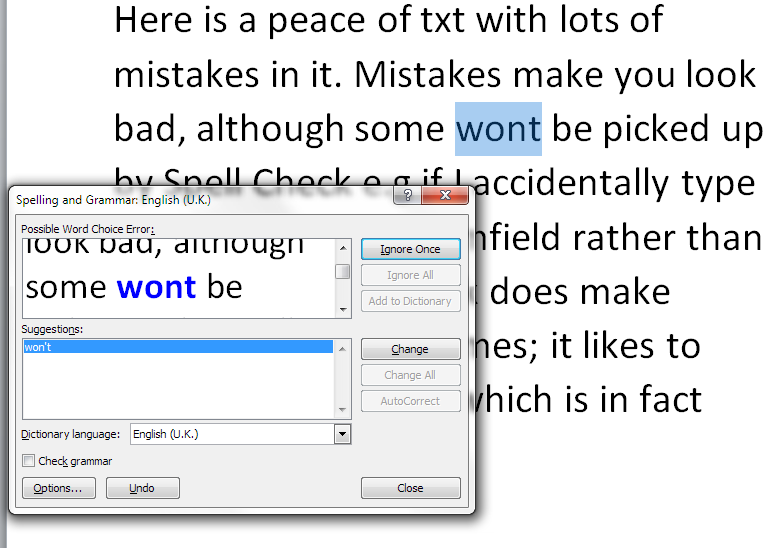
It will notice if you’ve missed out an apostrophe, even if the word “wont” is a word in itself:
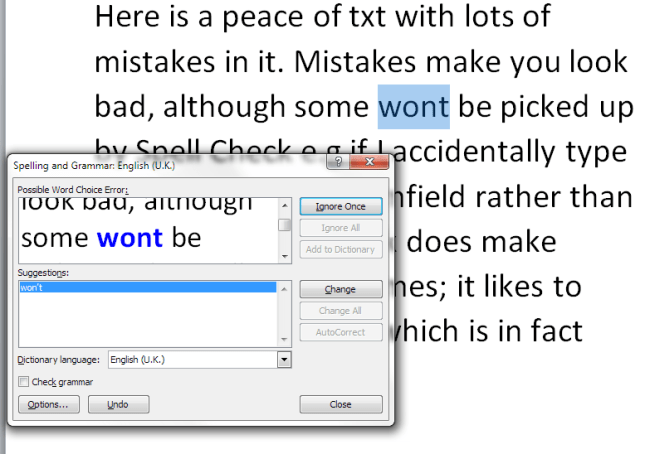
spell check apostrophe

And it will check incorrect punctuation, too:
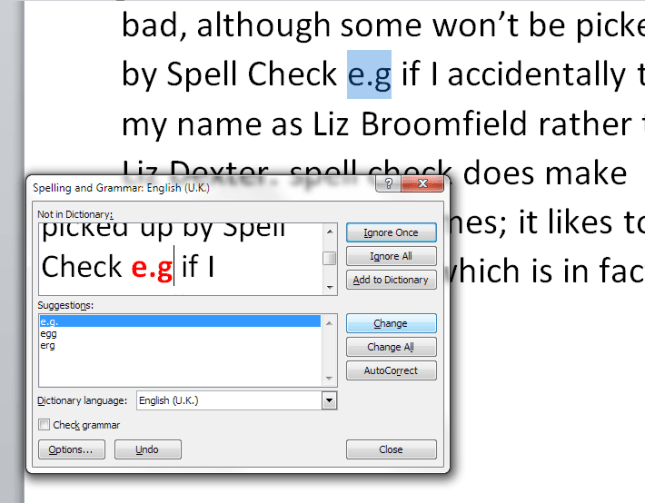
spell check punctuation

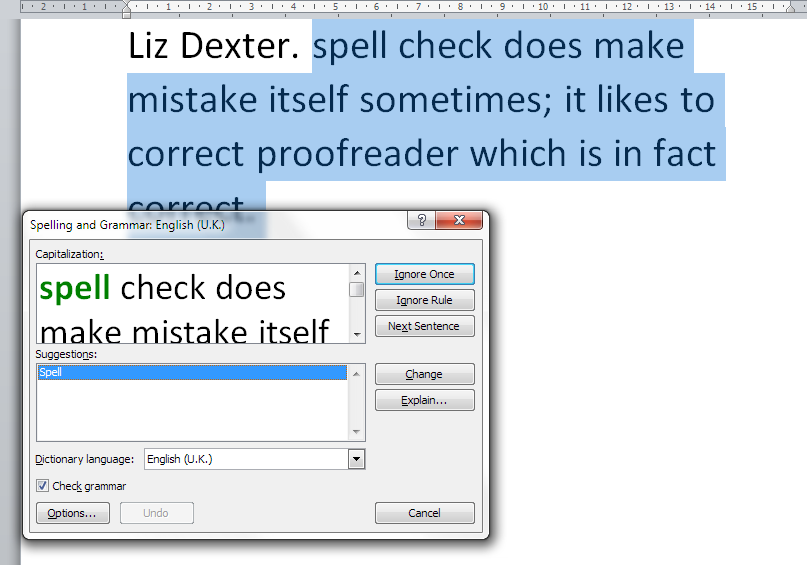
Finally. you can ask Spell Check to check your grammar, too. Here, it’s picked up that I started a sentence with a lower-case letter:
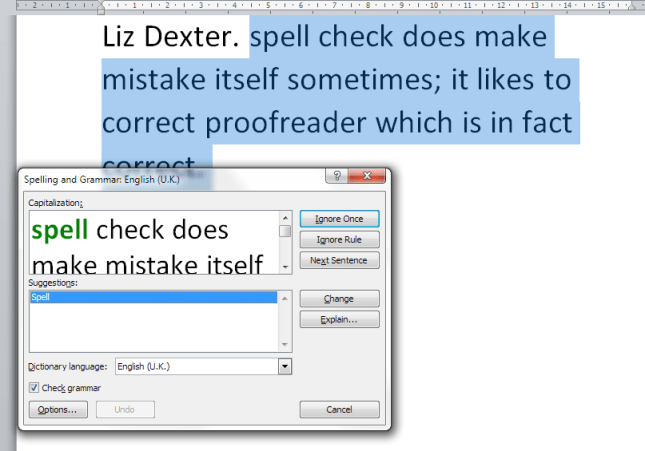
spell check grammar check

There’s a caveat here, though: I find the grammar checker to be quite rigid and a bit odd. The eagle-eyed among you may have spotted that I have Check grammar ticked in the above image but not in the others – this is because I tend to turn off the grammar checker when I’m working on my own texts and other people’s. It’s up to you whether you do that, and instructions for tweaking the Spell Checker will appear in a later article.

What if I change my mind or make a mistake?

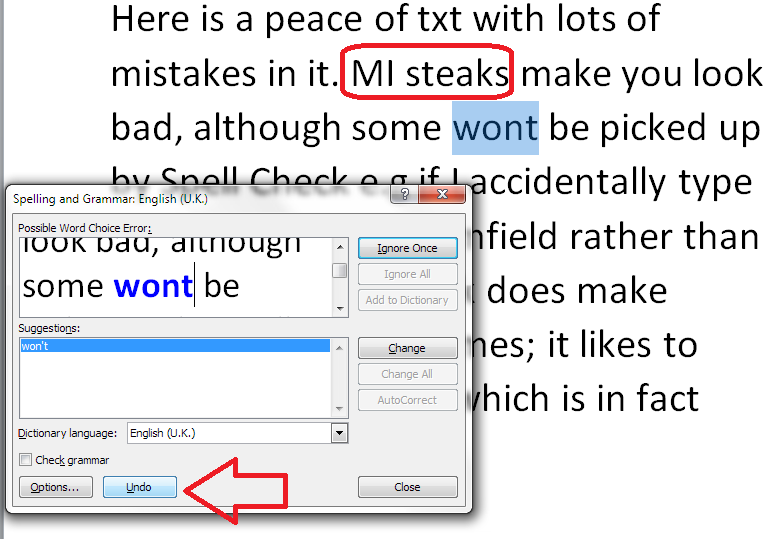
If you make a misteak, oops, sorry, mistake when you’re changing words in Spell Check, there’s a handy button that will take you back.

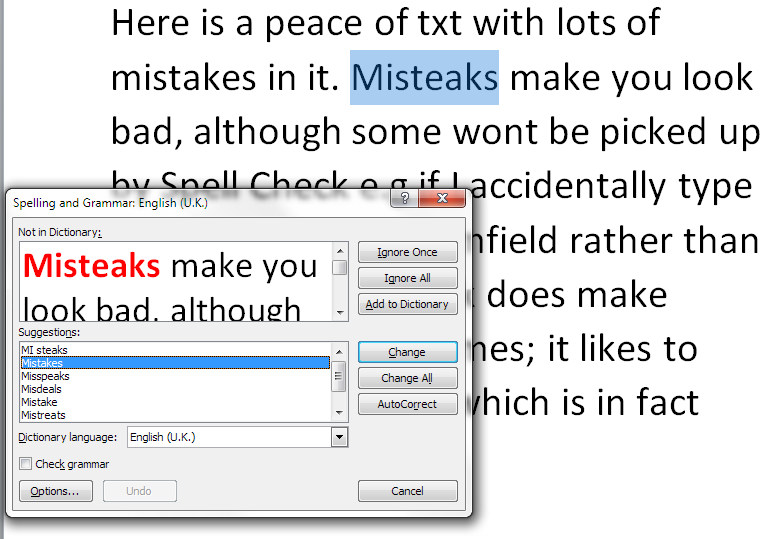
Here, I’ve clicked on the first suggestion for “Misteaks” which was “MI steaks”. Oops. I only see it when I’ve already hit Change All. But I can click the Undo button to take me back to that set of choices, and you can click the Undo button more than once.
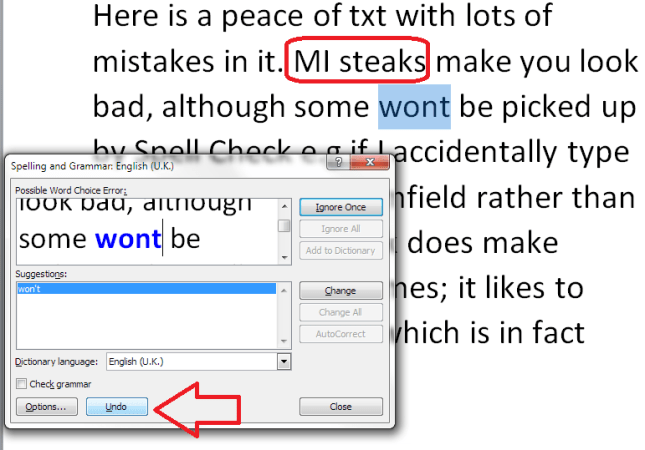
undo spell check

Having pressed Undo, we’re back to looking at “Misteaks” instead:
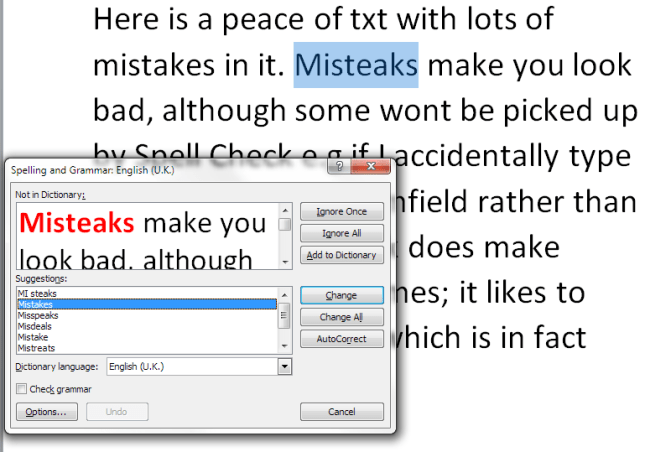
spell check undone

Does Spell Check ever get it wrong?

In our example, Spell Check has missed the obviously incorrect phrase “peace of txt”:

spell check in action

It does sometimes notice when you use an incorrect but valid word (i.e. it is actually a word in itself), but not always. I’m guessing that it’s ignored “txt” because that’s a file extension (like .doc) which is used when saving documents. So Spell Check hasn’t picked that up, and you or your editor will have to notice it yourselves!

It also uses rules which don’t match standard common usage. Right up until Word 2013, it thinks that proofreader is two words, hyphenated:
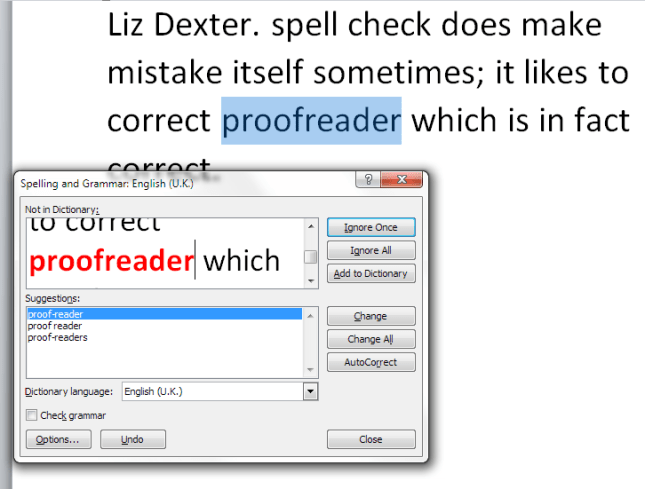
Spell check getting it wrong

This makes it quite embarrassing when I’m checking a client’s acknowledgements, they thank me for proofreading, and then have spell-checked their work, so I have to change it back to proofreading.

Word is also not keen on swear words, and can give amusing alternatives if you try that …

Help – my Spell Check’s making everything go into American English!

Your Spell Checker will work with whatever variety of English (or any other language) that your text is set to. So if you have your text set to be in American English, that’s the language your Spell Check will use. Learn how to change the language of your document and your editing language  – and watch out, as your comment boxes might appear in another language, too, which will upset your Spell Checker – use this article to make sure your comment language matches the rest of the document.

Can I use spell check in other applications as well as Word?

Many applications have spell check functions. For example, the WordPress editor that I’m using to write this has a spell check button. so does my MailChimp newsletter editor, my email editor and Excel and PowerPoint. Wherever you see a button like this, you should find a spell check option:

spell check icon

In this article we’ve looked at what Spell Check is, how to access it, how to ignore and change words, and some things to watch out for. In future articles I’ll be sharing how to tweak your Spell Check settings, how to tell Spell Check NOT to look at particular text, and when to use Spell Check when you’re working with an editor. Oh, and there will be a parallel post on Spell Check in Word 2013, too!

———————

This is part of my series on how to avoid time-consuming “short cuts” and use Word in the right way to maximise your time and improve the look of your documents. If you’ve enjoyed the post or found it useful, please use the sharing buttons below to share it via your social media networks – thank you!

Please note, these hints work with versions of Microsoft Word currently in use – Word 2007 and Word 2010 for PC. Mac compatible versions of Word should have similar options. Always save a copy of your document before manipulating it. I bear no responsibility for any pickles you might get yourself into!

Other useful posts on this blog

Using Spell Check in Word 2013

How to change the language of your Word document

How to change your editing language

How to change the language of your comment boxes

How to use AutoCorrect

How to add buttons to the Quick Access Toolbar

Find all the short cuts here … and see the full resource guide here.

 
6 Comments

Posted by on October 15, 2014 in Errors, New skills, Short cuts, Word, Writing


Tags: , , , , , , , ,