RSS

Tag Archives: Word2013

How do I add or remove auto captions in Word 2010, 2013 and 2016?

The impetus for this post came from Ana Chavez, who emailed me to ask how to remove automatic captions that were appearing whenever she inserted a Table into Word. I couldn’t work out what was going on, and she kindly messaged me when she found out. Thank you, Ana, for your kindness in getting back to me!

This post covers Word 2010, 2013 and 2016 for PC and the images are from Word 2013. The solution may differ with Word for Mac.

What is auto captioning in Word?

Automatic captioning or auto captioning is a feature which adds a caption to any table (or other item) you insert into your Word document. It looks like this:
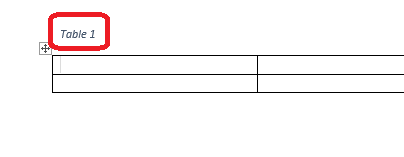
automatic caption on table

Here, I have inserted a table and the beginning of a caption has already appeared.

This is actually very useful, as it will remind you to add your captions and also sort out the numbering for you as you go along (you can make choices just as you do when inserting a caption manually – see this post for full information on that). However, my original question was about removing these – so this article covers both removing and adding auto captions.

How do I add / remove automatic table captions?

You can find the caption options in the Reference tab, in the captions section:

caption menu word

To access Auto Captions, first click on Insert Caption. This will give you the standard dialogue box allowing you to insert a caption:

auto caption menu in word

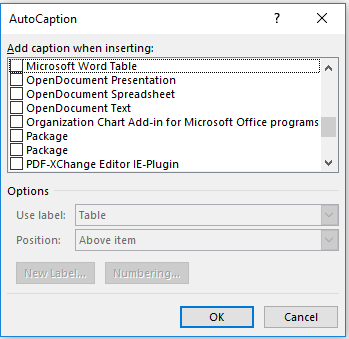
At the bottom of this dialogue box is the AutoCaption button. Press this to access AutoCaption options:

autocaption options

If you have found this article because you want to stop Word auto captioning, you will probably find one of these boxes ticked, and it’s probably Add caption when inserting … Microsoft Word Table. However, you can see from this screenshot that you can automatically add a caption to pretty much anything.

You can also see that you can automate the label, position and numbering system just like you can in the Insert Caption dialogue box when you’re doing it manually. However, doing it this way will automate the whole process. Your caption will appear automatically, as we saw in the first picture, and you just have to type in your caption text.

Once you have chosen your options, click OK and your AutoCaptioning will work as you want until you turn it off again.

How do I remove AutoCaption?

If you want to remove automatic captioning, un-tick whichever box is ticked:
no autocaption in word

Now press OK, and you will have removed automatic captioning.


This article has explained how to add or remove auto captioning in Word 2010, Word 2013 and Word 2016. If you’ve found it helpful, please comment below or use the sharing buttons to share it!

Related articles on this blog

Table of figures and table of tables

How to create a two-line figure caption and a one-line entry in the table of figures

 
2 Comments

Posted by on February 18, 2017 in Word, Writing


Tags: , , ,

How do you create a two-line figure caption and a one-line entry in your Table of Figures? Word 2010, 2013, 2016

This one was suggested by a regular reader of this blog in a comment, and I promise to write about it quite a long time ago.

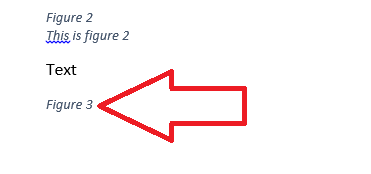
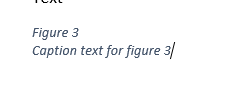
This is a very specific situation where the style guide for your organisation or publisher demands that you have Figure and Table captions set out over two lines, but you want the Table of Figures to have one line including both Figure label and caption, so it looks something like this:

caption with two lines table of figures with one

How not to create a two-line figure caption

The natural inclination is to use the Return key to split the Figure label and caption, either by entering it all in one line in Insert Caption then splitting it up or using Insert Caption to add the title, hitting Enter then adding the caption. However, when you create your Table of Figures, it either won’t pick up the second line at all or will create two entries in the Table of Figures:

incorrect two line caption and table of figures
How to create a two-line figure caption so the Table of Figures only has one line per figure

This is how you do it correctly. The key is to use the soft line return (Shift+Enter) rather than a hard, paragraph return (Enter).

Place the cursor where you want to insert your caption and go to the References tab, Insert Caption:

Insert caption

Make sure the figure label reads as you want it to (adjust the label to Table, etc.) and then hit OK

Insert caption word

Place the cursor at the end of the figure label and hit Shift+Enter to start a new line:

Adding a new line to your caption word

Type in your caption:

word second line of caption

ALTERNATIVELY

Type the whole caption into the Insert Caption box and press OK:

word insert whole caption before splitting

Place the cursor at the start of the caption and press Shift+Enter to move it down to the next line:

4b-split-whole-caption

Now create your Table of Figures using References, Insert Table of Figures and you should have one entry per Figure:

caption with two lines table of figures with one

This article has taught you how to create two-line figure captions which show on one line in your Table of Figures.

If you have found this useful, please comment using the comment box below and/or share using the social media sharing buttons. Thank you!

Other useful posts on this blog

How to create a Table of Contents

Table of Figures and Table of Tables

How to update your Table of Contents, Table of Tables or Table of Figures

Editing and the Table of Contents

 
12 Comments

Posted by on October 26, 2016 in Copyediting, Short cuts, Students, Word, Writing


Tags: , , ,

How do I highlight the text related to my comment balloon in Word 2013 and 2016?

I have already published a range of posts on issues with comment boxes or comment balloons, including ones on comment boxes suddenly going tiny, or comment box text running in the wrong direction, changing the language in your comment balloons. This article covers how to highlight the text that a comment balloon relates to.

Why can’t I see which bit of text this comment balloon is about?

As a default in Word 2013 and Word 2016, you can see your text and you can see your comments, but you can’t see which bit of text the comment refers to. Why? I have no idea. Microsoft tends to try to make things look simpler, but personally, I don’t find it helpful. It looks like this …

1-default

… and what we want to see is this:

3-result

How do I highlight the text that’s being commented on?

You can change the settings to do this by going to the Review Tab and the Track Changes area. You will see a box marked Simple Markup. Click on the down arrow to the left to access the dropdown menu:

2-comments

Select All Markup.

Now the text that the comment is about will be highlighted when you’re looking at the document:

3-result

Don’t forget …

This only applies to your individual view of the document on your particular computer / screen. If your editor, client or co-writer wants to change this view, they’ll have to change it themselves. Send them here to see how it’s done!

If you have found this article helpful, please add a comment and/or share it using the buttons below. Thank you!

Other related posts on this blog

What to do if your comment boxes go tiny in Word

What to do if your comment boxes start running from right to left

Changing the language in your comment balloons

Customising your comment boxes – everything you need to know

Customising Track Changes

 
1 Comment

Posted by on September 28, 2016 in proofreading, Short cuts, Word, Writing


Tags: , , ,

Checking your grammar and writing style using Word 2007, 2010, 2013, 2016

As well as checking your spelling, Word can check your grammar. This is an automated option, so it’s not for everyone, and can be a bit of a blunt instrument, but if you know you have a weakness in a particular area, it can be really helpful.

Why does Word check grammar?

One of the options Word offers is to check your spelling for you, and lots of people are familiar with that option. However, you can also ask Word to check your grammar. Here’s how.

How do I tell Word what grammar options to check?

We can set up different options for the Grammar checker to check in the Options menu:

1 options

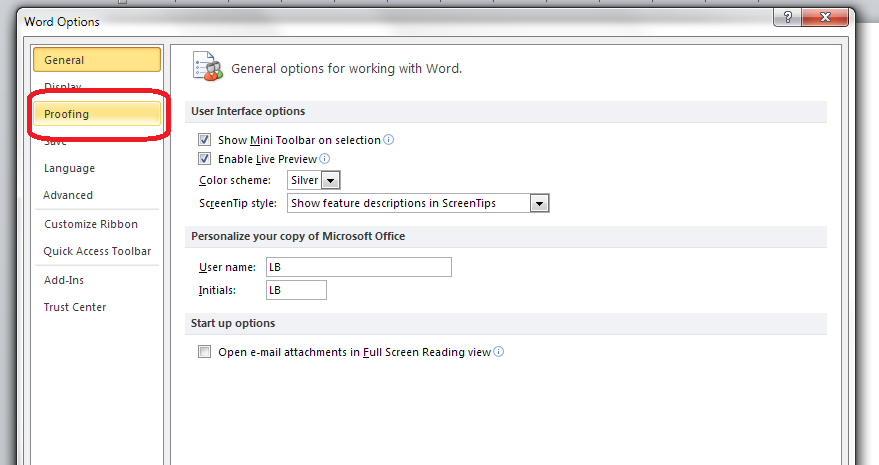
Once you are in the Options menus, choose Proofing:

2 proofing

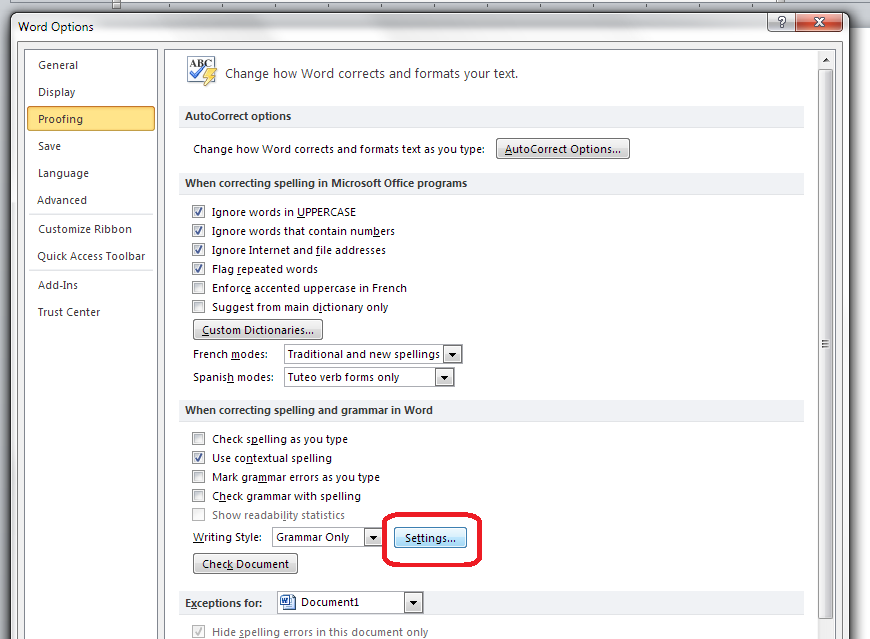
The Proofing menu is quite long, so look half-way down to the section When correcting spelling and grammar in Word and then, to get the options, click the Settings button:

3 style settings

What grammar and style issues can Word check for me?

And now you can see the whole range of options that Word can check for you:

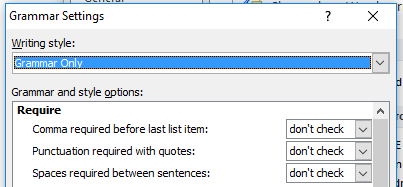
At the top of the list, you can ask Word to make sure that you include or don’t allow Oxford Commas, put the punctuation inside or outside quotations (American or British style, vaguely) or make sure there are one (now preferred) or two (now not preferred) spaces after a full stop:

word grammar checker

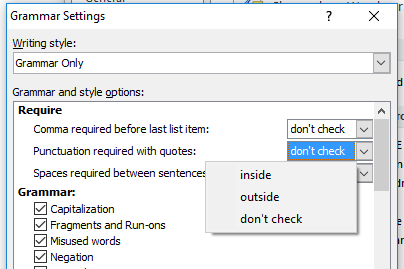
Each of those don’t check dropdowns offers the relevant options, for example, for the punctuation one:

word grammar punctuation quotes

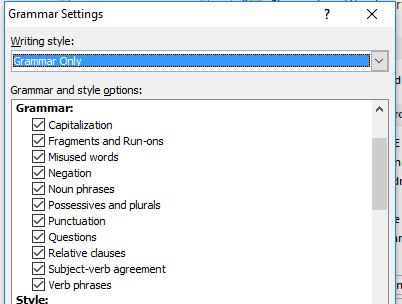
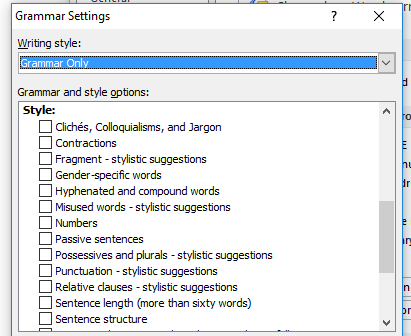
Moving down the list, we then have the Grammar options that you can ask Word to check. Do remember that this is a program and thus it will highlight every instance, even if you know the rules and you’re trying to be creative, but it can be useful for catching things:

word grammar check

If you have Grammar only clicked, these will all automatically be ticked, and you can untick individual ones if you want to (note that it won’t check anything until you ask it to – see the next section).

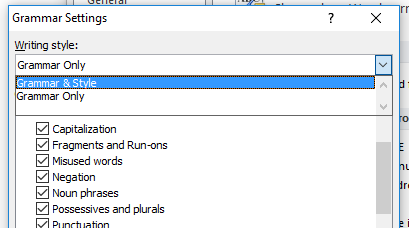
Word will also check style issues; you can ask it to check everything in your Grammar & Style automatically by changing the top box to using the drop-down arrow to the right, or you can leave it on Grammar Only and tick just the areas you want Word to check:

word check grammar and style

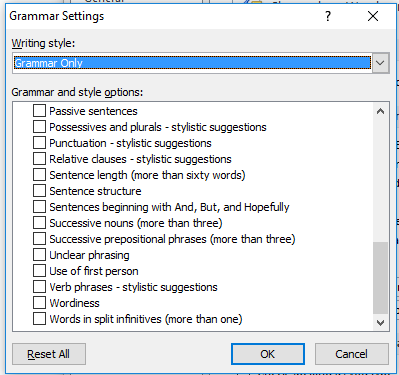
In terms of style, here are the options Word can look out for and alert you to (again, remembering that this is only what it’s been told are clichés, etc.):

4-style-1… and scrolling down:

word check grammar and style

Once you’ve decided what you want Word to check in your grammar and style, press the OK button.

How do I ask Word to check my grammar (and style)?

In order for Word to check which areas you have asked it to check, make sure that Check grammar with spelling is ticked:

5.5 checkingClick OK until you are back at the original screen.

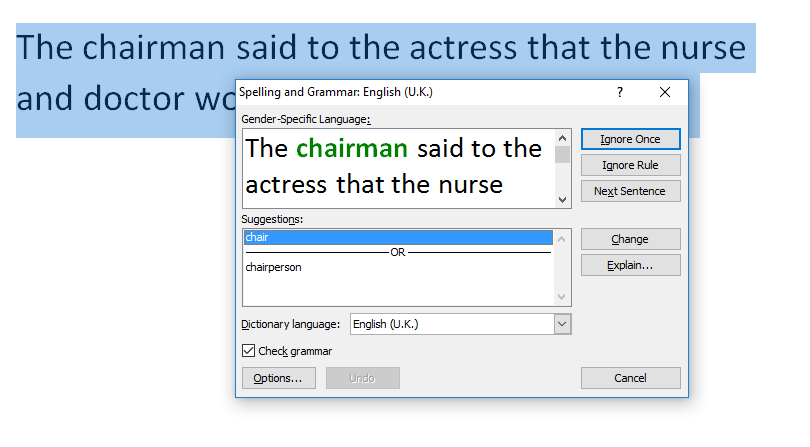
Back in your Word document, Word will highlight in GREEN (as opposed to the red that it uses for spelling issues) any grammar mistakes it thinks you’ve made. Here’s an example where it has checked for gender-related language:

6 checking

This article has described how to ask Word 2007, 2010, 2013 or 2016 to check the grammar and style in your documents.

If you have found this article useful, please share using one of the buttons below. I always welcome comments, too!

Related posts on this blog

Medalling, podiuming and singular they

Asking Word to check for gender-specific language

Using Spell Check in Word 2013

 
8 Comments

Posted by on September 14, 2016 in Word, Writing


Tags: , , , ,

Did you know Word can check for gender-specific language? Word 2007, 2010, 2013, 2016

Following on from my discussion of “singular they” removing gender-specific / binary gender pronouns from your text, did you know that you can ask Word to keep an eye out for gender-specific terms in your document? Here’s how to do it.

We set up different things for the Grammar checker to check in the Options menu:

1 options

In Options, choose Proofing:

2 proofing

Scroll down to the section headed When correcting spelling and grammar in Word and click on the Settings button:

3 style settings

Make sure the writing style is set to Grammar Only:

4 style settings

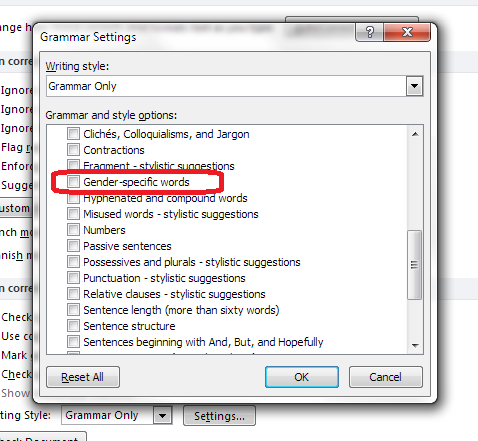
Tick Gender-specific words (and notice there are all sorts of other grammar and style aspects you can ask Word to highlight for you):

5 gender-specific words

In order for Word to actually use this feature, make sure that Check grammar with spelling is ticked:

5.5 checkingClick OK until you are back at the original screen.

Back in your Word document, if you use a gender-specific term such as “chairman” or “actress”, when you run a spell (and grammar) check, Word will highlight those terms and offer alternatives:

6 checking

This article has described how to ask Word 2007, 2010, 2013 or 2016 to highlight gender-specific terms in your documents.

If you have found this article useful, please share using one of the buttons below. I always welcome comments, too!

Related posts on this blog

Medalling, podiuming and singular they

 
10 Comments

Posted by on August 31, 2016 in Word


Tags: , , , ,

How do I add a dot or line above a number in Word to indicate a repeating decimal?

This is something that is used when working with maths texts – a friend who is studying maths asked me about it a while ago. This article will show you how to add a dot or line over a number in a Word document to indicate a repeating decimal.

Type your number first, then go to the Insert tab and look for the Symbol section to the right:

1 insert symbol

Click on the little down arrow below Symbol

 2 insert symbol

Choose More symbols

 3 more symbols

Drop down Subset and find Combining Diacritical Marks

 4 subsets

Scroll down a little and you will find the dot and various lengths of line:

5 combining diacritics

Highlight the symbol you want to use and click Insert to insert the dot:

6 combining diacritics

Note that this will look different according to which font you’re using.

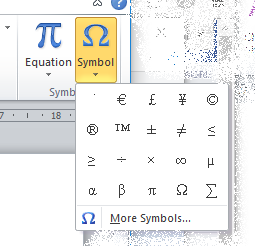
When you want to do this again, you only need to click on the down arrow under Symbol and you will find recently used symbols showing in the first drop-down:

7 combining diacritics

This article has explained how to add a dot or line over a numeral to indicate a repeating decimal.

If you’ve found this article useful, please share, comment or like. Thank you!

Other useful posts on this blog

Inserting non-standard symbols in Word


24 Comments

Posted by on August 10, 2016 in Word


Tags: , ,

How do I count the number of times a word appears in my document?

I was asked this question during the week, so here’s how to count how many times a particular word appears in a document (or spreadsheet or anything).

The easiest way to count the number of instances of a word is to use the Find function.

Access Find using Control-F (press the control key and F at the same time).

Type in the word you want to search for.

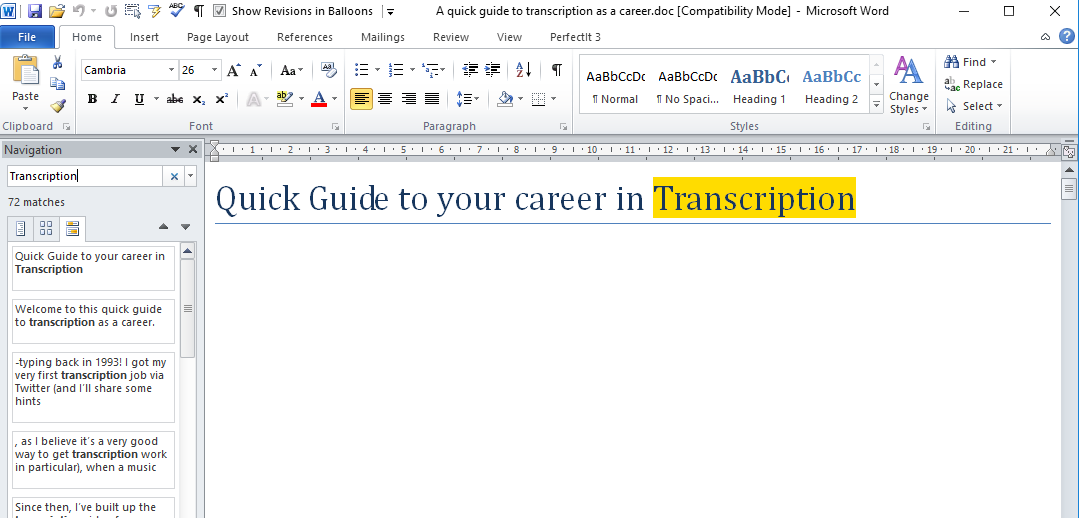
Word will find and highlight all instances of the word and highlight them for you – and will tell you how many times it appears!

Count instances of a word

Note: this search for transcription will find that word buried in other words, too – so TRANSCRIPTIONs and TRANSCRIPTIONist.

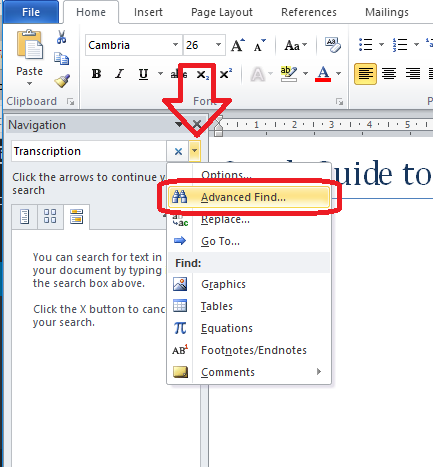
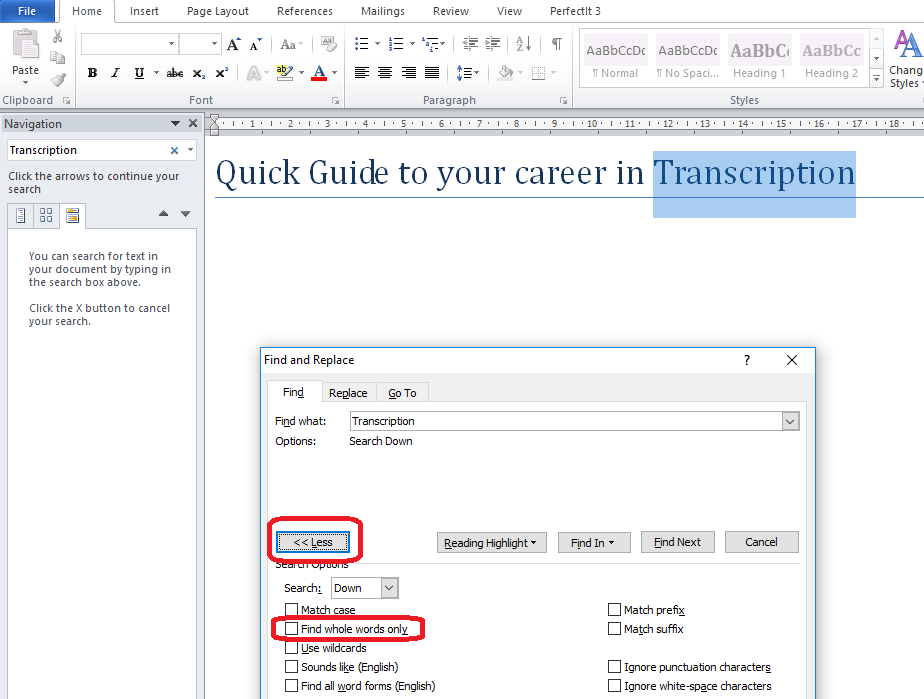
To find just the single word transcription, you need to use Advanced Find.

Click on the down arrow next to the search box and then choose Advanced Find:

2 Count instances of a word

Click the More button (which appears where Less is showing here) and then tick the box marked Find Whole Words Only:

3 Count instances of a word

Now Word will count and highlight just the instances of this exact word.

This article has taught you how to count how many times a particular word appears in your document. You can use this method in Excel and PowerPoint, etc. too.

If you’ve found it useful, please click like and share it. Thank you!

Other useful posts on this blog

How to search for anything using Control-F

How to count the words in your Word document

How to count the words in your PowerPoint presentation

Find and Replace

Advanced Find and Replace

 
2 Comments

Posted by on August 3, 2016 in Excel, PowerPoint, Word, Writing


Tags: , , , , ,

What do I do when Word just won’t work (Word 2005, 2007, 2010, 2013 and 2016 edition)

Word 2010 Word 2016 Word 2013

Sometimes, Word gets itself into a pickle

People often contact me, either using the comments on blog posts or privately via email or my contact form, when they’re at the end of their tether with Word. Word has stopped working, Word won’t do what they want it to, the formatting in their document has gone weird, putting something in italics makes the overwrite button engage, the paragraph spacing just will not work, paragraphs keep going into bold BY THEMSELVES …

All of these things have happened to me or my correspondents.

Why does Word go wrong?

I’m not entirely sure why Word goes wrong. I think it sometimes just gets itself into a pickle; there are too many things, too many commands and codes, too much text … or the originating text comes from an unofficial or unregistered copy of Word, or has been converted from another program. Sometimes if something’s saved as and saved as, or worked over too much, like overworked pastry, it just. goes. wrong.

What do you do when Word goes wrong?

Well, I have three methods, which are not nice, and are certainly not fun, but do work most of the time. And as the latest person to contact me didn’t know about these, I’m going to share them with you now.

Before you do any of these, save your document and then make a copy to do all this with, just in case.

Method for sorting out major Word problems 1

  • Turn it off and turn it on again.

I know. But if Word gets into a pickle, sometimes SAVING, closing Word and reopening it can work.

Method for sorting out major Word problems 2

  • Copy the text – all of it.
  • Open a brand new Word document
  • Paste the text into it

This works in about 70% of cases.

Method for sorting out major Word problems 3

This one involves stripping out all the formatting. All your italics and your lovely bibliography. All your headings and styles. But sometimes it has to be done.

Note: There is a Clear formatting button in Word (in the Home tab, a little picture of an eraser rubbing out an ABC). But you don’t know that there isn’t something weird just outside where you’ve put the cursor. So I advise using this method.

  • Copy the text – all of it
  • Open a text editor
    • If you’re on a PC running any form of Windows, you will have Notepad as standard.
      • In Windows 7 do Start > All Programs > Notepad
      • In Windows 8 hit the Windows button > R > type in “Notepad”
      • In Windows 10 go to the magnifying glass in the bottom task bar and type in “Notepad”
  • Paste the text into the text editor
  • Open a new Word document
  • Copy and paste the text in the text editor into Word

It can literally not bring ANY formatting codes or bits and bobs through from your original document. But you will have to put all the formatting in again, from scratch.

I hope you’re found this useful. I know it might read like a bit of a blunt instrument, but if you have a Word document that is not behaving itself and you need to make Word work for you, sometimes this is the only way to do it!

If you have found this useful, do please comment and / or share using the options below. Thank you!


10 Comments

Posted by on June 2, 2016 in Short cuts, Word


Tags: , , ,

How do I combine several Word documents into one document?

This article explains how to combine several Word documents into one document. It’s particularly useful if you’ve written a dissertation, thesis or book and need to combine all of the chapters into one file.

These instructions work for Word 2007, Word 2010 and Word 2013; I’ve used Word 2010 for the screenshots

Why would I want to combine chapters into one document?

Lots of people do their writing a chapter at a time, and have it edited a chapter at a time, too. But the time will come when you want to put it all into one book, with page numbers running throughout, rather than messing around starting the page numbers for chapter 2 at the next number on from chapter 1, etc.

What’s the incorrect way to combine my chapters?

You might be tempted to pick up the text of each chapter and copy and paste it into one document. That can lead to issues and inconsistencies. This is the correct way to do it and actually takes less time and avoids you leaving out any bits of your individual chapters.

How do I prepare to combine my documents?

It’s pretty easy to combine several documents into one, however the most important point is …

The file names must be in the order that the chapters are going to be in.

Word will combine your chapter files in alphanumerical order.

If you have called your chapter files

Chapter 1 introduction

Chapter 2 review of the literature

Chapter 3 methodology

Chapter 4 conclusion

then that’s fine, they will combine in that order.

If you have called your chapter files

Introduction

Review of the literature

Methodology

Conclusion

then Word will carefully sort them alphabetically into

Conclusion

Introduction

Methodology

Review of the literature

when it combines your documents.

The best thing to do is add a number 1, 2, 3, etc at the start of your file names BEFORE YOU START COMBINING, so you know they will come out in the correct order.

How do I combine my documents?

OK, so we’ve got, say, four documents or chapters to combine into one.

First, open a new, blank document (using the Home button, New, and choosing a blank document)

Then, click on the Insert tab and find Object in the Text area:

1 insert tab

Click on the arrow to the right of Object to get the drop-down menu, and click on Text from File:

2 insert text from file

Now navigate to your files and select the ones you want to combine.

3 find your files

Hold down the Control Key and click on all the ones you want to combine (or click on the top one, hold down Shift and click on the bottom one if you want all of them). Once you have them all highlighted, click Insert.

4 select files

Note: it doesn’t matter what order you are displaying them in or what order you click them in, it will choose them and insert them in alphabetical or numerical order, as I mentioned above.

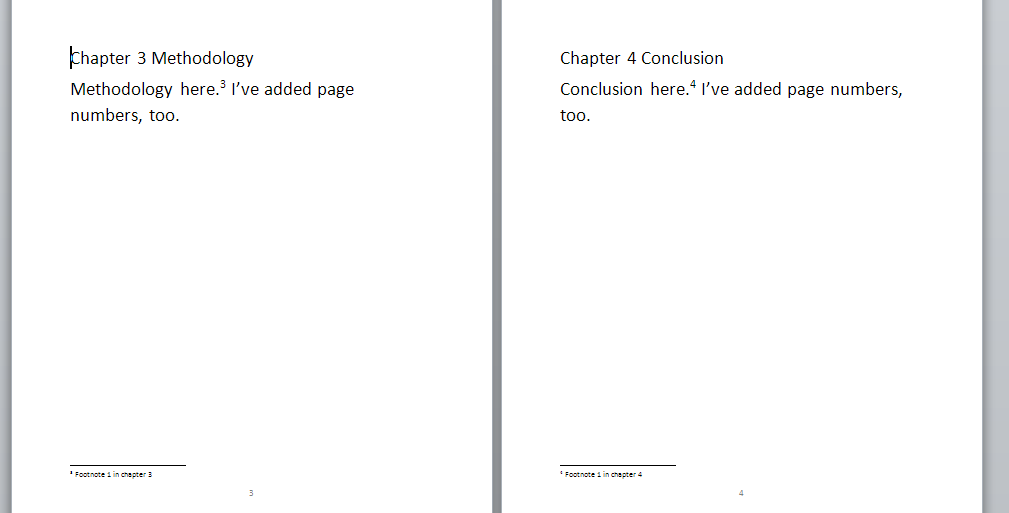
Now you will have one big document including all of your chapters!

5 combined

And … if you had footnotes in the documents, and had set page numbers to show, they will automatically update in the combined document to be numbered consecutively (if you want start your footnote numbering at 1 for each chapter, you’ll need to look at my posts on footnotes and endnotes).

Don’t forget to save your document!

PS: If you find you lose your formatting when combining Word documents, read this article for the solution.

—–

This is part of my series on how to avoid time-consuming “short cuts” and use Word in the right way to maximise your time and improve the look of your documents.

If you have enjoyed this post and found it useful, please click on the “share” buttons below or tell your friends and colleagues about it! Thank you!

Please note, these hints work with versions of Microsoft Word currently in use – Word 2007, Word 2010 and Word 2013, all for PC. Mac compatible versions of Word should have similar options. Always save a copy of your document before manipulating it. I bear no responsibility for any pickles you might get yourself into!

Find all the short cuts here

Other useful articles on this website

How to combine Word documents without losing the formatting

 
53 Comments

Posted by on September 3, 2015 in Errors, New skills, Word, Writing


Tags: , , , ,

Editing and the Table of Contents – for editors and writers

This article is all about what happens when a document that includes a Table of Contents (and a Table of Figures and/or a Table of Tables) is edited. There are a couple of pitfalls which I have encountered as an editor, and I wanted to share them with fellow editors AND writers, to help other people avoid them.

Scroll down to the bottom for a summary of advice to editors and writers if you’re not worried about the detail.

Please note that there are more detailed instruction on updating a Table of Contents in this article.

What’s the problem with Tables of Contents and the editing process?

If a document with an automated Table of Contents is being edited, the editor has two choices (and the writer will find that their editor has done one of two things):

  1. Mark any changes to headings in both the Table of Contents and the actual heading in the main text
  2. Mark any changes to headings in just the actual heading in the main text, then someone updates the Table of Contents

Let’s look at the risks with these in turn.

1. Mark any changes to headings in both the Table of Contents and the actual heading in the main text

Issue 1 – Awkwardness for the editor. To do this, you will have to have a split screen with the contents page in the top half and the text in the bottom, or you’ll have to whizz up and down the document and make sure you make the same correction in both places.

Issue 2 – Keeping things consistent. a) The editor will have to make the same change in both places, and b) the writer will have to make the same choice to reject or accept the change in both  places.

As an editor, if I do this, I place a comment linked to the words “Table of Contents” reminding the author to make the same choices here and in the main text.

If the Table of Contents is not automated, I a) suggest that the author creates one (or has me create it, if appropriate) and b) I place the comment above by the words “Table of Contents” to remind the author to keep it consistent.

2. Mark any changes to headings in just the actual heading in the main text, then someone updates the Table of Contents

If the Table of Contents is automated, this is what I tend to do.

There are two options here:

Option 1 – The writer wants a “clean copy” not one with tracked changes marked: the editor can update the Table of Contents once they’ve done their edit and accepted all changes. Everything will now match.

Option 2 -The writer wants (or needs, in the case of students) to see the tracked changes and make their own decisions on what to accept and reject. In this case, the writer will need to update the Table of Contents once they’ve gone through the changes.

Option 2 is the most common in my experience.

If the writer needs to update the Table of Contents themeselves, I always add a comment to the words “Table of Contents”:

“Please remember to update this Table of Contents after you have accepted or rejected all of my changes, to make sure that the table reflects the document accurately. Please choose Update entire table rather than Update page numbers only”.

An important choice – what to update in the Table of Contents

This information is for editors and writers.

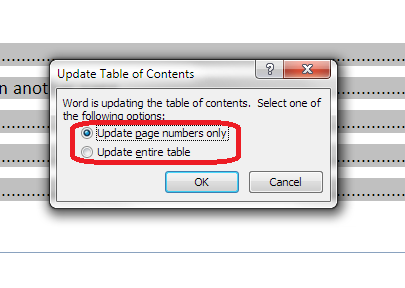
Whether the editor or writer is updating the Table of Contents, once you’ve clicked on Update Field, you are given the choice of Update page numbers only or Update entire table:

update page numbers or all fields

It is vitally IMPORTANT that you choose “Update entire table”. This will update any changes to the headings and any changes to the page numbers. If you click on “Update page numbers only”, and any headings have been changed in the text, this will NOT be reflected in the Table of Contents.

For authors: updating your Table of Contents when your work has been edited

  • Always update your Table of Contents when your work comes back from your editor, unless they have told you that they’ve already done it
  • Always choose “Update entire table” to make sure that everything in the Table of Contents matches your actual document

For editors: updating or instructing on editing the Table of Contents

  • Always leave a note for the writer explaining what you’ve done or what you need them to do
  • If you are updating the Table of Contents yourself, always choose “Update entire table” to make sure that everything in the Table of Contents matches the actual document (I would still leave a reminder for the writer to do the same after they’ve made any final changes)
  • If you need the writer to update the Table of Contents once they have dealt with your suggestions, leave a note explaining that, and make it clear that they must “Update entire table” when doing so

—–

This article has discussed issues around updating a Table of Contents when a document is edited. if you have enjoyed this article or found it useful, please share it using the sharing buttons below.

Other relevant posts on this blog:

How to create a contents page in Word

Tables of figures and tables of tables

How to update a Table of Contents, Figures or Tables
 
3 Comments

Posted by on July 22, 2015 in Errors, New skills, Word, Writing


Tags: , , , ,