RSS

Author Archives: Liz Dexter

Unknown's avatar

About Liz Dexter

Book blog is at http://www.librofulltime.wordpress.com Writer, proofreader, editor, transcriber. Also runner, gym-goer, volunteer and BookCrosser! My married name is Liz Dexter but my maiden name and the name on the books I write is Liz Broomfield.

Checking your grammar and writing style using Word 2007, 2010, 2013, 2016

As well as checking your spelling, Word can check your grammar. This is an automated option, so it’s not for everyone, and can be a bit of a blunt instrument, but if you know you have a weakness in a particular area, it can be really helpful.
Why does Word check grammar?

One of the options Word offers is to check your spelling for you, and lots of people are familiar with that option. However, you can also ask Word to check your grammar. Here’s how.

How do I tell Word what grammar options to check?

We can set up different options for the Grammar checker to check in the Options menu:

1 options

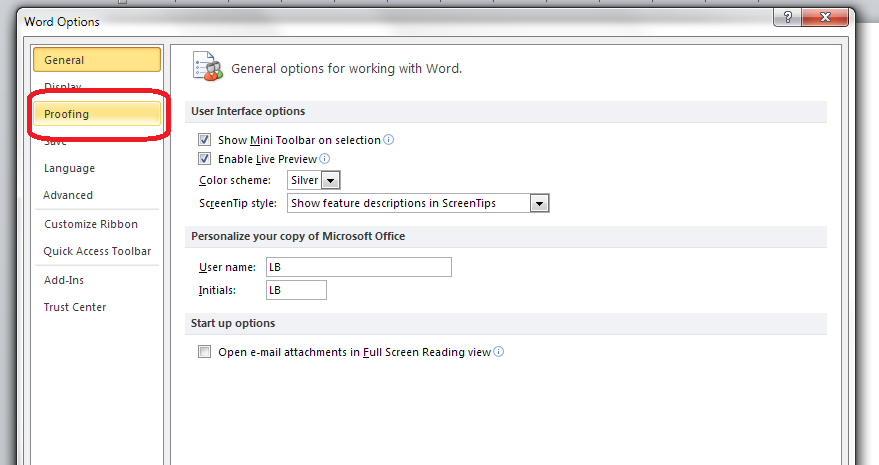
Once you are in the Options menus, choose Proofing:

2 proofing

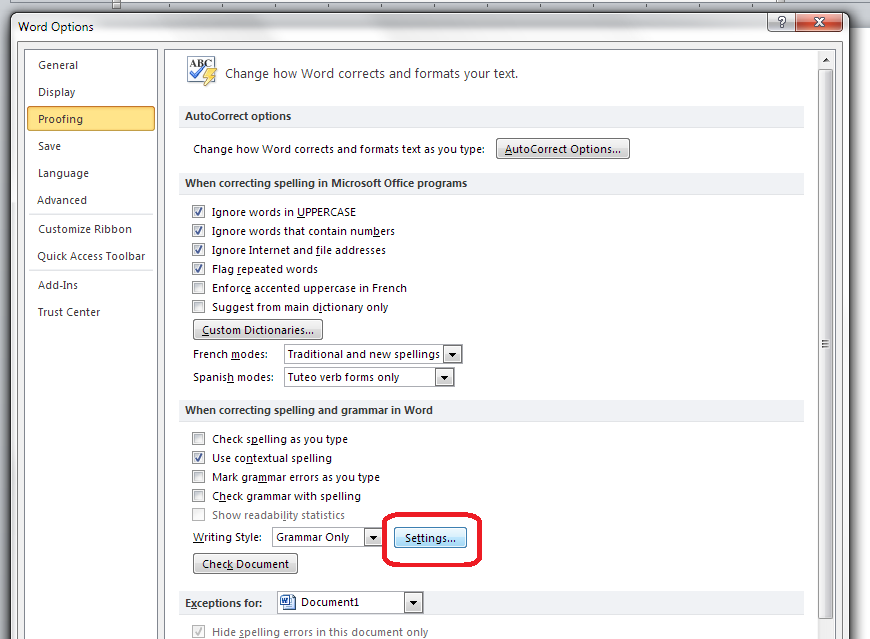
The Proofing menu is quite long, so look half-way down to the section When correcting spelling and grammar in Word and then, to get the options, click the Settings button:

3 style settings

What grammar and style issues can Word check for me?

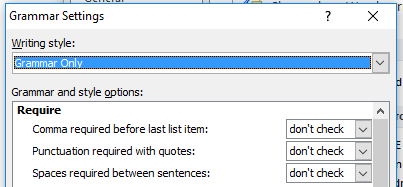
And now you can see the whole range of options that Word can check for you:

At the top of the list, you can ask Word to make sure that you include or don’t allow Oxford Commas, put the punctuation inside or outside quotations (American or British style, vaguely) or make sure there are one (now preferred) or two (now not preferred) spaces after a full stop:

word grammar checker

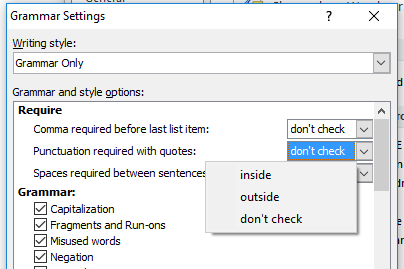
Each of those don’t check dropdowns offers the relevant options, for example, for the punctuation one:

word grammar punctuation quotes

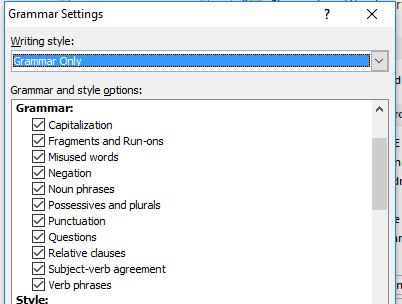
Moving down the list, we then have the Grammar options that you can ask Word to check. Do remember that this is a program and thus it will highlight every instance, even if you know the rules and you’re trying to be creative, but it can be useful for catching things:
word grammar check

If you have Grammar only clicked, these will all automatically be ticked, and you can untick individual ones if you want to (note that it won’t check anything until you ask it to – see the next section).

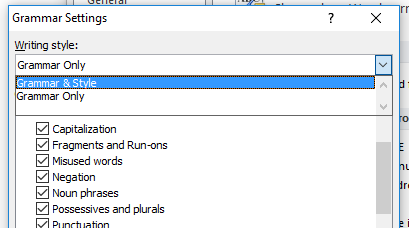
Word will also check style issues; you can ask it to check everything in your Grammar & Style automatically by changing the top box to using the drop-down arrow to the right, or you can leave it on Grammar Only and tick just the areas you want Word to check:

word check grammar and style

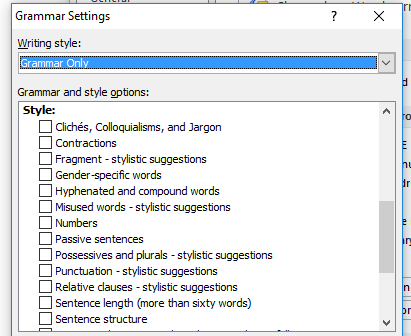
In terms of style, here are the options Word can look out for and alert you to (again, remembering that this is only what it’s been told are clichés, etc.):

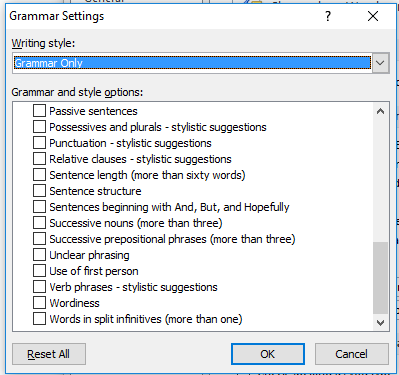
4-style-1… and scrolling down:

word check grammar and style

Once you’ve decided what you want Word to check in your grammar and style, press the OK button.

How do I ask Word to check my grammar (and style)?

In order for Word to check which areas you have asked it to check, make sure that Check grammar with spelling is ticked:

5.5 checkingClick OK until you are back at the original screen.

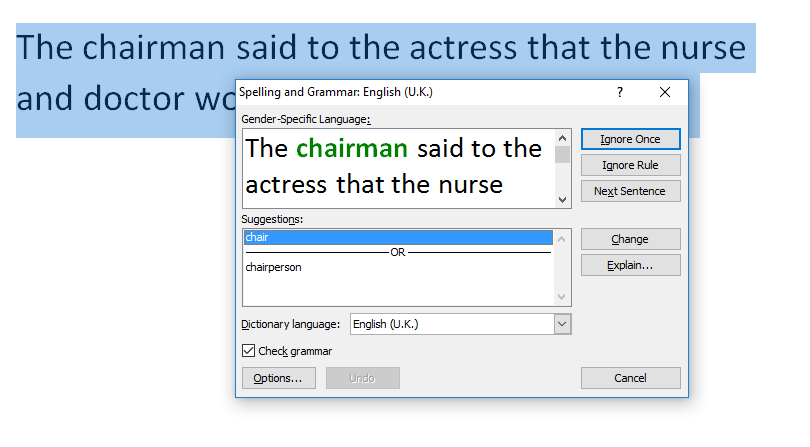
Back in your Word document, Word will highlight in GREEN (as opposed to the red that it uses for spelling issues) any grammar mistakes it thinks you’ve made. Here’s an example where it has checked for gender-related language:

6 checking

This article has described how to ask Word 2007, 2010, 2013 or 2016 to check the grammar and style in your documents.

If you have found this article useful, please share using one of the buttons below. I always welcome comments, too!

Related posts on this blog

Medalling, podiuming and singular they

Asking Word to check for gender-specific language

Using Spell Check in Word 2013

 
8 Comments

Posted by on September 14, 2016 in Word, Writing


Tags: , , , ,

Did you know Word can check for gender-specific language? Word 2007, 2010, 2013, 2016
Following on from my discussion of “singular they” removing gender-specific / binary gender pronouns from your text, did you know that you can ask Word to keep an eye out for gender-specific terms in your document? Here’s how to do it.
We set up different things for the Grammar checker to check in the Options menu:

1 options

In Options, choose Proofing:

2 proofing

Scroll down to the section headed When correcting spelling and grammar in Word and click on the Settings button:

3 style settings

Make sure the writing style is set to Grammar Only:

4 style settings

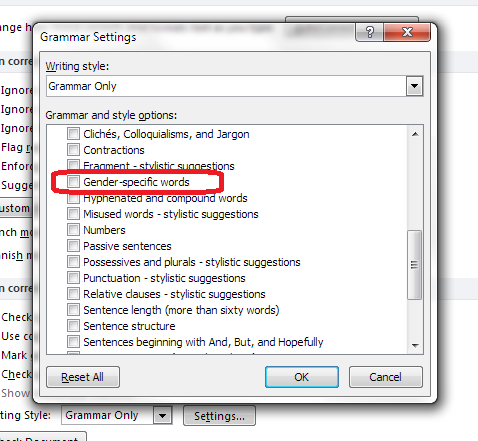
Tick Gender-specific words (and notice there are all sorts of other grammar and style aspects you can ask Word to highlight for you):

5 gender-specific words

In order for Word to actually use this feature, make sure that Check grammar with spelling is ticked:

5.5 checkingClick OK until you are back at the original screen.

Back in your Word document, if you use a gender-specific term such as “chairman” or “actress”, when you run a spell (and grammar) check, Word will highlight those terms and offer alternatives:

6 checking

This article has described how to ask Word 2007, 2010, 2013 or 2016 to highlight gender-specific terms in your documents.

If you have found this article useful, please share using one of the buttons below. I always welcome comments, too!

Related posts on this blog

Medalling, podiuming and singular they

 
10 Comments

Posted by on August 31, 2016 in Word


Tags: , , , ,

What I do when I’m not being Liz from Libro

IMG_20160823_174246954_HDRI’ve been away for a few days, running my first marathon, in Iceland (as you do). As I haven’t had time to write up a blog post on language or business for this week, I thought my readers might enjoy my report over on my personal (and usually book reviewing) blog. Do pop over to have a read!

 
Leave a comment

Posted by on August 24, 2016 in Celebration


Medalling, podiuming and singular they

Of course this isn't exactly what "medalling" means

Of course this isn’t exactly what “medalling” means

Languages change. If languages didn’t change, we’d be speaking like Chaucer, British and American English would be identical, or we’d still be using words like “chairman”, “crippled”, “omnibus” and all sorts. We also wouldn’t have a way to describe “selfies”, “Brexit” or “omnishambles”.

The verbs formed from nouns, “medalling” and “podiuming” have been heard again recently, as they are every four years in an event whose name is controlled so closely you’re not supposed to go around mentioning it in blog posts. Lots of people have been complaining about these, saying it’s an erosion of the English language, etc., etc.

Now, I’m one for making sure we retain two words with a close but not identical meaning in order to be able to distinguish between different concepts or things. But in this case, it’s not taking away the distinction between two different things, it’s just adding another word to say the same thing. And we form words in all sorts of ways – by blending, shortening, lengthening them and shifting the part of speech they belong to. Once, we weren’t even allowed to start sentences with and or but …

The other wordy thing I wanted to mention briefly was singular they. This is something editors and other wordy people are still arguing – quite bitterly – about. “They” used to be used just as a plural. But, just as we’ve removed words like chairman and dustman from the language to cover the fact that different genders of people do different jobs, over recent years there’s been an acceptance that binary genders – the idea that everyone is either “he” or “she”, has joined up with a common dislike of the clumsiness of using “he” and “she” in alternate chapters or “he/she”, “s/he”, etc. to promote the use of singular “they”, i.e. the use of “they” to refer to one person in the singular. An example would be, “When someone gets to the front of the queue, they should go to the first available window”.

Now, some people rail against this change, but I think that it can be made to work grammatically, it gets rid of clumsiness and it doesn’t exclude people to whom, for whatever reason, it’s not appropriate to refer using binary gender wording. This is standard in my editing, although I’d never make this kind of change without consultation if it appeared more than very sporadically.

I’m not expecting to change anyone’s mind here; I’m just setting out my stall. These are my personal opinions, but these are interesting topics to think about and they’ve been at the front of my mind recently. Thank you for reading!

I generally talk about word stuff in my Troublesome Pairs posts which do distinguish meanings between pairs or triplets of words. Have a look at the index here!

 
19 Comments

Posted by on August 17, 2016 in Be careful, Errors, Ethics, Writing


Tags:

How do I add a dot or line above a number in Word to indicate a repeating decimal?

This is something that is used when working with maths texts – a friend who is studying maths asked me about it a while ago. This article will show you how to add a dot or line over a number in a Word document to indicate a repeating decimal.

Type your number first, then go to the Insert tab and look for the Symbol section to the right:

1 insert symbol

Click on the little down arrow below Symbol

 2 insert symbol

Choose More symbols

 3 more symbols

Drop down Subset and find Combining Diacritical Marks

 4 subsets

Scroll down a little and you will find the dot and various lengths of line:

5 combining diacritics

Highlight the symbol you want to use and click Insert to insert the dot:

6 combining diacritics

Note that this will look different according to which font you’re using.

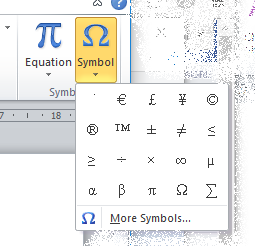
When you want to do this again, you only need to click on the down arrow under Symbol and you will find recently used symbols showing in the first drop-down:

7 combining diacritics

This article has explained how to add a dot or line over a numeral to indicate a repeating decimal.

If you’ve found this article useful, please share, comment or like. Thank you!

Other useful posts on this blog

Inserting non-standard symbols in Word


24 Comments

Posted by on August 10, 2016 in Word


Tags: , ,

How do I count the number of times a word appears in my document?

I was asked this question during the week, so here’s how to count how many times a particular word appears in a document (or spreadsheet or anything).

The easiest way to count the number of instances of a word is to use the Find function.

Access Find using Control-F (press the control key and F at the same time).

Type in the word you want to search for.

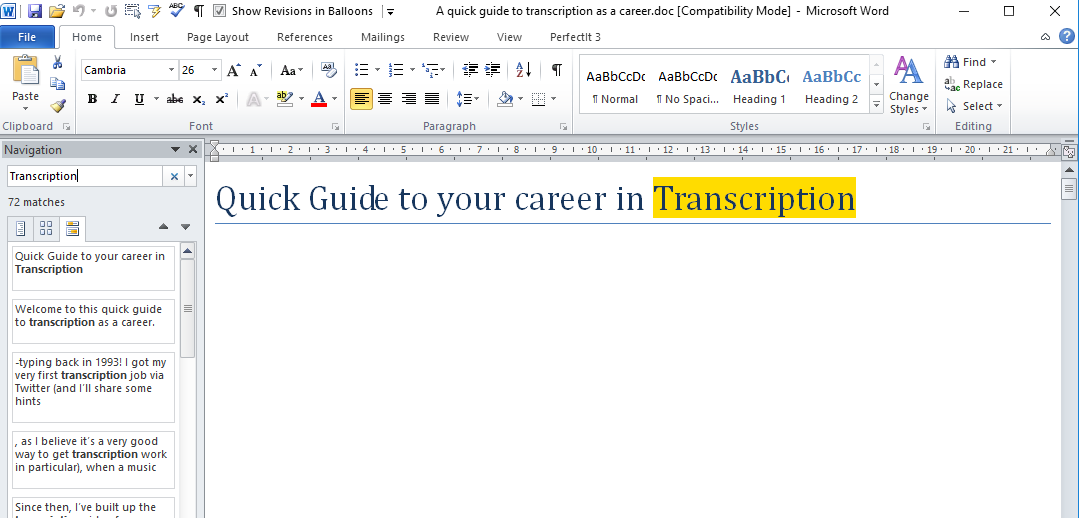
Word will find and highlight all instances of the word and highlight them for you – and will tell you how many times it appears!

Count instances of a word

Note: this search for transcription will find that word buried in other words, too – so TRANSCRIPTIONs and TRANSCRIPTIONist.

To find just the single word transcription, you need to use Advanced Find.

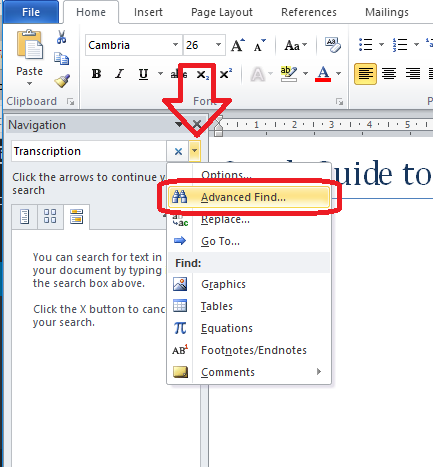
Click on the down arrow next to the search box and then choose Advanced Find:

2 Count instances of a word

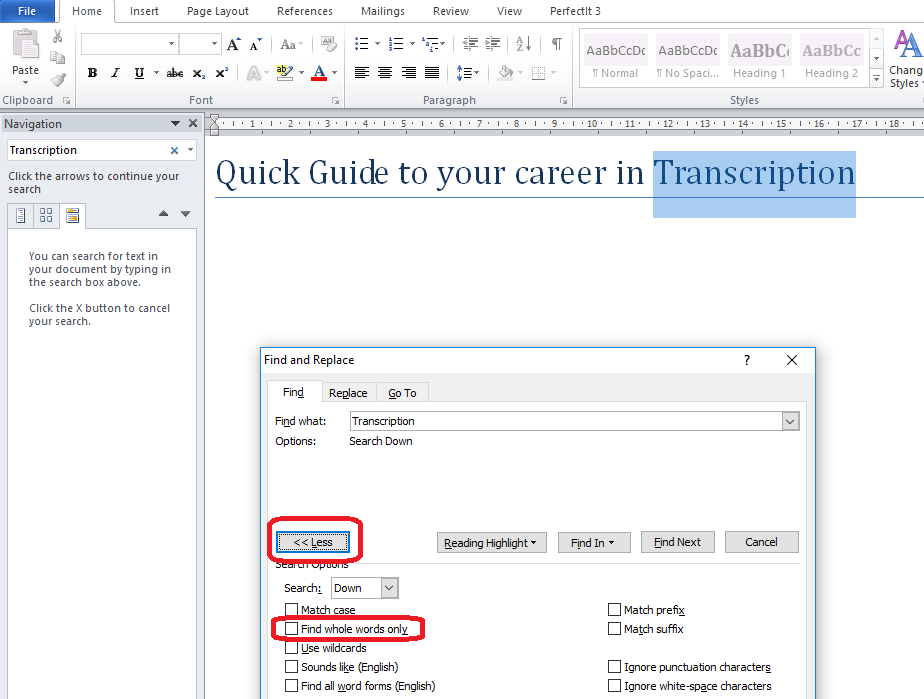
Click the More button (which appears where Less is showing here) and then tick the box marked Find Whole Words Only:

3 Count instances of a word

Now Word will count and highlight just the instances of this exact word.

This article has taught you how to count how many times a particular word appears in your document. You can use this method in Excel and PowerPoint, etc. too.

If you’ve found it useful, please click like and share it. Thank you!

Other useful posts on this blog

How to search for anything using Control-F

How to count the words in your Word document

How to count the words in your PowerPoint presentation

Find and Replace

Advanced Find and Replace

 
2 Comments

Posted by on August 3, 2016 in Excel, PowerPoint, Word, Writing


Tags: , , , , ,

Five ways to drive and increase engagement with your blog

Five ways to drive and increase engagement with your blog

My viewing figures have gone down. No one is buying my books at the moment. Who wants to start a new business at a time like this? Well, here are five pointers to driving and increasing (or maybe, at the moment, maintaining) engagement with your blog. And here I am doing number five right now …

5. Publish more blog posts

The search engines like you to have regularly updated content, to make sure they’re not sending people to an out-of-date source of information. I find the sweet spot comes at around three posts per week. They don’t have to be long. Try mixing things up with different subjects or types of article.

4. Share useful information

One of the most-viewed of my blog posts is still one I wrote as a note for myself in 2011 on how to sort out a problem with Word. Still gets those hits, even now – and thank you comments.

3. Seek engagement

Ask questions. Put those share buttons on your blog (here’s how to do that in WordPress) and ask people to share if they found it useful.

2. Add Like buttons to comments on your posts

I love this feature of WordPress (and here’s how to do it) – if you Like as well as reply to comments, your reader will be alerted and should get a good feeling about you. If you don’t have time to reply right away, a Like will let them know you’ve read and appreciated their comment.

1. Reply to comments on your blog posts

I read a lot of blogs. If I put a comment on a blog post and the original commentator doesn’t respond to it, I feel ignored. I’ve talked about this at length on posts about reciprocity in social media (including blogs). I really try to reply to comments on my blogs within 24 hours; if I can’t do it quickly, at least I’ll “Like” the comment. Personally, if I read and comment on a blog and never get any acknowledgement, first I’ll stop commenting, then I’ll be less likely to read it. So I assume other people are like me and will do the same. Of course there are reasons why people can’t reply to blog comments temporarily, or don’t see some of them, but if it’s a constant feature, lots of comments with no replies, I’ll tend to lose interest.

I hope these ideas have been useful to you and help you to drive more engagement on your own blogs!

 
13 Comments

Posted by on June 29, 2016 in Blogging, WordPress


Tags: , , ,

Very Basic Trados Studio 2014

I’ve written this post primarily to help myself work with Trados translation software (and the screenshots are with the permission of my client). However, one of my most popular posts ever was written for that purpose and gets hundreds of hits a day, years later, so I’m making this public in case it can help other people!

So, this is about the very basics of importing a package into Trados, opening the package and its files, editing the files, doing things like spell check and sending it back. I may well update this as I do more processes. Note this is from the point of view of someone who edits the English translations of texts, so I’m in Review mode. Other experiences may differ.

Importing packages

This doesn’t always work from double-clicking the file you’re sent.

Open Trados, go to the Projects tab, click on Open Package:

1 open package

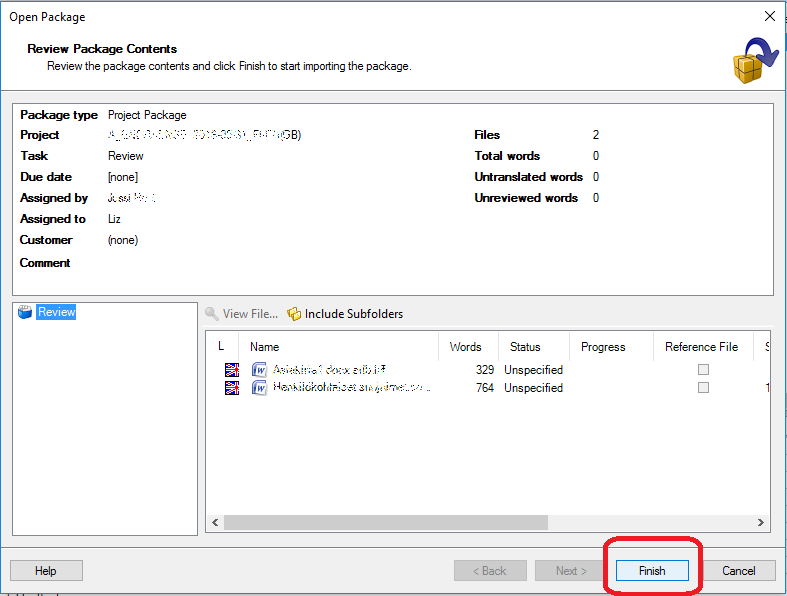
Choose your package and it will come up in a dialogue window: click Finish:

1a finish

Then click close to get back to the main menus:

1b close

Look at the files you have and edit them

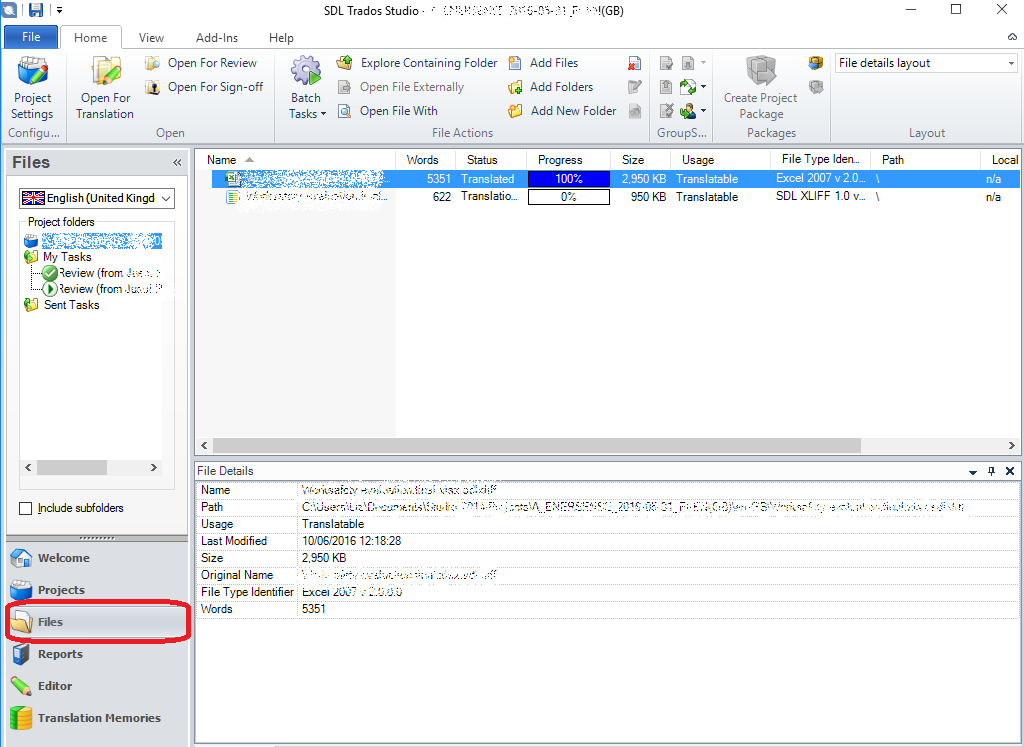
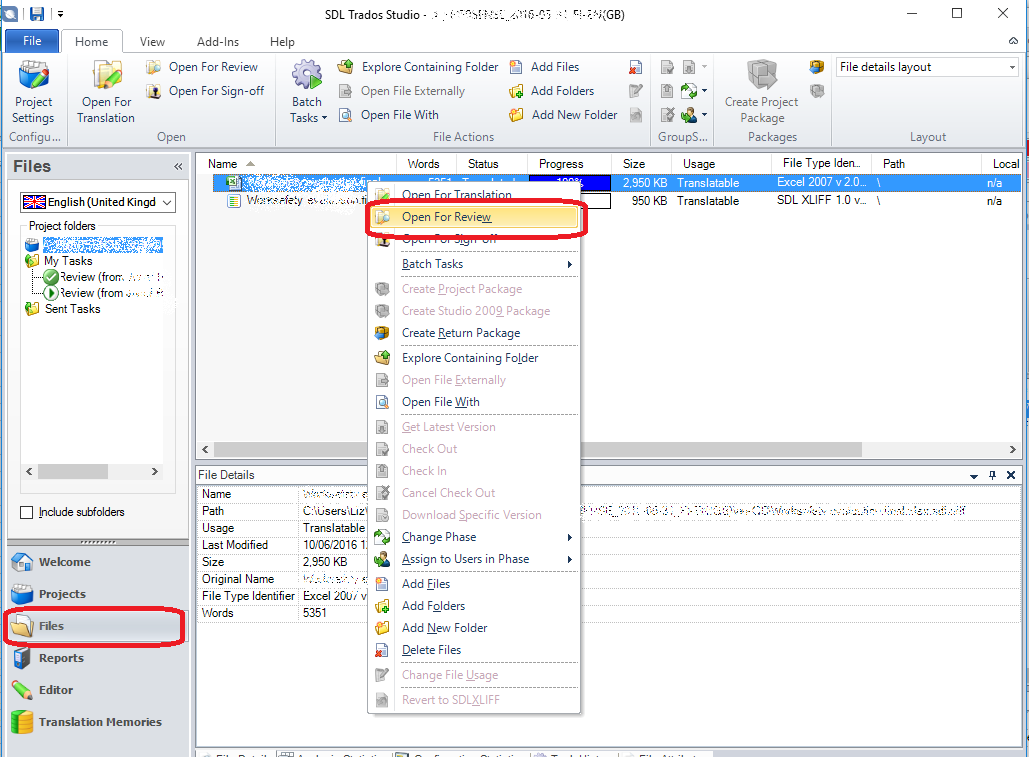
Go to the Files tab and you can see all the files in the package.

If the package contains subfolders then when you go to the files screen you won’t see any files or folders. You need to look at Project folders in the left-hand navigation to see any open folders [Thanks to Vikki for this info].

2 open files

Right-click for the contextual memory, and choose Open for Review. This will open the Edit view

3 open for review

Getting back to Edit

If you come out of Edit, click on the Editor tab and there’s the file you’re working on:

5 when you want to edit

Finishing the edit

When you’ve finished editing, click File (top tabs) and Close. This box will come up:

5a close edit

Choose yes.

Changing the font size

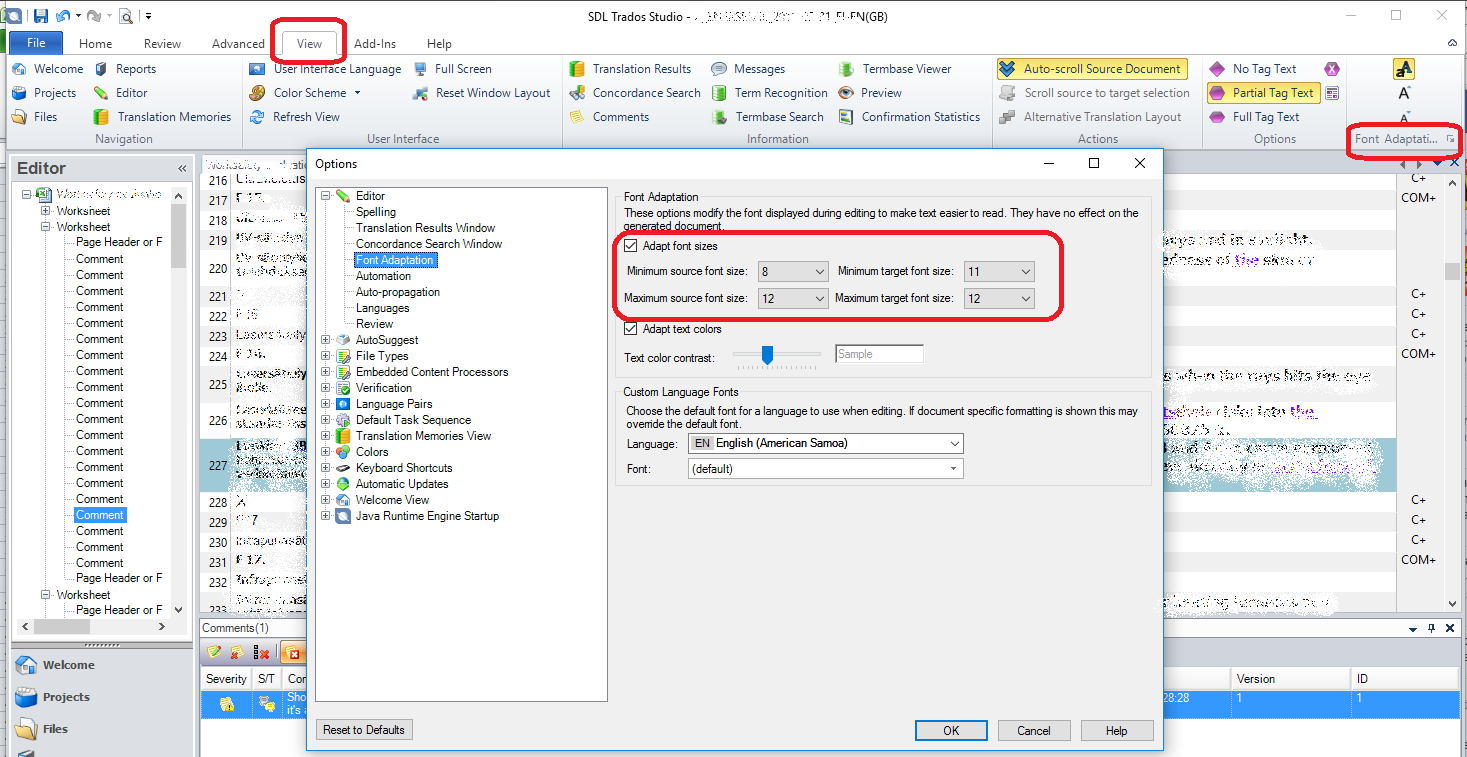
If the font is really small, go to the View tab (top tab), look to the right, click Font Adaptation Options then change the minimum sizes to 11 or more. This will change the size of the font in your editing screen.

7 change font

Running spell check

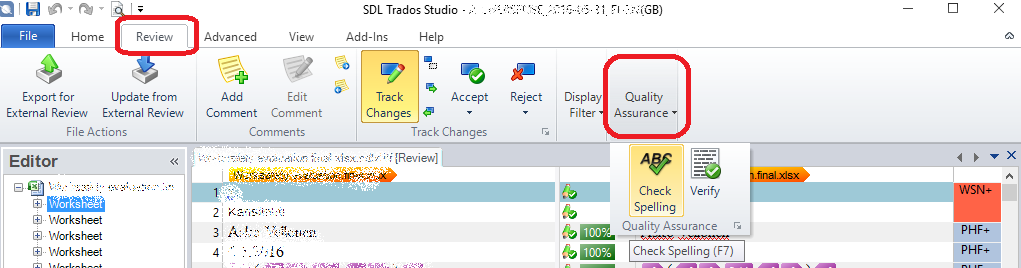
You can find spell check in the Review tab (top tabs) under Quality Assurance – if your window isn’t really wide, it will appear under the drop-down arrow.

4 spell check

You can get to find and replace using Ctrl-F and they work as in other packages.

Auto filling identical segments in Review mode is apparently not consistent so don’t expect to be able to do that in this mode.

Creating a return package

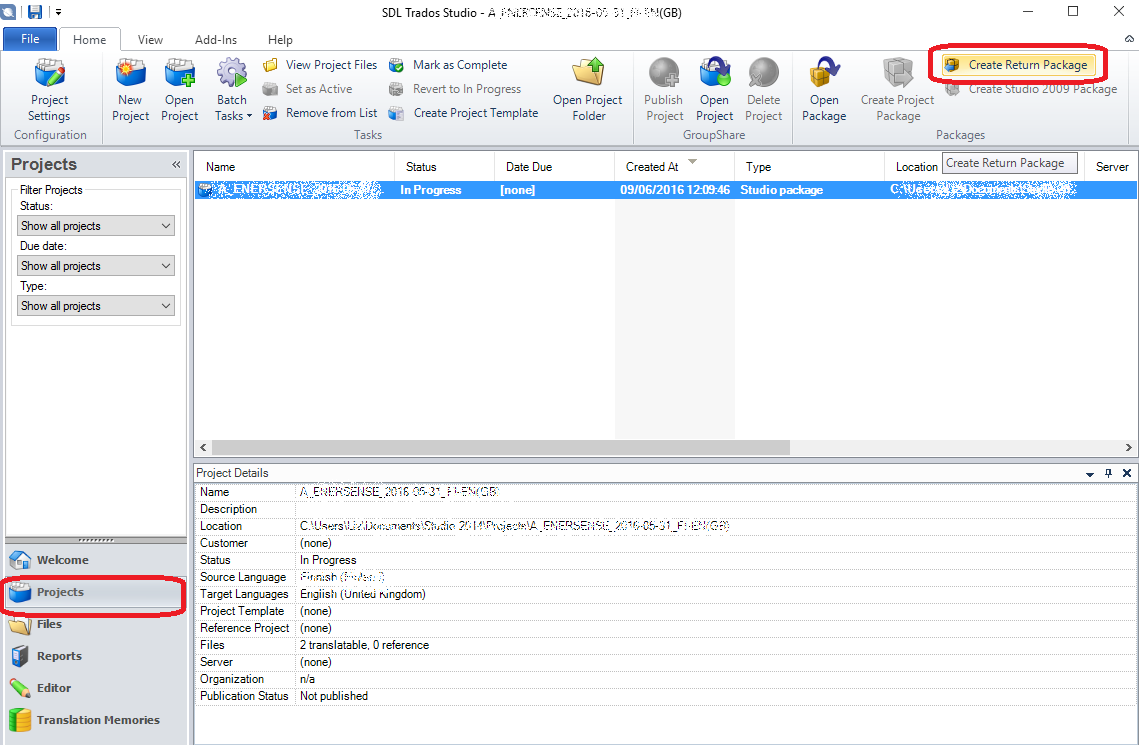
Save the edits (Save icon) Then go out of Editor into Projects and click Create Return Package

6 create return package

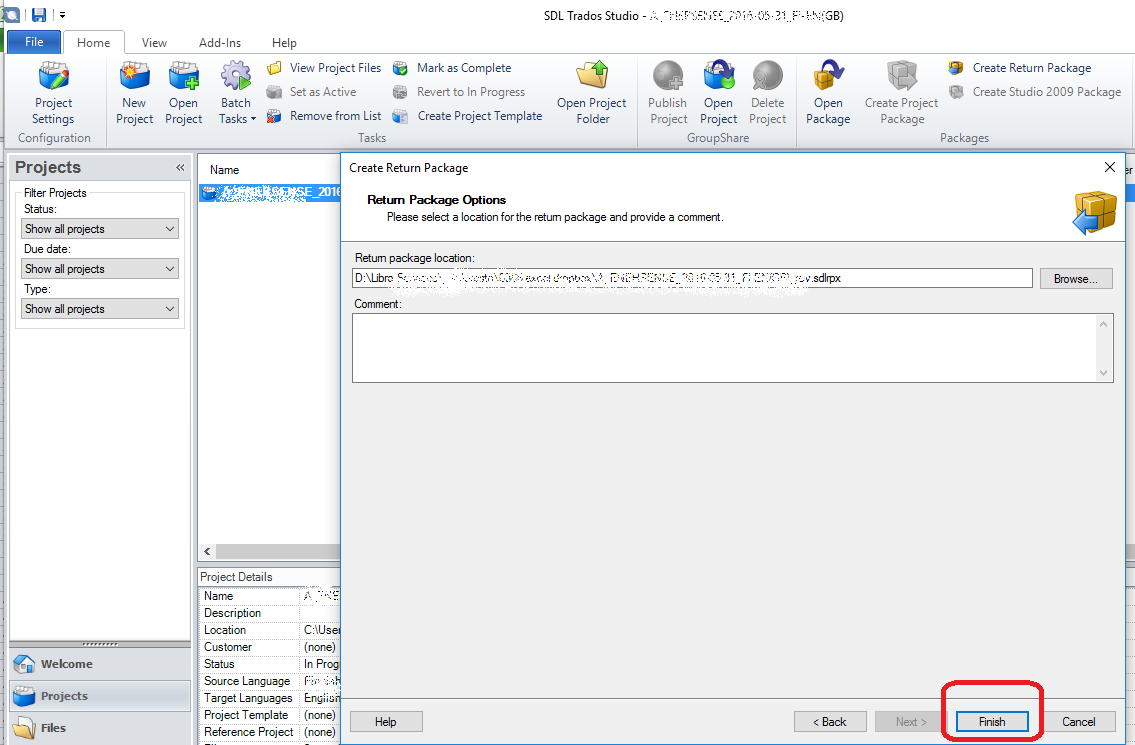
Choose where you want to save the file and then remember to click Finish.

6a Finish return package


Leave a comment

Posted by on June 15, 2016 in Localisation, Trados


Tags: ,

How do I change a column into a row or a row into a column in Excel 2007, 2010 and 2013?

In this article, I’m going to explain how to change a column into a row or change a row into a column in Excel 2007, 2010 and 2013 (I think this works in 2016 too but have not yet tested it).

Why would I want to swap a column for a row?

You might start off creating a header row then decide it should be a column, or create a spreadsheet then want to rotate it 90 degrees. Or, worse, someone might decide that for you and expect you know how to do it!

How to change a column into a row or rotate a block of cells

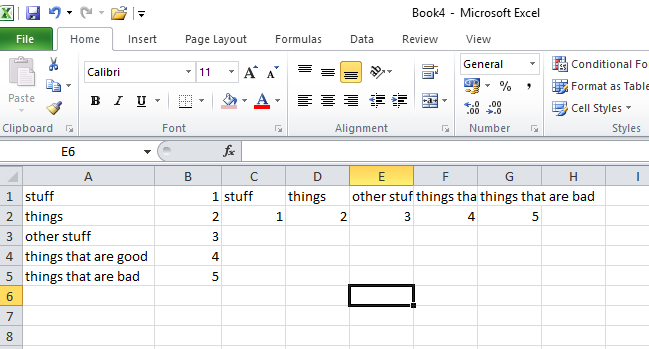
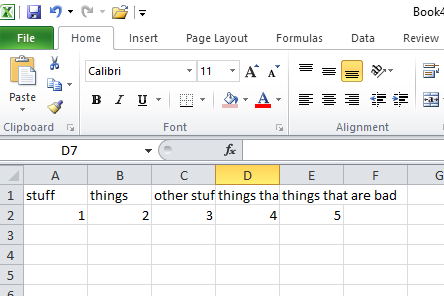
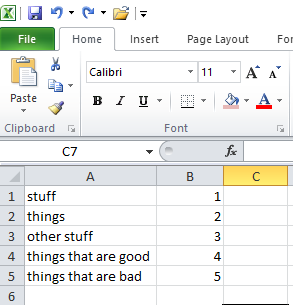
Here’s our original block of cells:

Swap excel rows for columns

We want to turn this around so that everything runs along the top rather than down the side. Here’s how to do it:

First, copy all the cells you want to move:

Highlight the cells, right-click with the mouse, and select Copy:

copying cells in excel

Now, and this is important, find a free, empty cell to paste into. Don’t worry about it being in the middle of the spreadsheet, we will tidy that later.

Right-click with your mouse in an empty cell and then choose Paste Special and Transpose (a hint will appear when you hover over the button, but it’s the one on the bottom right)

How do I swap columns and rows in Excel

Behind all those dialogue boxes, Excel will show you what this is going to look like.

Click on Transpose and your cells will appear, starting from the empty cell you clicked on:

swapped columns and rows

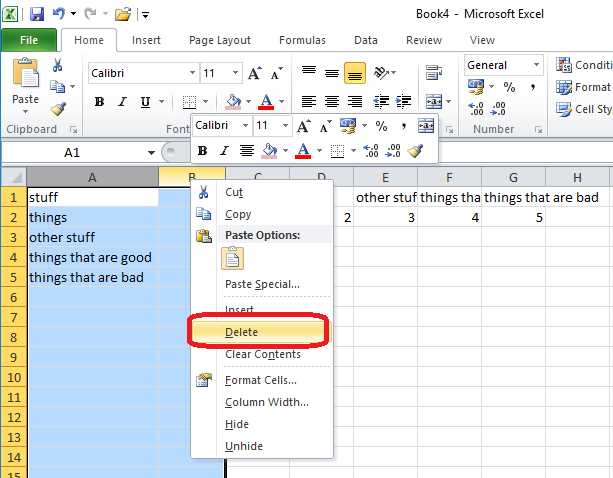
Your original cells are still there – so highlight their columns, right-click with the mouse and choose Delete:

Flipped cells in Excel

And here’s your spreadsheet, the opposite way around from how you started!

5 finished

In this article, we’ve learned how to change rows into columns and change columns into rows in Excel 2007, 2010, 2013 and probably 2016.

If you’ve found this article helpful, please do post a comment below, and if you think others would find it useful, please share it using the sharing buttons below the article. Thank you!

Other useful posts on Excel on this blog:

How to view two workbooks side by side in Excel 2007 and 2010

How to view two pages of a workbook at the same time

How do I print the column headings on every sheet in Excel?

How to print the column and row numbers/ letters and gridlines

Freezing rows and columns in Excel – and freezing both at the same time

How to flip a column in Excel – turn it upside down but keep the exact same order!

 
4 Comments

Posted by on June 8, 2016 in Excel, Short cuts


Tags: , ,

What do I do when Word just won’t work (Word 2005, 2007, 2010, 2013 and 2016 edition)

Word 2010 Word 2016 Word 2013

Sometimes, Word gets itself into a pickle

People often contact me, either using the comments on blog posts or privately via email or my contact form, when they’re at the end of their tether with Word. Word has stopped working, Word won’t do what they want it to, the formatting in their document has gone weird, putting something in italics makes the overwrite button engage, the paragraph spacing just will not work, paragraphs keep going into bold BY THEMSELVES …

All of these things have happened to me or my correspondents.

Why does Word go wrong?

I’m not entirely sure why Word goes wrong. I think it sometimes just gets itself into a pickle; there are too many things, too many commands and codes, too much text … or the originating text comes from an unofficial or unregistered copy of Word, or has been converted from another program. Sometimes if something’s saved as and saved as, or worked over too much, like overworked pastry, it just. goes. wrong.

What do you do when Word goes wrong?

Well, I have three methods, which are not nice, and are certainly not fun, but do work most of the time. And as the latest person to contact me didn’t know about these, I’m going to share them with you now.

Before you do any of these, save your document and then make a copy to do all this with, just in case.

Method for sorting out major Word problems 1

  • Turn it off and turn it on again.

I know. But if Word gets into a pickle, sometimes SAVING, closing Word and reopening it can work.

Method for sorting out major Word problems 2

  • Copy the text – all of it.
  • Open a brand new Word document
  • Paste the text into it

This works in about 70% of cases.

Method for sorting out major Word problems 3

This one involves stripping out all the formatting. All your italics and your lovely bibliography. All your headings and styles. But sometimes it has to be done.

Note: There is a Clear formatting button in Word (in the Home tab, a little picture of an eraser rubbing out an ABC). But you don’t know that there isn’t something weird just outside where you’ve put the cursor. So I advise using this method.

  • Copy the text – all of it
  • Open a text editor
    • If you’re on a PC running any form of Windows, you will have Notepad as standard.
      • In Windows 7 do Start > All Programs > Notepad
      • In Windows 8 hit the Windows button > R > type in “Notepad”
      • In Windows 10 go to the magnifying glass in the bottom task bar and type in “Notepad”
  • Paste the text into the text editor
  • Open a new Word document
  • Copy and paste the text in the text editor into Word

It can literally not bring ANY formatting codes or bits and bobs through from your original document. But you will have to put all the formatting in again, from scratch.

I hope you’re found this useful. I know it might read like a bit of a blunt instrument, but if you have a Word document that is not behaving itself and you need to make Word work for you, sometimes this is the only way to do it!

If you have found this useful, do please comment and / or share using the options below. Thank you!


10 Comments

Posted by on June 2, 2016 in Short cuts, Word


Tags: , , ,