RSS

Author Archives: Liz Dexter

Unknown's avatar

About Liz Dexter

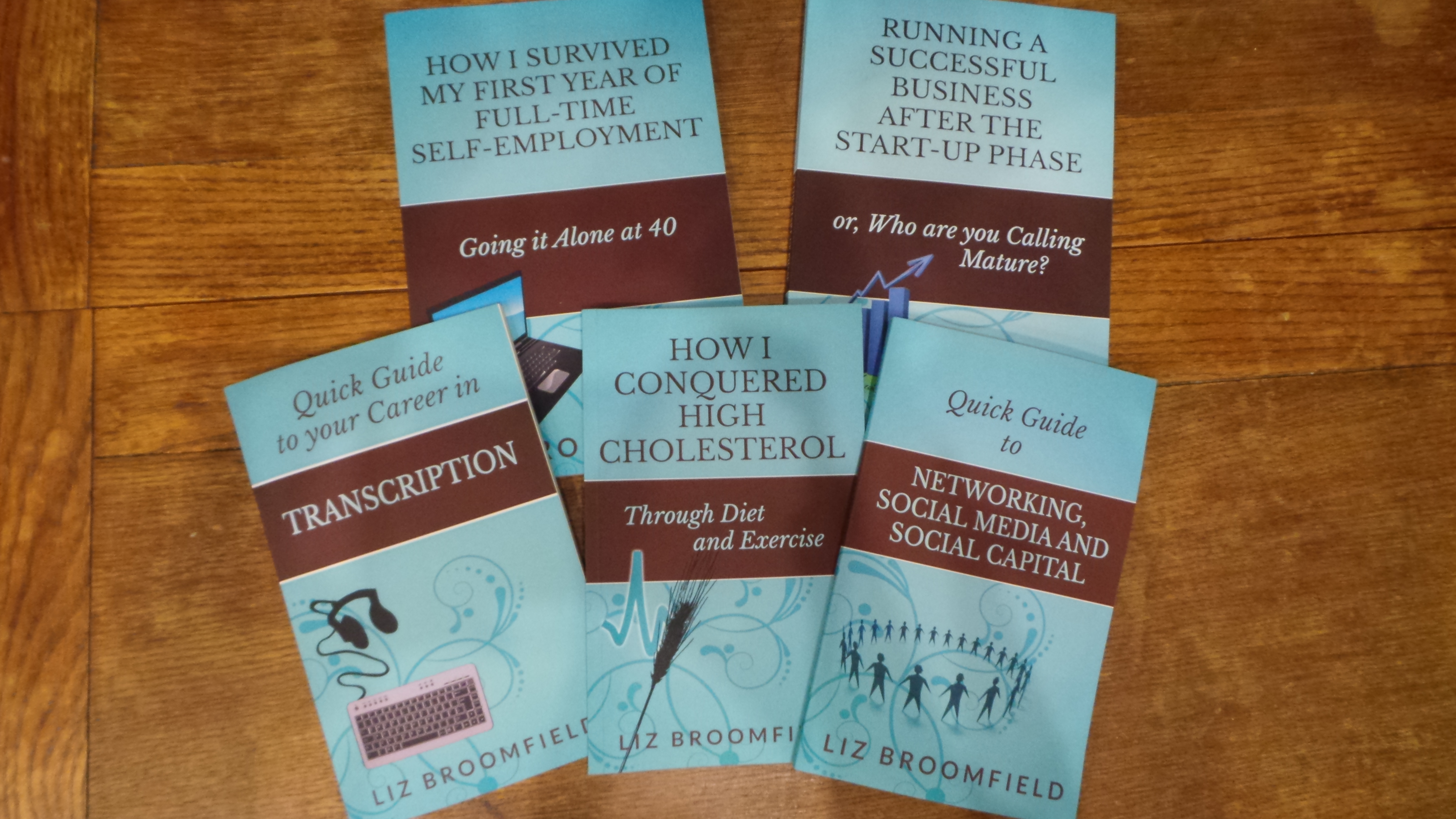
Book blog is at http://www.librofulltime.wordpress.com Writer, proofreader, editor, transcriber. Also runner, gym-goer, volunteer and BookCrosser! My married name is Liz Dexter but my maiden name and the name on the books I write is Liz Broomfield.

MailChimp 4 – how to create a template for your newsletter

Welcome to Lesson 4 in my MailChimp series. Following on from MailChimp 1 – Signing up, MailChimp 2 – Setting up your list and importing contacts, and MailChimp 3 – Creating a sign-up form, this time we’re going to learn how to create a simple template for a newsletter.

Why do I need a template for my newsletter?

Setting up a template means that you save a lot of time each time you send out your newsletter. You can spend all the time creating a lovely template once, then just pop the text in each time you want to send a newsletter out.  It also means that you can import a branded template created for you by a designer which includes your specific brand, colours and messages.

How do I create a MailChimp newsletter template?

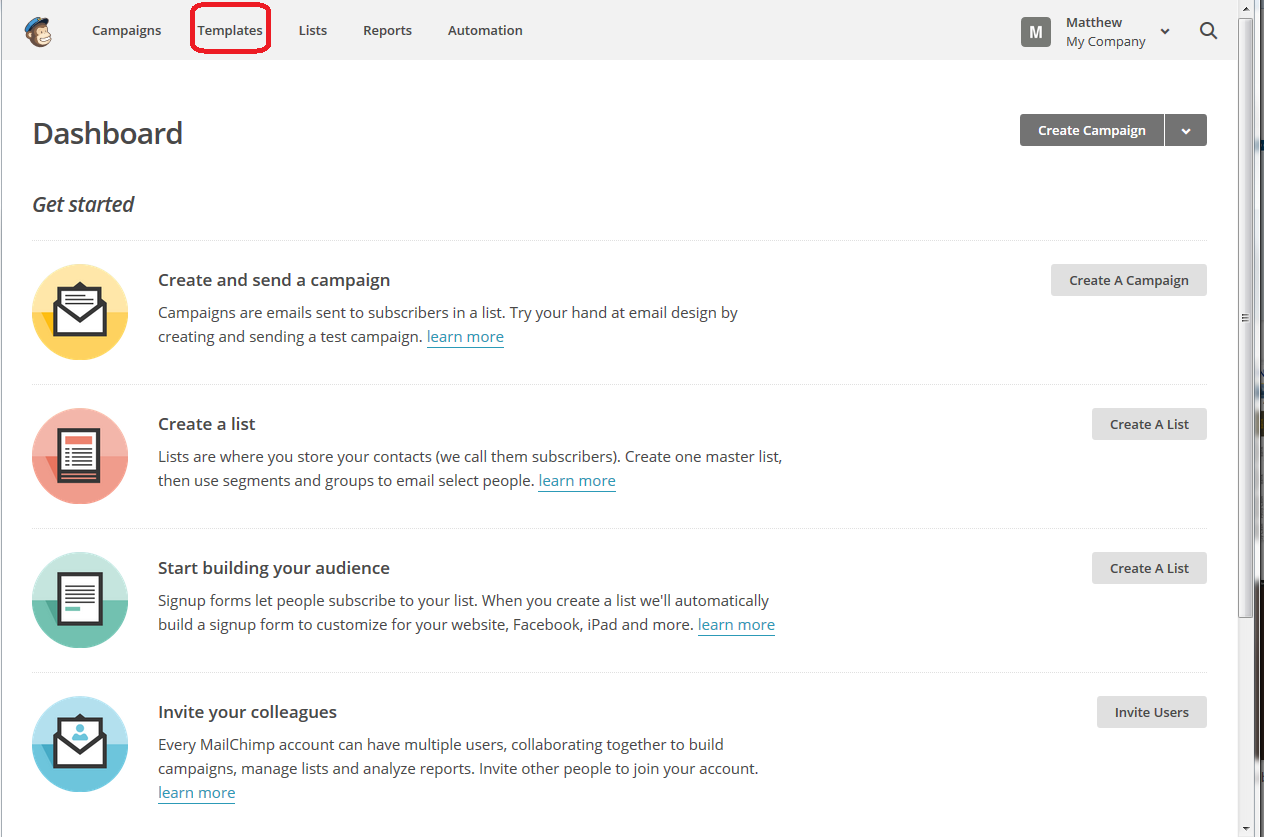
You can find the Templates area in the top menu on MailChimp:

MailChimp templates menu

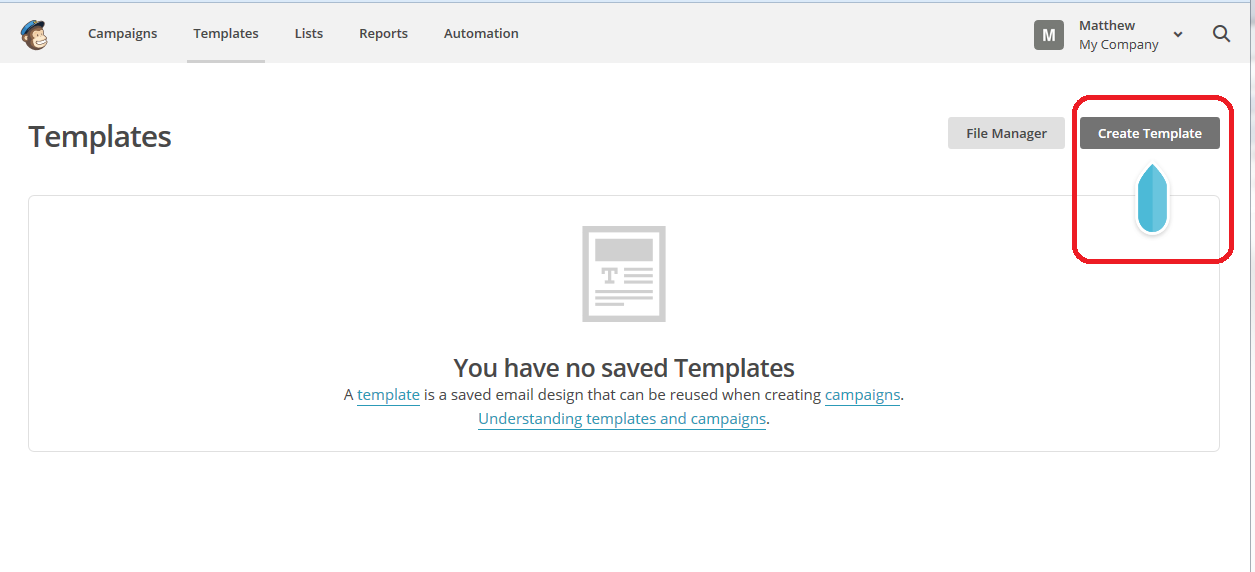
If you haven’t already created any templates, you will find a message that You have no saved Templates and a handy arrow pointing to the Create Template button. You can always use this Create Template button even if you have previously created a template; it just won’t have an arrow pointing to it.

MailChimp create template

Starting off – choosing a style for your template

Once you’ve clicked Create Template you will be walked through choosing a design.

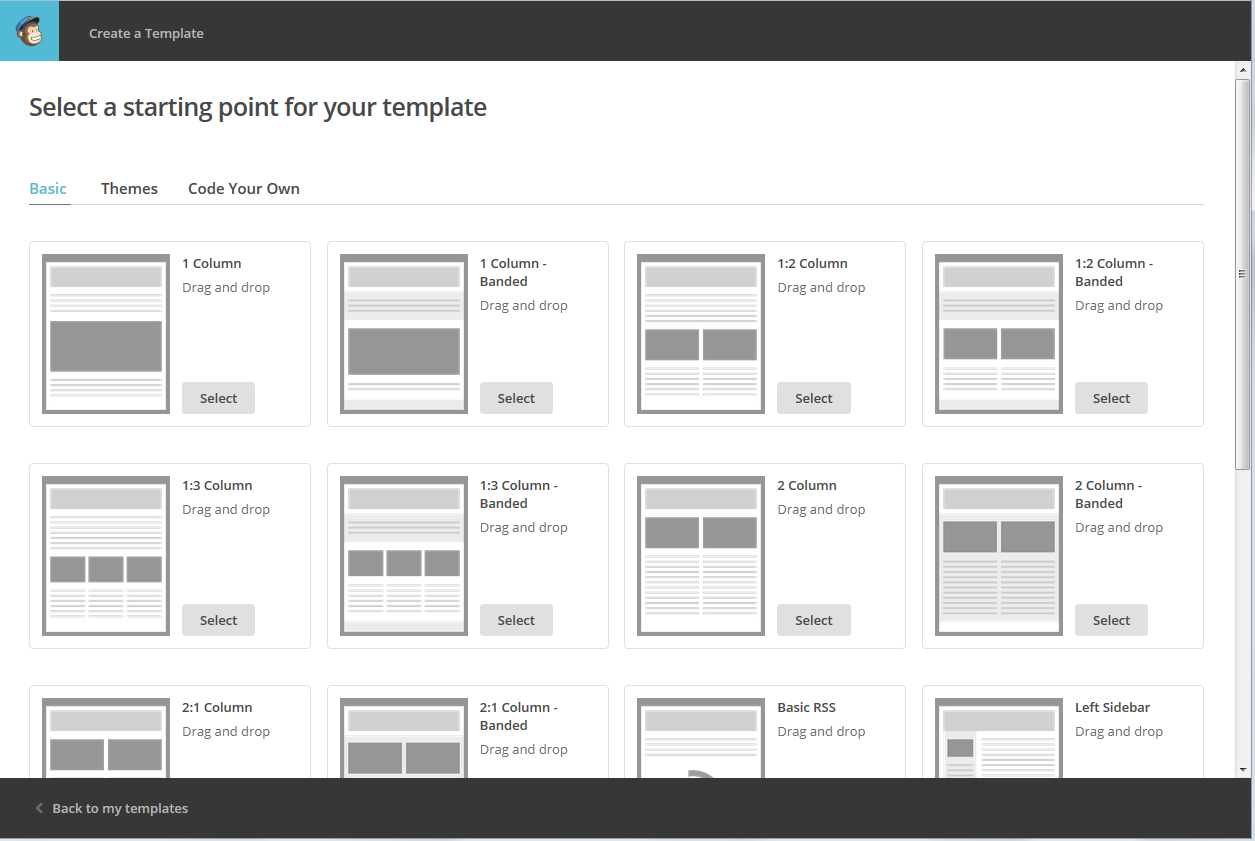
You can see here that you can choose Basic, Themes or Code Your Own.

Basic, seen here, gives you a range of layouts for your newsletter. You can have one or two columns,  or a combination of any number of columns and layouts. We’re going to use one of these eventually, but let’s have a look at the other options. If you click on Themes

MailChimp choose template

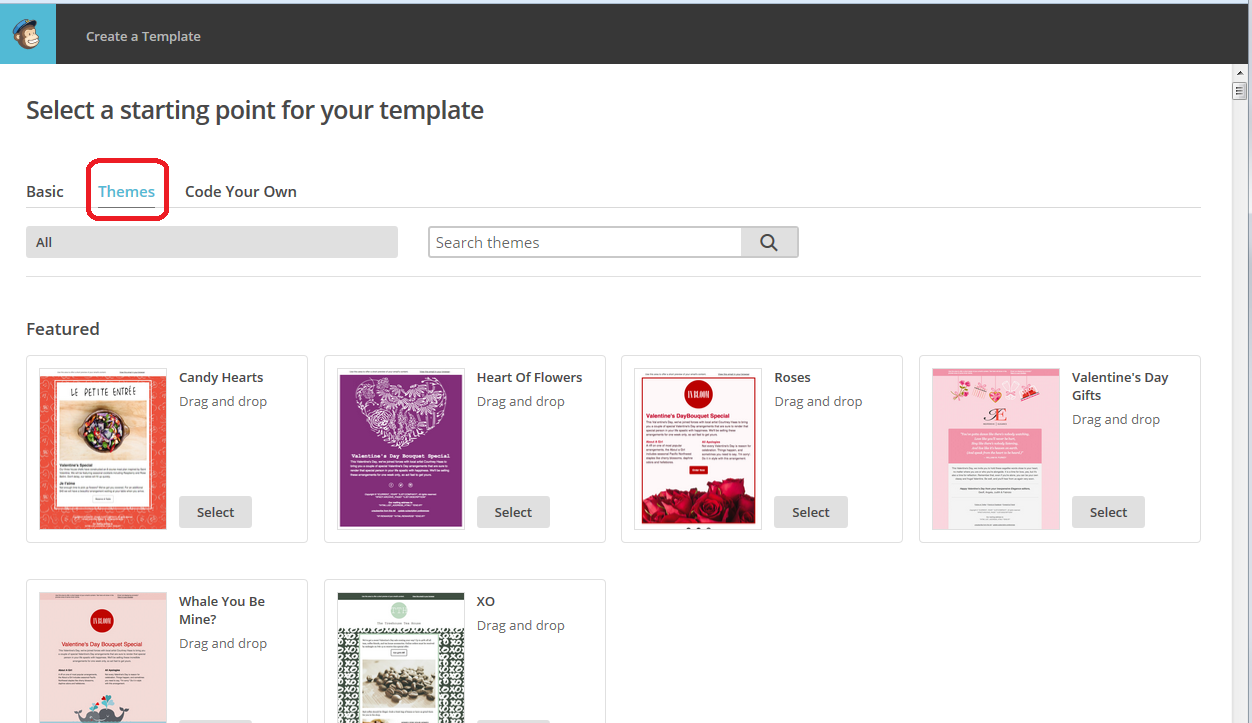
Themes gives you colourful backgrounds that might inspire you or might be a bit much – it’s all down to personal choice. The default view will be the Featured themes, which is presumably those that are new, but you can navigate the whole set of themes in different ways.

MailChimp choose template

For example, click on All and you can see particular themes, for example if you wanted to create a birthday or wedding newsletter, and various other categories. You can also use Search themes to search for particular colours, etc.

MailChimp choose template

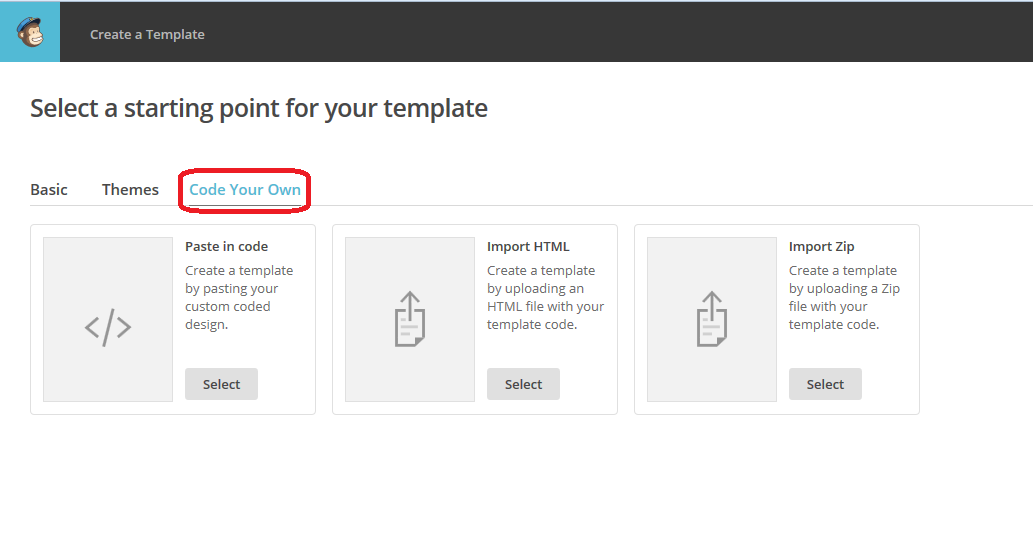
To take a quick look at the Code Your Own tab, this is where you can drop in a template that someone else has coded and designed for you (there are a few companies out there offering this service) or one that you’ve designed yourself. Select the appropriate option, paste in or upload your design, and there’s your template, ready to use! (in this case, now skip to How to save your MailChimp template.

MailChimp choose template

How to create a basic template in MailChimp

OK, having had a look around the options, we’re now going to set up a basic template.

We’re back at the Basic tab, and I’m choosing the third option on the top row, as that’s how I’d like my newsletter to look. Click on the Select button to choose that layout:

MailChimp choose template

And once you’ve selected your layout, you can get on with customising it.

Customising your MailChimp template

Once you’ve chosen a layout, now it’s time to customise it. Luckily, MailChimp will walk you through the process.

You can see from this screenshot that you have the template on the left-hand side and a set of options that you can drop into that template on the right. Each block can contain anything you want it to, but you’ll see that the layout is the same as the one I chose in the previous stage.

MailChimp customise template

To add a section of text to your newsletter template, click on Text on the right, hold the mouse button down, drag it to where you want the text to be, then let to go to drop it in. Simple! (hopefully). But what if you want to add images?

How to add an image to your MailChimp template

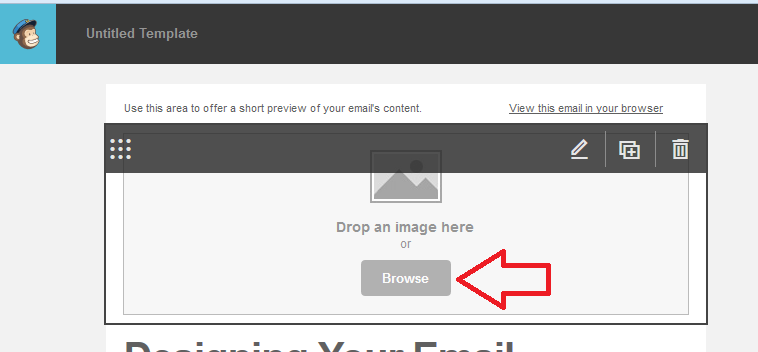
If you want to add an image to a block of your MailChimp template, you can click the Browse button in the middle of the template (or drag an image there if you have a folder of images open at the same time – most people do it this way).

MailChimp customise template

Browse will take you to the folders in your own computer, so you can navigate to your chosen image and double click it to add it to the block:

MailChimp customise template add image

If you want to edit or replace the image, hover over it and you’ll see an Edit icon. In the right-hand part of the screen, you will have the option to Replace Edit Link Alt. Too many screen shots spoil the post, so I’ll leave you to explore these options with a guide:

  • Replace will allow you to replace this image with another one
  • Edit will allow you to resize the image or edit its metadata
  • Link will allow you to apply a link to the image, meaning that when your reader clicks on the image, they will be taken to another website – you might use this with an image of your logo (taking them through to your website) or a product you sell (taking them through to a buying page)
  • Alt will allow you to add Alt(ernative) text to the image. This is text that you can provide explaining what the image is. This is useful both for readers who have opted to receive plain-text newsletters (if they can choose this option on your sign-up form) and will see text rather than a broken link, and for readers who might have a visual impairment and be using a text-reading program – they will have this description read to them

MailChimp customise template add image

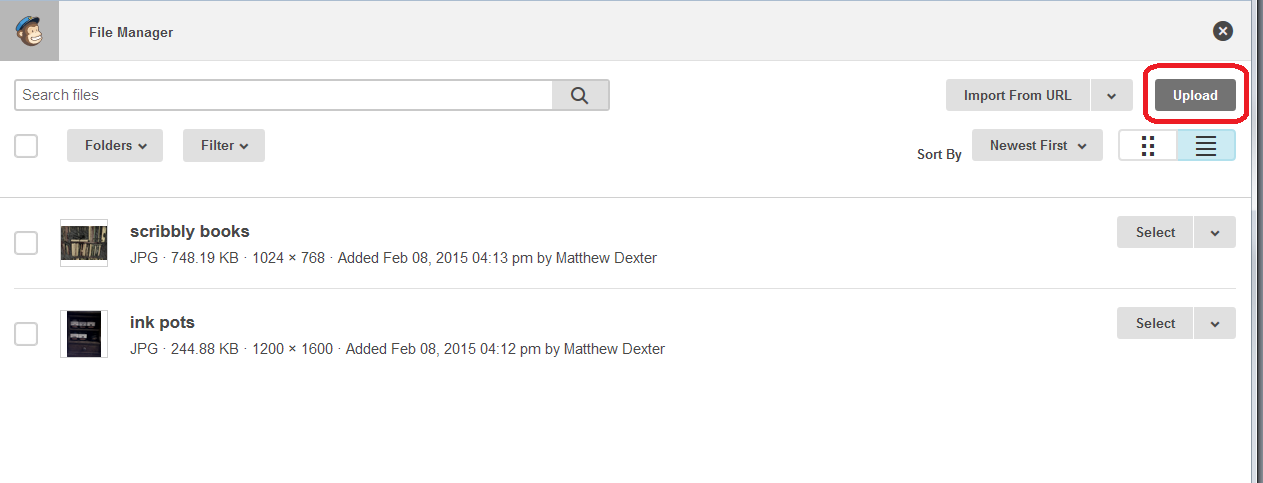
Once you’ve used images in your template once, they will be available to use in the File Manager, so if you’ve clicked Replace, you can pop there to choose a different image and Upload it.

MailChip amend customise template

How to add social media buttons to your MailChimp template

Another popular option for newsletters, and you’ve probably seen this on ones you read, is to have social media buttons on the newsletter which take readers through to your Facebook and Twitter streams or website.

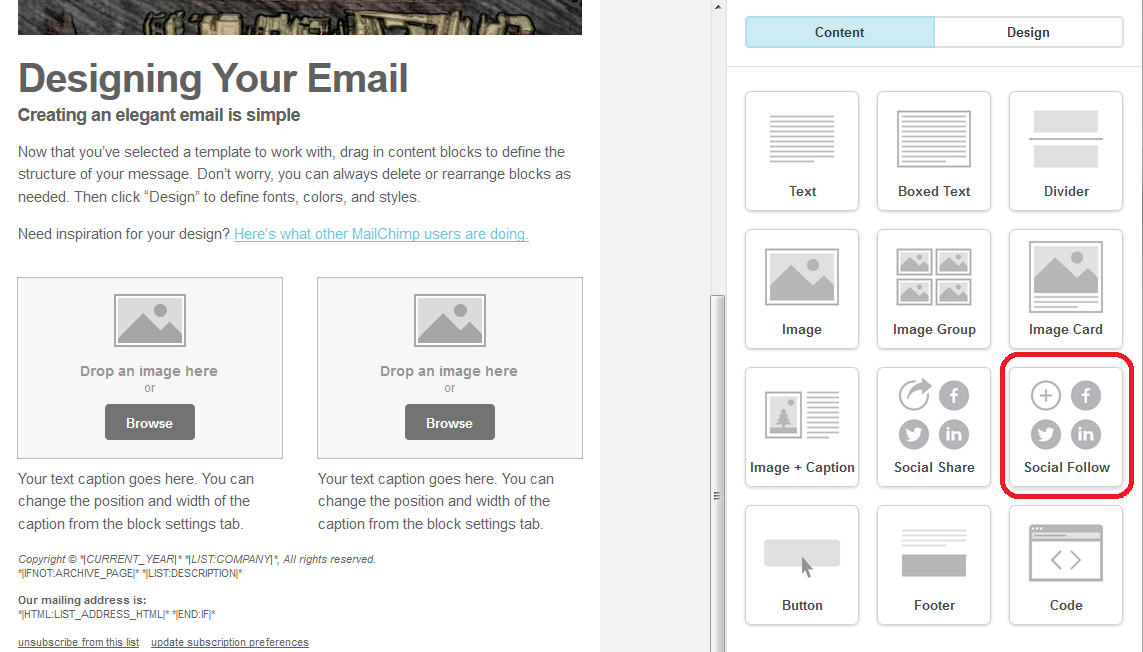
To add social media buttons to your template, find the Social Follow section in the Content options (Social Share, by the way, allows readers to share your newsletter on their social media platforms – if you want people to click through to your Facebook etc. page, use Social Follow):

MailChimp template social follow

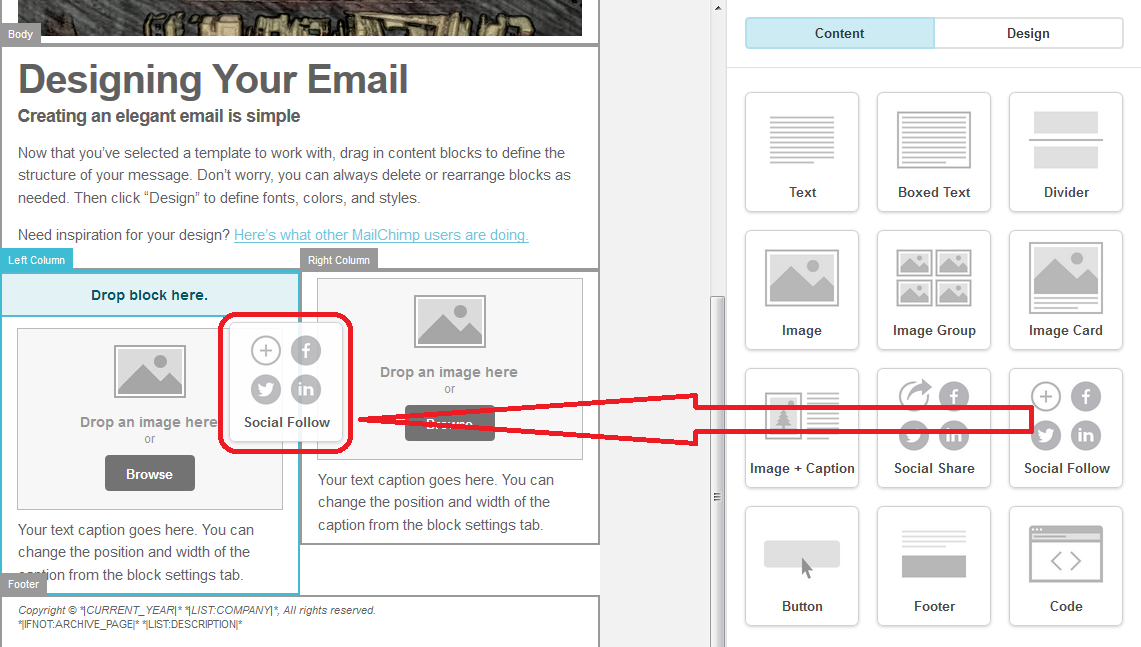
Click, hold the mouse button down, drag and drop it where you want to place it in your template:

MailChip  template social follow

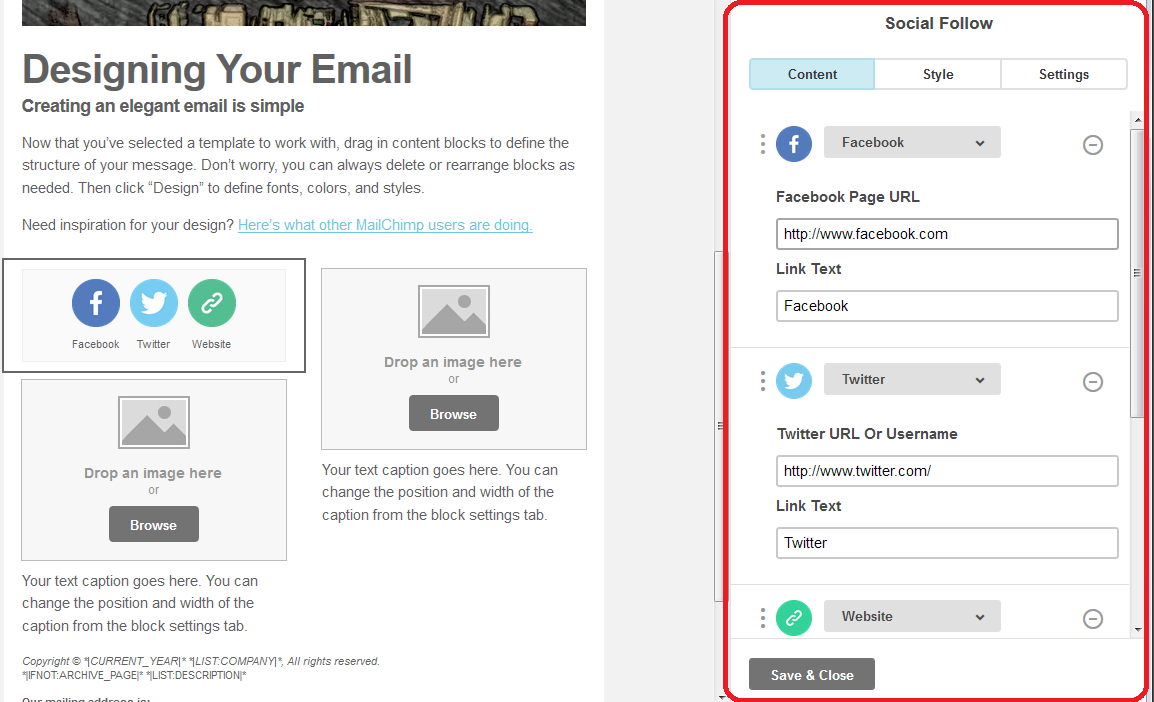
When your buttons are in your template, the right-hand section will change to allow you to personalise these links. Add your own Facebook page, Twitter stream and website URLs to this section and press Save & Close. This will make sure that the buttons click through to your own presence on the social media platforms:

MailChip  template social follow

Now continue to add sections to your template until you’re happy with how it looks.

How to save your MailChimp template

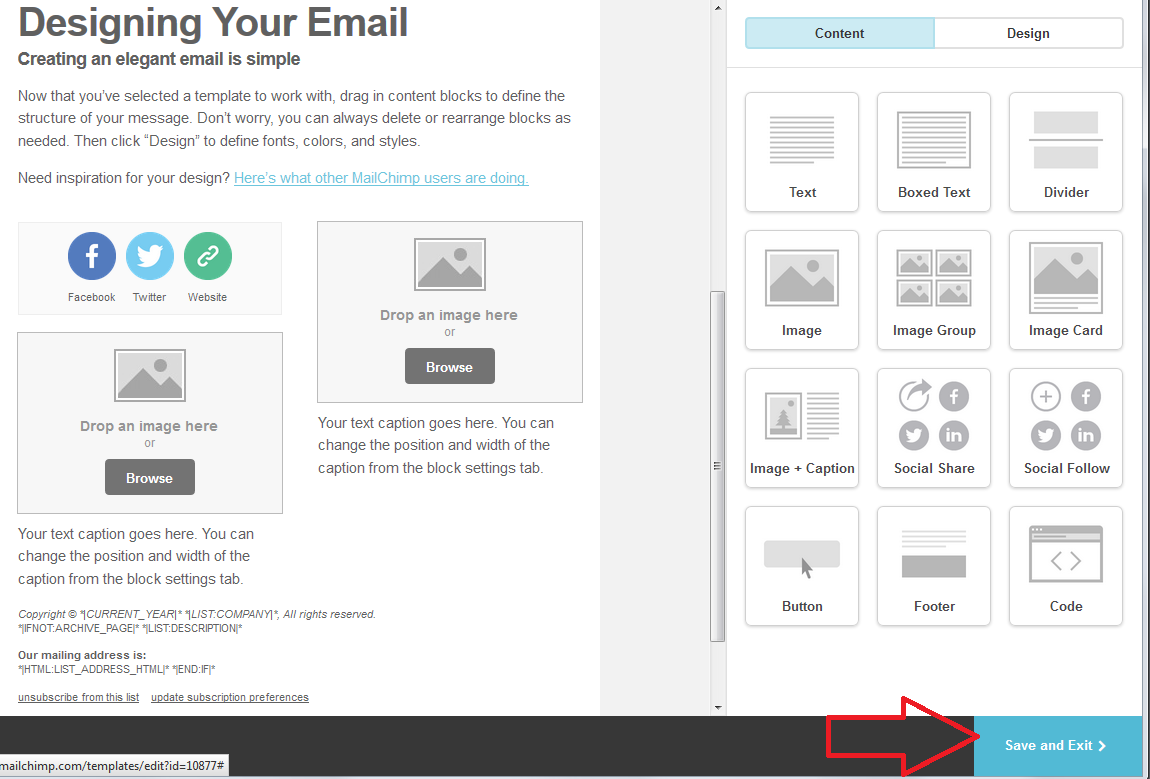
Once you’ve finished designing your template, hit Save and Exit in the bottom right-hand corner of the screen:

MailChimp template save

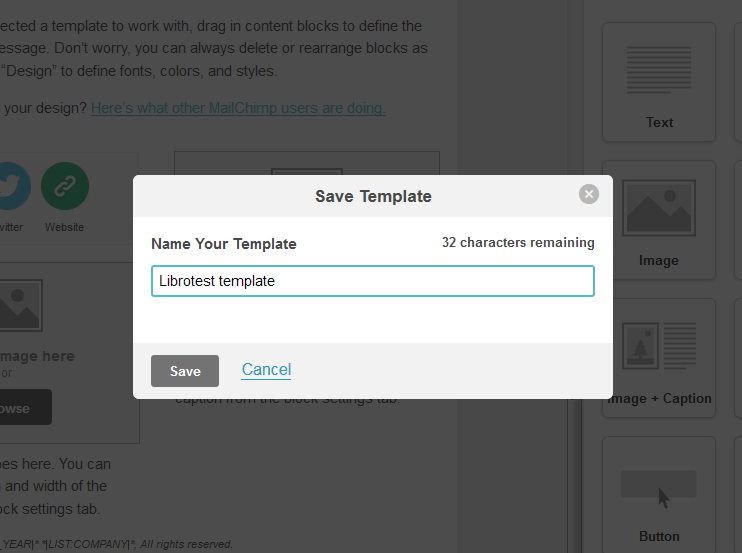
You will be prompted to give your template a name at this point. Make sure it’s clear and easy to identify – maybe you’re going to create one newsletter about the fairy pictures you paint and one about the steampunk watches you make, in which case you’d label them accordingly. Then hit Save.

MailChimp template save

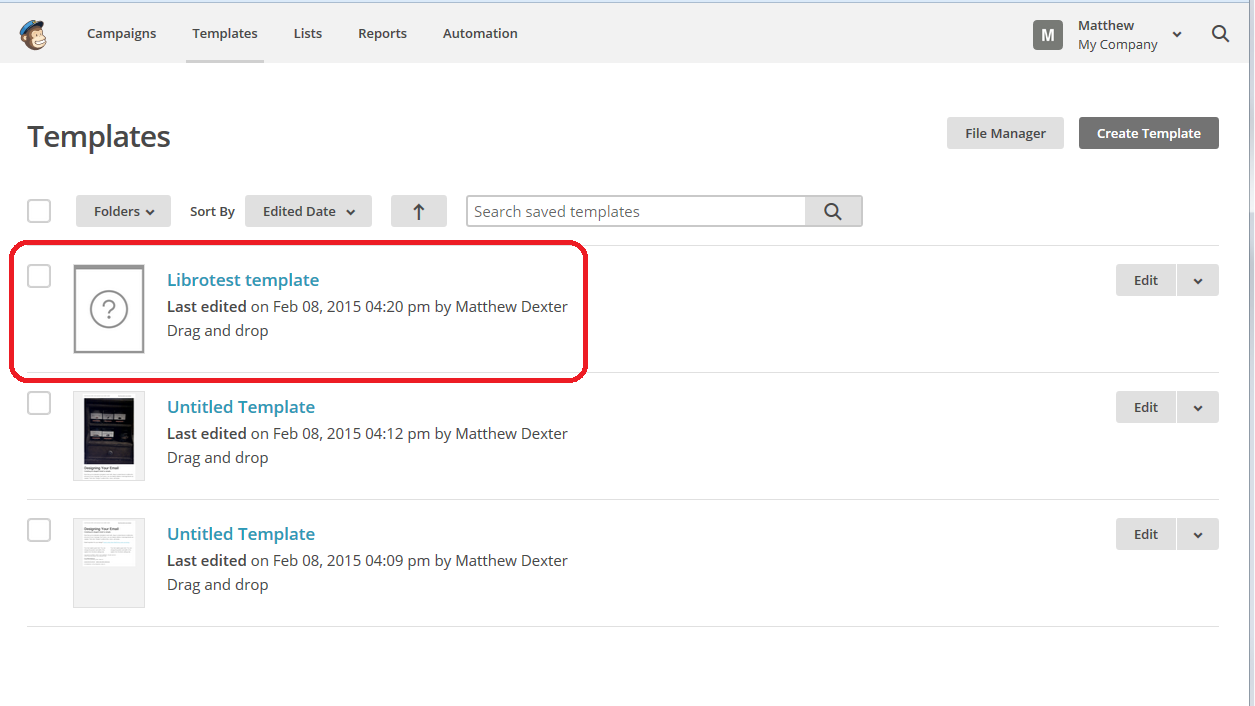
Now we’re back in that Templates area, but now you’ve got your new template saved in the list (note that the Create Template button is still there for next time you want to create a new template).

MailChimp template list of templates

What are those other files? MailChimp handily autosaves your templates in the background as you’re going along, so you can pick up where you left off if everything goes wrong. You can see it saved at 4.09 and 4.12. These should disappear next time you go into the Templates area – if not, you can use Edit then delete to remove them.

How do I edit a MailChimp template?

If you want to edit your template, hit the Edit button to the right of the template name and you’ll be taken back into the Template Editor screen.

——

In this article, we’ve learned how to set up a simple MailChimp newsletter template that you can choose when it’s time to send out your first newsletter. The other MailChimp articles will be listed below as I add them to the blog. You can find a growing set of articles on blogging, social media MailChimp etc. in my resource guide. Do click on the share buttons below or comment if you found this article interesting or useful!

Other relevant posts on this blog:

MailChimp 1 – Signing up

MailChimp 2 – Setting up your list and importing contacts

MailChimp 3 – Creating a sign-up form

How to avoid two common mistakes when using MailChimp

 
4 Comments

Posted by on March 4, 2015 in Business, Marketing, New skills, Newsletters


Tags: , , ,

On completion of your edit, will my manuscript be ready for publication?

On completion of your edit, will my manuscript be ready for publication?
I was asked this question by a prospective client recently, and it seemed like a good opportunity to share the answer with the wider world.
So, if you send your novel or non-fiction book.article or chapter to your editor for copyediting (fiction writers might know this as line editing), is it going to be ready for publication once they have gone through it?
Well, to be honest, probably not. What you will receive from your editor is a document marked up with suggested changes and comments. You will need to go through all of these and undoubtedly action some comments or questions that they’ve given.

Going through your editor’s comments

Once your editor has gone through your document, it will come back with a range of different comments and suggestions.
To break these down, they might include all of some of the following:
  • Vital textual changes – you will need to go through these but will probably accept most of them – they will be based on grammatical, punctuation etc. rules, or will be picking up typos.
  • Suggested textual changes – Your editor should be striving to retain your ‘voice’ and to help you get across your points, ideas or story, and they might well suggest rearrangements of sentences, changes in word choices, etc. Some of these you might not accept, for example I have a client who doesn’t like semi colons, so I know they will reject any I add (of course I just don’t add them now!). Some might be a matter of style but will make the piece consistent (e.g. use of capitalisation and hyphens which is often inconsistent in texts I work on).
  • Style sheet questions – your editor should send you the style sheet they’ve built up while editing your work, which will list all of the choices that they’ve made (where there’s a choice to be made) in a separate document, alongside any terminology that they’ve made consistent, etc. This might, however, include questions – for example, if you have used “the chapter” and “the article” interchangeably and an equal number of times in your short piece, your editor might not know what its eventual destination is, and might leave a question in the style sheet for you to answer (that’s how I do it) – then you will need to make that terminology consistent
  • Comments and questions – there will be points at which your editor may suggest, for example, moving a section to a different chapter, saying something in a different way to make it more clear, or even marking a section that they find unclear and then suggesting that you rewrite it. You will then need to action those points yourself, moving or rewriting sections as necessary.

What happens next?

Once that’s all done, if you haven’t done so before, I suggest that you get some people to beta-read the book to give you their reactions and suggestions to the content, now that consistencies and the most obvious issues have been ironed out. You may need to do a bit of rewriting on the basis of their comments.
If the rewriting is substantial, it’s a good idea to have your editor look over either the whole document or just the sections that have been changed (I usually ask my clients to highlight the bits they want me to check in the whole document, so I can see where they sit in the work as a whole). And then you will need to go through the above process again.
Once that’s done, before you publish the manuscript, you will need to have it proofread to check that no additional errors have crept in and to ensure that it’s going to look good in publication (if you’re doing a print book, the proofreader will need to see a pdf of the final version, if an e-book, a Word document is often OK). This person shouldn’t be the original editor, because they would be too close to the contents, and you should send them your editor’s style sheet so that they know how certain things should be and don’t waste time changing them to their preference.

Once the proofreader’s comments come back, it would be very unusual if you didn’t have something to change. So, you will need to make those changes – and this might affect your book design, so you might have to have your book designer look over the whole thing again.

Then you might just be able to consider it ready for publication!

Related articles on this blog

Do I need editing or proofreading?

Dealing with Track Changes in a document

My work is being proofread – why do I need to use Spell Check?

 
16 Comments

Posted by on February 26, 2015 in Copyediting, proofreading, Word, Writing


Tags: , ,

MailChimp 3 – setting a sign-up form for your newsletter subscriber list

Welcome to Lesson 3 in my MailChimp series. Following on from MailChimp 1 – Signing up, and MailChimp 2 – Setting up your list and importing contacts, this time we’re going to learn how to create a sign-up form to allow people to consciously and willingly sign up to receive your email newsletter.

Remember, once you set up a subscriber list, there are two ways to populate it:

1. Import members from a previous mailing list (ensuring that you have their explicit permission to send them marketing communications)

2. Offer people a sign-up form via which they can choose to sign up for your newsletter.

I prefer Option 2, and we’re going to find out how to do that now.

How do access the MailChimp contacts list area?

As a quick reminder (full details are in this previous article), when you sign in to MailChimp, you will find Create a List on your front screen, but at any time, you can click on Lists at the top to get into the Lists area:

MailChimp lists area

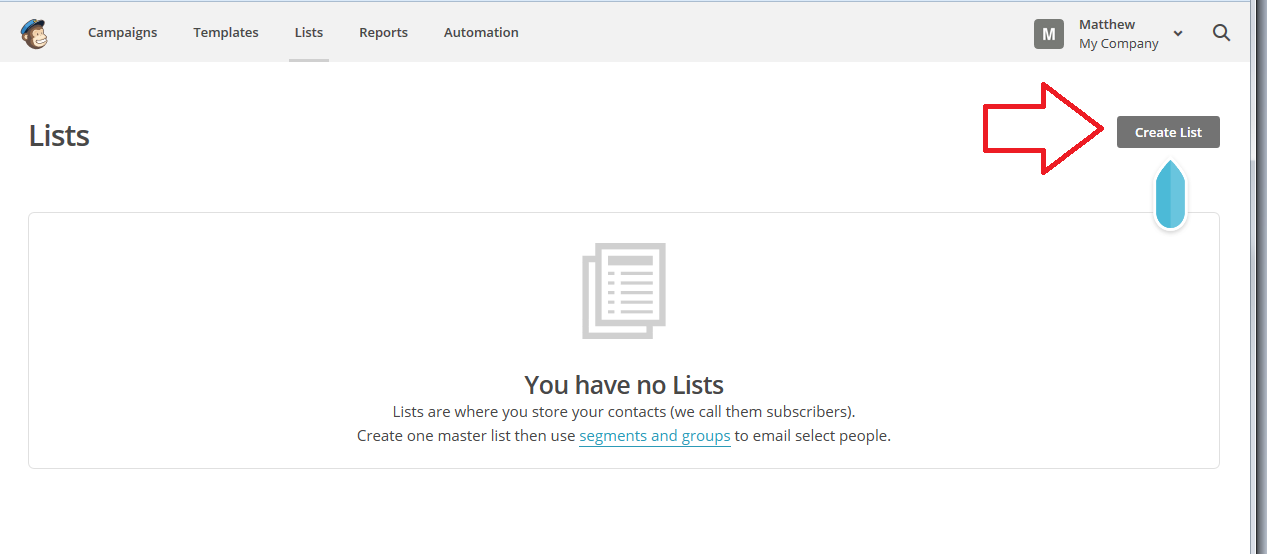
Once you’re in the Lists area, if you have any lists set up, they will show here, and if you are going in to do this for the first time, you will see that You have no Lists, and be pointed to the Create List button:

MailChimp create list

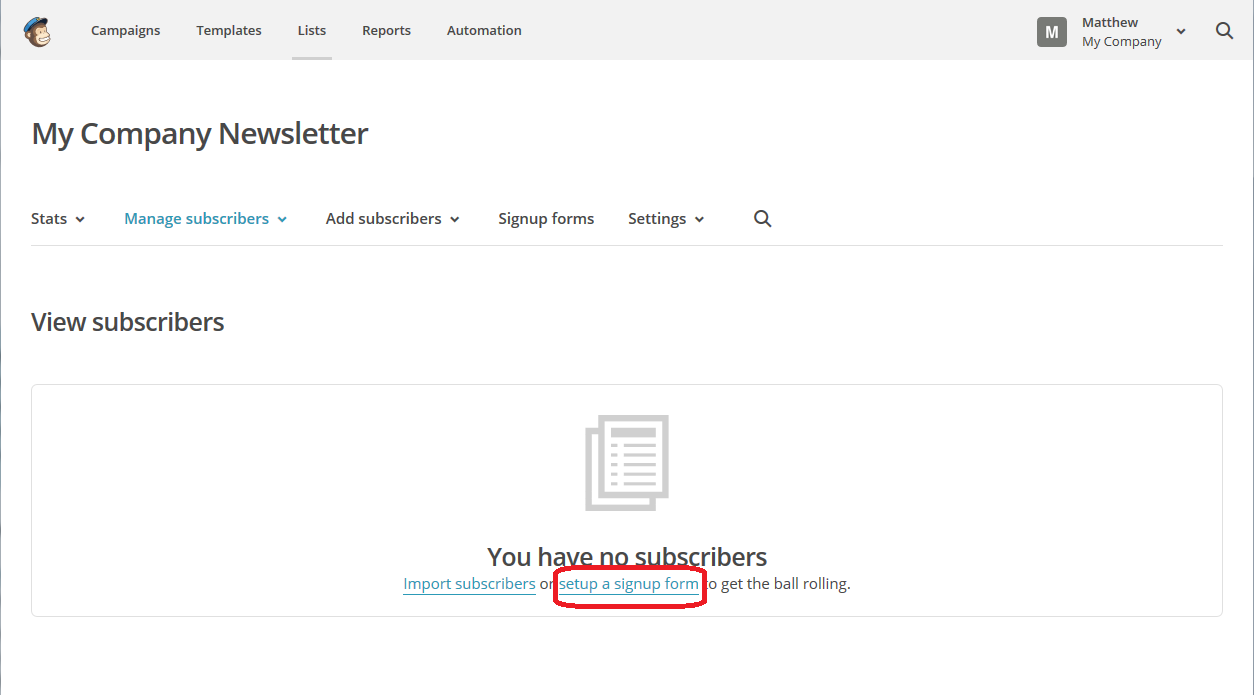
Once there, you have an option to click on setup a signup form (or set up a sign-up form, even), so click there:

MailChimp sign-up form

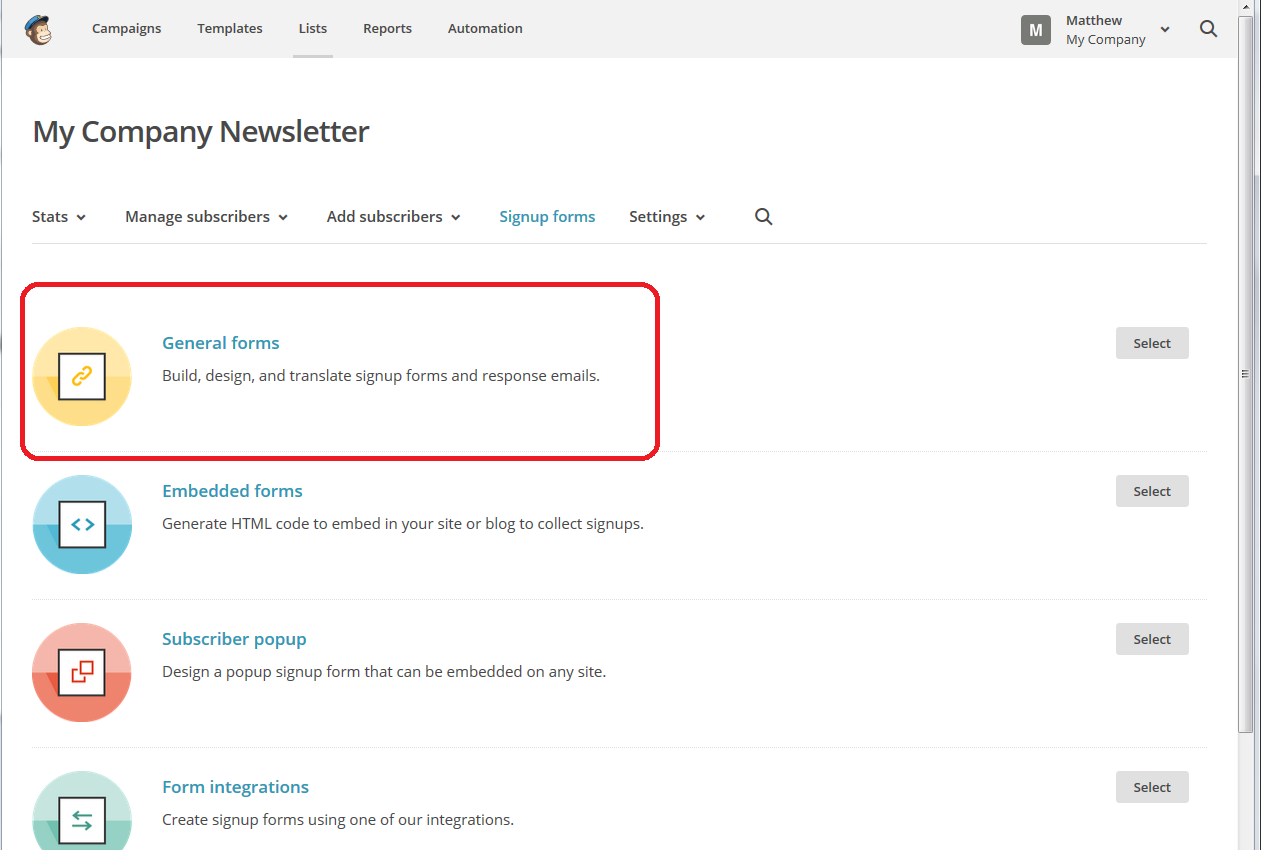
You will now find a few options on forms to create – all of them are designed in the same basic way, but some can be embedded into your website. For now, we’re going to create a General Form which will come complete with its own URL to which you can direct people from social media, your website, etc. (see top right in the top of the sidebar for what that looks like in real life).

MailChimp create sign-up form

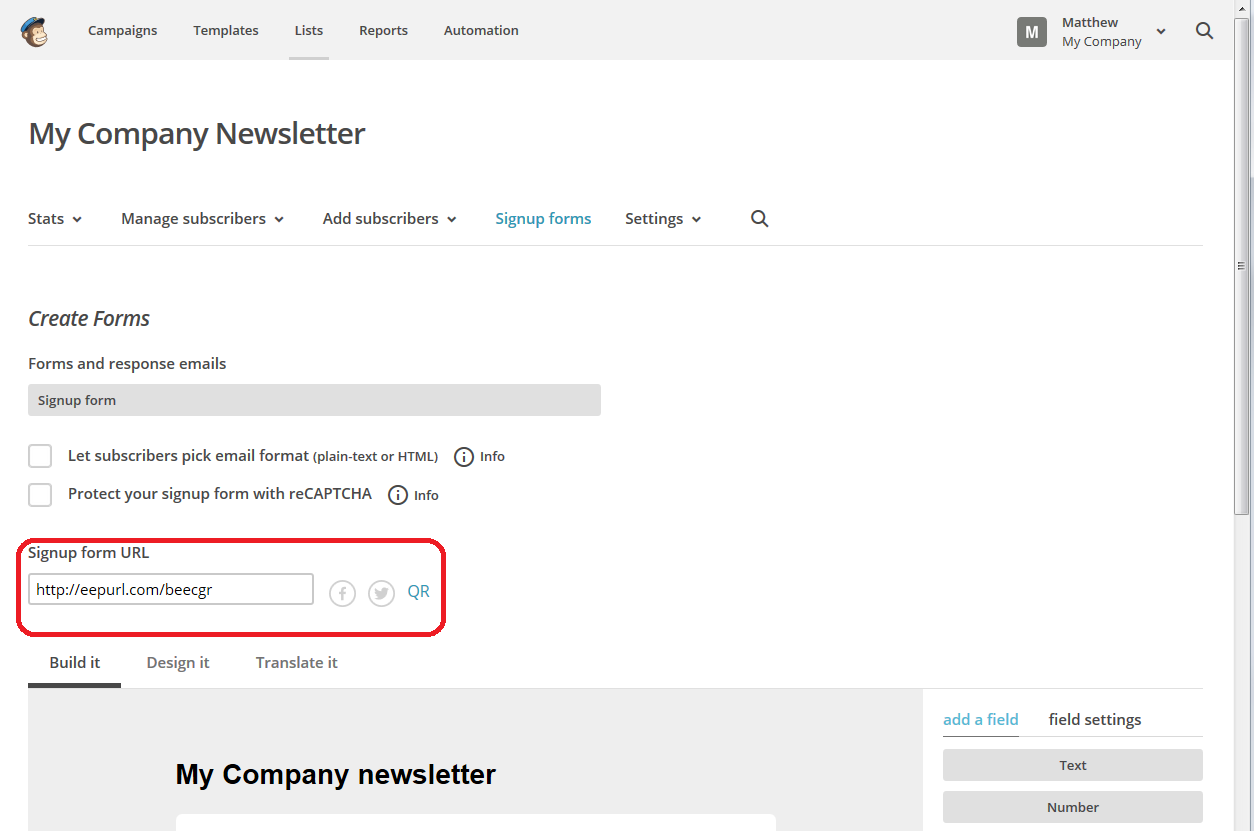
Once you’re in the Create Forms page, you can see at the top that you have a URL or web address. That will never change, and you can use that to direct people to your sign-up form. You can generate a QR code if you want to, by clicking on the button.

You can also see two options at the top: Let subscribers pick email format and Protect your signup form with reCAPCHA – I would recommend ticking both of these.

Let subscribers pick email format will give your subscribers the option to have emails delivered in plain text or HTML format. This means that if they’re using a slow Internet connection or don’t have much bandwidth, your newsletter will be sent to them in a text-only form, without the pretty pictures (this means you’ll need to make sure to add description and alt-text to any pictures in your newsletter), and just gives them more options.

Protect your signup form with reCAPTCHA means that subscribers will have to manually click and tick a box to prove that they’re a real person. It protects you from automated signing up bots filling in your form and giving you false subscriber numbers. It’s all very accessible and offers alternatives, so I’d go for it. It shows people signing up that you’re serious and are protecting your list, too.

MailChimp sign-up form

Once you’ve filled in those details, you can go on to creating your sign-up form: let’s scroll down to have a look:

MailChiimp basic sign-up form

Now, in fact, you can just go with this form, as a very basic example. The subscriber will be able to enter their email address, first and last name and click to Subscribe to list. Simple. So you can actually leave it there.

But you might want to add more flourishes, text and options to your sign-up form – if you do, read on; if you don’t, then skip to the “What does my form look like in real life?” section near to the end.

How can I add more fields and text to my MailChimp sign-up form?

We’ve created a basic sign-up form but you might want more.

For a start, see that space where you can Click to add a message at the top? Here you can personalise the form and be a bit more friendly. Once you click in the text box, a text editor will come up – you can add all sorts of things in here, including links, images, etc. (this is the same text editor you will use when you’re creating your actual newsletter).

I’ve just typed some straightforward text in here – once you’ve added what you want, hit the Save & Close button

MailChimp add text to sign-up form

You will be returned to your Build It area, and you can see that the text has now appeared in that top section.

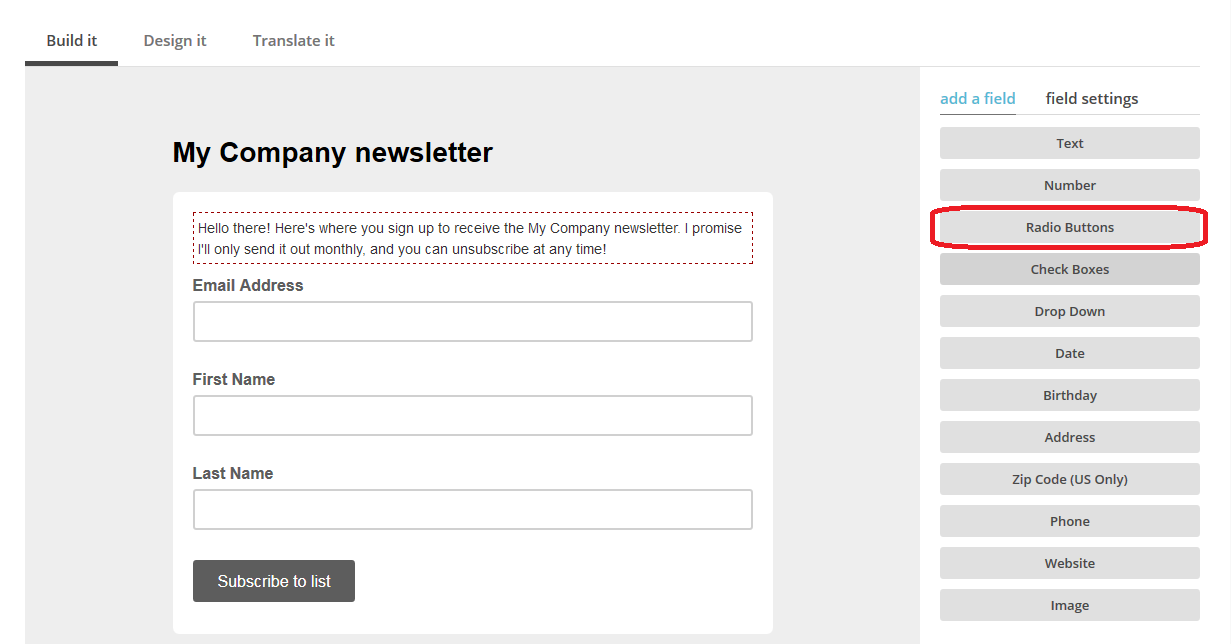
To add more options, such as collecting birthday dates (great if you’re a restaurant and want to collect that info to send out a special birthday meal offer) or full address if people are also signing up to have an item sent to them. Here we’re going to look at Radio Buttons, which gives you the option to give your subscribers choices about things …

MailChimp add text to sign-up form

What things do you want your subscribers to choose, you may ask. Well, although we’re not going to go into the ins and outs of getting people to sign up for your newsletter right here and now, it is common to offer subscribers a little freebie in return for their joining your newsletter (which is really a favour to you). For example, I offer subscribers a free pdf of a sample chapter from one of my books (as you’ll see in the final screenshot in this article).

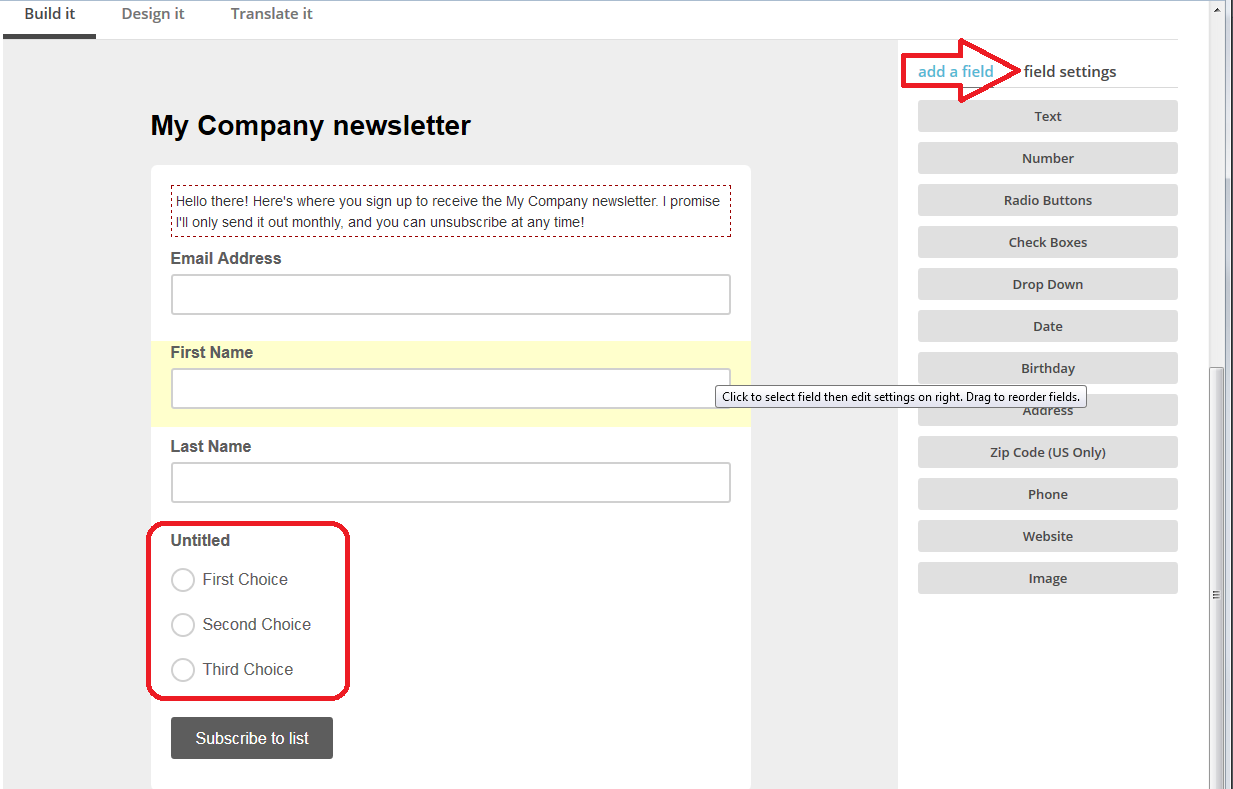
So, click on Radio Buttons and drag it across to between Last Name and Subscribe to List. There is is, in your sign-up form.

Now click on the field settings tab to personalise those choices:

MailChimp sign up form add fields

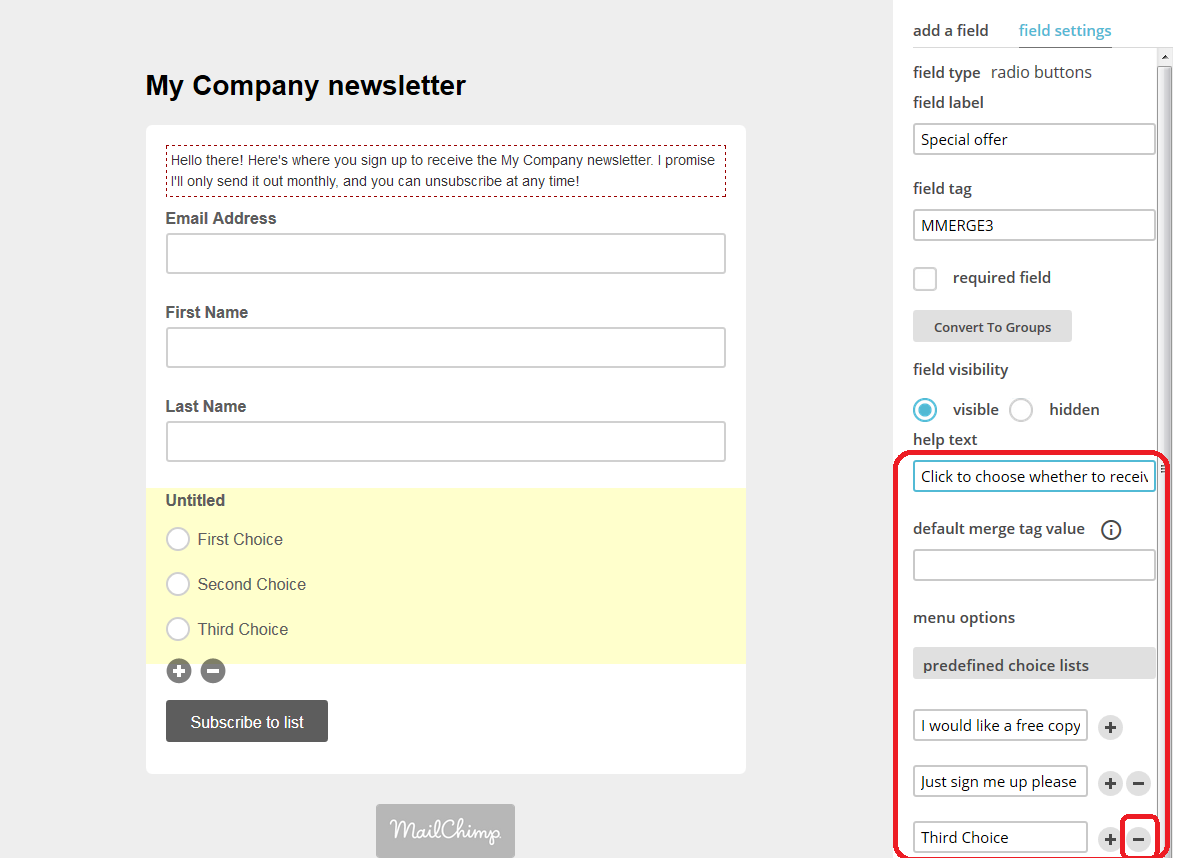
As you can see below, field settings allows you to give the radio buttons a name and to add text to those buttons, add and remove them, and generally personalise everything. Here I’ve  …

  • added help text to appear when the subscriber hovers over the buttons
  • added two choices as to whether they want to receive something
  • clicked on the minus button by the third choice, because I only want to offer two

MailChimp add fields to sign-up form

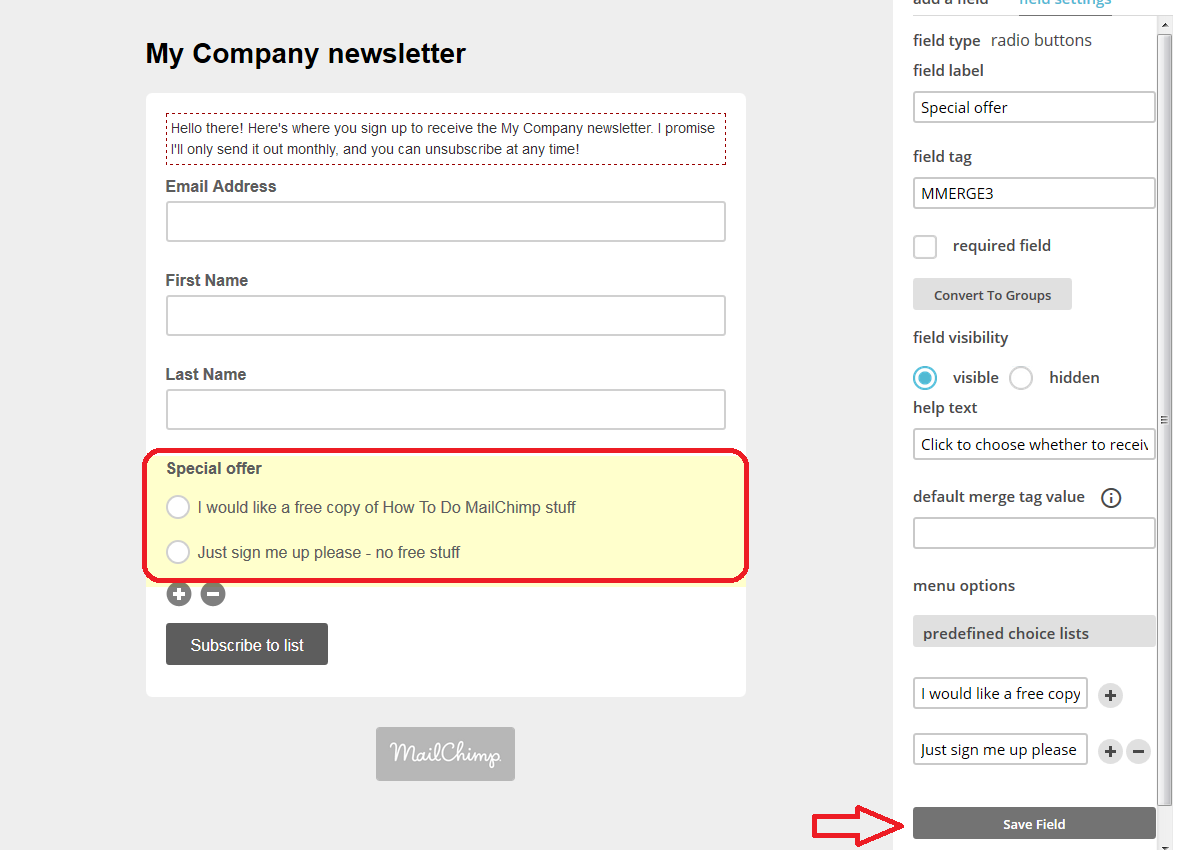
As you do this and press Save Field, there you can see just two choices, each with my text by it.

MailChimp add fields to sign-up form

You can see plus and minus buttons under this area – this allows you to delete it if you decide not to have it (note, when you press the minus, MailChimp demands that you type the word DELETE in a box – make sure you do that or you’ll get stuck in a loop of endless error messages. It’s trying to help you not to delete your careful design by mistake …).

And there we have it – it’s fine to play around a bit with the form, you can see how to drag different fields across and then delete them if you want to, so have a play around with it.

How do I get back to my MailChimp sign-up form to check the URL or edit it?

If you want to return to your sign-up form, choose Lists from the top menu, then click the drop-down arrow next to Stats and click on Signup forms:

MailChimp edit sign-up form

Once there, you can check your URL and amend your form if you want to.

What does my MailChimp sign-up form look like in real life?

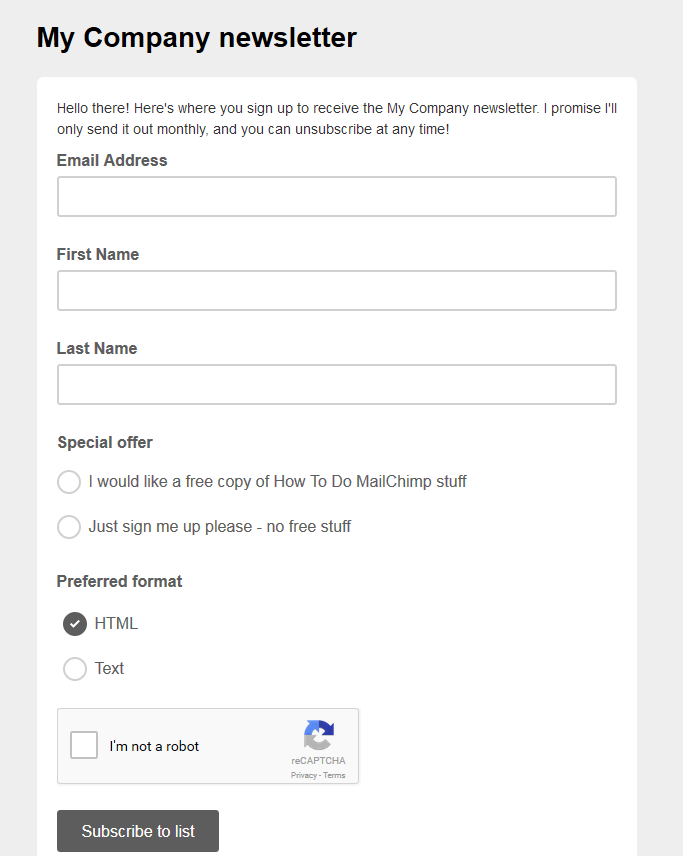
You’ve created your form – what does it look like to a new subscriber? Remember that URL at the top of the page? You can find that at any time by going to the signup forms page (see above section). Pop the URL in your browser address bar and you can see what your subscribers will see:

MailChimp sign-up form subscriber view

You can see the message we added and the options for receiving a free copy of something, receiving the newsletter in Text format, and a reCAPTCHA section which asks for a tick in a box, and a Subscribe to list button.

And what happens when you get a new subscriber?

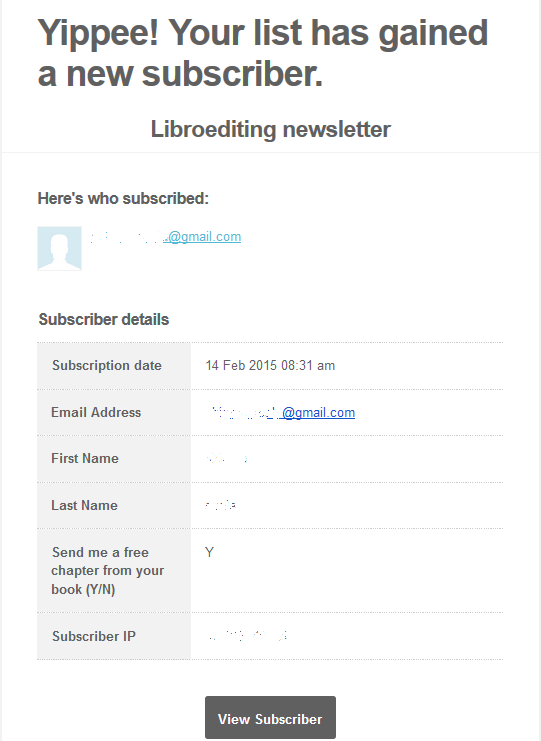
You will receive an email in your inbox which includes all of the information you asked for – this is one of my own, so the question is a little different, but you get the idea. Now I can email that person their sample chapter and they will receive my email newsletter until they unsubscribe.

MailChimp new subscriber email

If you’re not sure how to publicise your sign-up form, read this article!

In this article, we’ve learned how to access the Lists part of MailChimp and set up a sign-up form. The other MailChimp articles will be listed below as I add them to the blog. You can find a growing set of articles on blogging, social media MailChimp etc. in my resource guide. Do click on the share buttons below or comment if you found this article interesting or useful!

Other relevant posts on this blog:

MailChimp 1 – Signing up

MailChimp 2 – Setting up your list and importing contacts

MailChimp 4 – setting up your newsletter template

MailChimp 5 – Linking to your sign-up form

How to avoid two common mistakes when using MailChimp

 
6 Comments

Posted by on February 19, 2015 in Business, Marketing, New skills, Newsletters


Tags: , , ,

MailChimp 2 – setting up your list and importing contacts
Welcome to Lesson 2 in my MailChimp series. Following on from MailChimp 1 – Signing up, this time we’re going to learn how to set up the list of people to send your newsletter to.
There are two ways to populate your list:

1. Import members from a previous mailing list (making sure that you have their explicit approval and permission to send out marketing materials to them)

2. Offer people a sign-up form via which they can choose to sign up for your newsletter.

I prefer Option 2, but I’m going to go through option 1 with you in this article then write about setting up a sign-up form next time (if you’re reading this day by day, you will only have to wait two days, don’t worry!).

Why do I need to create a list in my MailChimp account?

Put simply, you need to give MailChimp a list of people to send your newsletters to. It’s as simple as that, and is the second stage in signing up for an account.
Don’t worry if you don’t have an email list to import – you can start off with an empty “list” and a sign-up form that will fill it for you.

How do I create my MailChimp contacts list?
When you sign in to MailChimp, you will find Create a List on your front screen, but at any time, you can click on Lists at the top to get into the Lists area:

MailChimp lists area
Once you’re in the Lists area, if you have any lists set up, they will show here, and if you are going in to do this for the first time, you will see that You have no Lists, and be handily pointed to the Create List button:

MailChimp create list
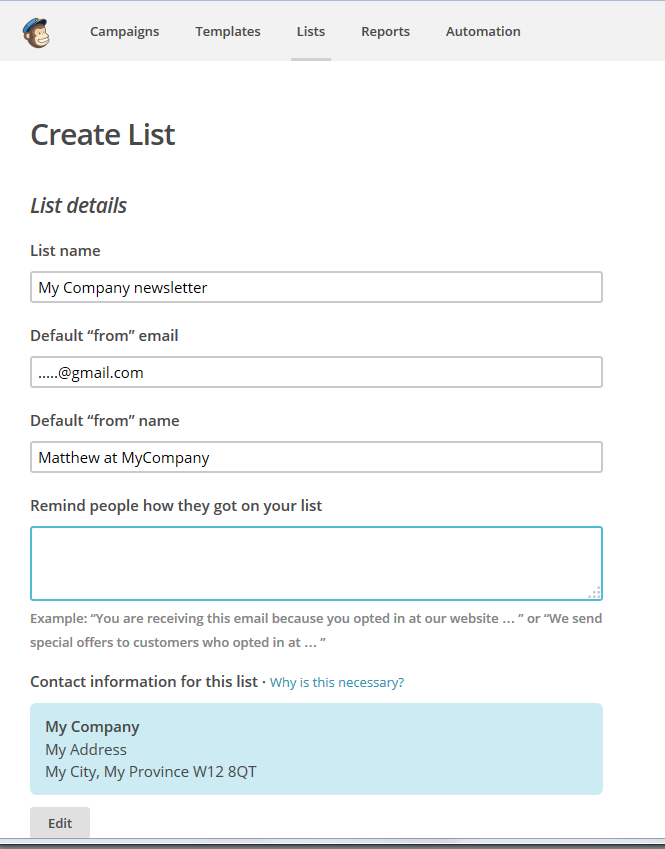
Once you’ve pressed Create List, you will find yourself in a screen that allows you to create a list. Note here that you can create more than one list, for example, maybe one for customer newsletters and one for general or prospect ones, or I might create one for my social media tips readers and one about my books. For now, we’ll just create one called “My Company Newsletter”.

You can fill in the list title and your email address to show in the “from” section of your readers’ email clients, and you will want to pop a name in to show who it comes from – I always advise using a real, human name, not just a company name.

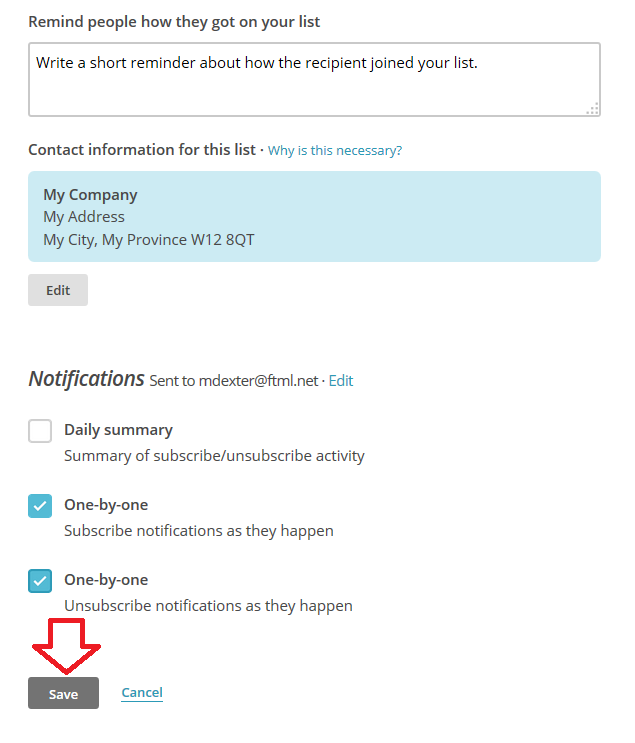
Remind people how they got on your list gives you a place in which to reassure people that they have signed up for this newsletter and they are not being spammed (you’ll see that I’ve filled this in on the final screenshot – it won’t let you proceed if you don’t).

MailChimp list details
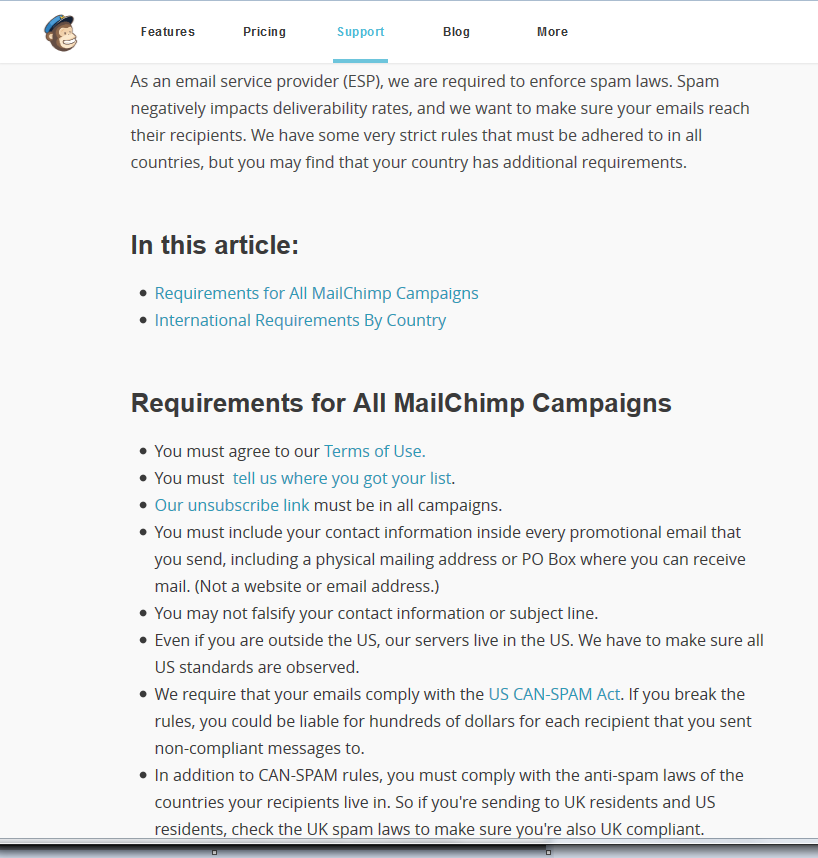
Then we reach the Contact information area. MailChimp is gratifyingly careful to stop you spamming, and this is an important area. If you click on Why is this necessary, you will see this explanatory screen all about spam laws:
4 why they need address

Note here that I haven’t put in a home address, because this is an example, but you should include your full business address here. A disclaimer for anyone who’s on my own list – I haven’t got my exact, pinpointed address on here, because I work from home. But if you’re running a business with a business address, you should include your full address. MailChimp pulls this information from your sign-up information, so you can see there’s an Edit button to allow you to change this if you need to.

Scrolling down to the bottom of the screen. We have an opportunity here to choose how we see our sign-up notifications. I’ve ticked one-by-one because I want to be notified of sign-ups and unsubscribes as they happen, but as your list gets busier and more active, and especially if you don’t have an action you need to perform when someone signs up, you might want to go onto a daily summary.

MailChimp list details

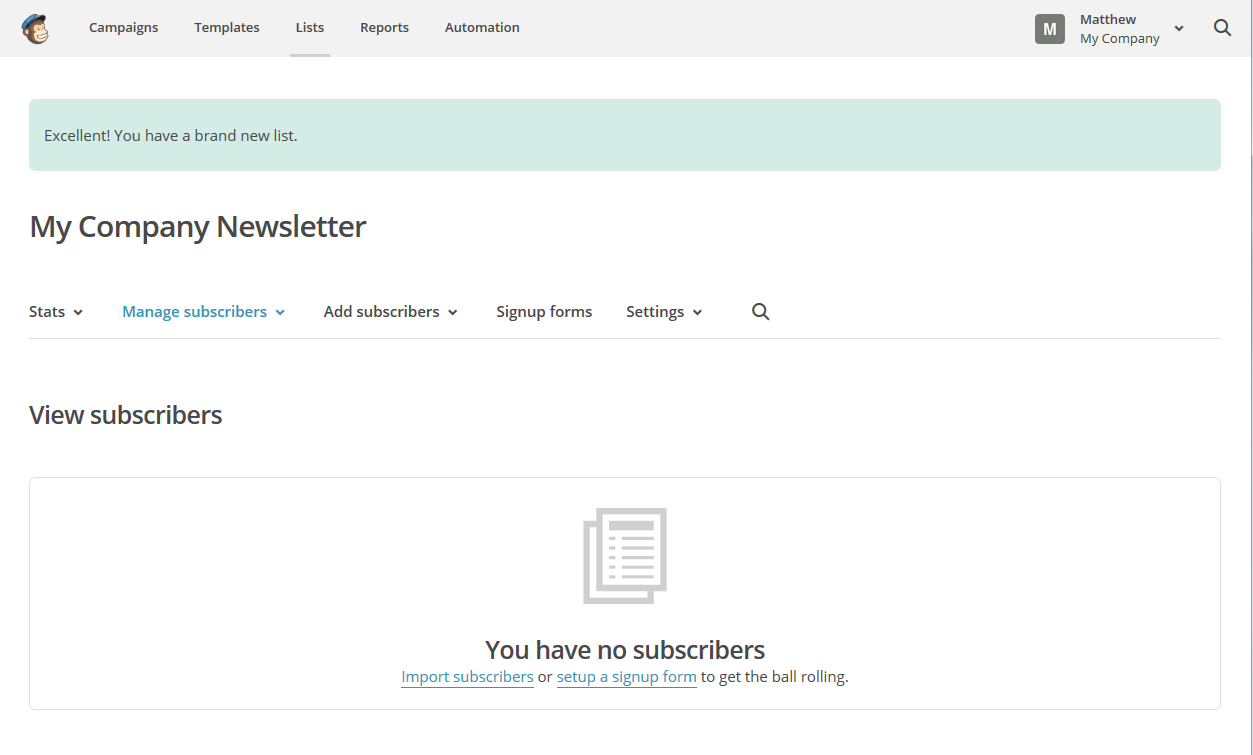
Time to press the Save button – and now you’re returned to the List screen for your list “My Company Newsletter”, which now usefully tells you that you have no subscribers:

MailChimp list subscribers

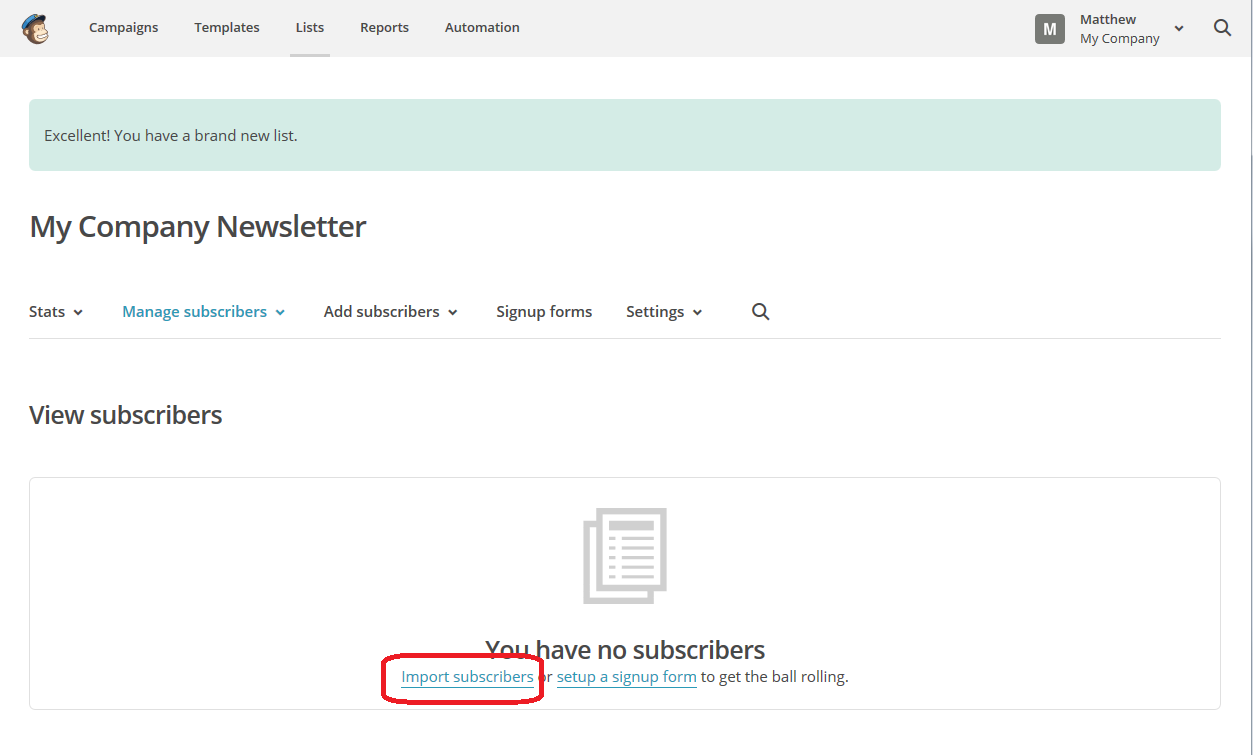
You can see that under the You have no subscribers message there are two links to click: import subscribers or setup a signup form (or as I prefer to say it, set up a sign-up form). We’re going to learn how to import subscribers now, so we’ll click on that link:

MailChimp import subscribers

The Import Subscribers function allows you to import from a huge range of sources, including all sorts of programs that exist to capture subscriber lists. You can create a list in Excel or export a sub-section of your email list into a .csv or .txt file, or just connect to your email program.

I’m not going to go into detail on all of those options here, that’s something that’s separate from MailChimp (Google or YouTube is your friend if you want to know how to do these things) and I’m really advising newbies to create a sign-up form here. We’ll take a quick look at what happens when you import your email contacts, then next time we’ll do it the sign-up form way.

Here, I’m going to choose Import from Google Contacts:

MailChimp import subscribers

Note here the message from MailChimp – people who you add in this way are not going to receive confirmation emails that you’ve signed them up for your newsletter. When you use a sign-up form, they will receive a confirmation and an extra step to confirm they want to receive the newsletter, which is another reason I prefer that method.

MailChimp also warns you that you must already have permission from all people on your email list to send them newsletters. Do you have their explicit permission? If not, it’s best not to use this method.

9 import subscribers

You can see from the above screenshot that clicking on Authorize Connection will take you through to the service in question, in this case your Gmail, and will ask you to log in in order to populate the list. This will also happen if you click on any of the other buttons with service names on them (if you click on excel or .csv, it will just ask you to go and find the file). I didn’t go through with this because I didn’t want to import people who hadn’t given permission into MailChimp, but it will walk you through the steps to import the contacts and end up with a list.

What you really want to do is create a sign-up form, right? If you’re reading this when it’s published, you’ll need to wait two days for that (if you’re a new visitor, do add this blog to your RSS reader or click for email subscriptions). If you’re reading this after 19 February, you’ll be able to click here to find out how to create a sign-up form.

So, in this article, we’ve learned how to access the Lists part of MailChimp and how to import contacts. The other MailChimp articles will be listed below as I add them to the blog. You can find a growing set of articles on blogging, social media MailChimp etc. in my resource guide. Do click on the share buttons below or comment if you found this article interesting or useful!

Other relevant posts on this blog:

MailChimp 1 – Signing up

MailChimp 3 – setting up a sign-up form

MailChimp 4 – setting up your newsletter template

How to avoid two common MailChimp errors

 
13 Comments

Posted by on February 17, 2015 in Business, Marketing, New skills, Newsletters


Tags: , , ,

MailChimp 1 – Signing up for MailChimp

Welcome to the first in a series of walk-throughs that will show you how to set up a MailChimp account, set up templates and lists, and send out a MailChimp newsletter. You can start to set up your subscriber list in MailChimp 2 and create a sign-up form in MailChimp 3

What is MailChimp?

MailChimp is a web-based service which allows you to send out newsletters to a list of people who have signed up to receive them. There are other services out there, but MailChimp is very popular, often recommended to newbies and is free as long as you have under 2,000 subscribers and send out fewer than 12,000 emails per month. You can upgrade in order to get extra features and also if your list goes over the 2,000 mark. Please note right here and now that I’m not being sponsored by MailChimp for doing these posts – I’ve been asked to do them by people I’ve been working with at social media training sessions, and I happen to use MailChimp myself so can give you all some training resources. Other similar services include iContact, Constant Contact and Aweber and you might want to check these out before committing to MailChimp.

Why use a special program? Why not just send out emails?

That’s a good point: if you have a load of emails to send out, why not, you know, just email them? Here are a few reasons:

  • It’s really, really easy to cc instead of bcc when you send out a mass email. CC is the one where everyone can see the email address of everyone the email’s been sent to. People get really annoyed when that happens.
  • Internet service providers can get really suspicious if you’re sending out regular emails to hundreds of people – or if one of their clients receives such emails. Your newsletter is likely to bounce into a spam folder and your own ISP might block you from sending them.
  • There are rules on spamming and using people’s email addresses to market to them without permission. The key is to allow people to opt in rather than assume they are to opt out. Services like MailChimp look after this, making sure people opt in to your mailings properly and that your details are on your emails. So you can be reassured that you’re not doing anything inappropriate.
  • It’s really easy to design nice newsletters, include photos and all sorts when using a service like MailChimp.

How do I sign up to MailChimp?

In this post, we’re going to walk through exactly how to sign up to MailChimp. In future posts, we’ll look at more detail of templates, getting people onto your list, etc. But here are the stages of signing up:

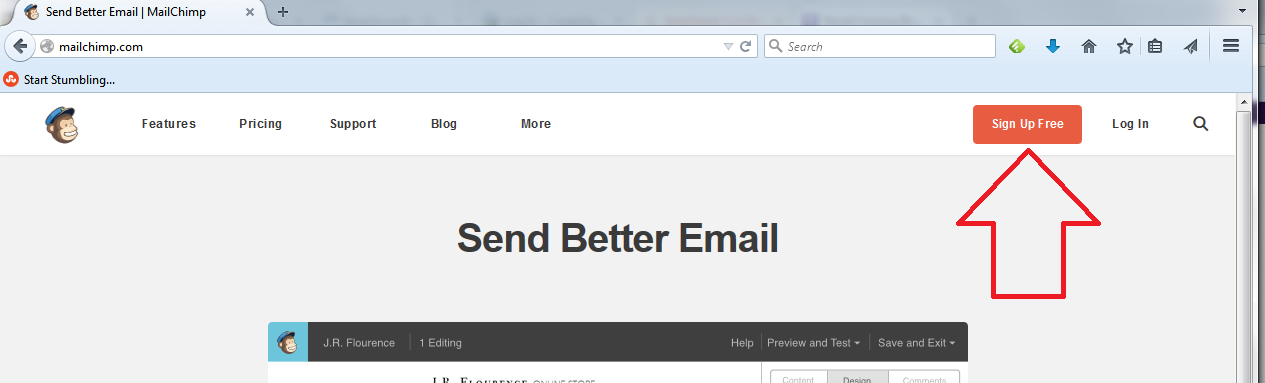
First of all, go to www.mailchimp.com, where you will find a button marked Sign Up. Hit that button:

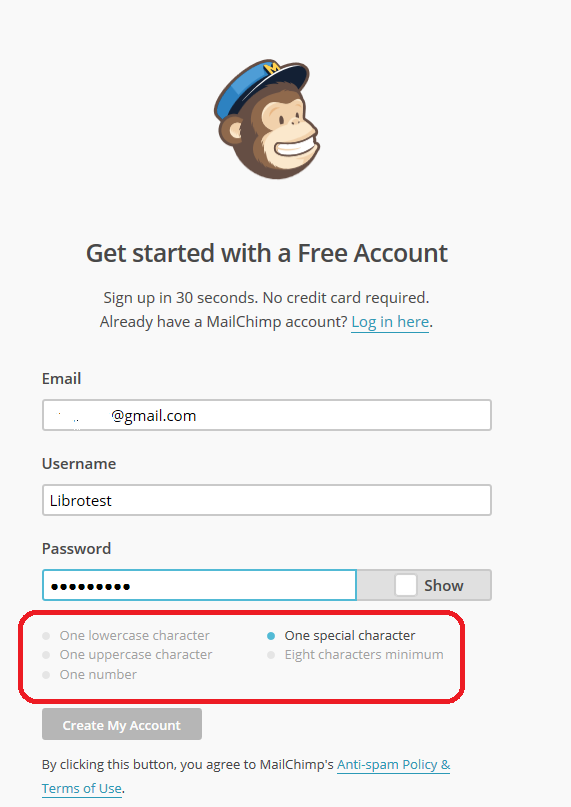
mailchimp signupThis will take you to a screen where you can sign up for your first, free account. At this point, you need to enter your email address and create a username and password:

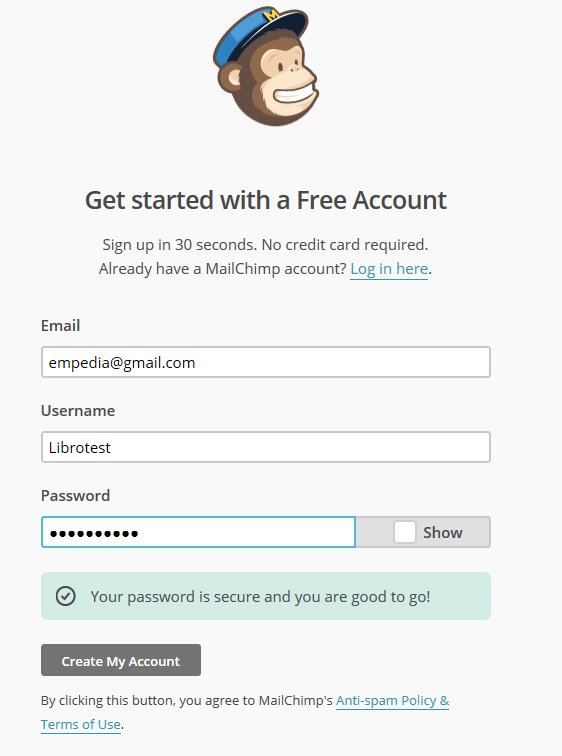
mailchimp sign up username and passwordNote, because it’s not that clear, that your password must tick all the boxes below the password entry area. Here I’ve missed out on “one special character”, so I had to add an exclamation mark to my password:

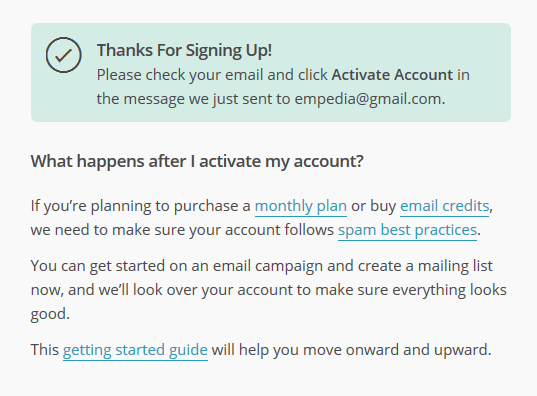
mailchimp passwordAt this point, the Create my Account button stops being greyed out and you can press the button. Now you’ll be asked to validate your account …

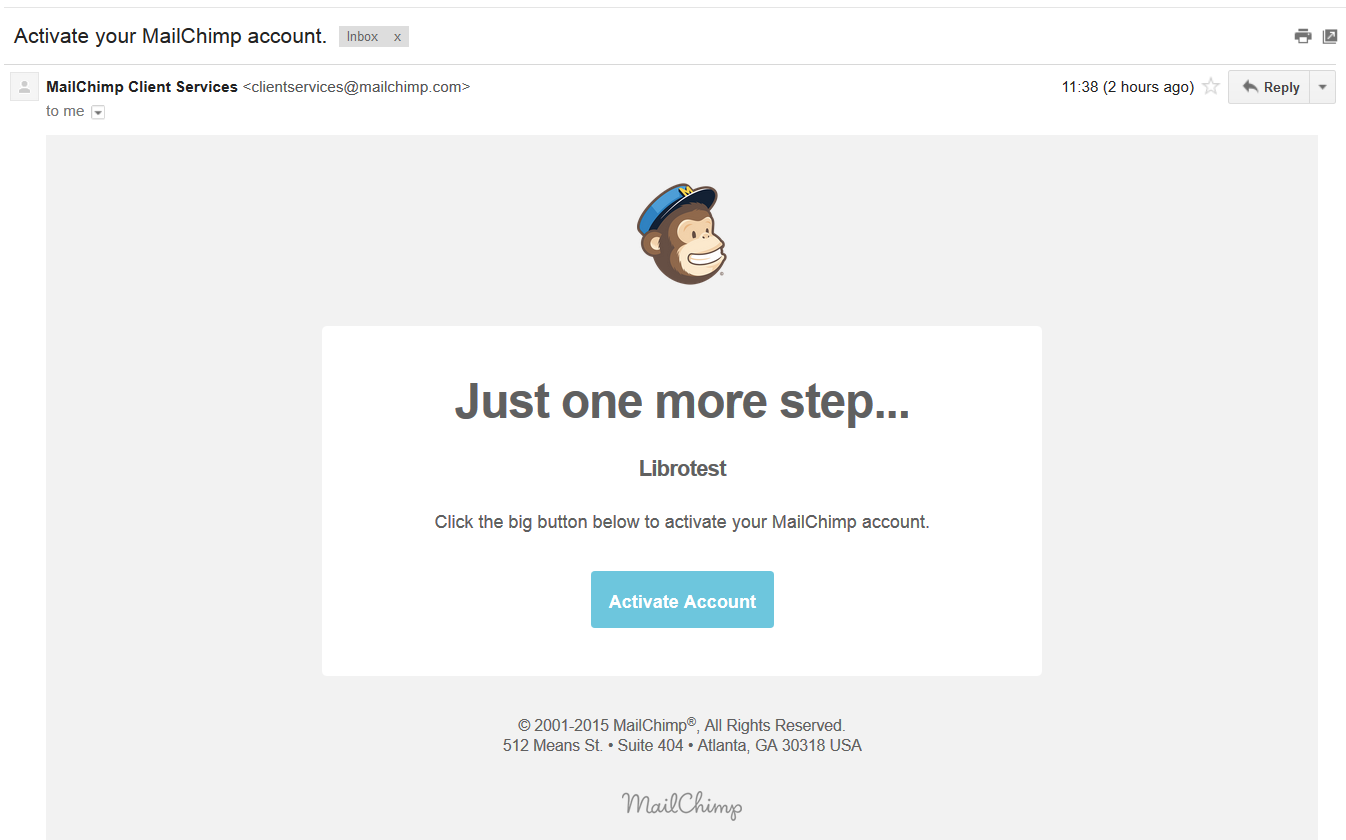
mailchimp validateAt this point, you need to pop over to the email account that you gave in the sign-up step. The email from MailChimp will obviously be from them and will have a subject line that talks about validating your account. When you open the email, it will look like this:

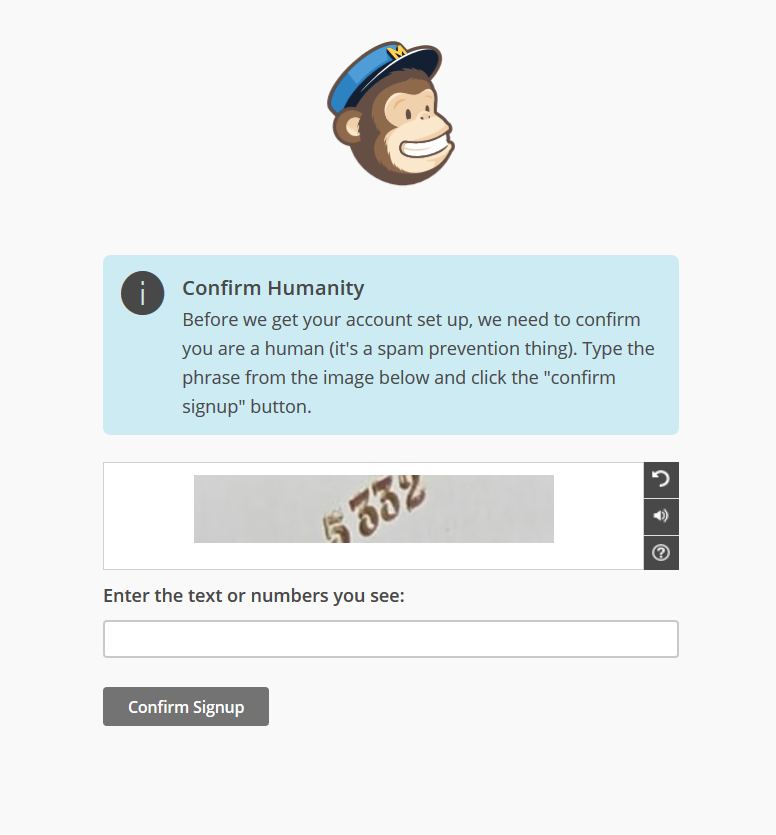
mailchimp validation emailClick on the button and you’ll go through an initial validation stage …

Mailchimp validationPop the number in, press the Confirm signup button, and you’ll then have a form to fill in.

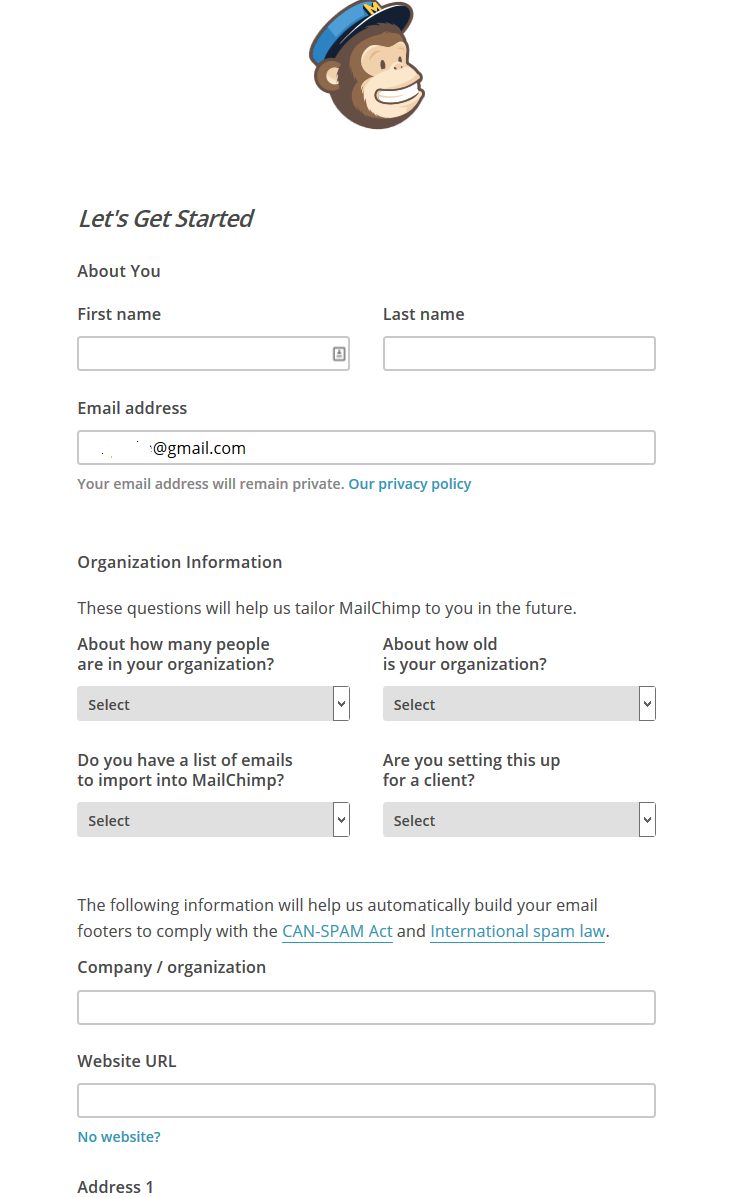
7 enter details 1

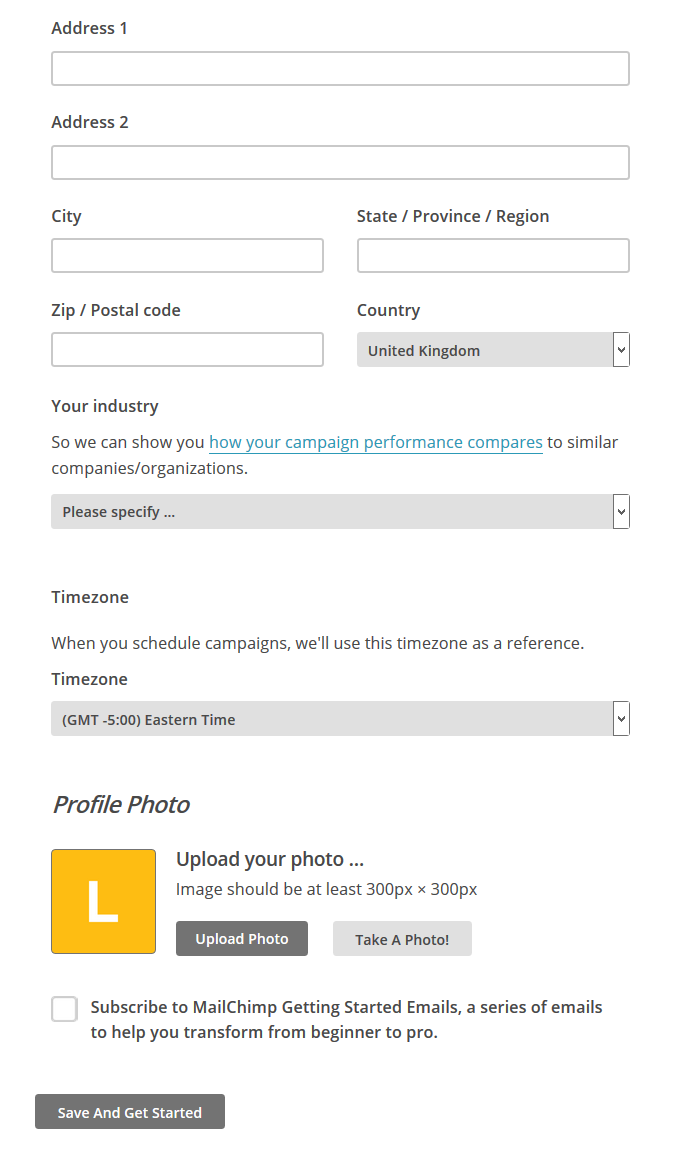
Mailchimp enter detailsFill in as much of this form as you can. The address details are so that MailChimp can include them at the bottom of your newsletters. This is good practice and it’s a legal requirement in many countries to include this information on emails. However, if you run your business from a private address, as I do, I think it’s fine to smooth over the details a little and, for example, not include your house number. I am not a lawyer, though, and you might wish to check the legal requirements in your country.

You can add a profile photo at this point, if you wish.

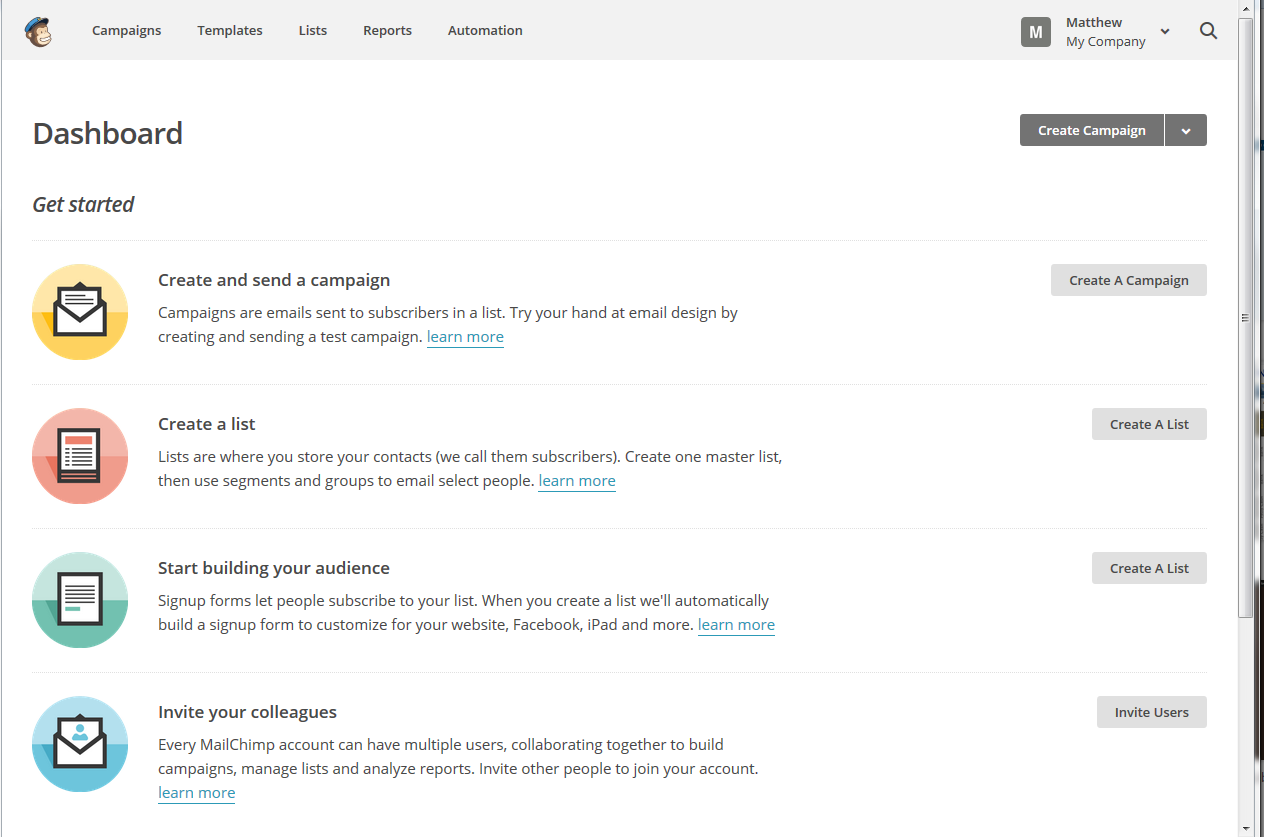
Once you press the Save and Get Started button, you will find yourself in the main MailChimp screen, from which you can create templates, an email list or a campaign (i.e. an actual newsletter). This is also the screen you will encounter when you go to the website and log in rather than signing up.

Mailchimp logged inSo here you are, all signed up and ready to go.

Coming soon – articles on creating a newsletter template, adding sign-up forms, and sending out your campaign …

You can find a growing set of articles on blogging, social media MailChimp etc. in my resource guide. Do click on the share buttons below or comment if you found this article interesting or useful!

Other relevant posts on this blog:

MailChimp 2 – setting up a subscriber list and importing contacts

MailChimp 3 – setting up a sign-up form

MailChimp 4 – setting up your newsletter template

How to avoid two common MailChimp errors

 
20 Comments

Posted by on February 11, 2015 in Business, Social media


Tags: , ,

Is this editor weird? or, It’s all about the books (am I allowed to use that phrase?)

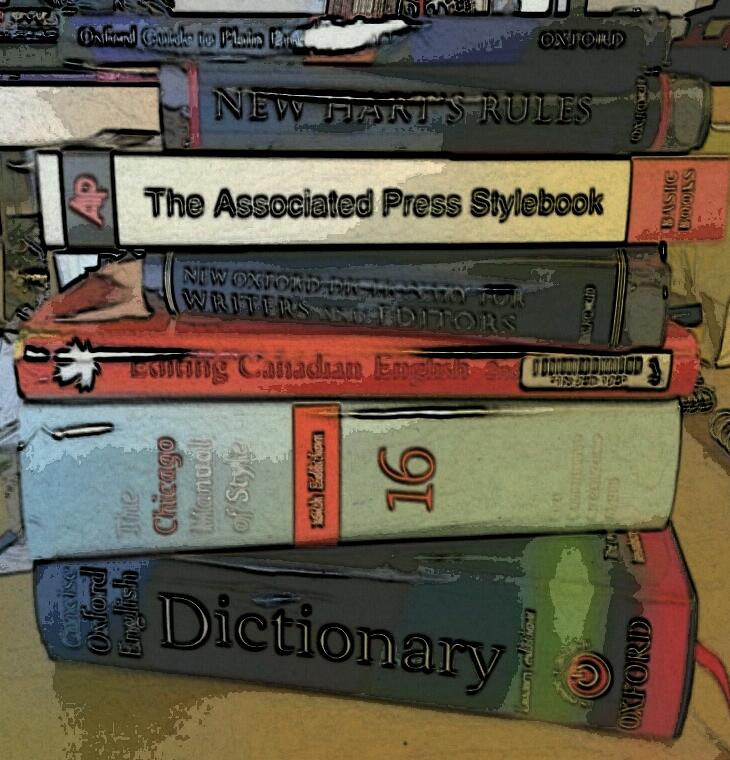
Pile of style guides and dictionariesIt’s my birthday today, and I’m anxiously listening for the doorbell. I’m expecting a delivery … of a style book for an editing style I don’t use very often, but is the style being used for a large project I’m working on. I know that there are online dictionaries and guides to editing styles (although in fact the one for this particular guide is a bit tricky to access), but I just prefer to work with a printed work.

Is this editor weird for doing that, though?

I’ve talked about using paper for keeping records before now, over on my more personal blog (which started off as a record of going full time and is now more of a book review blog). I do my tax returns online, and I keep financial records on spreadsheets and using my accountant’s online software, but I like to note down the work I do for my clients in a book. I star and filter emails that have jobs to do in my email inbox, and have a Gantt Chart to help me work out my deadlines and priorities, but I write a list of jobs and a daily to-do list in a physical book, using a fountain pen.

So, I obviously like printed and paper materials and records.

I have a nice wide-screen monitor on my PC, on which I can fit two A4 pages comfortably. But, I like one of those to be the job I’m working on, and one to be my own style sheet (because even if you’re using a set style, there are always details you need to keep noted down to send to the client with the job or to go to anyone working on the document after you). So it suits me to have a book on my side desk, ready for consultation.

I make sure that I keep my editions up to date, which is pretty easy to do when you swim in a sea of lovely editorial colleagues, and I buy the new ones when they come out. If there’s something not in the editions, I might do an online search (or ask my colleagues), I certainly check Google for which use of a word is more common / Wikipedia (for the basics and links), Library of Congress and other sources for facts, etc., and when I’m doing other jobs such as transcribing or even localising, I look up online as I go along – but when I’m doing straight editing or proofreading, I like to use my books.

The funny thing is, I edit almost exclusively online. I’ve done thousands of jobs, and only two of them have been on paper (and one of those was a pro bono project, and the other was for someone who didn’t want me to use the standard proofing markup!). I wonder if I’d happily use an online source if I did more paper editing … I think not, actually.

Am I weird? Am I behind the times? Or do others of you eagerly await a lovely, shiny new style guide to pop through your door, even if it’s not coinciding with your birthday?


Tags: , , , ,

Why writing a blog post is (a bit) like writing a sermon

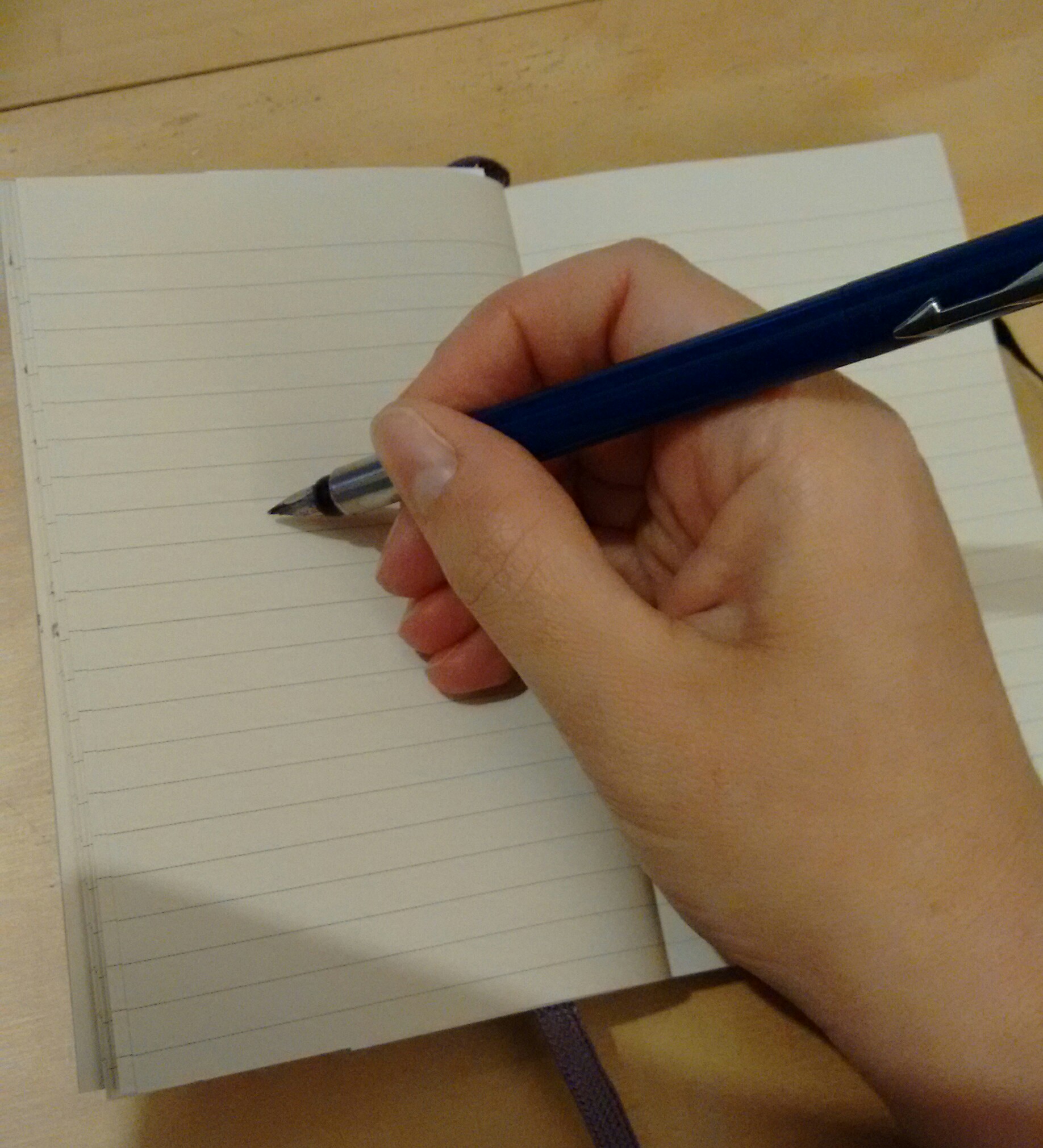
A hand, writing with a fountain penI was reading (yet) another mid-20th-century novel featuring a vicar hard at work over his Sunday sermon (sorry, I haven’t read a book featuring a female vicar, as far as I know. Are there any yet?) and an analogy struck me: writing a blog post is quite a lot like writing a sermon. As both involve constantly seeking fresh ways of looking at things, I thought I’d run with that idea and see where it took me, so here goes…. but please do read the comment at the bottom of the post if you’re at all concerned about this content …

10 reasons why writing a blog post is (a bit) like writing a sermon

If you commit to writing a blog, it’s a good idea to publish at least one post a week. When I was thinking about writing a batch of posts one day, it reminded me of vicars, from Jane Austen onwards, heading to their desk to write their weekly sermon. Here’s why, in particular.

1. You have to produce something new every week. If you said the same thing over and over again, people would soon get bored and drift away.

2. It’s good to base your text on a real-world problem. The best blog posts, in my opinion, are based on something real that’s happened, whether you’ve encountered a tricky problem using Word (that’s how my whole series of Word posts started), are reacting to something in the news or are sharing a story you’ve created.

3. You base your work on truth and you refer to the relevant authorities. A sermon will of course be based around a Bible reference. When I write about a topic, I will often include the real-life experience of others, or links to their work, or screen shots of what’s going on in a program. If I claim to state a fact, I try to provide a reference. If I’m responding to someone else, I include a link.

4. You need to add value and a learning point (or lesson, if we’re being straightforward). It’s all very well to talk about a real-world issue, but you need to draw something from it, a useful lesson, something to make it worthwhile reading the post.

5. You need to leave your audience thinking. They might have enjoyed your latest novel extract, know there’s now a place to get information on comment boxes or have learned more about DIY funerals (as I did myself earlier this week), but if they go away thinking, they’ll remember you next time.

6. You are often talking about things that have been talked about before. There’s not much new in the world, and it’s unlikely that any of us will produce anything totally new, but there are ways to find new ways to talk about things, as I might have done here!

7. You’re trying to help people! You might be entertaining, explaining, sharing a book, giving information on a technical matter, sharing your own experience of something, but I think most successful bloggers are in it to help people as well as pour out their souls or publicise their business.

8. You want people to come back. No one wants to drive readers (or worshippers) away, so you’re intending to encourage them to visit again, by providing well-crafted content that they want or need.

9. You are often trying to inspire people to take action in some way. Whether you’re encouraging people to try a new craft, read a new book or venture into running their own business, or trying to change their mind on a contentious topic, many blog posts aim to inspire.

10. Your best work is probably produced after pondering for a while rather than dashing it off in a blind panic at the last minute (as my old friend Paulette says, “more like a birth than a rupture!”). This is certainly true of many of mine, although the actual writing up may come a little close to the wire sometimes.

Do you agree? Can you add any other analogies? Do vicars have a day of writing sermons to get ahead of themselves? (seriously, I’d love to know!)

Thanks and disclaimer:

I checked this idea with a group of people who are more religious than me / regularly attend worship / are vicars / are related to or married to vicars and other people of the cloth (thank you to all of them, and particularly Paulette Stubbings for a valuable suggestion). They all thought it was a fun  /interesting / good idea. It’s not my intention to offend anyone, and if I do, please let me know, and why, and I’ll take that into consideration. I’m certainly not undermining the work of religious leaders or claiming that bloggers are the new priests or anything silly like that. Edited to add: I also understand that I am not empowered by any higher spirit or authority of any kind when writing, but I do have a serious intent in sharing information and helping people: not all blogs do that, but I’m primarily talking about myself and similar informational bloggers here.

To read more about blogging, visit the resource page

 
8 Comments

Posted by on December 17, 2014 in Blogging, Writing


Tags: , ,

How do I display my horizontal scroll bar in Word?

I was innocently using Word one day when I discovered that my horizontal scroll bar had disappeared. This was annoying, because I had a document open at the time at the side of another document, and wanted to navigate around it. Where had my scroll bar gone? This is how I got it back …

How do I display my horizontal scroll bar?

You do this in Word Options.

In Word 2007, click the Home button at the top left, and choose Word Options from the box that opens:

Accessing Word Options Word 2007

In Word 2010 and 2013 click on File at the top left and then Options

Accessing Word Options Word 2010 and 2013


Once you are in Word Options, go to Advanced options, then Display:

Word Options - advanced - display

Make sure that you tick Show horizontal scroll bar, and there you are:

horizontal scroll bar is displayed

Please note, these hints work with versions of Microsoft Word currently in use – Word 2007, Word 2010 and Word 2013 all for PC. Mac compatible versions of Word should have similar options. Always save a copy of your document before manipulating it. I bear no responsibility for any pickles you might get yourself into!

This is part of my series on how to avoid time-consuming “short cuts” and use Word in the right way to maximise your time and improve the look of your documents. Find all the short cuts here

Related posts on this blog:

How do I display the rulers in Word?

How do I hide the taskbars in Word?

 
16 Comments

Posted by on December 3, 2014 in proofreading, Short cuts, Word


Tags: , , , , , ,

How do I tell Word not to spell-check certain paragraphs?

This topic came up after someone commented on one of my other Word-related posts: he had a document that included programming code and he wanted to exclude that from the spell check because a) it wasted time and b) when displaying spelling errors, the red wiggly lines distracted him. He had used an easy method to exclude these in Word 2003 (highlight, click spell check, tick “do not check spelling and grammar”) but had got stuck with Word 2010.

This article will tell you …

  • How to exclude text in your document from being spell checked
  • How to only spell check a particular section of your document

How do I tell Spell Check not to check particular paragraphs in Word 2003?

So, in Word 2003, Spell Check is on the toolbar and you can highlight the text you don’t want to check, click spell check and tick “do not check spelling and grammar”. it’s actually very similar in Word 2007, 2010 and 2013 – here’s my hint for the easiest and quickest way to do this.

How do I tell Spell Check not to check particular paragraphs in Word 2007, 2010 and 2013?

First of all, highlight the paragraph (or paragraphs, holding down the control key) that you want to exclude from Spell Check.

Then you have two ways of telling Word not to spell check these sections:

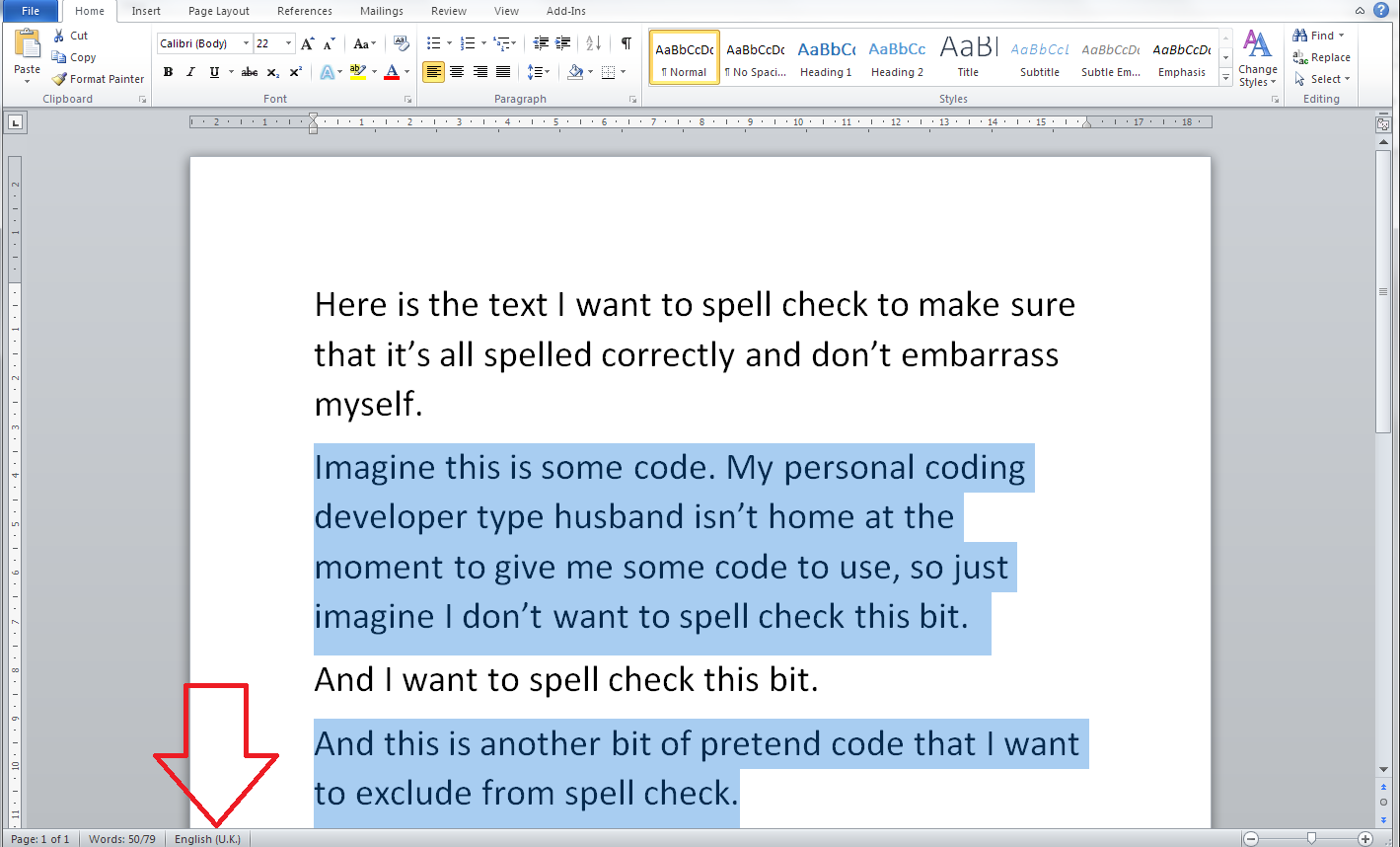
1. The quick way: click on the language at the bottom of your screen:

Select text to exclude from spell check

If the editing language is not showing at the bottom of the screen, left-click on the bottom tool bar and choose to display language. If that doesn’t work, see this post).

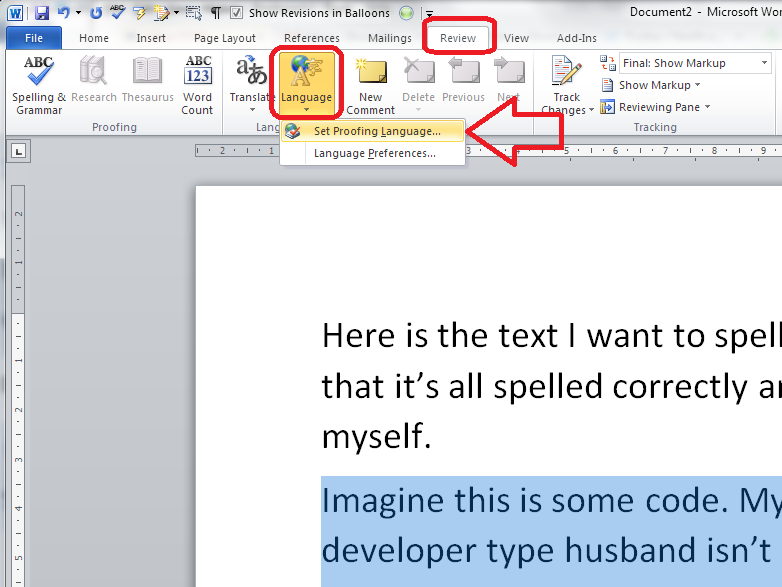
2. The official way: on the Review tab, select Language and then Set Proofing Language (note: don’t click on Spelling and Grammar, as that will spell check the highlighted text, exactly opposite to what you want to happen):

Word language setting

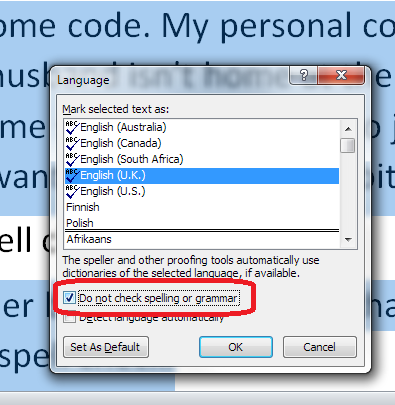
Both of these options will display the Language Selection dialogue box:

Language selection dialogue box

Once you have the language choices displaying, tick your language and tick “Do not check grammar and spelling“. That should mark all of the text you highlighted such that the spell checker avoids it. I hope that works for you and takes less than 5 minutes – do let me know!

How do I just spell check one paragraph or section of my document in Word?

Allied to this is the question of how you just check a particular part of your text. Here’s how:

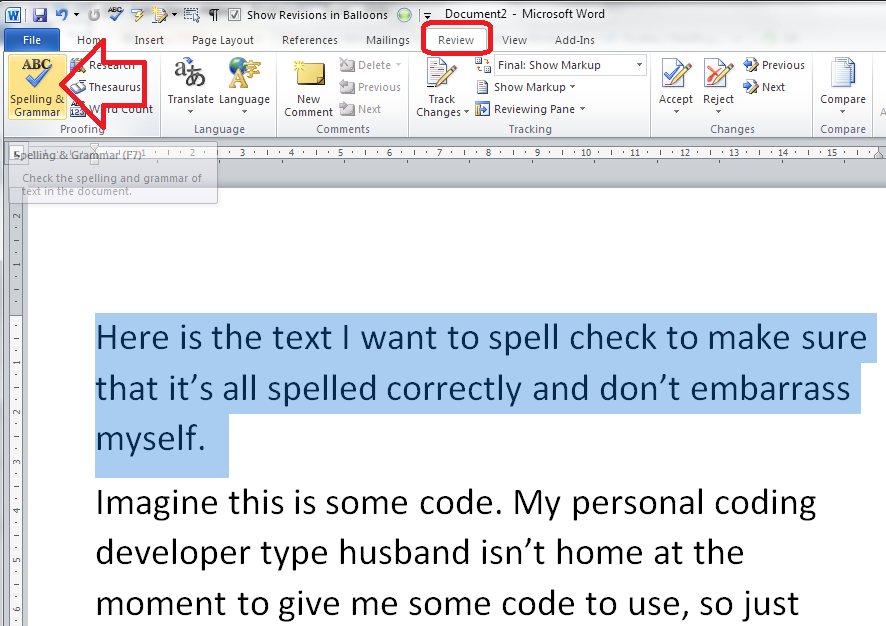
Highlight the text you want to check.

Press the Spell Check button, which you can find in the Review tab:

Spell check one section of a document

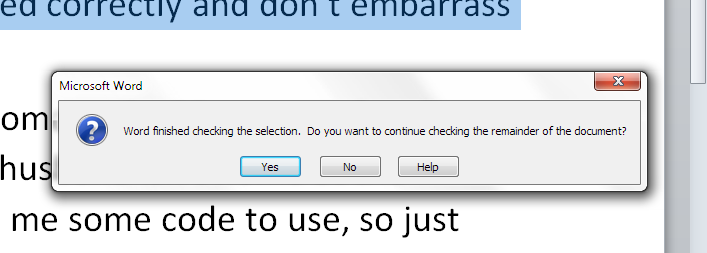
Word will spell check only that highlighted paragraph (or word, if you so choose) and will helpfully ask you if you’d like to continue checking everything else:

Continue spell check?

I hope you’ve found these hints helpful! Do share or pop a comment on this post if I’ve helped you learn something new or solved a tricky problem for you, and do explore the rest of my blog if this is your first visit!

Please note, these hints work with versions of Microsoft Word currently in use – Word 2007, Word 2010 and Word 2013 all for PC. Mac compatible versions of Word should have similar options. Always save a copy of your document before manipulating it. I bear no responsibility for any pickles you might get yourself into!

This is part of my series on how to avoid time-consuming “short cuts” and use Word in the right way to maximise your time and improve the look of your documents. Find all the short cuts here

Related posts on this blog:

How do I use Spell Check in Word 2007 and 2010?

How do I use Spell Check in Word 2013?

How do I change the editing language of my document?

Why do I need to use Spell Check if my work is being edited?

 
2 Comments

Posted by on November 19, 2014 in proofreading, Short cuts, Word


Tags: , , , , , ,

How do I insert clip art in Word 2007, 2010 and 2013 and other Microsoft Office applications?

I have to admit to being a little surprised when I was asked to post about clip art. I hadn’t used it for years, and I was taken back to the old days, when you used to buy a computer magazine with a free floppy disk full of clip art pictures …

However, the very useful point about clip art is that it’s copyright free and so simple to use: you can pop a MS Office clip art image into your presentation or document and know that you’ve not stolen someone’s work of art (although there are copyright rules about using them in commercial publications).

They’re also not as ‘cartoony’ as they used to be, including photographs as well as drawings, and there are some really good images: I found this great one when I searched for “editor”, for example!

clip art of editor holding book

From MS Word Clip Art

This article applies to Microsoft Office applications such as Word, Excel and PowerPoint. Examples are taken from Word, but the process works in the same way in all applications.

Of course, choosing and inserting your clip art varies between Word (Excel and PowerPoint) 2007/2010 and Word (Excel and PowerPoint) 2013, so if you want the latter, please scroll down a bit to the relevant heading!

How do I use clip art in Word 2007 and Word 2010 and other Microsoft Office software?

Clip art is found in the Insert tab, in the Illustrations area (this is an image from Word 2010; the button in Word 2007 has a slightly different, but recognisable, icon and is in the same place):

Word 2010 insert clip art

Making sure that your cursor is at the point where you want the clip art image to appear, click the Clip Art button:

word choosing clip art

A clip art search area will appear in the right-hand margin. It’s pretty simple: you can enter a search term, and you can also choose which kind of media you are searching for (useful for PowerPoint presentations, for example, or if you only want photographs to illustrate your document):

Word clip art choose format

Leaving this on all media, let’s search for “teapot” – pop the word in the search box and click the Go button:

Word clip art search

You should then see a grid of clip art images:

clip art search results

Stop press – you might only find you have the option to search online now – as Microsoft have withdrawn the copyright-free clip art they had offered for so many years. I believe that if you have a standalone version of Word that doesn’t receive updates, the clip art will stay, otherwise you’ll just now have an option to search Bing. Very annoying!

clip art find more

Anyway, back to our 57 teapots (which is surely enough for anyone!). When you’ve found an image you want to insert, double-click on it and it will move into your document:

clip art insert image

You will also notice here that the image is selected and can be enlarged and reduced using the little blocks around the image outline. It can also be moved, if you hover inside the box until an arrow appears.

For more on placing images in text, please see this article.

How do I use clip art in Word 2013 and other Microsoft Office software?

For Office 2013, Microsoft went all online-based, and as a result, the way in which you access clip art changed. Note that these instructions work for both the standalone version of Word 2013 (and other software) if you bought it once, and the subscription version through Office 365 which downloads updates periodically.

You access clip art from the same menu, on the Insert tab, in the Illustrations area, but it’s now called Online Pictures:

clip art office 2013

Making sure your cursor is in the place where you want your picture to be, click on Online Pictures:

Word 2013 clip art search

You now have the option to search royalty-free illustrations on the office.com clip art website or do a Bing Image search for general images.

Note Unless you have a completely standalone and isolated version of Word 2013, you will not now have the option to use clip art based within Word itself – you will probably just see Bing search. If you don’t get updates on your version of Word, it’s likely you will still have them, because Word can’t update itself to make them go away. Grrr, frankly.

Because I’m not logged in at the moment, I have the option to sign in with my Microsoft office account. If you are logged in, or do subsequently log in, you will get these additional options – OneDrive, Facebook and Flickr:

Word 2013 image search options if logged in(thanks to Laura Ripper for this screen shot)

To search in clip art, enter the search term “teapot” into the first text box and click on the magnifying glass icon:

Word 2013 clip art search

This will bring up the same results as for Word 2007 and 2010 (interestingly, you can’t differentiate at this stage between different kinds of file to insert, as you can with earlier versions):

Word 2013 clip art resultsDouble-click on the image you want to insert, or single click and click on the Insert button

Word 2013 clip art inserted

Note that in Word 2013, not only do you get the frame which allows you to change the image size, but the Layout Options dialogue box also pops out, allowing you to choose where the image sits in any text you might have.

For more on placing images in text, please see this article.

Related posts on this blog

How do I make pictures go where I want them to in Word?

How do I stop the pictures jumping around when I edit a Word document?

———————

This is part of my series on how to avoid time-consuming “short cuts” and use Word in the right way to maximise your time and improve the look of your documents. If you’ve enjoyed the post or found it useful, please use the sharing buttons below to share it via your social media networks – thank you!

Please note, these hints work with versions of Microsoft Word currently in use – Word 2007, Word 2010 and Word 2013 and other Office software for PC. Mac compatible versions of Word should have similar options. Always save a copy of your document before manipulating it. I bear no responsibility for any pickles you might get yourself into!

Find all the short cuts here … and see the full resource guide here.

 
31 Comments

Posted by on November 12, 2014 in Errors, New skills, Short cuts, Word, Writing


Tags: , , , , , , , ,