RSS

Tag Archives: Word tips

How can I transcribe more quickly?

Because transcription is usually paid by the audio minute (i.e. if you have a 20 minute tape, you will be paid 20 x your per-minute rate), the faster (and more accurately) you transcribe, the more money you can make per hour. Here are some tips from my own experience about how you can transcribe more quickly. It’s not all about typing faster, either – it’s about typing faster and typing smarter and working smarter.

All links are to my own articles that explain the topics in greater depth.

Typing faster

One main way (but not the only way) to improve your transcription speed is to simply (ha!) type more quickly. Here are some tips on how to build your typing speed. The first one might surprise you ..

  • Number one tip: trim your fingernails.

I have studied this (because someone has to) and I can improve my typing speed by about 5% by trimming my nails. I can type more quickly when just the pads of my fingers are striking the keys. It also takes longer to wear the letters off your keys if you’ve not got long nails to scratch them …

  • If you’re serious about going into transcription, especially if you have a specialised medical or legal background where the fees are that bit higher, it’s worth investing in typing training – have a look at Pitman courses.
  • A decent keyboard will also help you to type more quickly. Have a look at my post on ergonomics and keyboards, as I cover that there in a lot of detail. But typing on a decent keyboard as opposed to bashing away at a laptop or netbook will improve your typing speed.
  • The more you type, the faster you’ll typically get, up to a point. So you might start off a bit slow, but your speed should pick up, if you’re touch-typing reasonably accurately.

Typing smarter

As well as physically typing faster, you can use technology to help you to transcribe more quickly and efficiently.

  • If you’re not using transcription management software, start doing so (read more on this here). This doesn’t do your typing for you, but it allows you to manage the speed of your tape and stop and start it in the most ergonomic way possible.
  • Use autocorrect to your advantage. I’ve written about this at length in another article, but these are the most important points for building speed and accuracy:
    • Set up common shortcuts right from the start – bec = because, w = with, nec = necessarily, etc. Add these are you come across them.
    • Set up any words you commonly misspell – you can do this when you’re spell-checking, as there’s an autocorrect option in the spell check dialogue box (I have trouble typing occurred correctly, for example).
    • As soon as you recognise commonly used words or phrases in your particular tape, get them into the autocorrect. Long album titles? The name of a big exhibition the artist is working on? Moisturiser and concealer in a set of interviews assessing makeup? If they come up more than twice, create an autocorrect for them.
    • If you’re typing the names of people in the conversation, have a convention, e.g. aa for the interviewer, bb for the first interviewee, change the autocorrected text for that shortcut for each tape (e.g. aa might be Interviewer for one tape, Manager for another, Anita for a third, bb might be Interviewee, Employee or Jane), and always use the same shortcut for the main and secondary person, so it’s super-easy to remember what to type.
  • How about using voice recognition software? This has got a way to go, and editing it, in my experience, takes as long as transcribing in the first place.

Working smarter

This is mainly around the things that delay you in doing the work – looking things up and distractions.

  • I look things up when I’m transcribing – band names, place names, etc. It’s far more professional to provide a transcription with the facts checked and anything you can’t hear or are unsure of marked. Make looking things up work the way you need it to:
    • I find it easist to look them up as I go along, you might finid that disturbs the flow. Do what’s best for you.
    • I have found from experience that if I can’t hear a word, especially a technical term or proper noun, often the interviewer will ask the interviewee to spell it out … just after I’ve spent ages looking it up. So let the tape run a bit and see if it helps you pick that information up without spending time searching for it.
  • I type for an hour at the very most, as after that length of time my posture droops and my typing slows. It might only be a stretch and a march up and down the stairs, but do break it up a bit. Read more about ergonomics here.
  • I do need to have the Internet turned on while transcribing, because I need to look things up, but I’m careful not to answer phone calls or even look at emails until my break. Nothing is that urgent it can’t wait, and three minutes spent looking at something, plus the time it takes to get back in the transcription zone, can lose a few minutes per hour of transcribing. It all builds up!

A final thought

I hope these tips have helped to give you some ideas about how to transcribe more quickly and efficiently. Here are two final thoughts …

  1. If you’re reading this and you’re a journalist or researcher, not a professional typist, especially if you can’t touch type, it’s probably a better idea for you to explore finding a transcriber to do it for you than to try to get faster. I can often transcribe a tape up to twice as fast as a non-professional, freeing my clients up to do their real jobs!
  2. However quickly you type, ALWAYS assume a job is going to take slightly longer than you think. Why do you think this is being posted on Thursday morning instead of Wednesday afternoon …?

If you’ve found this article useful OR if you have more tips for transcribing more quickly, please do comment below – I always love to hear from my readers! There are sharing buttons there, too, so you can share this on whatever social media platforms you use. Thank you!

Other useful articles on this blog

How do you start a career in transcription? – are you suited for it?

The professional transcriber – the technology you need

10 top tips for transcribers – what every new transcriber needs to know

Why do you need human transcribers, anyway? – I explain why!

Keyboards, ergonomics and RSI – the risks and keeping safe

Transcribing multiple voices – hints to make it easier

Why do transcribers charge by the audio minute? – explains it all

 
Leave a comment

Posted by on March 10, 2016 in Business, Transcription, Word


Tags: , , ,

What is a style sheet? For people using editors

DictionariesIf you work with a proofreader or editor on any project, either for a publisher or working independently or as a student, you might receive a Style Sheet from them with your corrected work. This article explains what a style sheet is, the purpose of a style sheet, and what might be included on it. I’ve also written this article to send to my clients so they understand what the document I’ve sent them is – so if you’re one of my clients, hello!

To make this article easier to read, I will refer to the person who has worked on your document as your “editor” – although I might refer to proofreaders in some places, too.

If you’re an editor or proofreader who wants to find out more about style sheets, I’ve written an article just for you, too.

What is a style sheet?

A style sheet is a list setting out the decisions that your editor has made on aspects of the layout and language of your document, in order to keep the document consistent.

It might include notes on what font is used, whether the text is left or fully justified, how particular words are capitalised or hyphenated, how much indent your indented quotations have, what is put in italics, etc. We’ll have a look at an example later on, but that’s a very short summary.

Why use a style sheet?

Especially if you’ve learned English as a second or other language, you will know that the English language is not consistent, and it doesn’t even have proper rules for some things! This can be really frustrating, as two people might do things in two different ways, BOTH of which are correct.

For example, in English …

  • we can use -s- spellings or -z- spellings in words like “organisation”
  • we can capitalise or not capitalise words like Chapter 1 or experiment 2
  • we can use orient or orientate
  • we can hyphenate or not hyphenate pairs of words like policy-maker

And that’s before you get to decisions like …

  • are you going to use 20%, 20 per cent or twenty per cent?
  • are you going to describe America as America, the United States, the US, the USA, the U.S. etc. etc.?
  • are you going to use double inverted commas for quotations and single inverted commas for concepts, or vice versa?
  • are you going to refer to other research as (Brown, 2003; Green and Jones, 2005, p. 23) or (Brown 2003, Green & Jones 2005:23) or any other variant

Now, the important thing with all of these is to keep it consistent.

Some of these rules might be set down in a style guide or referencing guide (see below). But whether you and your editor are working to a style guide or not, it’s useful to have these decisions written down in one place for you both to refer to.

What’s the difference between a style guide, a referencing guide and a style sheet?

A style guide is a specific guide to how to deal with things like the above decisions – famous ones include Oxford Style in the UK, APA Style and Chicago Manual of Style and AP Stylebook in the US.

A referencing guide is a specific way of writing out references to work you are talking about in your dissertation or book – an example is Harvard referencing.

Some universities and many publishers and marketing agencies etc. will have their own guides which documents published under their name or submitted to them will have to have.

In this case, I could do without a style sheet and just refer my client to … well, a massive website or a giant book. Maybe not. In that case, I’ll note which style guide or referencing system I’ve used and still write out any important points which will impact the document in question.

Please note that I (and I imagine most editors) have favourite style decisions – I prefer orientate to orient, for example, and where there is no clear preference in the text, I will go for my preferred option. If, however, the text itself has 33 orients and 2 orientates, I will go with the majority.

This also means that some parts of the following examples might jar with any editors reading this – they are only examples!

What does a style sheet look like?

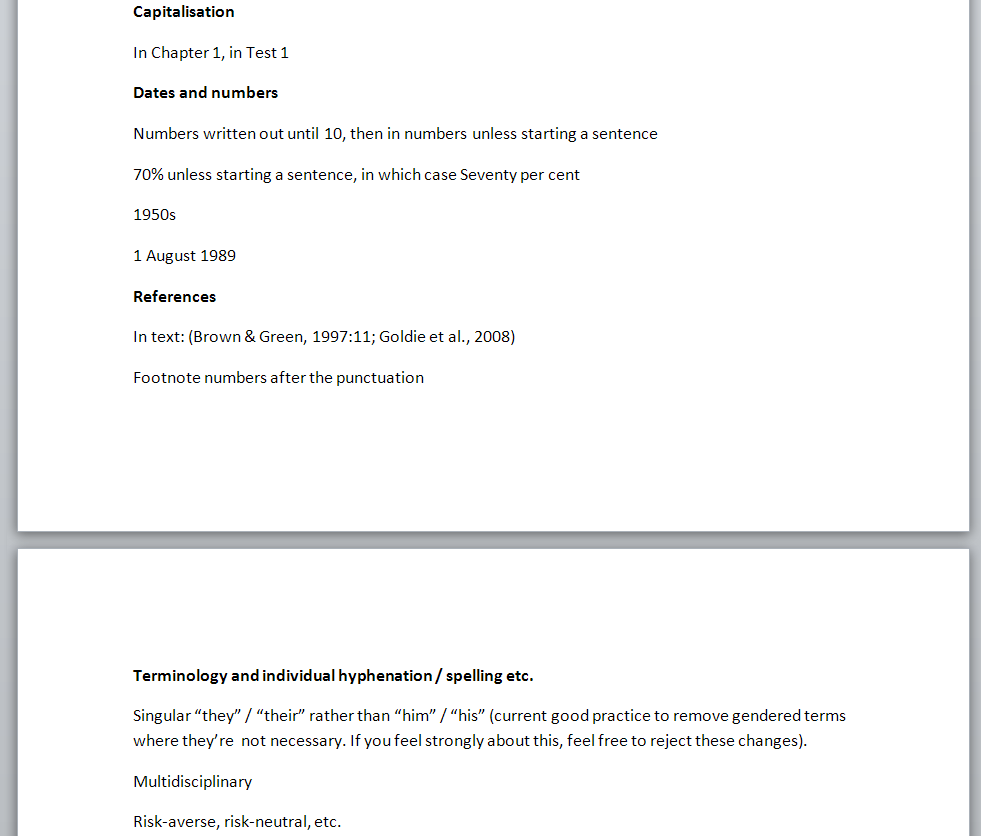
Here’s an example style sheet with some of the decisions I might make …

style sheet 1

This is a standard style sheet – I tend to go from the general (the whole layout, all quotations, the tenses used) down to the particular …

style sheet 2

What should I do with the style sheet my editor has sent to me?

Good question – now you understand why your editor has sent you a style sheet and what it’s for … well, why does it matter and what should you do with it?

Here are some important uses of the style sheet:

  1. It will help you to understand some of the changes your editor has made.
  2. If your editor has just edited one chapter, they might send you the style sheet with that chapter and ask you to look through it and check you agree with everything on it. They might even send over some queries – if it’s not clear which option my client prefers, I will highlight the choice and ask them to look at it. If you don’t agree, let them know straight away, then they might change it if it’s not a rule of grammar that can’t be flexible.
  3. If your work is going to be edited by more than one person, they will share a style sheet to make sure it is edited consistently.
  4. If you are planning to add to the document, you can make sure that any additional text you write is consistent with the text that your editor has already checked.
  5. If you have been through edits and your document is going to be proofread, send the style sheet to your proofreader, then they will know what choices the editor has made, and will be able to look out for any errors much more easily.

——-

In this article, we’ve learned what a style sheet is, why it’s used, how a style sheet is different from a style guide and referencing guide, but backs them up, and what to do with a style sheet when you’ve been sent one, as well as seeing an example of one. I hope this helps you: do comment and/or share this article using the sharing buttons below if you’ve found it useful!

Other relevant posts on this blog

Style sheets for editors and proofreaders

 
24 Comments

Posted by on January 14, 2016 in Copyediting, proofreading, Students, Writing


Tags: , , , ,

How do I combine several Word documents into one document?

This article explains how to combine several Word documents into one document. It’s particularly useful if you’ve written a dissertation, thesis or book and need to combine all of the chapters into one file.

These instructions work for Word 2007, Word 2010 and Word 2013; I’ve used Word 2010 for the screenshots

Why would I want to combine chapters into one document?

Lots of people do their writing a chapter at a time, and have it edited a chapter at a time, too. But the time will come when you want to put it all into one book, with page numbers running throughout, rather than messing around starting the page numbers for chapter 2 at the next number on from chapter 1, etc.

What’s the incorrect way to combine my chapters?

You might be tempted to pick up the text of each chapter and copy and paste it into one document. That can lead to issues and inconsistencies. This is the correct way to do it and actually takes less time and avoids you leaving out any bits of your individual chapters.

How do I prepare to combine my documents?

It’s pretty easy to combine several documents into one, however the most important point is …

The file names must be in the order that the chapters are going to be in.

Word will combine your chapter files in alphanumerical order.

If you have called your chapter files

Chapter 1 introduction

Chapter 2 review of the literature

Chapter 3 methodology

Chapter 4 conclusion

then that’s fine, they will combine in that order.

If you have called your chapter files

Introduction

Review of the literature

Methodology

Conclusion

then Word will carefully sort them alphabetically into

Conclusion

Introduction

Methodology

Review of the literature

when it combines your documents.

The best thing to do is add a number 1, 2, 3, etc at the start of your file names BEFORE YOU START COMBINING, so you know they will come out in the correct order.

How do I combine my documents?

OK, so we’ve got, say, four documents or chapters to combine into one.

First, open a new, blank document (using the Home button, New, and choosing a blank document)

Then, click on the Insert tab and find Object in the Text area:

1 insert tab

Click on the arrow to the right of Object to get the drop-down menu, and click on Text from File:

2 insert text from file

Now navigate to your files and select the ones you want to combine.

3 find your files

Hold down the Control Key and click on all the ones you want to combine (or click on the top one, hold down Shift and click on the bottom one if you want all of them). Once you have them all highlighted, click Insert.

4 select files

Note: it doesn’t matter what order you are displaying them in or what order you click them in, it will choose them and insert them in alphabetical or numerical order, as I mentioned above.

Now you will have one big document including all of your chapters!
5 combined

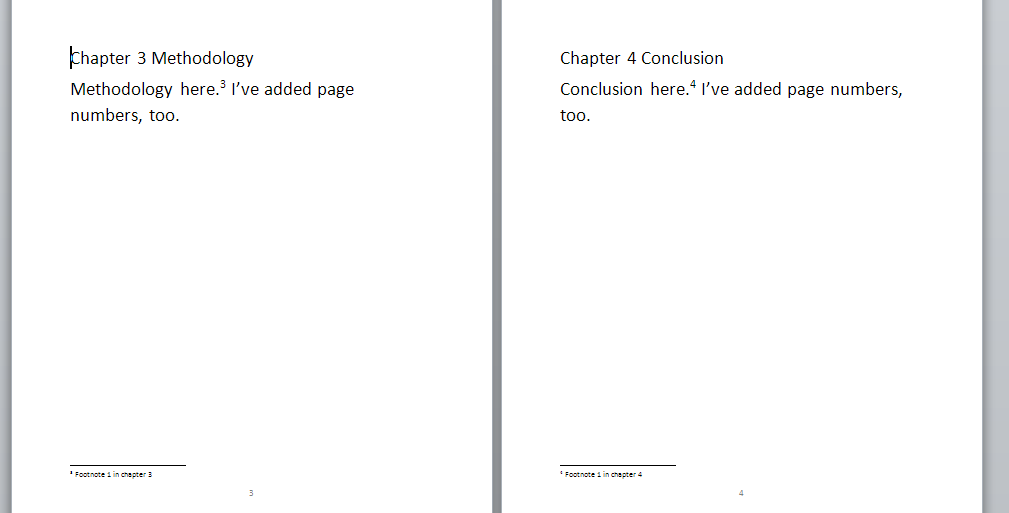
And … if you had footnotes in the documents, and had set page numbers to show, they will automatically update in the combined document to be numbered consecutively (if you want start your footnote numbering at 1 for each chapter, you’ll need to look at my posts on footnotes and endnotes).
Don’t forget to save your document!

PS: If you find you lose your formatting when combining Word documents, read this article for the solution.

—–

This is part of my series on how to avoid time-consuming “short cuts” and use Word in the right way to maximise your time and improve the look of your documents.

If you have enjoyed this post and found it useful, please click on the “share” buttons below or tell your friends and colleagues about it! Thank you!

Please note, these hints work with versions of Microsoft Word currently in use – Word 2007, Word 2010 and Word 2013, all for PC. Mac compatible versions of Word should have similar options. Always save a copy of your document before manipulating it. I bear no responsibility for any pickles you might get yourself into!

Find all the short cuts here

Other useful articles on this website

How to combine Word documents without losing the formatting

 
53 Comments

Posted by on September 3, 2015 in Errors, New skills, Word, Writing


Tags: , , , ,

Editing and the Table of Contents – for editors and writers

This article is all about what happens when a document that includes a Table of Contents (and a Table of Figures and/or a Table of Tables) is edited. There are a couple of pitfalls which I have encountered as an editor, and I wanted to share them with fellow editors AND writers, to help other people avoid them.

Scroll down to the bottom for a summary of advice to editors and writers if you’re not worried about the detail.

Please note that there are more detailed instruction on updating a Table of Contents in this article.

What’s the problem with Tables of Contents and the editing process?

If a document with an automated Table of Contents is being edited, the editor has two choices (and the writer will find that their editor has done one of two things):

  1. Mark any changes to headings in both the Table of Contents and the actual heading in the main text
  2. Mark any changes to headings in just the actual heading in the main text, then someone updates the Table of Contents

Let’s look at the risks with these in turn.

1. Mark any changes to headings in both the Table of Contents and the actual heading in the main text

Issue 1 – Awkwardness for the editor. To do this, you will have to have a split screen with the contents page in the top half and the text in the bottom, or you’ll have to whizz up and down the document and make sure you make the same correction in both places.

Issue 2 – Keeping things consistent. a) The editor will have to make the same change in both places, and b) the writer will have to make the same choice to reject or accept the change in both  places.

As an editor, if I do this, I place a comment linked to the words “Table of Contents” reminding the author to make the same choices here and in the main text.

If the Table of Contents is not automated, I a) suggest that the author creates one (or has me create it, if appropriate) and b) I place the comment above by the words “Table of Contents” to remind the author to keep it consistent.

2. Mark any changes to headings in just the actual heading in the main text, then someone updates the Table of Contents

If the Table of Contents is automated, this is what I tend to do.

There are two options here:

Option 1 – The writer wants a “clean copy” not one with tracked changes marked: the editor can update the Table of Contents once they’ve done their edit and accepted all changes. Everything will now match.

Option 2 -The writer wants (or needs, in the case of students) to see the tracked changes and make their own decisions on what to accept and reject. In this case, the writer will need to update the Table of Contents once they’ve gone through the changes.

Option 2 is the most common in my experience.

If the writer needs to update the Table of Contents themeselves, I always add a comment to the words “Table of Contents”:

“Please remember to update this Table of Contents after you have accepted or rejected all of my changes, to make sure that the table reflects the document accurately. Please choose Update entire table rather than Update page numbers only”.

An important choice – what to update in the Table of Contents

This information is for editors and writers.

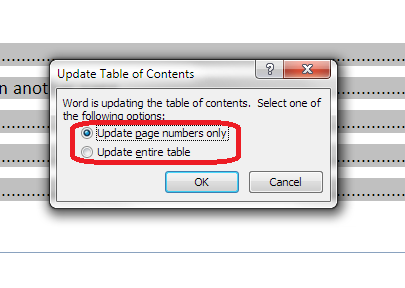
Whether the editor or writer is updating the Table of Contents, once you’ve clicked on Update Field, you are given the choice of Update page numbers only or Update entire table:

update page numbers or all fields

It is vitally IMPORTANT that you choose “Update entire table”. This will update any changes to the headings and any changes to the page numbers. If you click on “Update page numbers only”, and any headings have been changed in the text, this will NOT be reflected in the Table of Contents.

For authors: updating your Table of Contents when your work has been edited

  • Always update your Table of Contents when your work comes back from your editor, unless they have told you that they’ve already done it
  • Always choose “Update entire table” to make sure that everything in the Table of Contents matches your actual document

For editors: updating or instructing on editing the Table of Contents

  • Always leave a note for the writer explaining what you’ve done or what you need them to do
  • If you are updating the Table of Contents yourself, always choose “Update entire table” to make sure that everything in the Table of Contents matches the actual document (I would still leave a reminder for the writer to do the same after they’ve made any final changes)
  • If you need the writer to update the Table of Contents once they have dealt with your suggestions, leave a note explaining that, and make it clear that they must “Update entire table” when doing so

—–

This article has discussed issues around updating a Table of Contents when a document is edited. if you have enjoyed this article or found it useful, please share it using the sharing buttons below.

Other relevant posts on this blog:

How to create a contents page in Word

Tables of figures and tables of tables

How to update a Table of Contents, Figures or Tables

 
3 Comments

Posted by on July 22, 2015 in Errors, New skills, Word, Writing


Tags: , , , ,

How to update your Table of Contents, Table of Figures or Table of Tables

This article explains how to update the Table of Contents (Contents Page) or Table of Figures or Table of Tables in your Word 2007, 2010 or 2013 document, which could be a report, dissertation, thesis, book or anything else. To find out how to create a Table of Contents in Word, please refer to this article. To find out how to create Tables of Figures and Tables of Tables, please refer to this article. We’ll refer to it as “Table of Contents” in this article, but this works for all kinds of contents listings.

Why would I want to update my Table of Contents?

If you create a Table of Contents for a document but then change the actual document, it’s likely that you will also change …

  • One or more headings (maybe swapping between Title Case and Sentence case or just changing the wording)
  • What page a heading falls on (and all the other headings after it) (maybe by adding text or just moving a heading to join its text on the next page)

Although a Table of Contents will update to match the actual contents “automatically”, you have to tell it to do so. This is how to update your Table of Contents so that it matches what your reader will find in the actual document.

How do I update my Table of Contents?

First of all, hover your cursor over the Table of Contents. It should be highlighted in light grey. Right click on any part of the grey area:

update contents page word

This will give you a menu – you need to select Update Field:

update contents page - update field

Once you’ve clicked on Update Field, you are given the choice of Update page numbers only or Update entire table:

update page numbers or all fields

Choose wisely – see below! Once you’ve chosen, click OK and your Table of Contents will update!

When to update page numbers only in your Table of Contents

You might want to Update page numbers only if …

  • You are absolutely sure that you have only changed what text / heading is on what page (but you could still Update entire table anyway, just to be certain)
  • You have manually amended your Table of Contents (e.g. one heading was too long to fit on a line and you shortened it) AND you know you haven’t changed any heading text in the actual document.

In the second case, when you’ve manually amended the contents page, if you choose Update entire table, it will over-ride your manual change and replace it with the exact text that is in your heading in the main document, and you’ll have to manually update it again.

Apart from the case where you have manually edited the Table of Contents, I STRONGLY SUGGEST that you always choose Update entire table.

When to update entire table in your Table of Contents

I highly recommend that you always use this option. In this way, your Table of Contents will match the text of your document.

This is especially important to remember if someone else has amended and edited your document.

—–

In this article, we have learned how to update a Table of Contents, Table of Figures or Table of Tables. If you have enjoyed this article or found it useful, please share it using the sharing buttons below.

Please note, these hints work with versions of Microsoft Word currently in use –  Word 2007, Word 2010 and Word 2013, all for PC. Mac compatible versions of Word should have similar options. Always save a copy of your document before manipulating it. I bear no responsibility for any pickles you might get yourself into!

Find all the short cuts here

Other relevant posts on this blog:

How to create a contents page in Word

Tables of figures and tables of tables

 
7 Comments

Posted by on July 15, 2015 in New skills, Short cuts, Word, Writing


Tags: , , , ,

How do I change the numbering style of footnotes and endnotes in Word?

As part of my series on footnotes and endnotes, here’s how to change your footnote and endnote numbering styles on the go (e.g. while editing someone’s work, or when you change your mind, or when you’re working to a particular journal’s style and need to amend something you’ve already written)  in Word 2007, Word 2010 and Word 2013.

Why would I want to change my footnote or endnote numbering style?

The main reason to change your footnote or endnote numbering style is because of the style guide of whatever you’re writing the document for. For example, academic journals will usually have some form of Guidelines for Authors which will lay out (sometimes) the font, heading styles, reference styles and footnote styles that you are expected to use. If you’re re-using an article which has been rejected by another journal, or repurposing a chapter of your PhD, you might find that the style for one journal is different from what you’ve done previously.

Alternatively, you may just decide you would prefer to use roman numerals, arabic numerals, symbols or whatever for your footnotes or endnotes, and want to change them.

How to change the number format for footnotes/endnotes

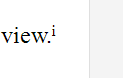
In this example, we’re starting off with some footnotes or endnotes that use roman numerals (i, ii, iii …):

footnote with roman numeral

Now, we want to change them to, for example, arabic numerals (1, 2, 3 …)

First of all, go to the Footnotes menu. This is in the References tab, and there’s a whole area called Footnotes:

Footnote menu

Click the little arrow at the bottom right of the Footnotes area to access the Footnote and Endnote menu. Once you’ve clicked on the little arrow, you should see this menu:

footnote menu dialogue box word

We can see lots of things we can do here, including changing the number footnotes start at, whether they restart every chapter, etc. (these more obscure details will be the subject of another article). But for our purposes, the important features are choosing whether you’re telling Word about Endnotes or Footnotes and telling Word what the number format should be.

In this case, we’re using Endnotes (although these instructions cover both), so I’ve clicked the radio button (circle) next to Endnotes. This tells Word that we’re using Endnotes and talking about the Endnote numbering.

Going down one section, you can see that at the moment, the Number format is set to i, ii, iii … To change this, click on the down arrow to the right of the box saying i, ii, iii … (if the Endnotes are set to 1, 2, 3 or a, b, c, this will display in this box):

footnote menu change style

Once you’ve clicked that arrow, you will be able to see all of the choices you have for your footnote or endnote numbering. Now click on the format that you want to use:

footnotes change numbering style word

The Number format will now change to the one that you have chosen. Once you have got the correct format in this box, click the Apply button to apply the changes:

footnotes apply change word

When we return to our document, the endnote numbering has changed from a roman numeral (i) to an arabic numeral (1). You can change this as many times as you want.

footnote with correct style word

This article has explained how to change the number format in your footnotes or endnotes.

Related posts from this blog:

How to insert and format footnotes

How to insert and format endnotes

How to swap between using footnotes and endnotes

Please note, these hints work with versions of Microsoft Word currently in use – Word 2007, Word 2010 and Word 2013, all for PC. Mac compatible versions of Word should have similar options. Always save a copy of your document before manipulating it. I bear no responsibility for any pickles you might get yourself into!

Find all the short cuts here

 
30 Comments

Posted by on June 3, 2015 in Errors, New skills, Short cuts, Word, Writing


Tags: , , , , , , , , ,

How do I accept one reviewer’s changes in Track Changes in Word 2010 and Word 2013?

This article tells you how to view just one reviewer’s changes in Track Changes in Word (the screenshots are for Word 2010 and Word 2013 separately but this works for all version of Word, including Word 2003 and Word 2007). Once you can see the changes made by one editor or reviewer, you can delete the changes made by that one reviewer, leaving only the changes made by the other reviewers.

Why would I want to accept only one reviewer’s changes in Track Changes?

Recently, I worked on a document where I made all of my usual changes or comments, then the author responded and sent it back to me for re-checking. They hadn’t accepted my initial changes, but had told me in the email that they were OK. Because the document looked really messy and confusing, I wanted to accept all of my changes and just work with the author’s additions and amendments. Here’s how I did it.

Note, it looks slightly different in Word 2007/2010 and Word 2013, with subtly different terminology, so we’ll look at 2007-2010 first and then 2013

How do I see and accept one reviewer’s changes in Word 2007 and Word 2010?

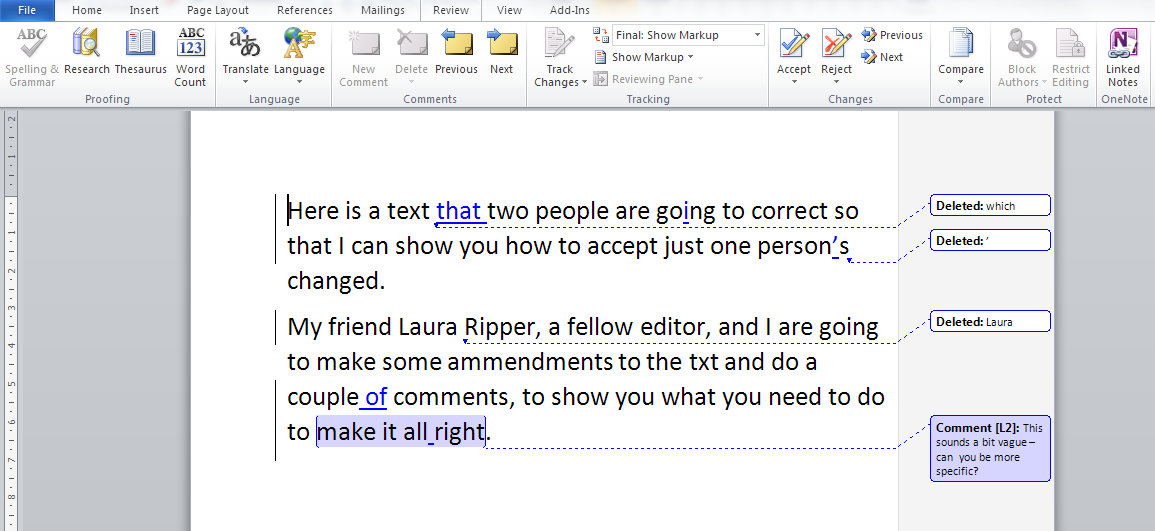
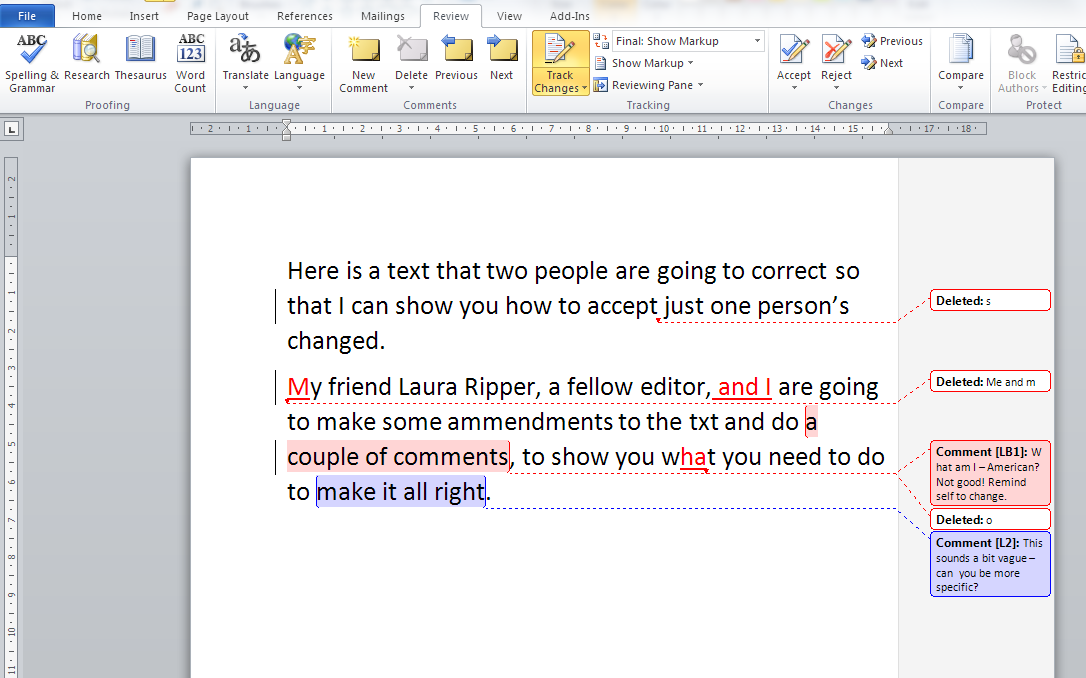
Here’s our text, with comments and corrections by two reviewers, shown in two colours. What I want to do is accept the changes made in blue and just end up with the ones in red to review.

Word 2010 two reviewers

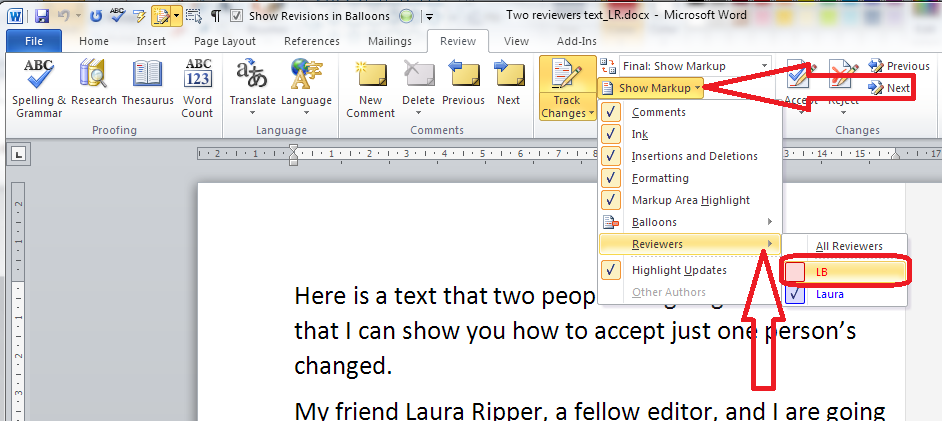
First of all, we need to show only one reviewer’s corrections. We do this in the Review tab, Track Changes area. Click on the arrow next to Show Markup and then Reviewers on the drop-down menu. This allows you to tick or un-tick by different names. IN this case, I want to interact with just the changes made in blue – the ones I want to accept. So I click on the tick box by the LB initials, to un-tick that box and only see Laura’s corrections:

Word 2010 show reviewers

Once I’ve done that, I can only see the blue corrections. Note that the red comment box has also disappeared. We only see comments and corrections by Laura, but the ones made by LB will still be there behind the scenes.

Word 2010 show one reviewer

Now I want to accept these blue changes. In the Review tab, Track Changes, I click on the arrow at the bottom of the Accept button and click Accept All Changes Shown (it’s important to pick this one – if I chose Accept All Changes in Document, all of the changes, hidden and visible, would be accepted).

Word 2010 accept changes showing

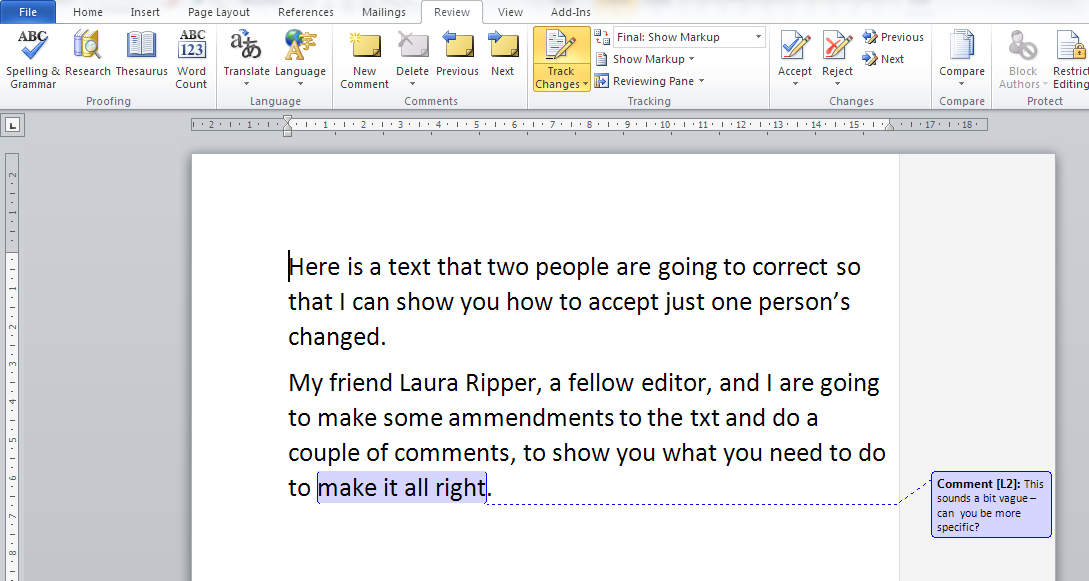
Now all of the blue changes have been accepted and only the comment by L[aura] is visible.

Word 2010 changes shown accepted

Just to prove that my corrections are still there, and in case I want to review those, we can view all reviewers by going back to Review – Track Changes – Show Markup – Reviewers and clicking in the box to tick LB:

Word 2010 show all reviewers

Now I can see the corrections in red and all of the comment boxes, and review them happily.

Word 2010 result

How do I see and accept one reviewer’s changes in Word 2013?

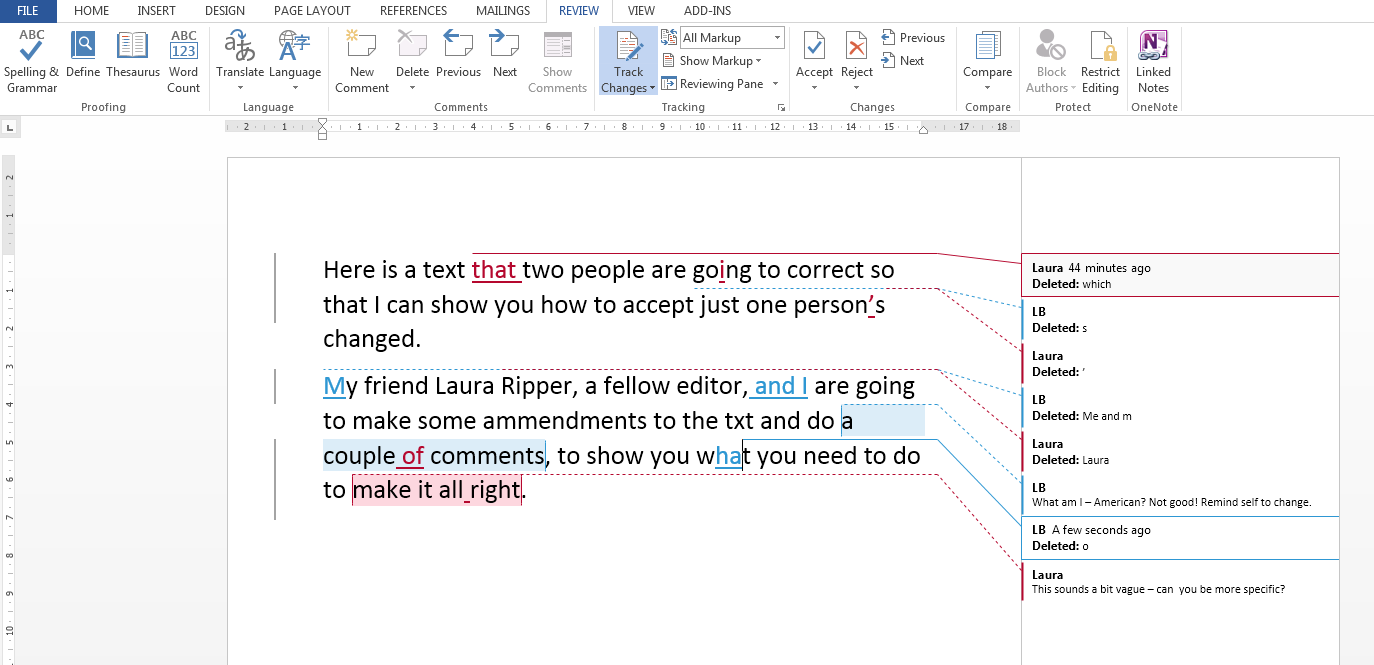
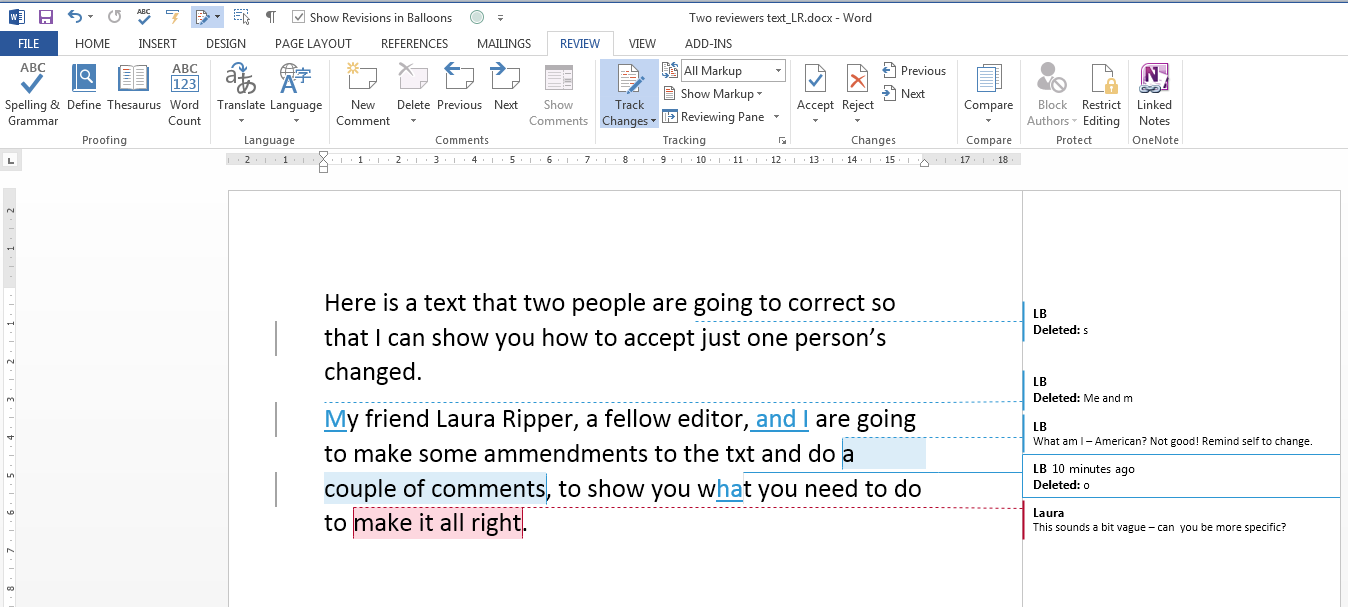
Here is our text commented on and corrected by two people. I want to view and accept the red changes made by Laura, then view my own ones in blue to review them (Yes, if you’re reading this all the way through, Word 2010 and Word 2013 chose the opposite colours for the two reviewers).

Word 2013 two reviewers


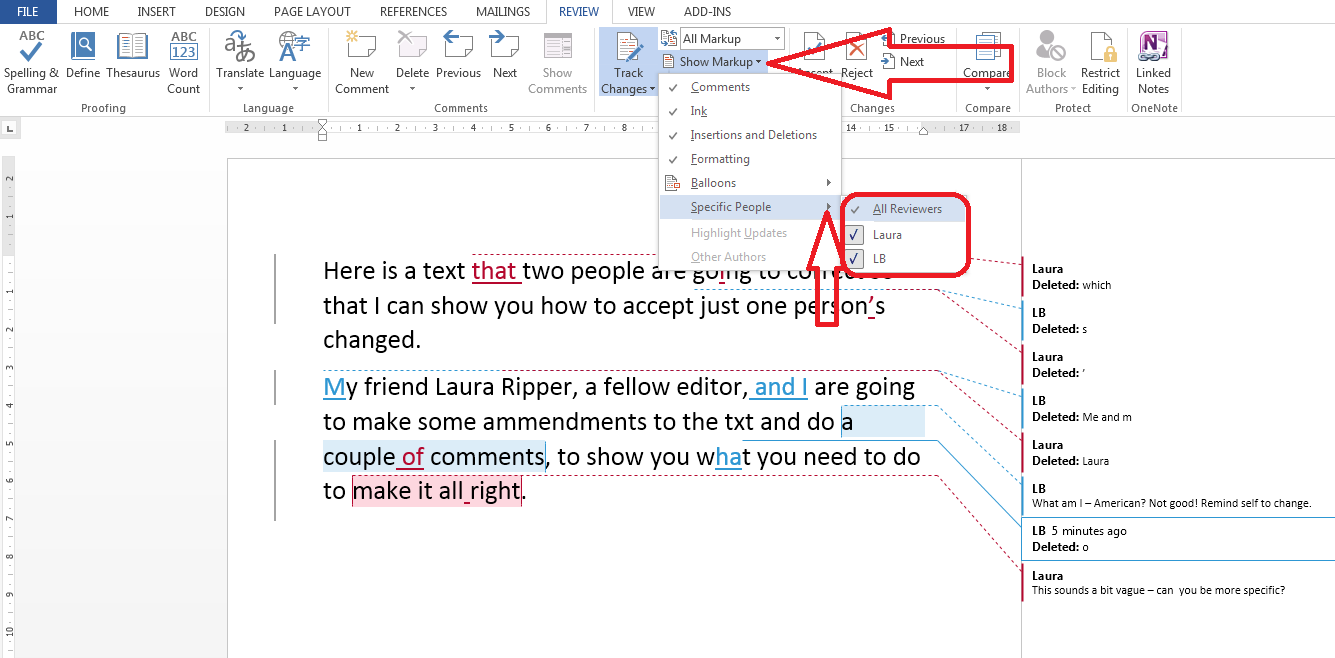
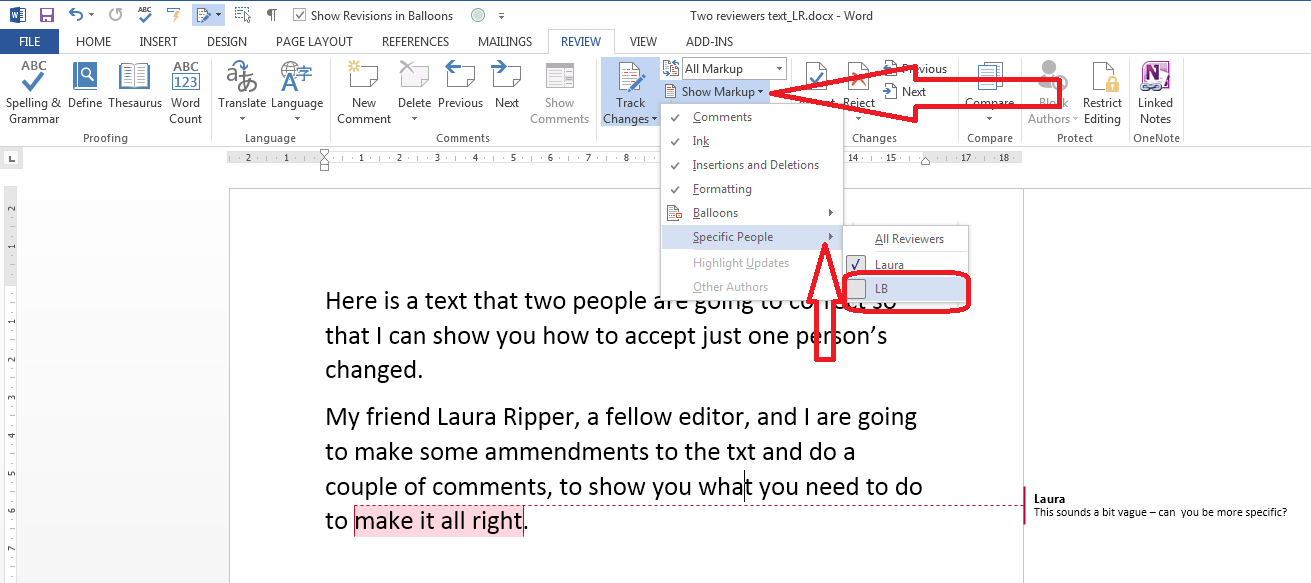
First we need to view only the blue corrections in order to accept only those ones. In the Review tab, Track Changes area, click on Show Markup then Reviewers. This gives us the option to tick or untick by each individual reviewer. Here, I’m going to untick LB.

Word 2013 show reviewers

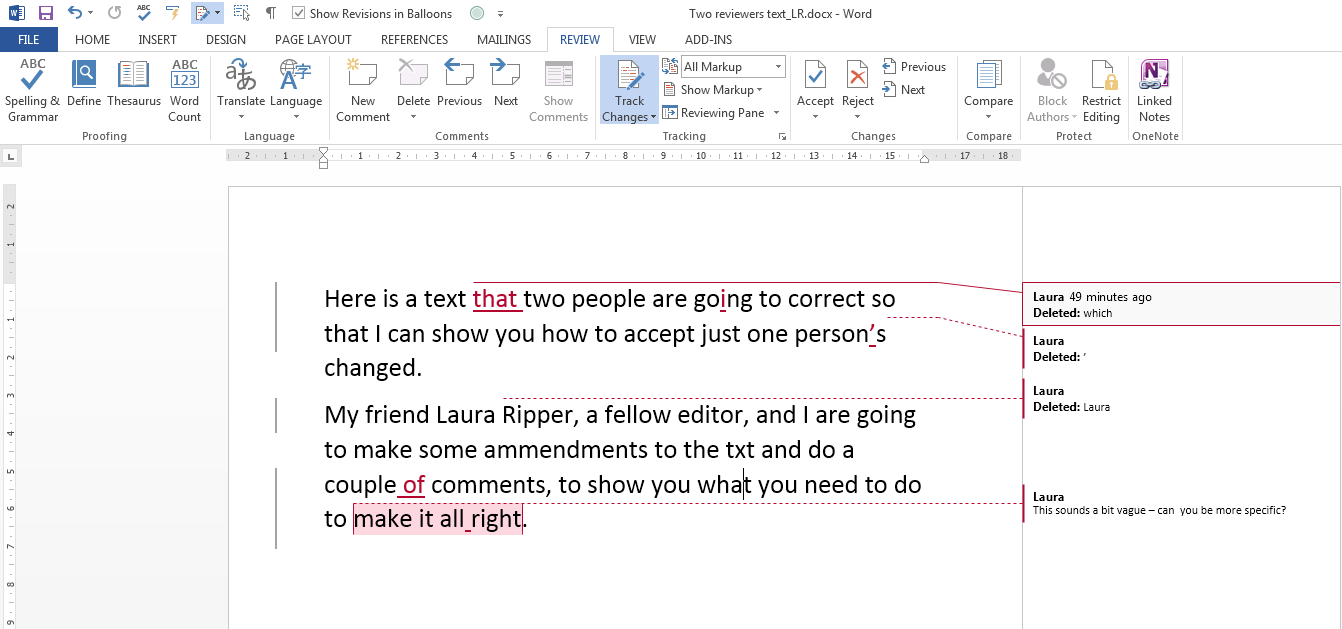
Now we can just see Laura’s changes in red.

3 2013 show one reviewer

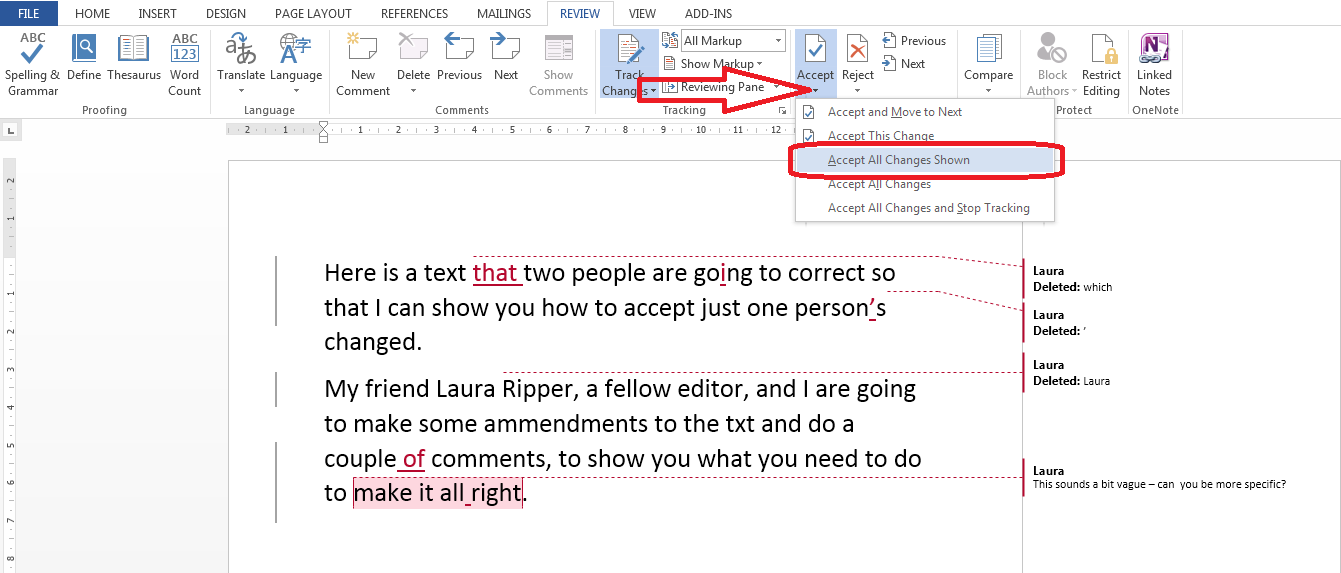
We can accept these changes by choosing Review tab – Track Changes area and clicking on the arrow at the bottom of the Accept button. Then, we choose Accept All Changes Shown (note, Accept All Changes will accept all of the changes, red or blue, visible or hidden: we don’t want that):

Word 2013 accept changes shown

Now all of the insertions and deletions have been accepted and we’re left with just the comment balloon:

Word 2013 changes shown accepted

To see and review the suggestions made in blue by me, we go back to Review tab – Track Changes area – Show Markup – Reviewers and re-tick by the LB:

Word 2013 show all reviewers

Now we can see all of the changes suggested by LB as well as the comments by both people.

Word 2013 one reviewer's corrections accepted

This is another one written when I had a specific need and had to go hunting around, so I hope you’ve found it useful. If so, please share using the buttons below or pop a comment on!

Please note, these hints work with versions of Microsoft Word currently in use – Word 2007, Word 2010 and Word 2013 all for PC. Mac compatible versions of Word should have similar options. Always save a copy of your document before manipulating it. I bear no responsibility for any pickles you might get yourself into!

This is part of my series on how to avoid time-consuming “short cuts” and use Word in the right way to maximise your time and improve the look of your documents. Find all the short cuts here

Related posts on this blog:

Track changes 1 – why use it, where can you find it, what can you do with it?

Track changes 2 – customising Track Changes

Track changes 3 – working with a document with tracked changes

Formatting comments balloons – everything you have ever wanted to know!

What to do if your comment boxes go tiny in Word – A common problem, hard to find the answer!

What to do if your comment box text runs right to left – Useful if you edit texts from Arabic authors

Changing the language in your comment balloons – From US to UK English and beyond …

 
14 Comments

Posted by on April 8, 2015 in Copyediting, Word, Writing


Tags: , , , , , ,

How do I display my horizontal scroll bar in Word?

I was innocently using Word one day when I discovered that my horizontal scroll bar had disappeared. This was annoying, because I had a document open at the time at the side of another document, and wanted to navigate around it. Where had my scroll bar gone? This is how I got it back …

How do I display my horizontal scroll bar?

You do this in Word Options.

In Word 2007, click the Home button at the top left, and choose Word Options from the box that opens:

Accessing Word Options Word 2007

In Word 2010 and 2013 click on File at the top left and then Options

Accessing Word Options Word 2010 and 2013


Once you are in Word Options, go to Advanced options, then Display:

Word Options - advanced - display

Make sure that you tick Show horizontal scroll bar, and there you are:

horizontal scroll bar is displayed

Please note, these hints work with versions of Microsoft Word currently in use – Word 2007, Word 2010 and Word 2013 all for PC. Mac compatible versions of Word should have similar options. Always save a copy of your document before manipulating it. I bear no responsibility for any pickles you might get yourself into!

This is part of my series on how to avoid time-consuming “short cuts” and use Word in the right way to maximise your time and improve the look of your documents. Find all the short cuts here

Related posts on this blog:

How do I display the rulers in Word?

How do I hide the taskbars in Word?

 
16 Comments

Posted by on December 3, 2014 in proofreading, Short cuts, Word


Tags: , , , , , ,

How do I tell Word not to spell-check certain paragraphs?

This topic came up after someone commented on one of my other Word-related posts: he had a document that included programming code and he wanted to exclude that from the spell check because a) it wasted time and b) when displaying spelling errors, the red wiggly lines distracted him. He had used an easy method to exclude these in Word 2003 (highlight, click spell check, tick “do not check spelling and grammar”) but had got stuck with Word 2010.

This article will tell you …

  • How to exclude text in your document from being spell checked
  • How to only spell check a particular section of your document

How do I tell Spell Check not to check particular paragraphs in Word 2003?

So, in Word 2003, Spell Check is on the toolbar and you can highlight the text you don’t want to check, click spell check and tick “do not check spelling and grammar”. it’s actually very similar in Word 2007, 2010 and 2013 – here’s my hint for the easiest and quickest way to do this.

How do I tell Spell Check not to check particular paragraphs in Word 2007, 2010 and 2013?

First of all, highlight the paragraph (or paragraphs, holding down the control key) that you want to exclude from Spell Check.

Then you have two ways of telling Word not to spell check these sections:

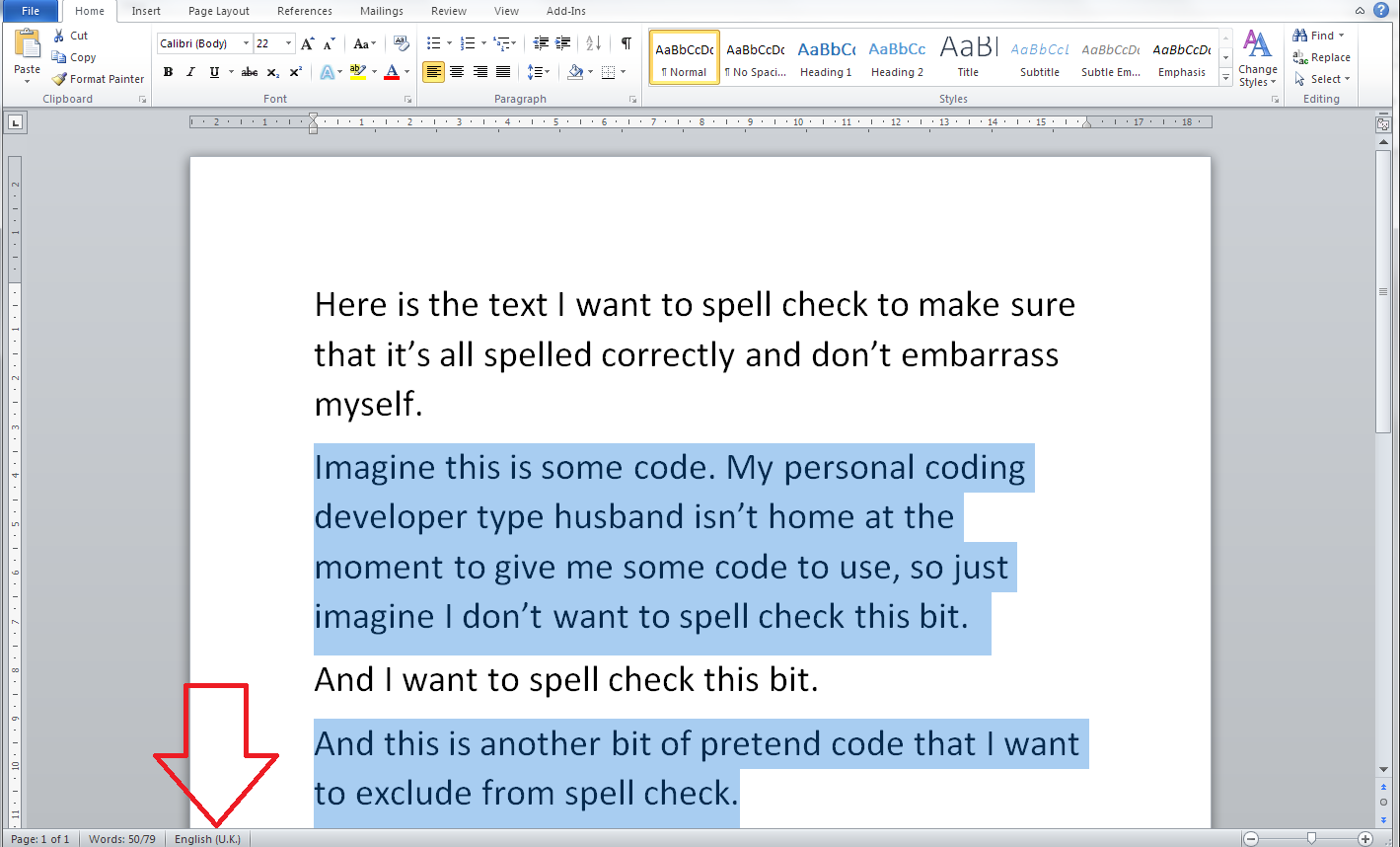
1. The quick way: click on the language at the bottom of your screen:

Select text to exclude from spell check

If the editing language is not showing at the bottom of the screen, left-click on the bottom tool bar and choose to display language. If that doesn’t work, see this post).

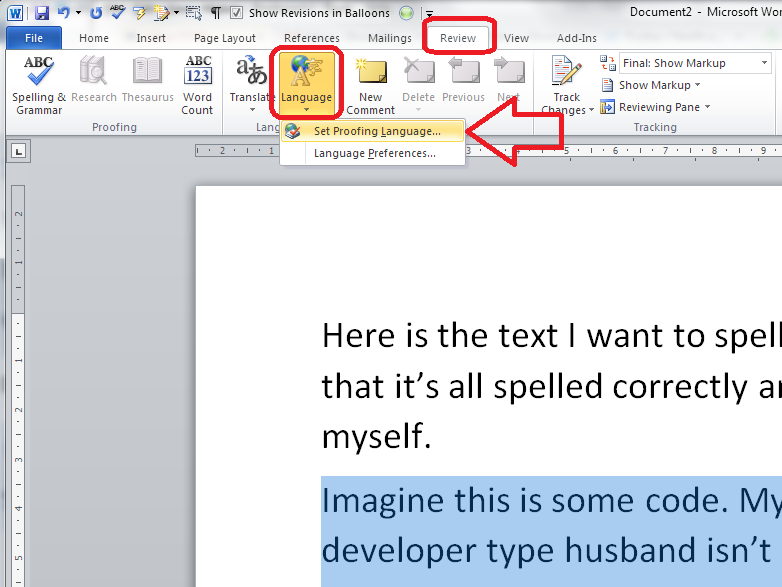
2. The official way: on the Review tab, select Language and then Set Proofing Language (note: don’t click on Spelling and Grammar, as that will spell check the highlighted text, exactly opposite to what you want to happen):

Word language setting

Both of these options will display the Language Selection dialogue box:

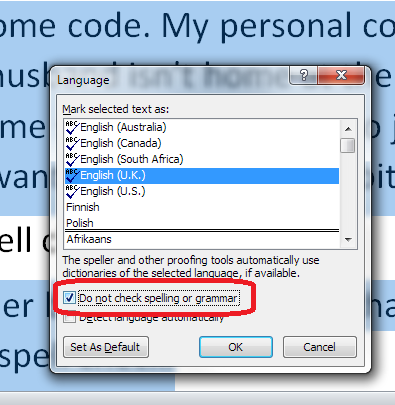
Language selection dialogue box

Once you have the language choices displaying, tick your language and tick “Do not check grammar and spelling“. That should mark all of the text you highlighted such that the spell checker avoids it. I hope that works for you and takes less than 5 minutes – do let me know!

How do I just spell check one paragraph or section of my document in Word?

Allied to this is the question of how you just check a particular part of your text. Here’s how:

Highlight the text you want to check.

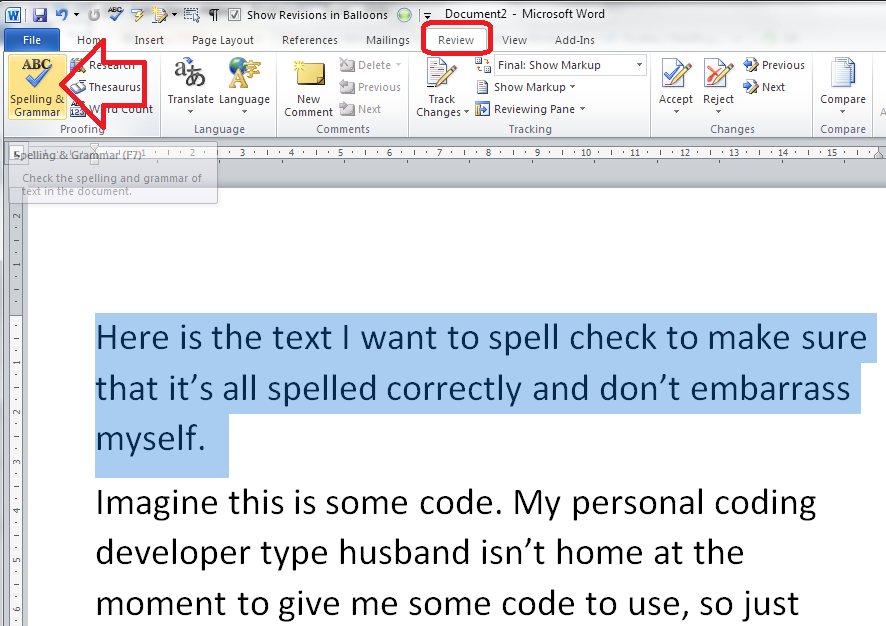
Press the Spell Check button, which you can find in the Review tab:

Spell check one section of a document

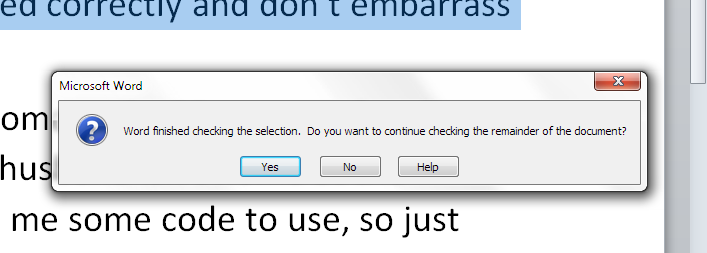
Word will spell check only that highlighted paragraph (or word, if you so choose) and will helpfully ask you if you’d like to continue checking everything else:

Continue spell check?

I hope you’ve found these hints helpful! Do share or pop a comment on this post if I’ve helped you learn something new or solved a tricky problem for you, and do explore the rest of my blog if this is your first visit!

Please note, these hints work with versions of Microsoft Word currently in use – Word 2007, Word 2010 and Word 2013 all for PC. Mac compatible versions of Word should have similar options. Always save a copy of your document before manipulating it. I bear no responsibility for any pickles you might get yourself into!

This is part of my series on how to avoid time-consuming “short cuts” and use Word in the right way to maximise your time and improve the look of your documents. Find all the short cuts here

Related posts on this blog:

How do I use Spell Check in Word 2007 and 2010?

How do I use Spell Check in Word 2013?

How do I change the editing language of my document?

Why do I need to use Spell Check if my work is being edited?

 
2 Comments

Posted by on November 19, 2014 in proofreading, Short cuts, Word


Tags: , , , , , ,

How do I insert clip art in Word 2007, 2010 and 2013 and other Microsoft Office applications?

I have to admit to being a little surprised when I was asked to post about clip art. I hadn’t used it for years, and I was taken back to the old days, when you used to buy a computer magazine with a free floppy disk full of clip art pictures …

However, the very useful point about clip art is that it’s copyright free and so simple to use: you can pop a MS Office clip art image into your presentation or document and know that you’ve not stolen someone’s work of art (although there are copyright rules about using them in commercial publications).

They’re also not as ‘cartoony’ as they used to be, including photographs as well as drawings, and there are some really good images: I found this great one when I searched for “editor”, for example!

clip art of editor holding book

From MS Word Clip Art

This article applies to Microsoft Office applications such as Word, Excel and PowerPoint. Examples are taken from Word, but the process works in the same way in all applications.

Of course, choosing and inserting your clip art varies between Word (Excel and PowerPoint) 2007/2010 and Word (Excel and PowerPoint) 2013, so if you want the latter, please scroll down a bit to the relevant heading!

How do I use clip art in Word 2007 and Word 2010 and other Microsoft Office software?

Clip art is found in the Insert tab, in the Illustrations area (this is an image from Word 2010; the button in Word 2007 has a slightly different, but recognisable, icon and is in the same place):

Word 2010 insert clip art

Making sure that your cursor is at the point where you want the clip art image to appear, click the Clip Art button:

word choosing clip art

A clip art search area will appear in the right-hand margin. It’s pretty simple: you can enter a search term, and you can also choose which kind of media you are searching for (useful for PowerPoint presentations, for example, or if you only want photographs to illustrate your document):

Word clip art choose format

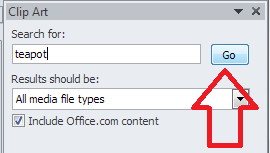
Leaving this on all media, let’s search for “teapot” – pop the word in the search box and click the Go button:

Word clip art search

You should then see a grid of clip art images:

clip art search results

Stop press – you might only find you have the option to search online now – as Microsoft have withdrawn the copyright-free clip art they had offered for so many years. I believe that if you have a standalone version of Word that doesn’t receive updates, the clip art will stay, otherwise you’ll just now have an option to search Bing. Very annoying!

clip art find more

Anyway, back to our 57 teapots (which is surely enough for anyone!). When you’ve found an image you want to insert, double-click on it and it will move into your document:

clip art insert image

You will also notice here that the image is selected and can be enlarged and reduced using the little blocks around the image outline. It can also be moved, if you hover inside the box until an arrow appears.

For more on placing images in text, please see this article.

How do I use clip art in Word 2013 and other Microsoft Office software?

For Office 2013, Microsoft went all online-based, and as a result, the way in which you access clip art changed. Note that these instructions work for both the standalone version of Word 2013 (and other software) if you bought it once, and the subscription version through Office 365 which downloads updates periodically.

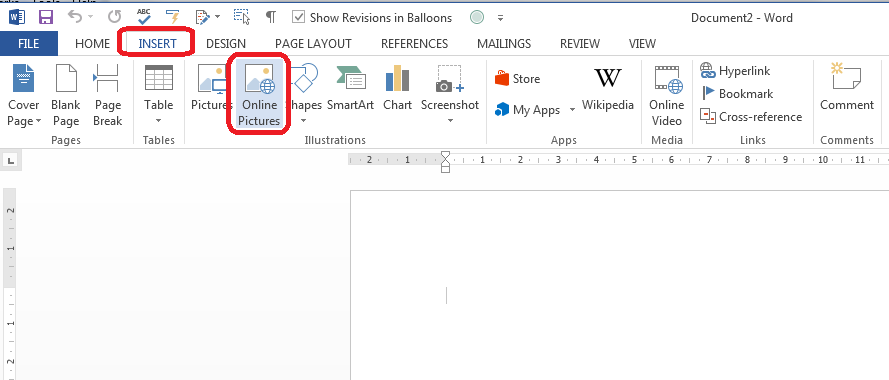
You access clip art from the same menu, on the Insert tab, in the Illustrations area, but it’s now called Online Pictures:

clip art office 2013

Making sure your cursor is in the place where you want your picture to be, click on Online Pictures:

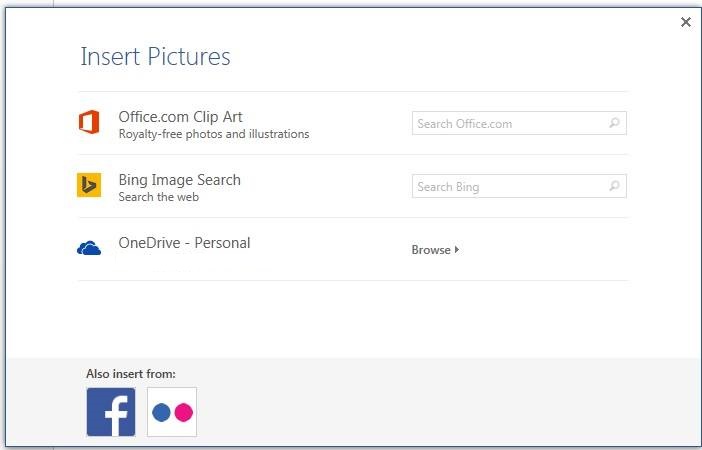
Word 2013 clip art search

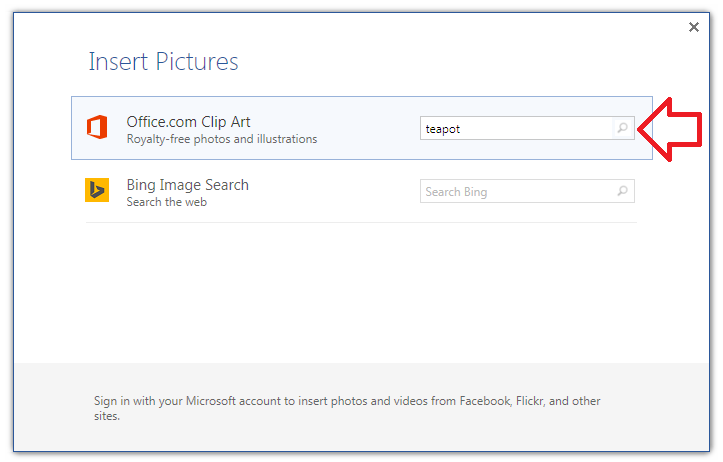
You now have the option to search royalty-free illustrations on the office.com clip art website or do a Bing Image search for general images.

Note Unless you have a completely standalone and isolated version of Word 2013, you will not now have the option to use clip art based within Word itself – you will probably just see Bing search. If you don’t get updates on your version of Word, it’s likely you will still have them, because Word can’t update itself to make them go away. Grrr, frankly.

Because I’m not logged in at the moment, I have the option to sign in with my Microsoft office account. If you are logged in, or do subsequently log in, you will get these additional options – OneDrive, Facebook and Flickr:

Word 2013 image search options if logged in(thanks to Laura Ripper for this screen shot)

To search in clip art, enter the search term “teapot” into the first text box and click on the magnifying glass icon:

Word 2013 clip art search

This will bring up the same results as for Word 2007 and 2010 (interestingly, you can’t differentiate at this stage between different kinds of file to insert, as you can with earlier versions):

Word 2013 clip art resultsDouble-click on the image you want to insert, or single click and click on the Insert button

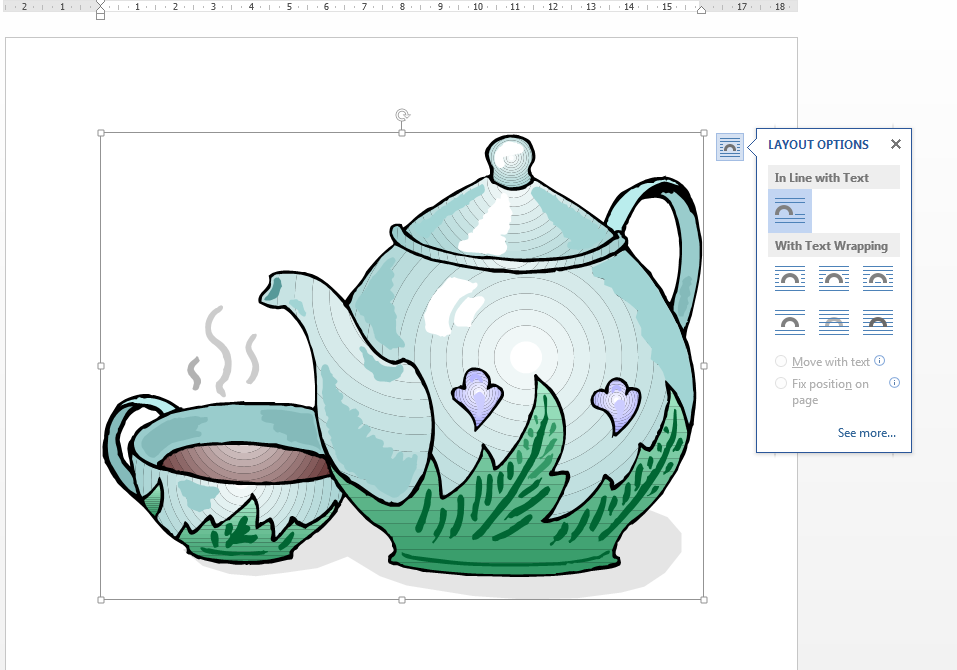
Word 2013 clip art inserted

Note that in Word 2013, not only do you get the frame which allows you to change the image size, but the Layout Options dialogue box also pops out, allowing you to choose where the image sits in any text you might have.

For more on placing images in text, please see this article.

Related posts on this blog

How do I make pictures go where I want them to in Word?

How do I stop the pictures jumping around when I edit a Word document?

———————

This is part of my series on how to avoid time-consuming “short cuts” and use Word in the right way to maximise your time and improve the look of your documents. If you’ve enjoyed the post or found it useful, please use the sharing buttons below to share it via your social media networks – thank you!

Please note, these hints work with versions of Microsoft Word currently in use – Word 2007, Word 2010 and Word 2013 and other Office software for PC. Mac compatible versions of Word should have similar options. Always save a copy of your document before manipulating it. I bear no responsibility for any pickles you might get yourself into!

Find all the short cuts here … and see the full resource guide here.

 
31 Comments

Posted by on November 12, 2014 in Errors, New skills, Short cuts, Word, Writing


Tags: , , , , , , , ,